How to insert audio to a Slide in Google Slides


Elevate your Google Slides presentation with this guide on seamlessly incorporating audio for enhanced engagement.
Captivating presentations go beyond visuals, and adding audio can elevate your slides to new heights. Google Slides allows you to seamlessly integrate audio, transforming your presentation into a multimedia experience. In this guide, we'll take you through the step-by-step process of inserting audio into your Google Slides presentation, giving your audience an engaging and immersive experience.
How to insert audio to a Slide in Google Slides
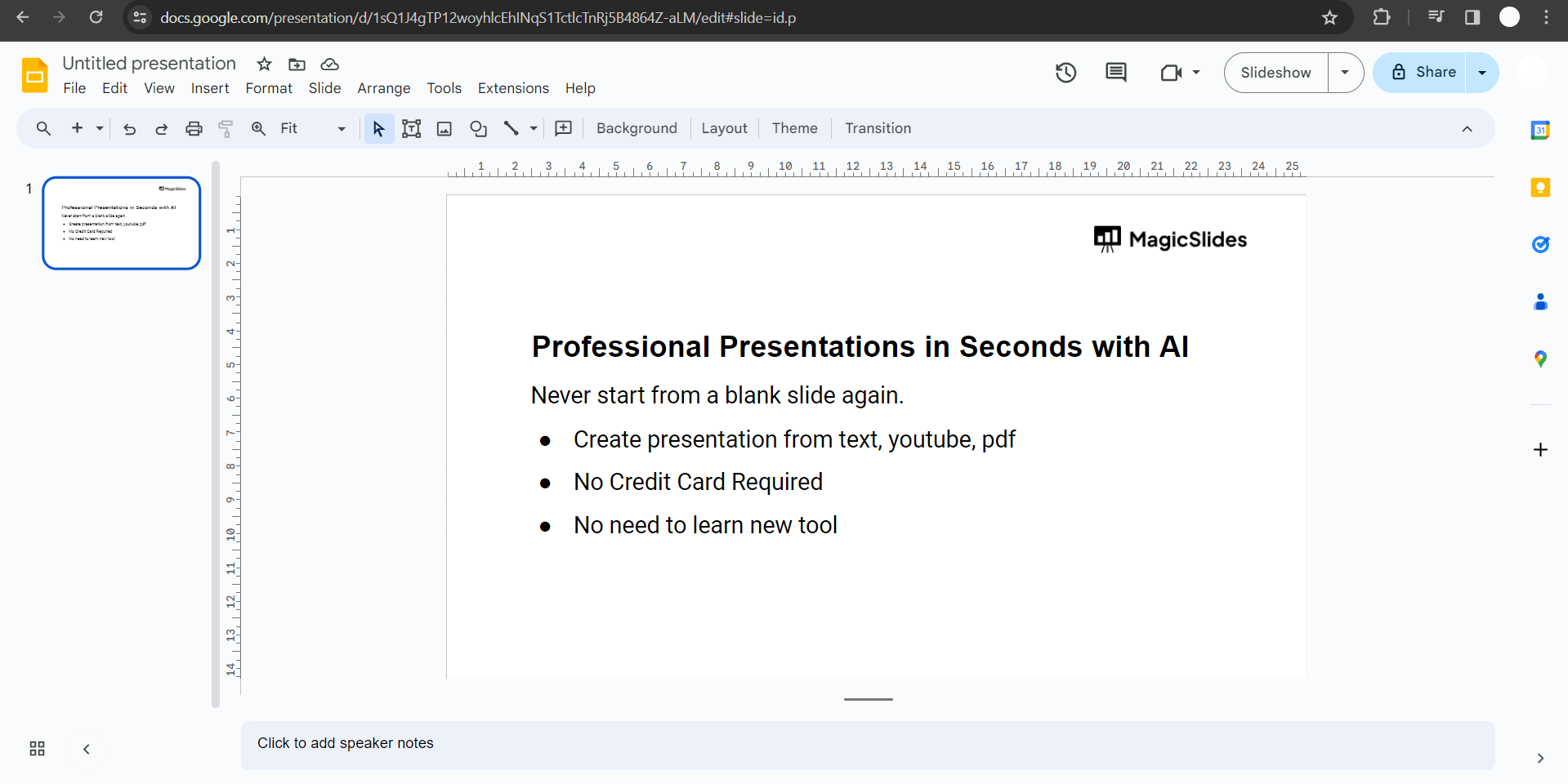
Step 1: Open Your Google Slides Presentation
Begin by opening the Google Slides presentation where you want to add audio. Navigate to the specific slide where you'd like the audio to play.
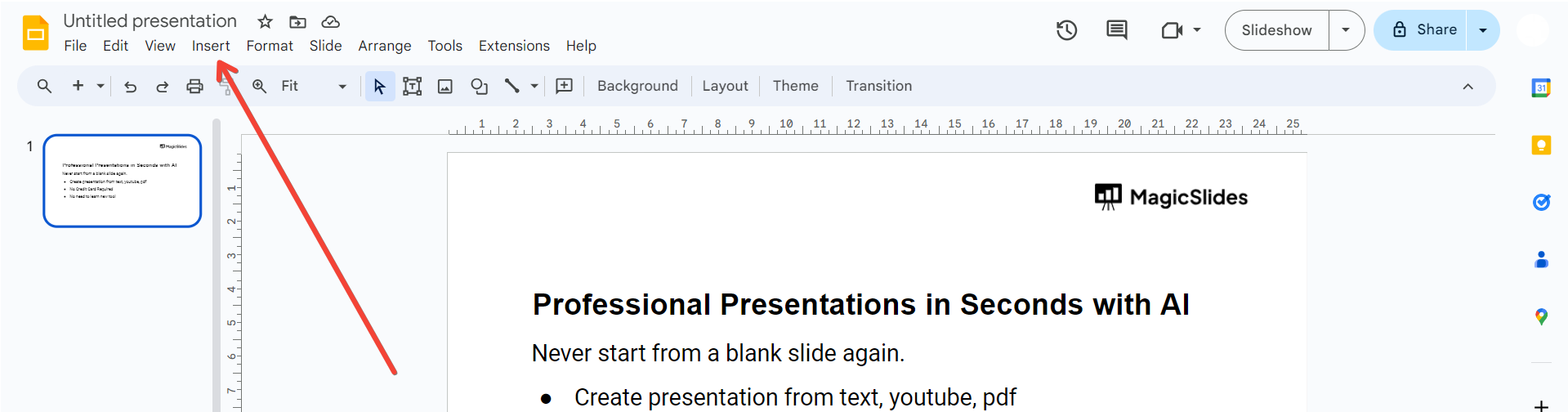
Step 2: Click on "Insert" in the Menu Bar
Located in the top menu, click on "Insert." A dropdown menu will appear with various options.
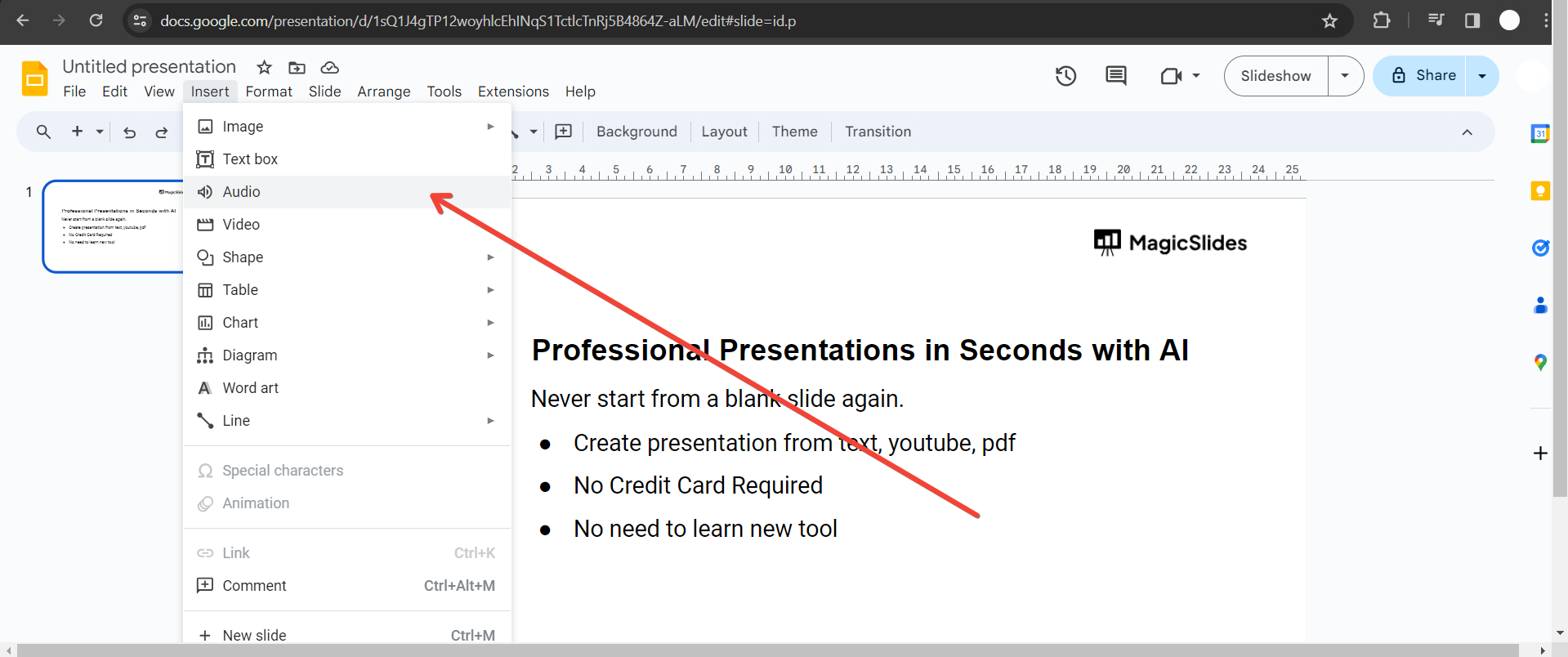
Step 3: Choose "Audio" from the Dropdown Menu
Select "Audio" from the dropdown menu. You'll have the option to either insert audio from your Google Drive or upload an audio file from your computer.
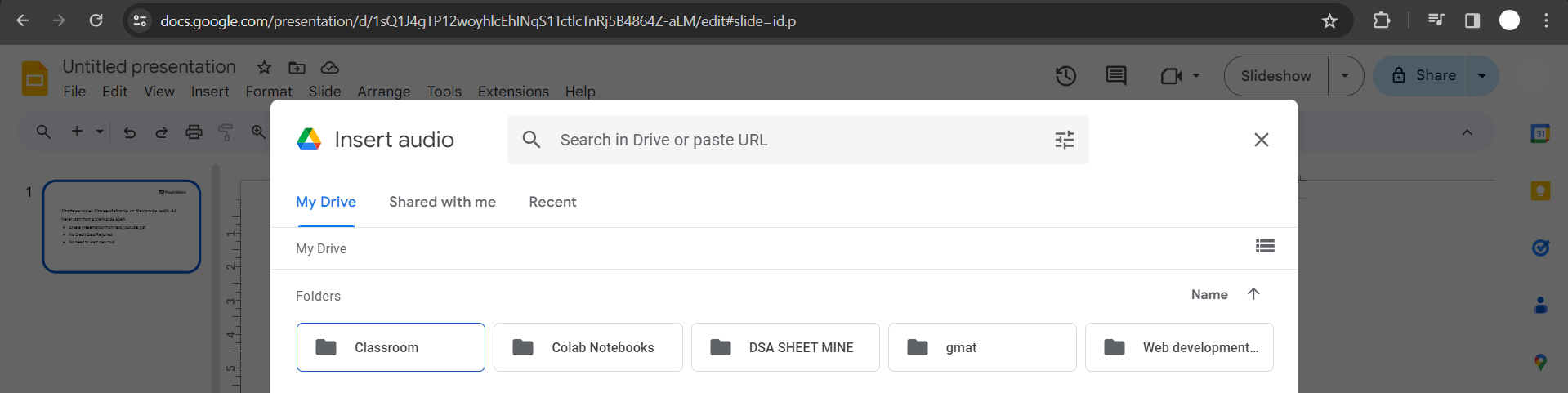
Step 4: Select Your Audio File
If you're using Google Drive, choose the audio file you want to insert. If you're uploading from your computer, click "Upload" and select the desired audio file.
Step 5: Adjust the Audio Settings
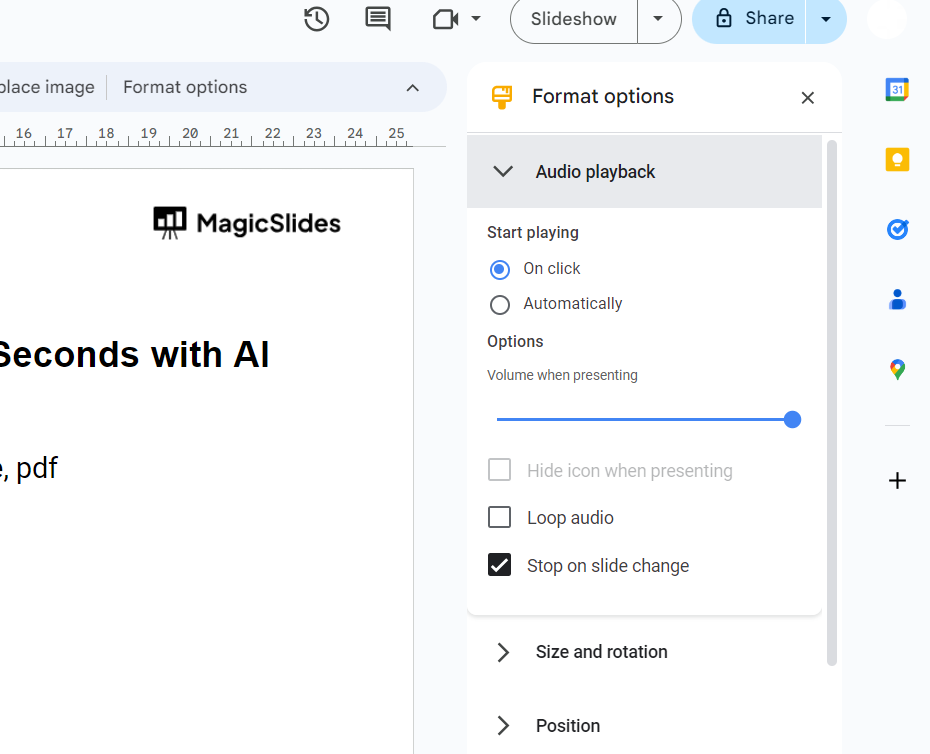
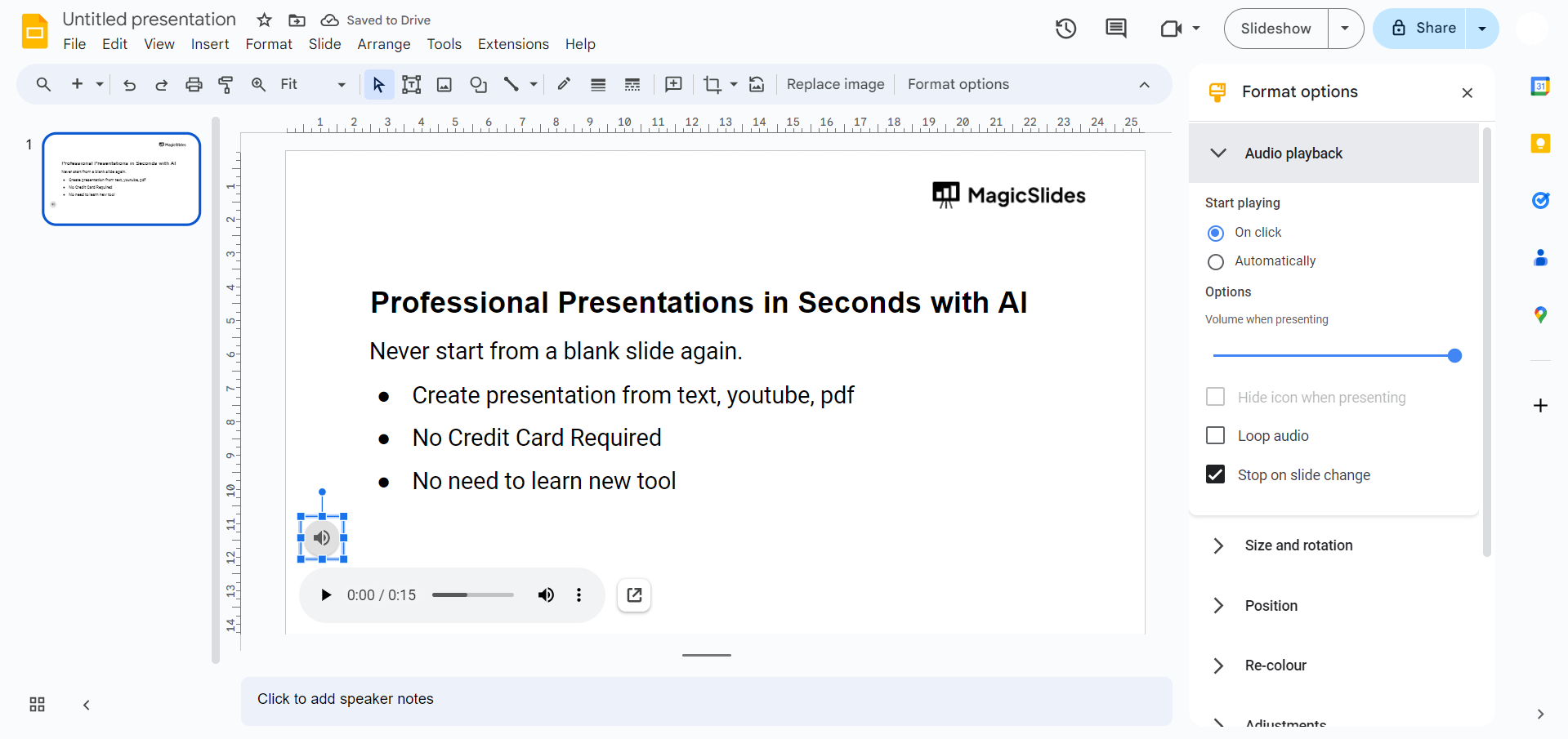
Once the audio is inserted, you can click on it to reveal additional options. Adjust settings such as playback options, volume, and whether the audio should play automatically or upon clicking.
Step 6: Test the Audio
To ensure everything is set up correctly, play the audio directly from the slide. This step ensures that the timing and volume are as desired.
Conclusion:
By incorporating audio into your Google Slides presentation, you breathe life into your content, creating a dynamic and engaging experience for your audience. This step-by-step guide empowers you to seamlessly integrate audio, allowing you to enhance storytelling, reinforce key points, or set the mood. Elevate your presentations to a new level of impact with the simple yet powerful addition of audio in Google Slides. Your audience will appreciate the multimedia richness, making your message more memorable and compelling.
Frequently Asked Questions:
Can I use any audio file format in Google Slides?
Google Slides supports MP3 and WAV formats for audio files, ensuring compatibility for your presentations.
Is there a limit to the duration of audio in a slide?
Yes, Google Slides has a limit of 50 MB per presentation for audio files.
Can I control when the audio plays during the presentation?
Absolutely. Google Slides allows you to set playback options, including automatic or manual initiation.
Can I add narration to specific slides rather than continuous audio?
Yes, you can insert audio on individual slides, tailoring narration to specific points in your presentation.


