what are speaker notes in powerpoint


Got doubts on notes or speaker notes in powerpoint? let’s explore what are speaker notes in powerpoint here.
PowerPoint, one of the most widely used presentation software tools, offers a variety of features to help you create impactful and engaging presentations. One such feature that can be a game-changer for presenters is "Speaker Notes." Speaker notes are like your personal cue cards, providing a behind-the-scenes guide to your presentation.
In this blog post, we'll delve into the world of speaker notes in PowerPoint, exploring what they are, how to create them, and how they can elevate your presentation skills. Whether you're a seasoned presenter or a novice, these notes will become your secret weapon for confident and effective public speaking.
What Are Speaker Notes? Speaker notes, sometimes referred to as presenter notes, are hidden comments or reminders that are not visible to the audience during a slideshow.
They are designed to help the presenter remember key talking points, transitions, anecdotes, and other useful information that might slip one's mind during a live presentation. Speaker notes are an essential tool for keeping you on track and enhancing your overall delivery.
Creating Speaker Notes:
- Open your PowerPoint presentation.
- In the lower section of the PowerPoint window, you'll see the "Normal" view, which includes your slides in the main panel and a section below labeled "Click to add notes."
- Click inside this section, and you can start typing your speaker notes for the corresponding slide.
- You can also access speaker notes in the "Notes Page" view, which provides a larger workspace for creating and editing your notes, you can additionally add comments to the slides as well.
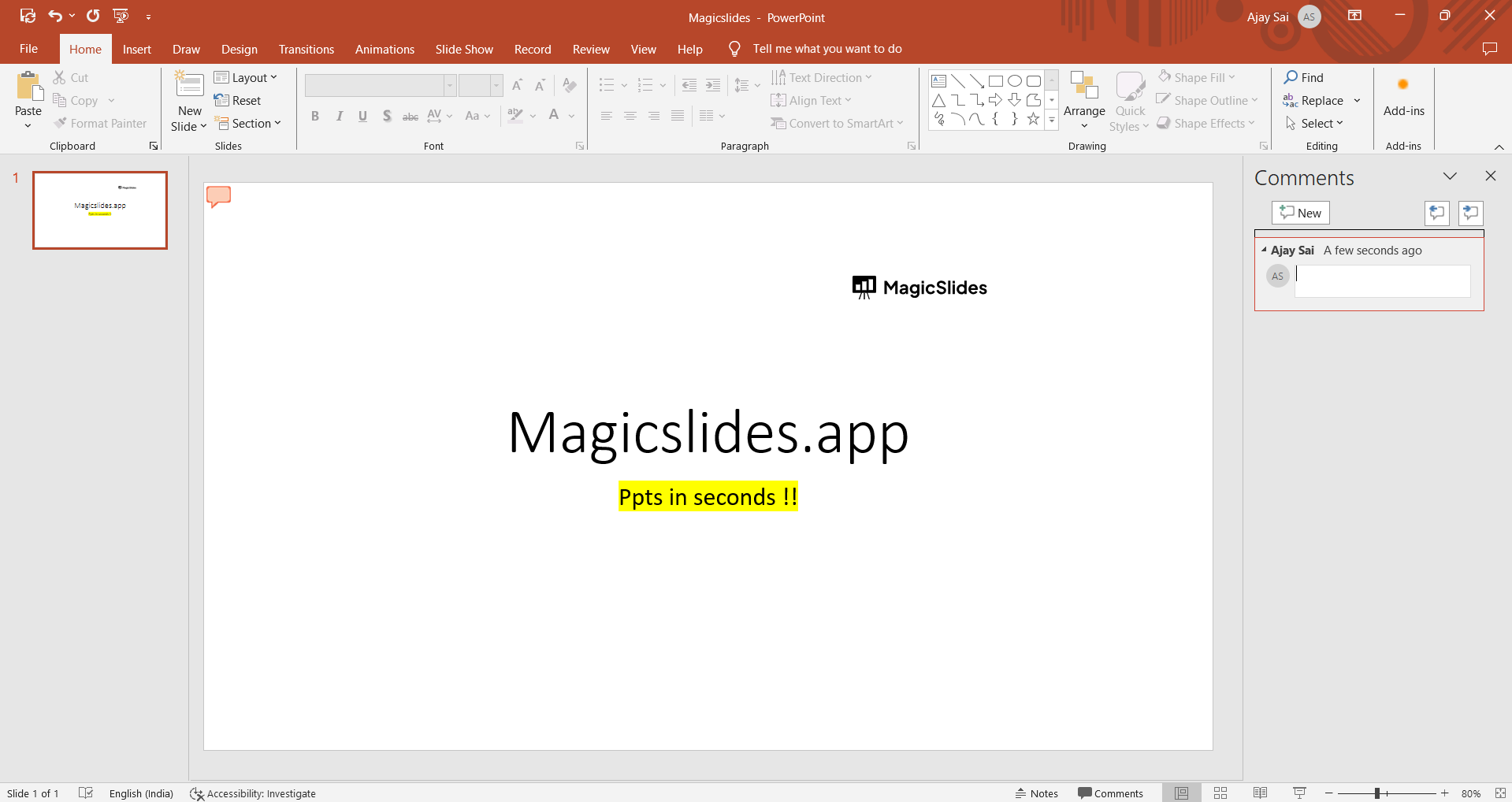
Tailoring Your Speaker Notes:
- Your speaker notes are a personal tool, so feel free to format them as you like. Use bullet points, outlines, or full sentences, depending on your preferences.
- Make sure to include critical details, such as statistics, quotes, or instructions for slide transitions, that will help you deliver a polished presentation.
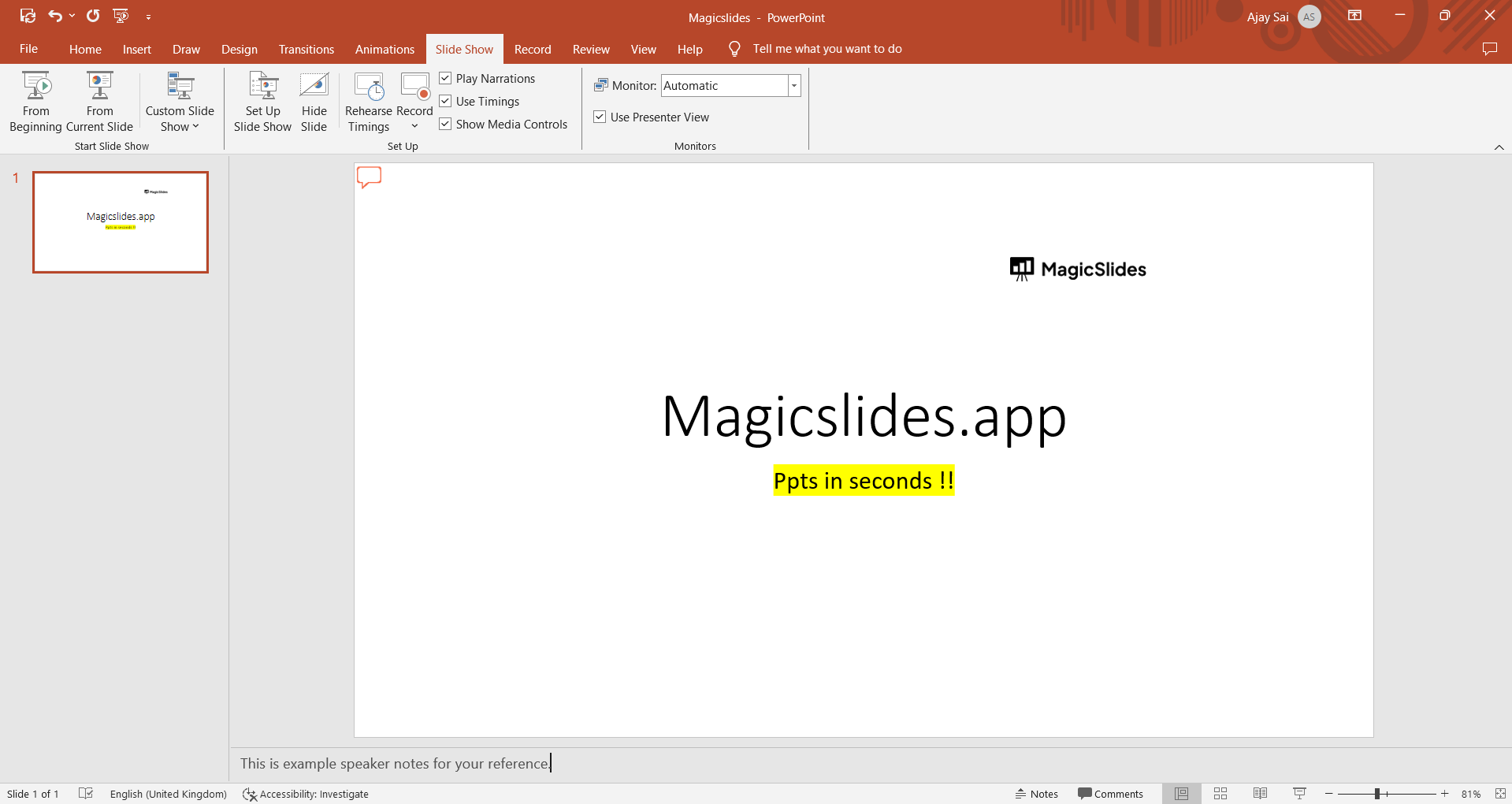
Using Speaker Notes in Presenter View:
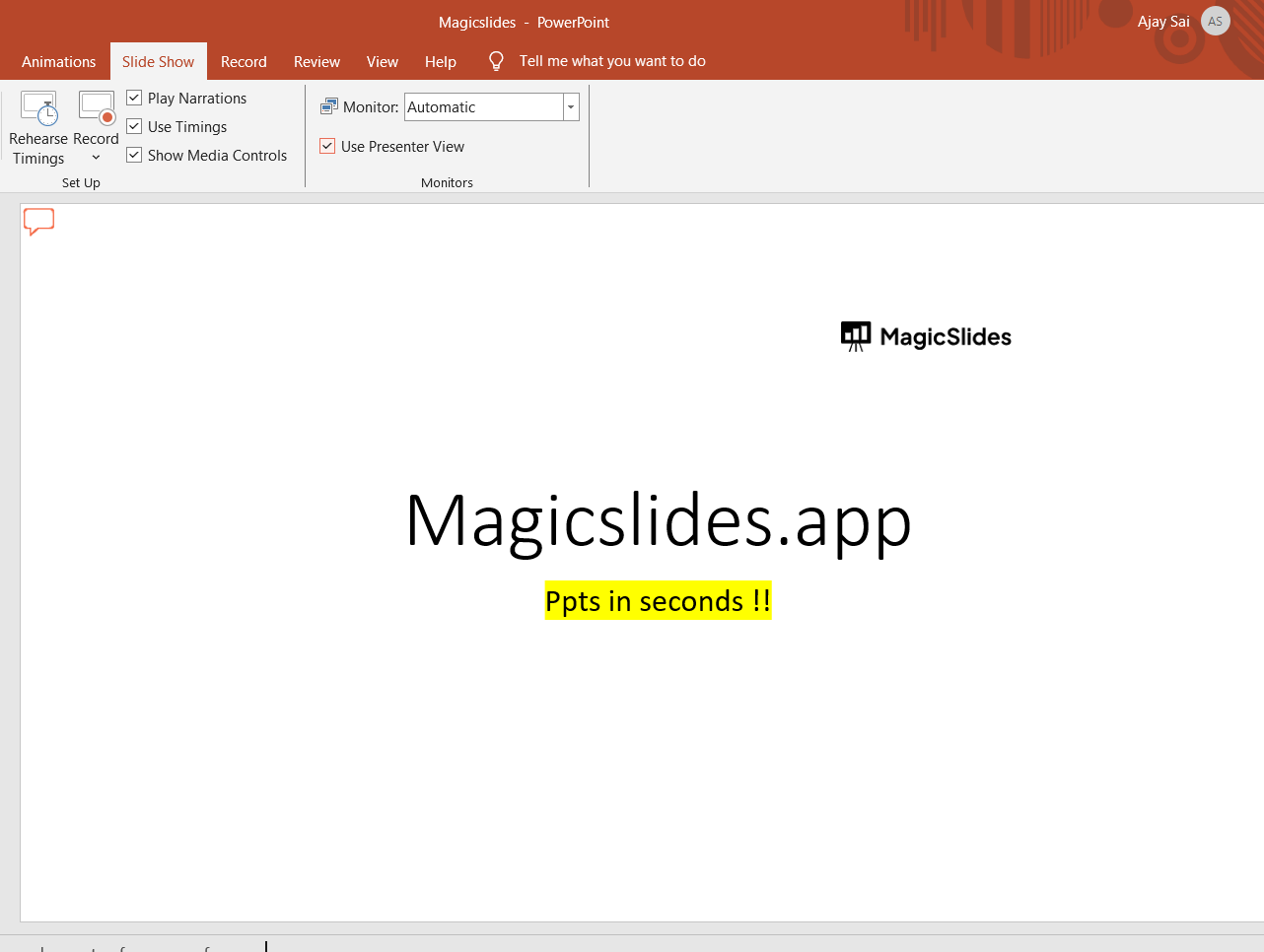
- If you're using a second monitor while presenting, the Presenter View option can be invaluable.
- Go to the "Slide Show" tab, click on "Presenter View," and your primary screen will display only the slides, while your secondary screen (usually your laptop) will show the slides along with your speaker notes.
Conclusion: Speaker notes in PowerPoint are an often-underutilized feature that can greatly enhance your presentation skills. They act as your personal guide, ensuring that you stay on message and deliver a seamless presentation.
Whether you're sharing your insights in a business meeting, teaching a class, or giving a public speech, speaker notes will boost your confidence and keep your audience engaged.
By following the steps outlined in this guide, you can harness the power of speaker notes to become a more effective and impactful presenter. So, don't hesitate to integrate this tool into your next presentation to take your public speaking to the next level.


