How to make a PowerPoint presentation into a video


Revolutionize your presentations! Learn to effortlessly transform PowerPoint into compelling videos with this step-by-step guide.
Uncover the full potential of your PowerPoint presentation by converting it into a captivating video. In this guide, we'll walk you through the process, from opening your presentation to choosing video quality and exporting the final masterpiece.
How to make a PowerPoint presentation into a video
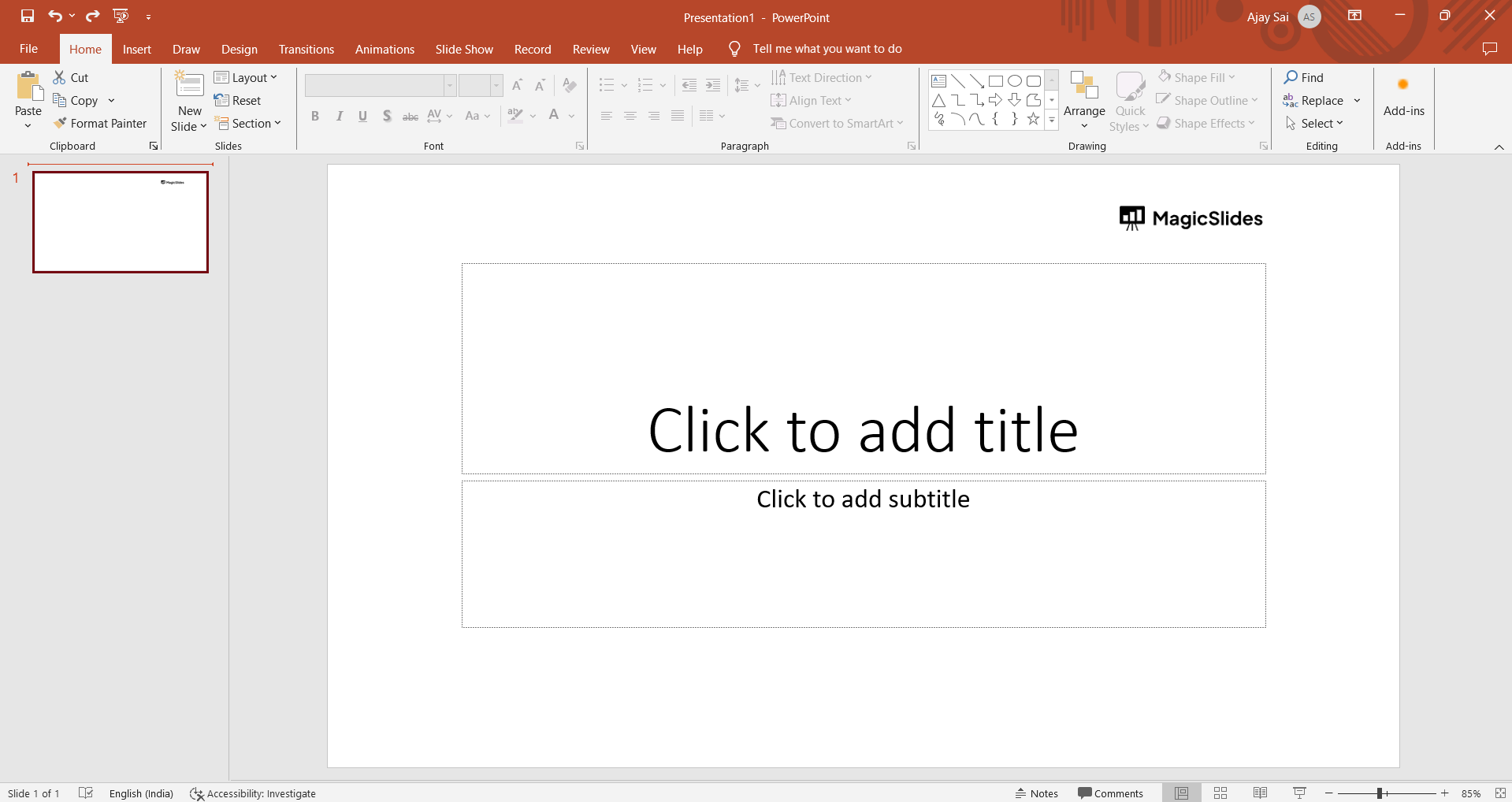
1. Open Your PowerPoint Presentation:
- Launch your existing PowerPoint file and navigate to the "File" tab in the top-left corner.
2. Access the Export Options:
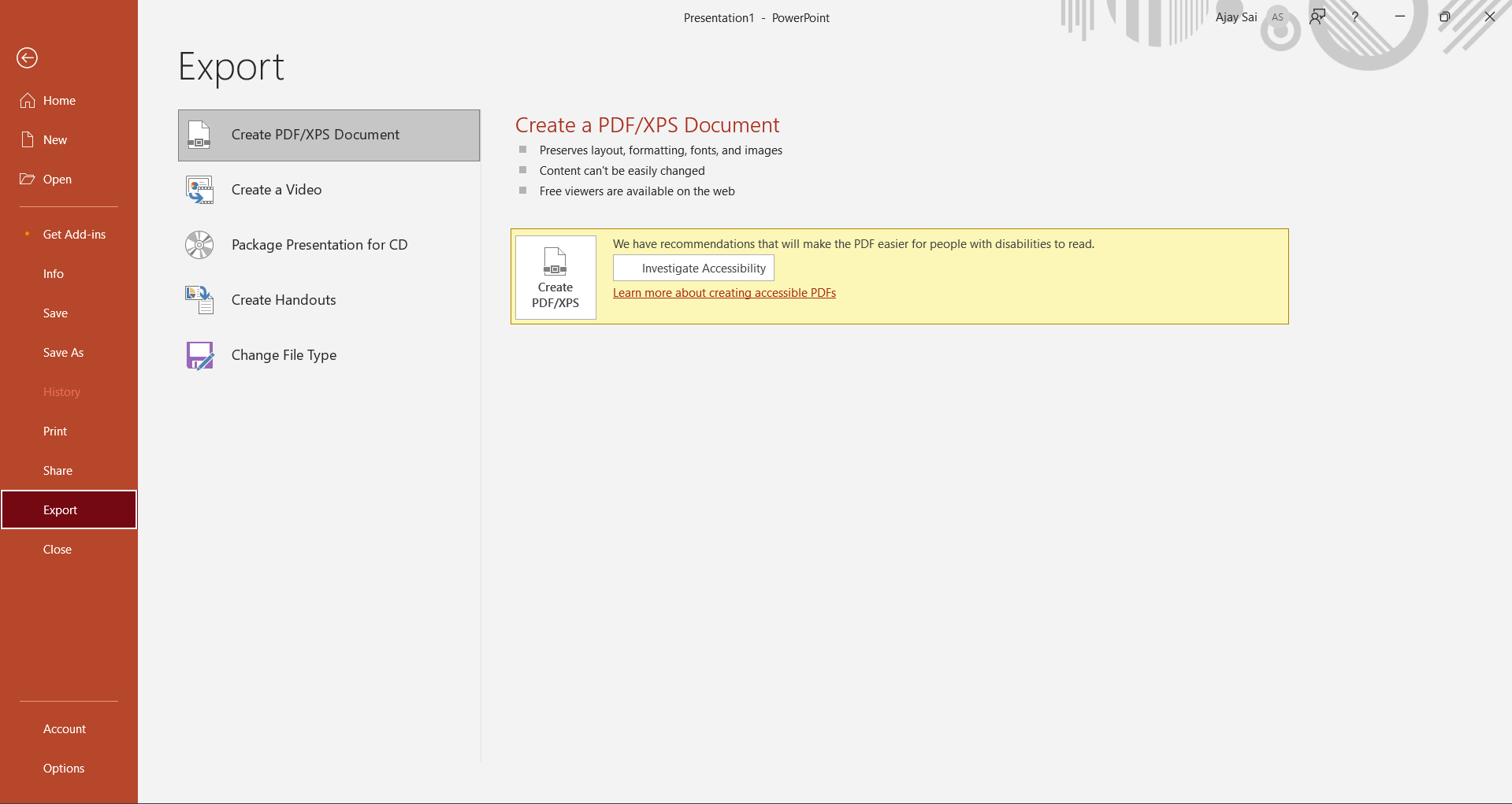
- Click on "Export" in the left-hand pane, then select "Create a Video" to begin the transformation.
3. Choose Video Quality:
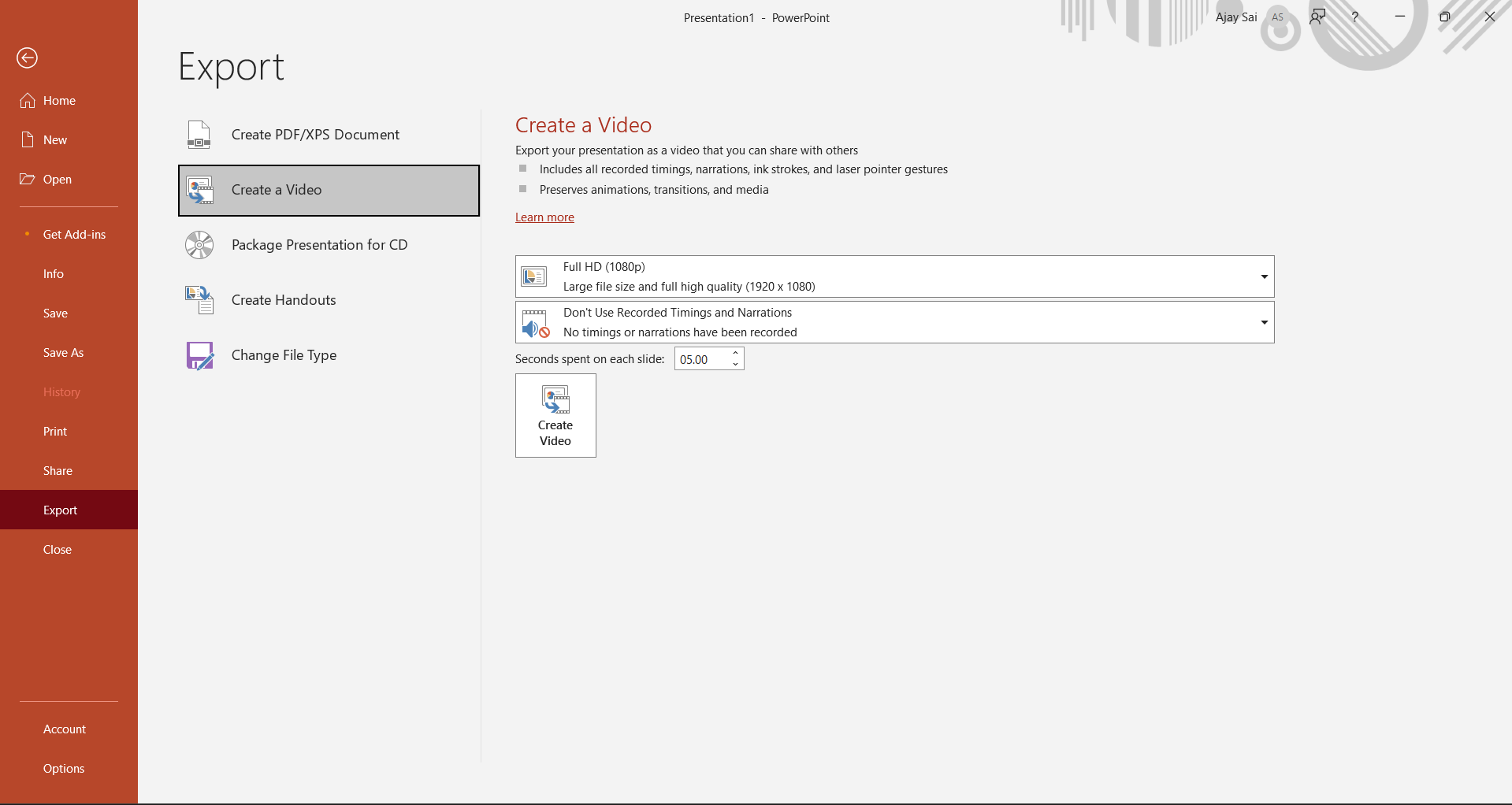
- Opt for Ultra HD (4K), Full HD (1080p), HD (720p), or Standard (480p) based on your preferences.
- Consider factors like file size and video quality when making your selection.
4. Create Your Video:
- Click "Create Video" to initiate the conversion process. PowerPoint will use your selected settings to generate the video.
5. Select Save Location:
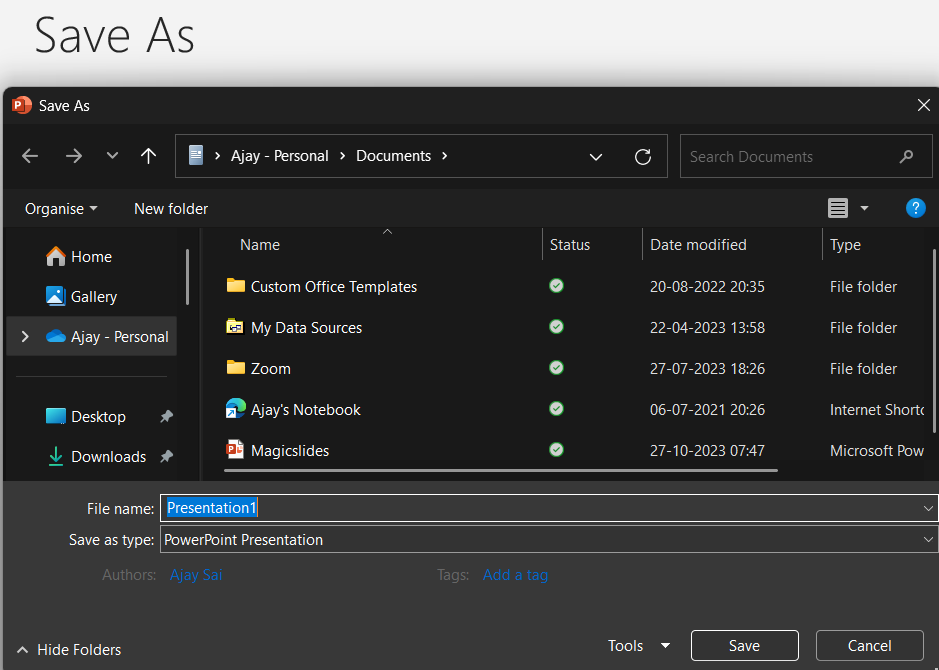
- Choose a location on your computer to save the video. The conversion will commence, and progress is indicated at the bottom of the PowerPoint window.
Conclusion:
Whether for sharing online or enhancing your presentations, this process adds a new layer of versatility to your content. Elevate your presentations and captivate your audience with the power of visual storytelling.
Frequently Asked Questions:
Q: Can I include narrations and timings in my video, and how does it affect the file size?Yes, you can include them. The choice affects file size; consider it when selecting video quality.
Q: Is there a recommended slide timing for creating engaging videos?
Experiment with timing based on your content. Default is 5 seconds; adjust for optimal impact.
Q: How long does it take to convert a PowerPoint presentation into a video?
The duration depends on presentation size and video quality. Monitor progress for timely completion.


