How to make org chart in powerpoint


Craft a clear hierarchy with ease: Learn how to create an impactful organizational chart in PowerPoint.
In the visual landscape of presentations, an organizational chart serves as the backbone, elucidating the structure and hierarchy within a team or company. In this guide, discover the simplicity of crafting a dynamic and informative organizational chart in PowerPoint.
Uncover the steps that will elevate your presentations, adding clarity and visual appeal to your organizational structure.
How to make org chart in powerpoint
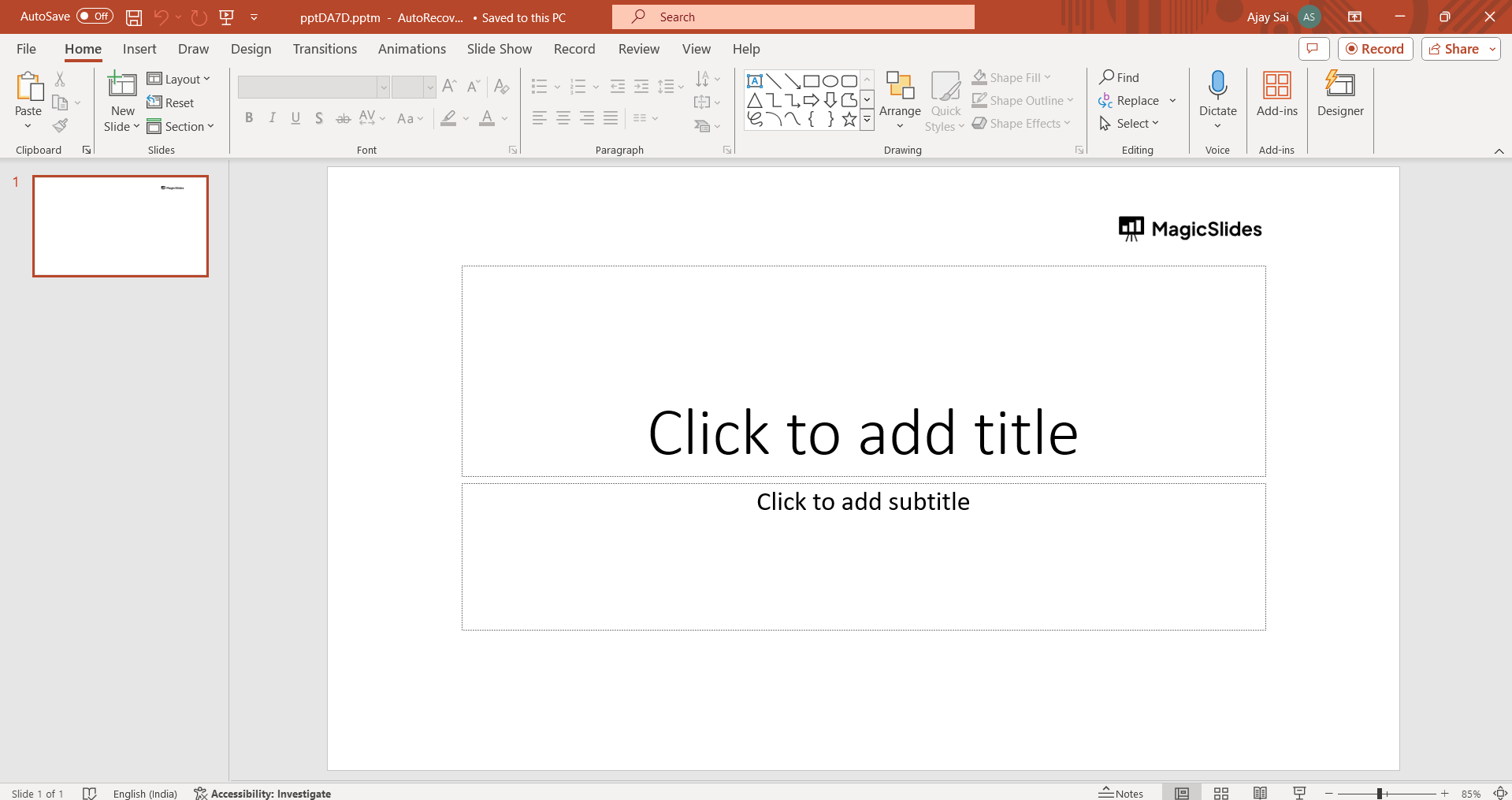
Open PowerPoint:
Launch PowerPoint and open the presentation where you want to add the organizational chart.
Insert a SmartArt Graphic:
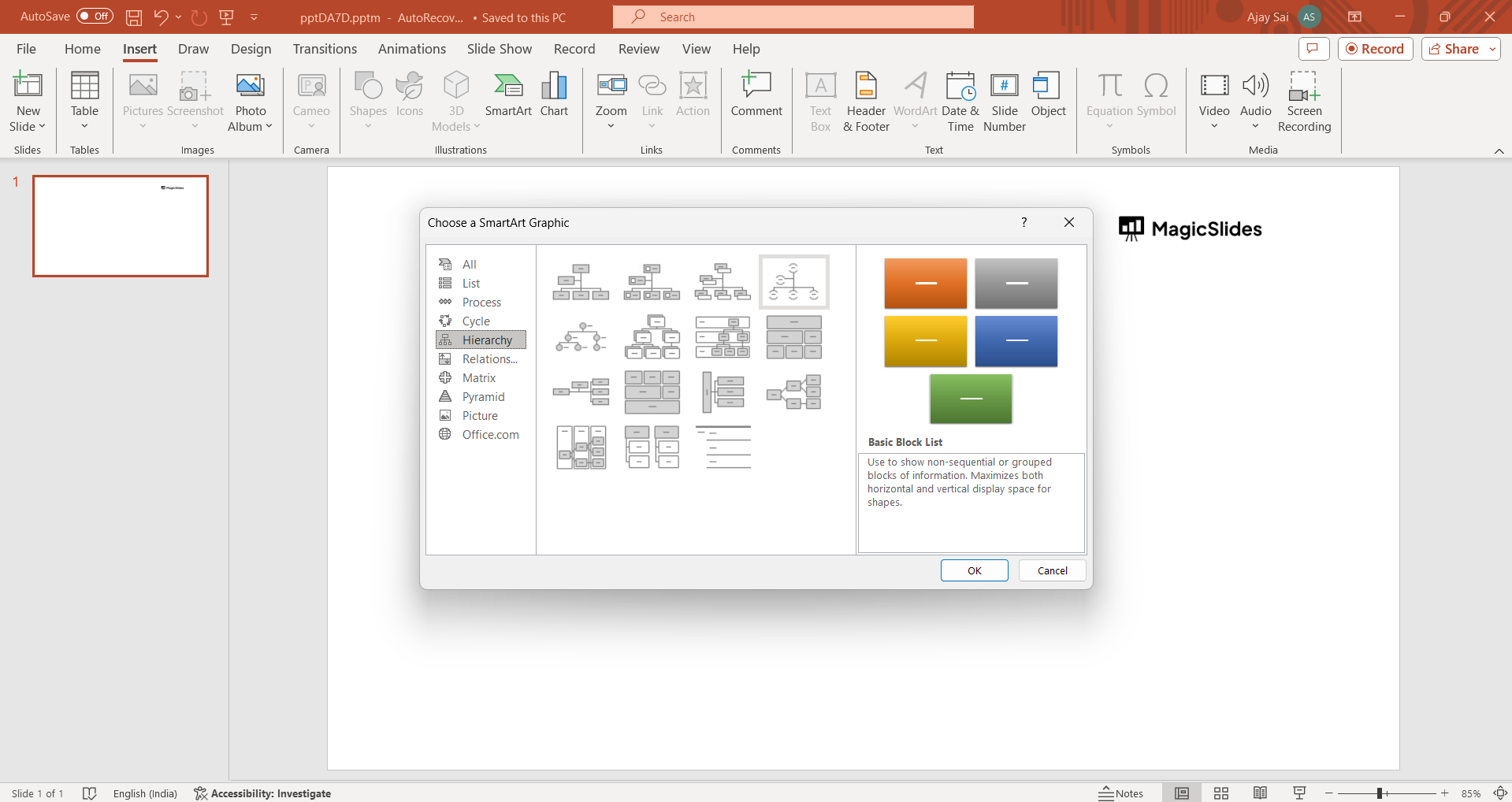
Go to the slide where you want the org chart. Click on the "Insert" tab in the top menu, then select "SmartArt" in the Illustrations group.

Choose an Org Chart Layout:
In the Choose a SmartArt Graphic dialog box, select "Hierarchy" from the left pane. Choose the org chart layout that suits your needs (e.g., "Organization Chart").
Enter Text:
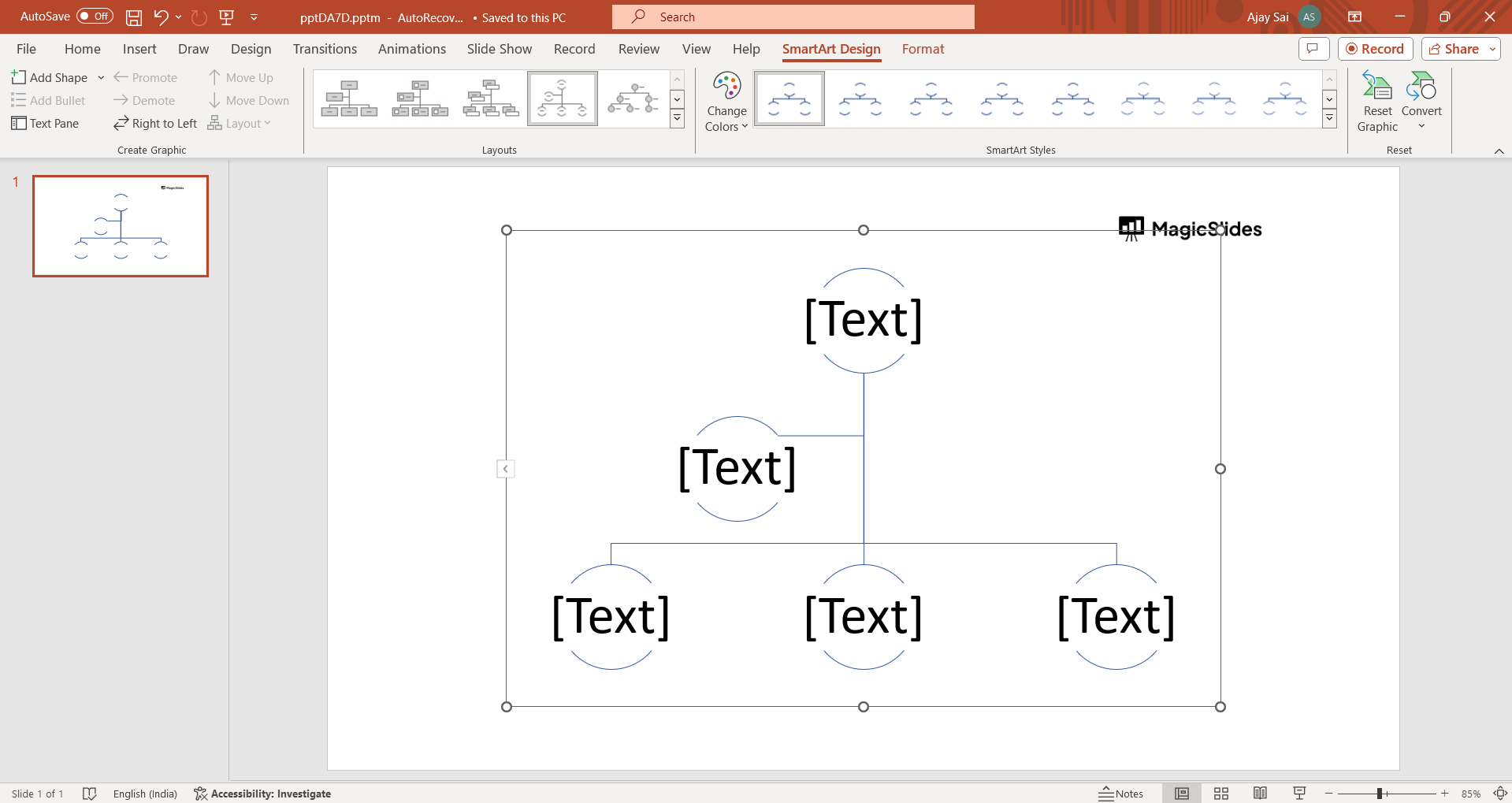
A new graphic will appear on your slide. Enter text directly into the shapes to add names, titles, and positions. To add more shapes, use the "Add Shape" button on the SmartArt Tools Design tab.
Customize Colors and Styles:
Use the SmartArt Tools Design and Format tabs to customize the colors, styles, and formatting of your org chart.
Adjust Layout:
If needed, adjust the layout of your org chart using the "Promote" and "Demote" buttons on the SmartArt Tools Design tab. This helps in creating sub-levels and maintaining the hierarchy.
Resize and Rearrange:
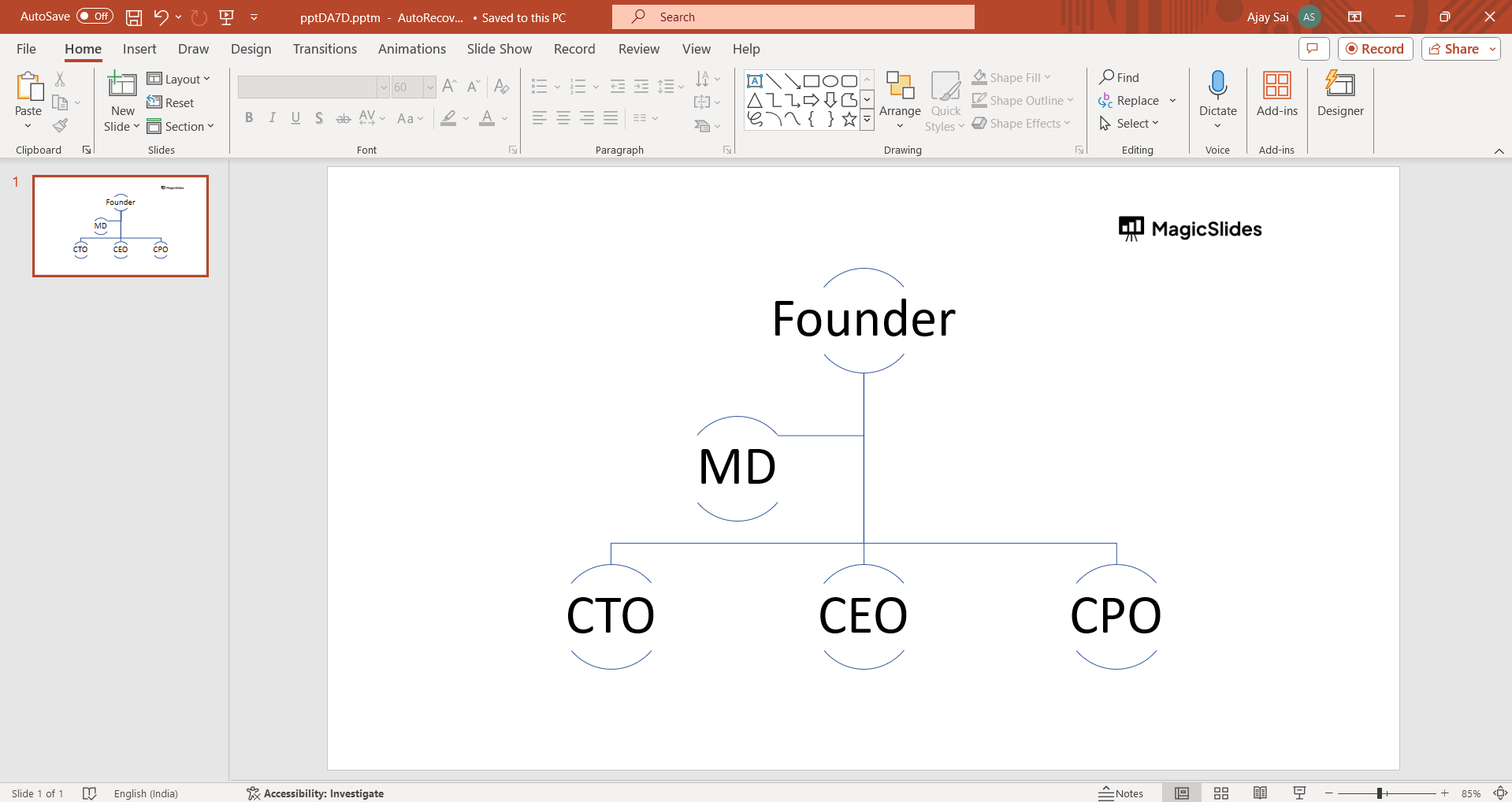
Resize and rearrange the shapes by clicking and dragging. Use the align and distribute options to ensure a neat and organized layout.
Save and Present:
Save your PowerPoint presentation. You can now present your organizational chart or include it in your slides.
Conclusion:
By following these steps, you can easily create a professional-looking organizational chart in PowerPoint to visually represent the structure of your team or company. As you seamlessly navigate the SmartArt features, your organizational chart becomes not just a diagram but a visual narrative, enhancing communication and understanding within your audience. Elevate your presentations with the impactful clarity of a well-crafted organizational chart.
Frequently Asked Questions:
Q1: Can I customize the appearance of my organizational chart in PowerPoint?Ans: Absolutely! Use the SmartArt Tools Design and Format tabs to adjust colors, styles, and layouts.
Q2: Is it possible to add pictures to the org chart for a more personalized touch?Ans: Yes, you can enhance your org chart by adding pictures. Click on a shape, go to "SmartArt Tools Design," and choose "Add Shape" > "Picture."
Q3: Can I include sub-levels in my organizational chart to show a more detailed hierarchy?
Ans: Certainly! Use the "Promote" and "Demote" options on the SmartArt Tools Design tab to create sub-levels and maintain hierarchy clarity.
Check out these AI Blogs by us:
- How AI Tool For Book Summaries Is Revolutionizing The Way We Absorb Information: https://www.magicslides.app/blog/how-ai-tool-for-book-summaries-is-revolutionizing-the-way-we-absorb-information
- The Future Of Web Analytics: Exploring The Role Of AI: https://www.magicslides.app/blog/the-future-of-web-analytics-exploring-the-role-of-ai
- 3 Surprising Benefits Of Artificial Intelligence In The Workplace: https://www.magicslides.app/blog/3-Surprising-Benefits-of-Artificial-Intelligence-in-the-Workplace


