How to send gifs in slack application


Elevate Slack conversations! Discover how to effortlessly send GIFs for added fun and expression.
Communication in the workplace just got a whole lot more animated, thanks to the delightful world of GIFs. If you're a Slack user, you're in for a treat!
In this quick guide, we'll walk through the steps to infuse your conversations with a burst of humor or convey those hard-to-express emotions by seamlessly integrating GIFs into your Slack messages.
Before we begin, if you are looking to send Google form submissions directly to Slack, check SlackNotify.app. It will include all info submitted and sent directly to the Slack channel of your choice
Let's dive into the easy and fun process of sending GIFs and elevate your team communication game.
How to send GIFs in slack application
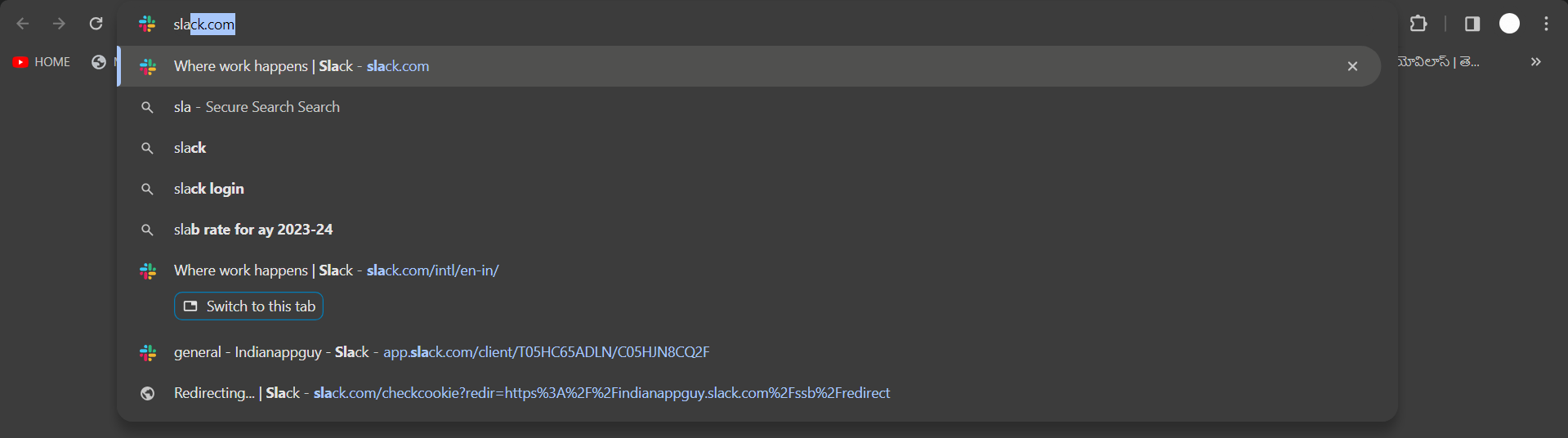
Open your Slack application:
Launch the Slack application on your desktop or open the Slack workspace in your web browser.
Select the Channel or Direct Message:
Choose the channel or direct message where you want to share the GIF.
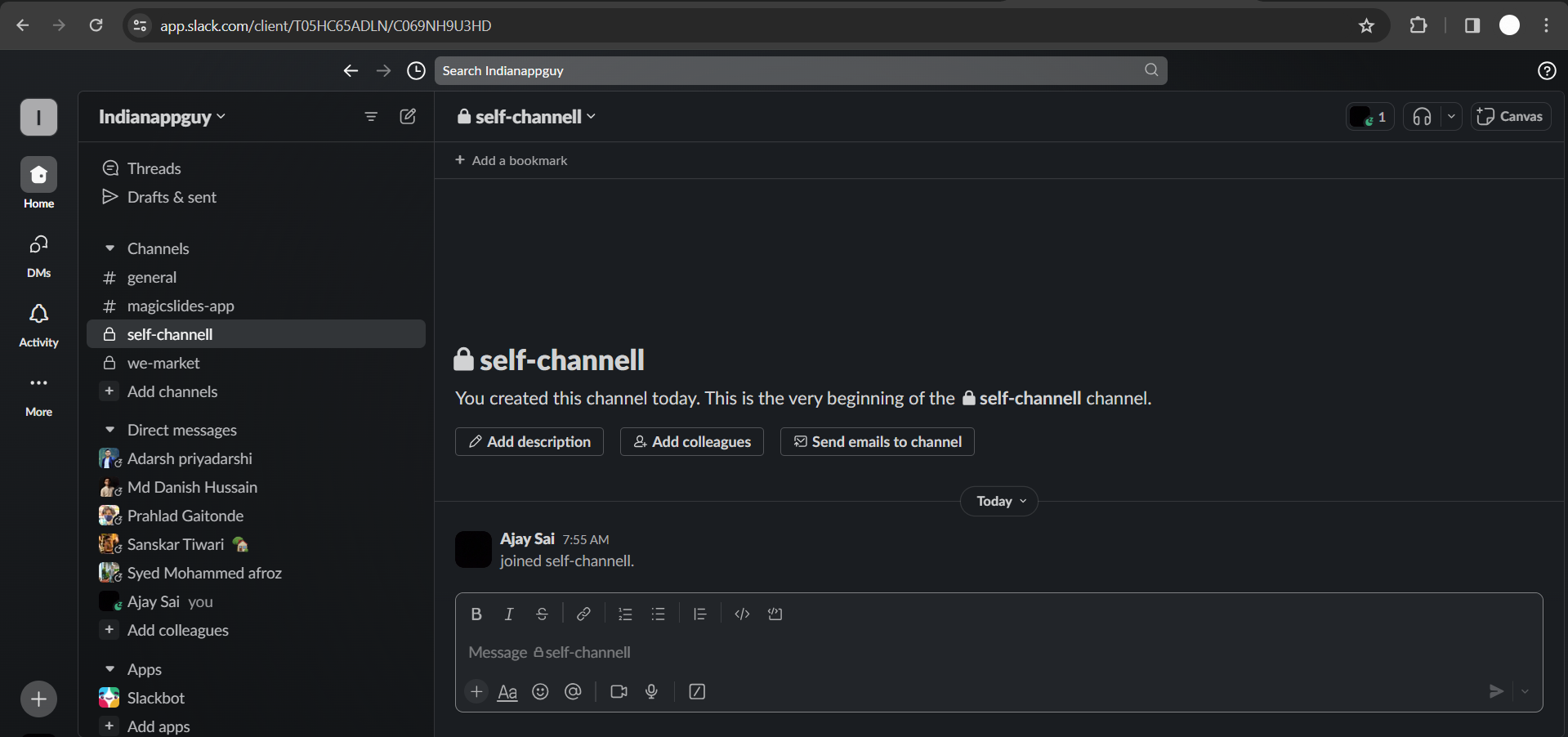
Click on the Emoji Icon:
Below the message input box, you'll find an emoji icon. Click on it to open the emoji menu.
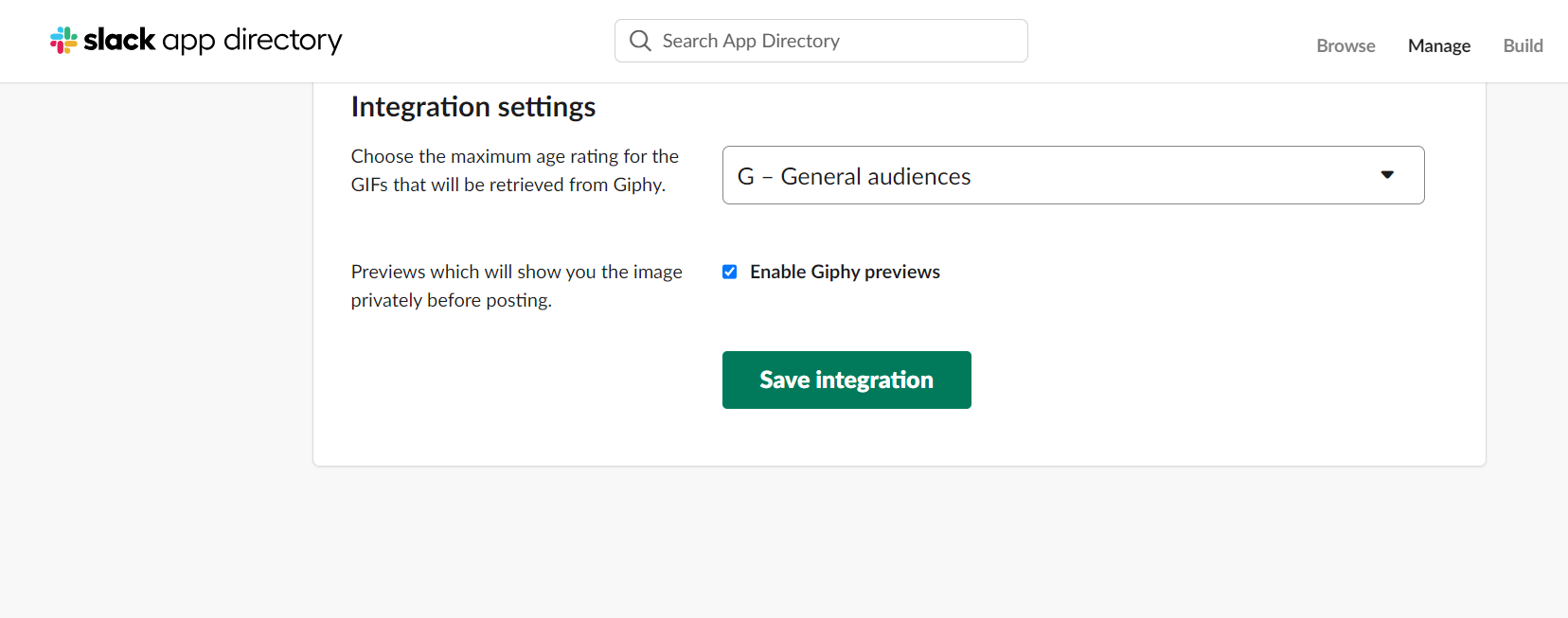
If it is not available you can go to slack directory and add the giphy integration to the slack appliacations so you can start using giphs in either dms or channels.
Choose the GIF Option:
In the emoji menu, there should be a GIF option. Click on it, and you'll be directed to the GIPHY integration within Slack.
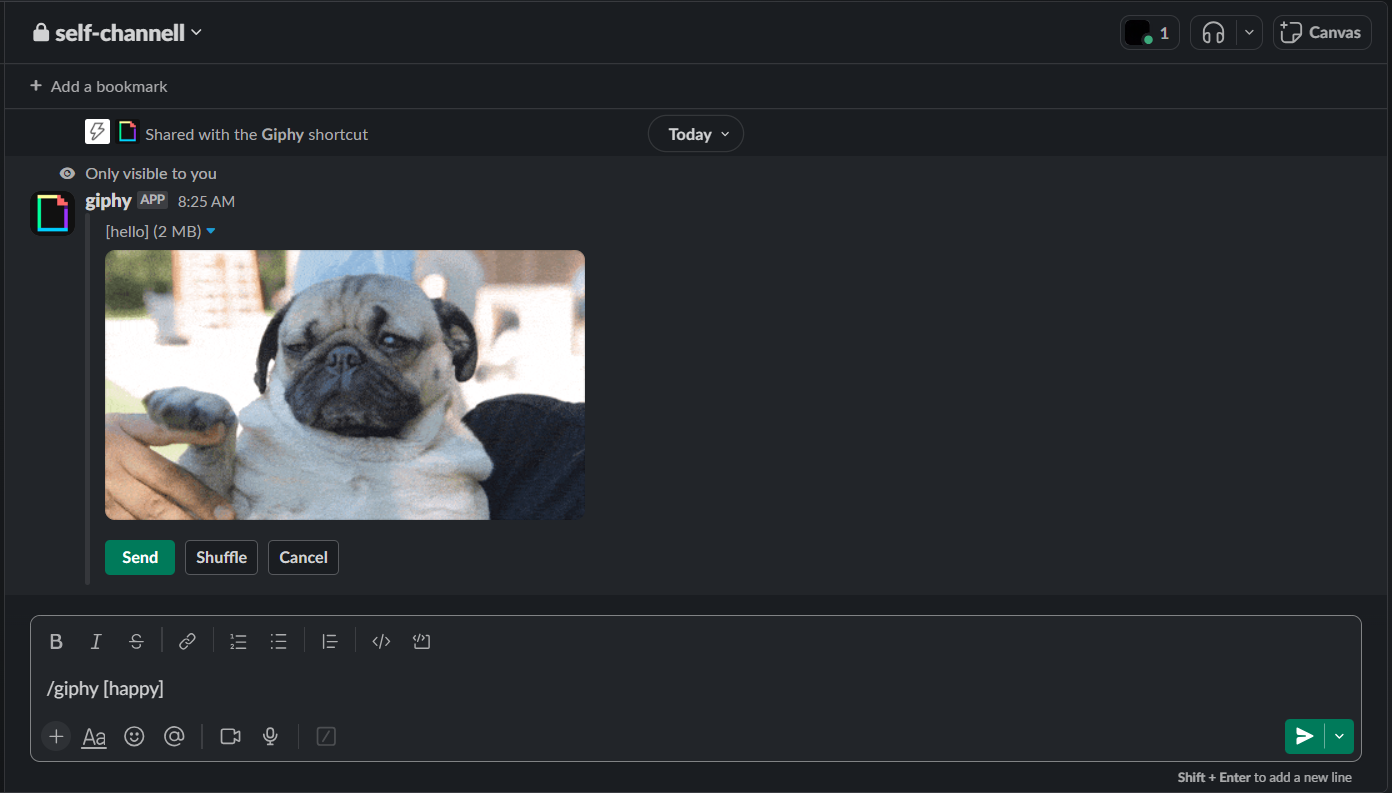
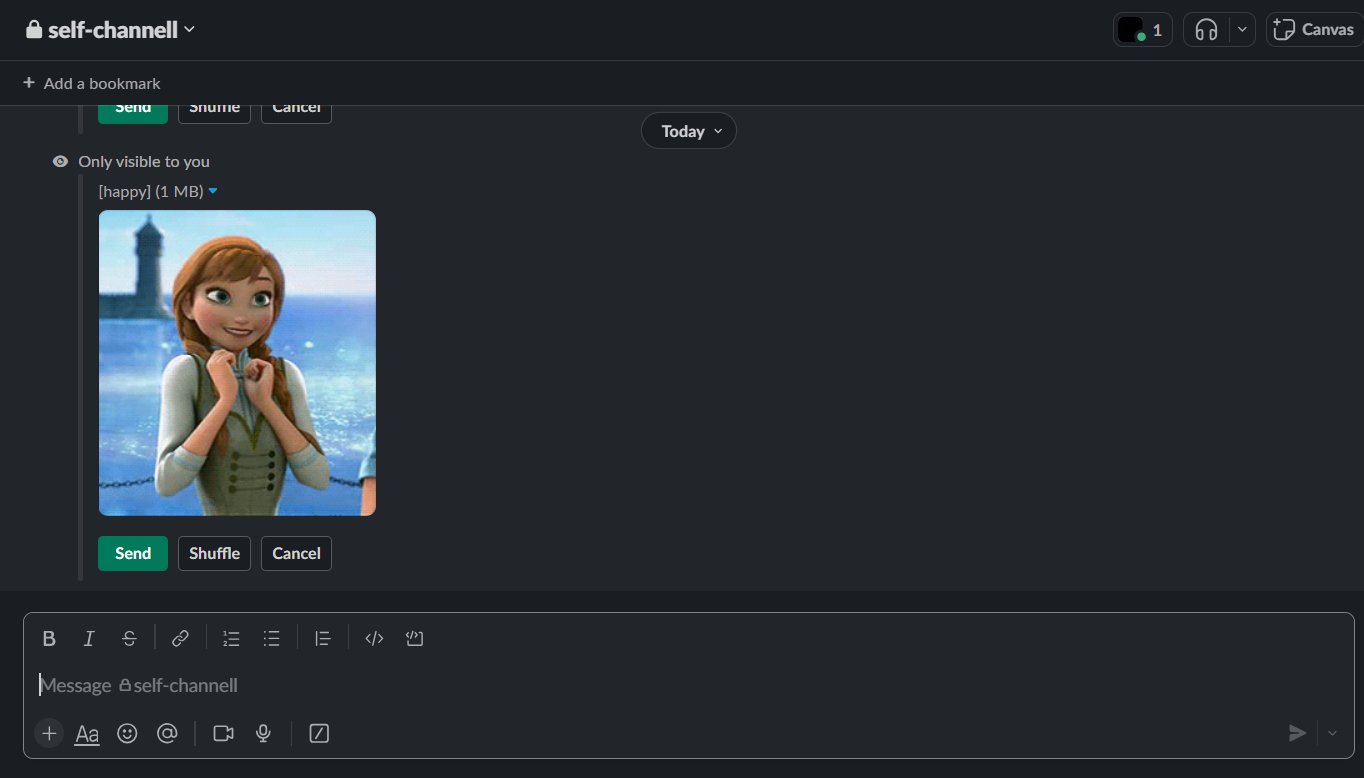
Or you can use the command /giphy [enter gif you want to share].
Search or Browse GIFs:
Use the search bar to find a specific GIF or browse through categories. Click on the GIF you want to share.
Click on enter to send the gif in the channel after entering the command or choose from the list og gifs available.
Send the GIF:
Once you've found the perfect GIF, click the "Send" button. The GIF will be shared in the channel or direct message for everyone to enjoy.
While you're adding GIFs to your Slack messages for fun, don't forget to set up Google Form to Slack notifications. This will ensure that every time a form is submitted, your team is notified instantly, keeping work and play balanced
Pro Tip 💡:
Beyond mere expressions, leverage GIFs strategically in Slack to boost team morale.
Whether it's celebrating achievements, injecting humor into discussions, or offering a virtual high-five, a well-timed GIF can foster a positive and connected team culture.
Keep it relevant, light-hearted, and watch how these animated snippets can turn mundane conversations into memorable moments, enhancing overall team dynamics.
Conclusion 💁♂️:
With the ability to effortlessly send GIFs in Slack, you can add a dash of personality to your messages or lighten the mood during those hectic workdays.
Whether it's a celebratory dance, a thumbs-up, or a hilarious reaction, GIFs bring a unique flair to your team conversations.
So, go ahead, explore the vast world of GIFs, and let the laughter and camaraderie flow in your Slack channels. Happy GIF-ing!
Tired of making presentations? what if we tell you you can make a presentation with just a prompt, convert YouTube videos to PPTs, convert website content to PPTs? Yes! checkout magicslides.app that does all and enjoy the free credits to make presentations in seconds.
Frequently Asked Questions 🤔:
Can I use any GIF in Slack, or are there specific ones available?
Absolutely, you're not limited! Slack integrates with GIPHY, offering a vast library of GIFs.
Simply use the GIF option in the emoji menu, and you'll have a plethora of options at your fingertips.
Is there a quick way to find the perfect GIF for my message?
Definitely! Use the search bar in the GIPHY integration to narrow down your options.
Whether it's a reaction, celebration, or just a mood, you'll likely find the ideal GIF with a simple keyword search.
Can I send GIFs in private messages as well as group channels?
Yes, you can! Whether you're in a one-on-one conversation or a bustling group channel, the process remains the same.
Click on the emoji icon, select GIF, and share the laughter or excitement with your chosen audience.


