Addon google slides iconPPT with AISlide TemplatesPPT TemplatesPricingBlog
    PPT with AISlide TemplatesPPT TemplatesPricingBlog
    1. Home
    2. Blog
    3. How to put text over an image in google slides


    How to put text over an image in google slides

    magicslides app

    Published By

    magicslides app
    Mohit Kumar Jha

    Approved By

    Mohit Kumar Jha

    Published On

    July 23th, 2024

    Reading Time

    3 min read

    Transform your Google Slides with text overlays. Elevate visuals by seamlessly adding text to images.

    Overlaying text on an image in Google Slides can enhance the visual impact of your presentations and help convey your message more effectively. Whether you're adding captions, titles, or explanatory text, placing text over images can create engaging slides that captivate your audience's attention. In this guide, we'll explore how to seamlessly achieve this in just a few simple steps.

    How to put text over an image in google slides

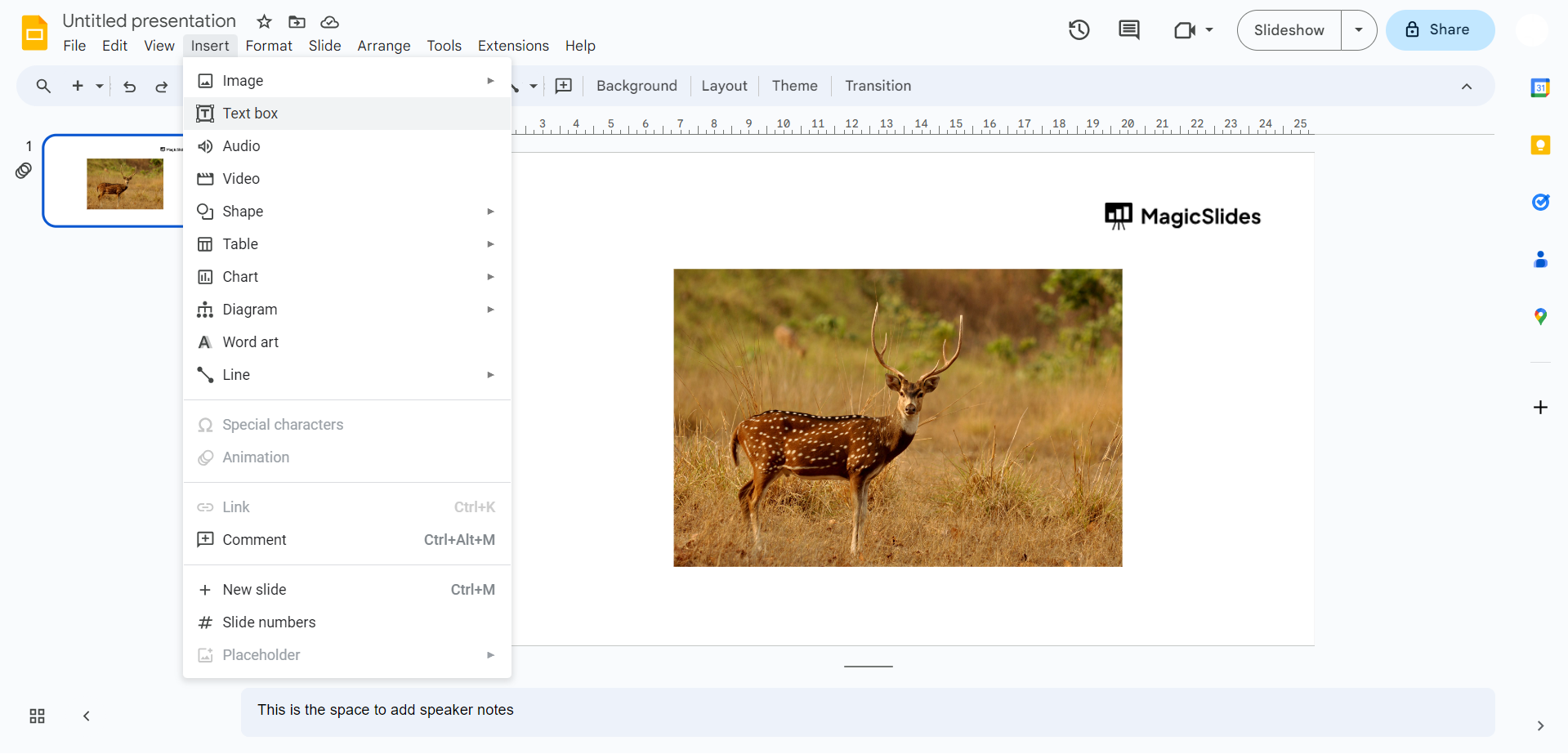
    Step 1: Access the "Text Box" Option

    Initiate the process by navigating to the toolbar situated under the menu bar. Locate and click on the "Text box" option, the gateway to effortlessly incorporating text into your images.
    notion image

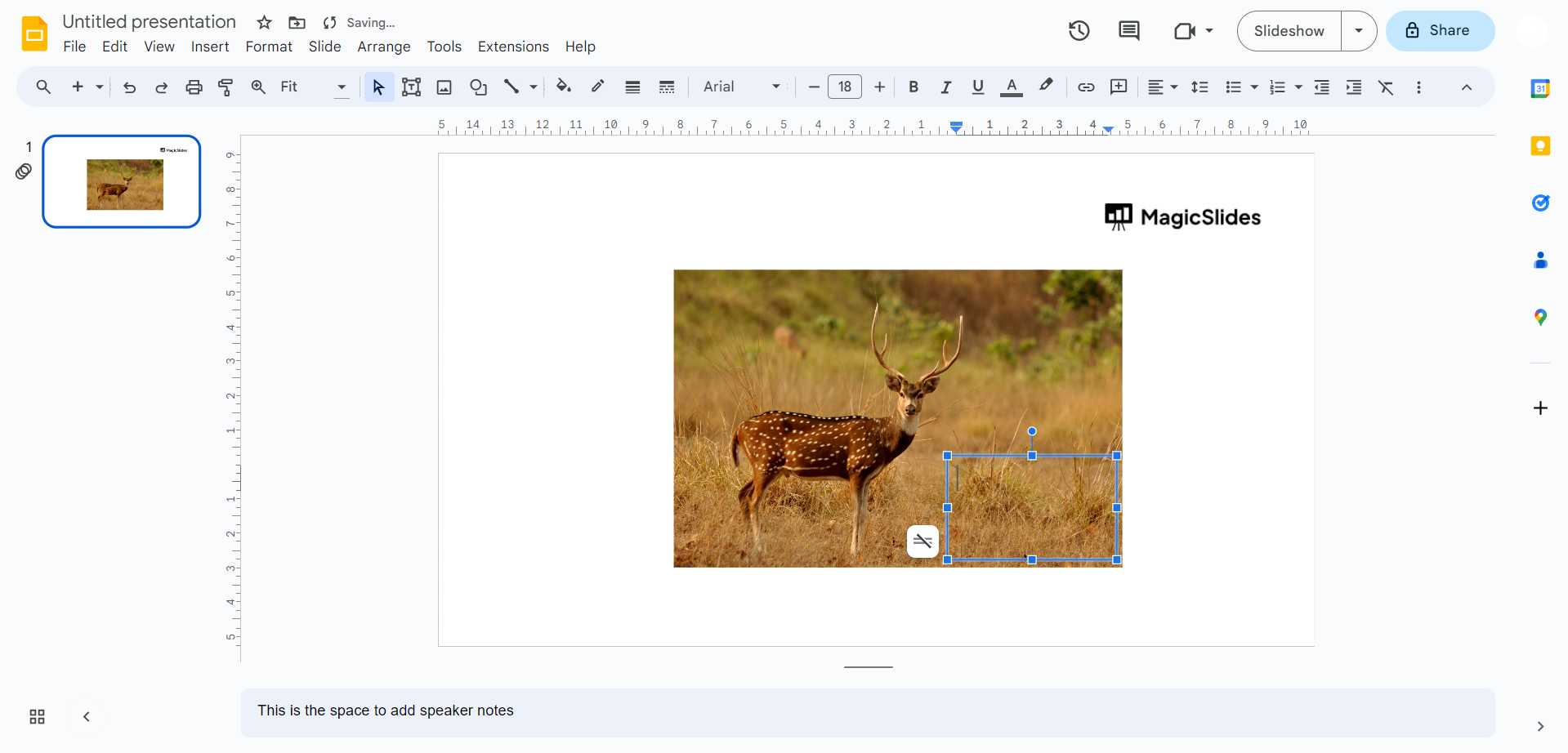
    Step 2: Draw the Text Box Over the Picture

    Once the "Text box" option is selected, draw the text box over the desired image on your slide. This strategic placement sets the stage for merging text seamlessly with the chosen visual element.
    notion image

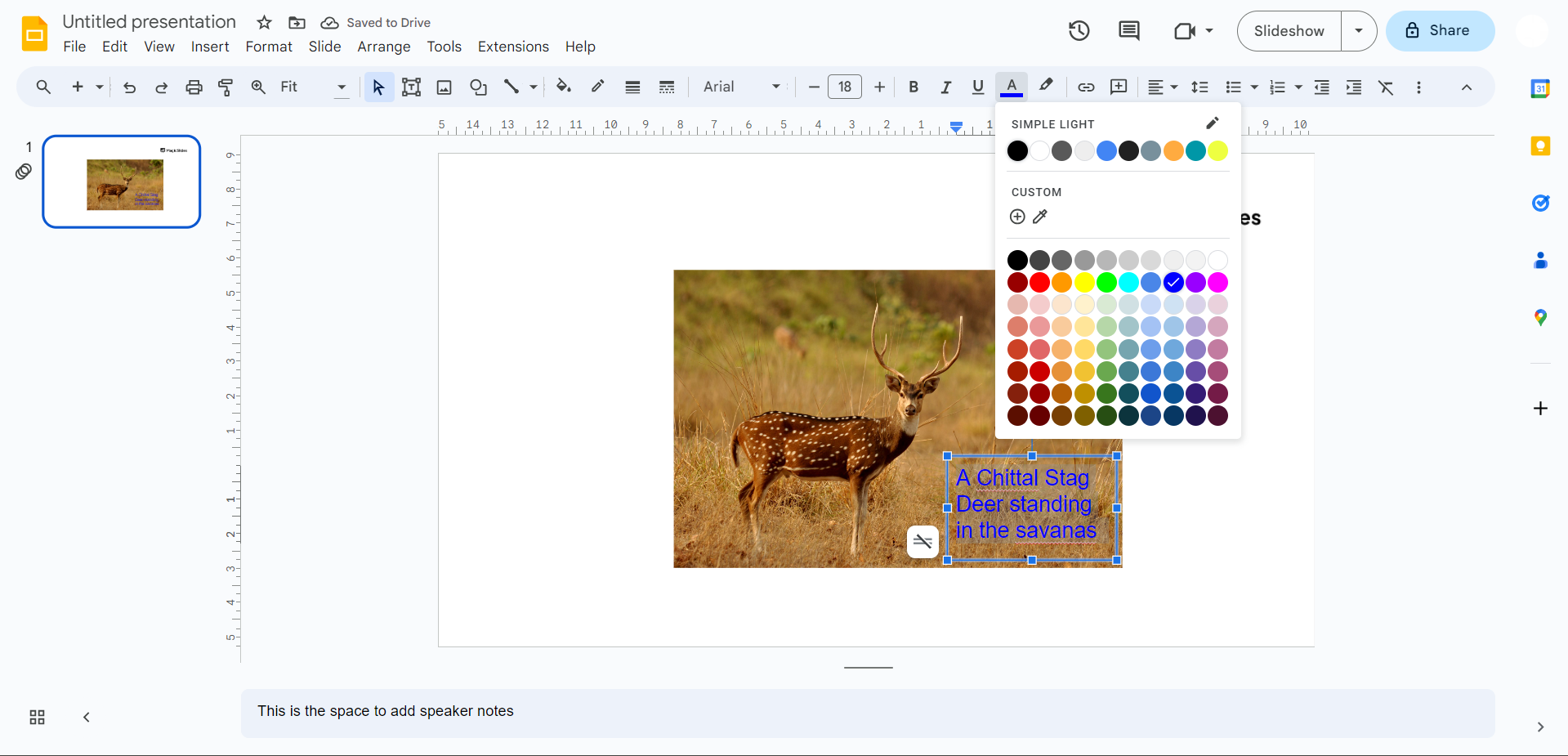
    Step 3: Type Into the Text Box

    With the text box in place, type your desired text directly onto the image. This simple yet effective maneuver ensures that your text complements and enhances the visual impact of the chosen picture.
    notion image

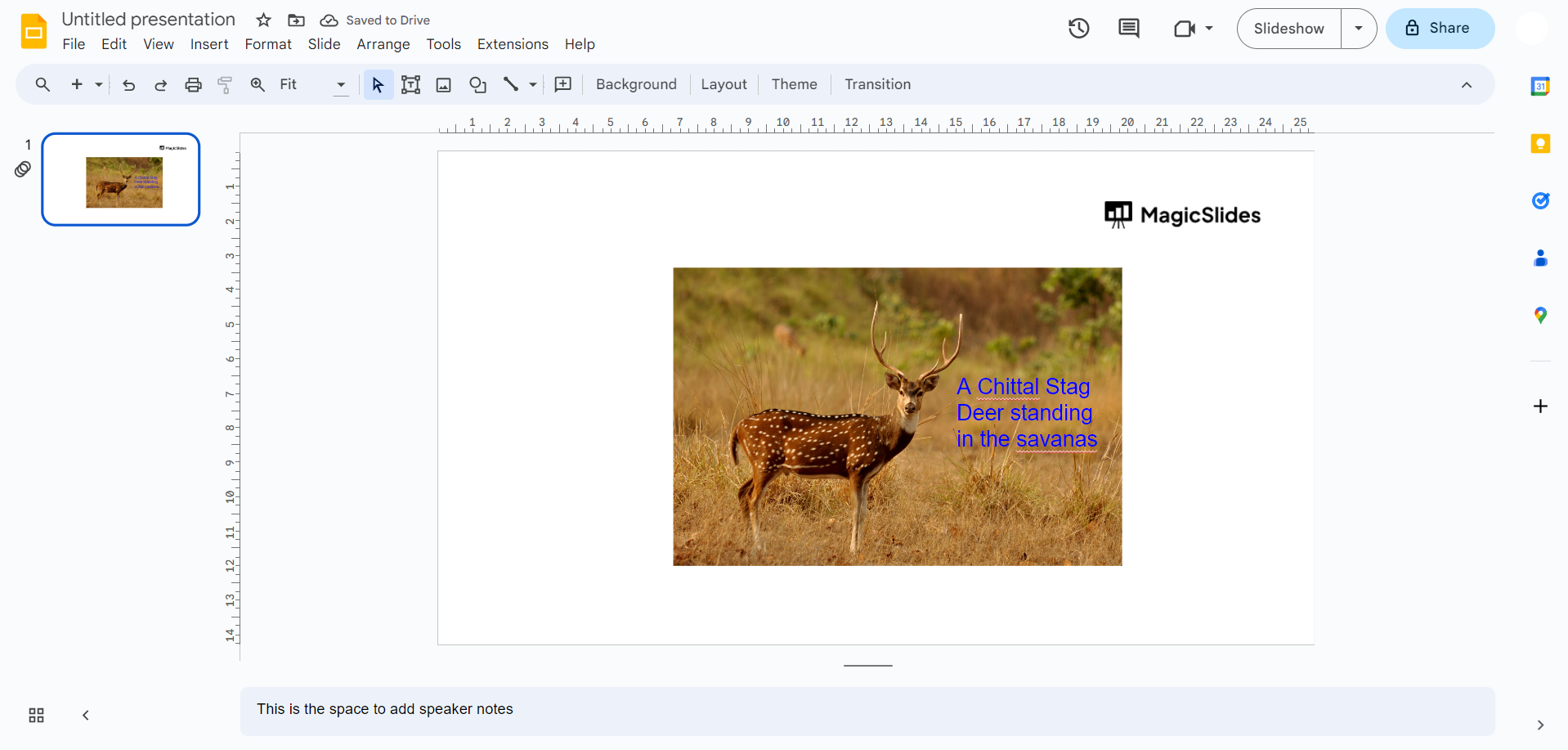
    Step 4: Embrace Creative Fusion

    As you master the art of putting text over images in Google Slides, consider experimenting with font styles, colors, and sizes. Embrace the creative fusion of text and visuals to craft engaging and visually appealing presentations.
    notion image

    Conclusion:

    By following the steps outlined in this guide, you can effortlessly overlay text on images to create engaging and impactful slides. Whether you're crafting a professional presentation, designing a marketing slideshow, or preparing educational materials, incorporating text over images can help convey your message more effectively and leave a lasting impression on your audience. Experiment with different fonts, sizes, and colors to find the perfect combination that complements your presentation style and effectively communicates your ideas.

    Frequently Asked Questions:

    Can I adjust the text box size in Google Slides?

    Absolutely! After adding a text box, click and drag its corners to resize it according to your preference.

    Is it possible to change the font style and color of the overlaid text?

    Yes, Google Slides offers a range of font customization options. Click on the text, access the formatting toolbar, and explore various styles and colors.

    Can I overlay text on multiple images in a single slide?

    While you can add multiple text boxes, overlaying text on multiple images within a single box may require separate text elements.

    Will the overlaid text remain intact if I move or resize the image?

    If you've grouped the text and image, they'll move together. If not, ensure to adjust both elements independently to maintain the desired overlay.


    Share on socials

    About the author

    Sanskar Tiwari profile photo
    Sanskar Tiwari— Founder at MagicSlides

    Sanskar is Founder at IAG Tech, For the past 3 years sanskar have build more than 24+ products, taught 100k students how to code.

    More from Sanskar

    More from the blog

      50+ Best AI Topics for Presentation

      6 February 2026

      How to Flip an Image in PowerPoint in 2026

      5 February 2026

      How to Make Text to Presentation Using AI in Few Minutes

      4 February 2026

      100+ Best Seminar Topics for Students in 2026

      3 February 2026

      Best Presentation AI Tool of 2026 (with Real Use Cases + Comparisons)

      2 February 2026

      250+ Good Morning Messages for Her (Romantic, Deep, Cute & Sweet)

      30 January 2026

      200+ Heart Touching Birthday Wishes for Sister (Short, Funny and More)

      29 January 2026

      50+ History Presentation Topics For 2026

      28 January 2026

      How to Add Music to Your Canva Presentation: A Step-by-Step Guide

      27 January 2026

    Table of Contents

    Create Presentations in Seconds

    Transform your ideas into professional presentations with AI. No design skills needed.

    Try MagicSlides Free

    Create Stunning Presentations with AI in Seconds ✨

    Transform any topic, text, YouTube video, PDF or URL into beautiful presentations instantly with MagicSlides AI.

    Try MagicSlides AI Presentation Maker
    MagicSlides AI Presentation

    Footer

    Solutions

    • MagicSlides App
    • Google Slides Add-on
    • MagicSlides in Chrome
    • MagicSlides in Figma
    • MagicSlides in ChatGPT
    • MagicSlides in Telegram
    • MagicSlides in Zapier
    • MagicSlides in Figma Slides

    Tools

    • AI PPT Tools
    • QR Code Generator
    • Design Tools
    • PPT Templates
    • Slide Templates
    • PDF Tools

    Examples

    • AI Presentations
    • PPT by MagicSlides
    • Quizzes
    • Charts
    • Coloring Pages

    Resources

    • Changelog
    • Documentation
    • API Docs

    Top Blogs

    • How to Create Presentation Using ChatGPT
    • 100+ Best Seminar Topics for Students in 2025

    Company

    • Help
    • MCP
    • Blog
    • Pricing
    • Affiliate Program
    • Manage Subscription
    • Privacy Policy
    • Contact Us
    • Terms & Conditions
    • Refund & Cancellation Policy

    We also built

    • SheetAI - GPT For Sheets
    • MagicForm - GPT For Google Forms
    • SecondBrain.fyi
    • BlogBee - Free Blogging Platform

    © 2026 IndianAppGuy Tech Pvt Ltd. All rights reserved.