How to add slide numbers in google slides


Enhance your Google Slides with these steps to seamlessly add slide numbers for organization.
Are you looking to boost the organization and professionalism of your Google Slides presentation? Adding slide numbers is a simple yet effective way to achieve this. In this guide, we'll walk you through the step-by-step process, ensuring your audience can follow along seamlessly.
How to add slide numbers in google slides
Step 1: Open Your Google Slides Presentation
To begin, open the Google Slides presentation you're working on. This is where you'll implement the slide numbers for a more structured and user-friendly experience.

Step 2: Navigate to the Slide Where You Want to Start Numbering
Identify the slide from which you want the numbering to commence. Whether it's the title slide or the first content slide, positioning matters in ensuring a logical sequence.
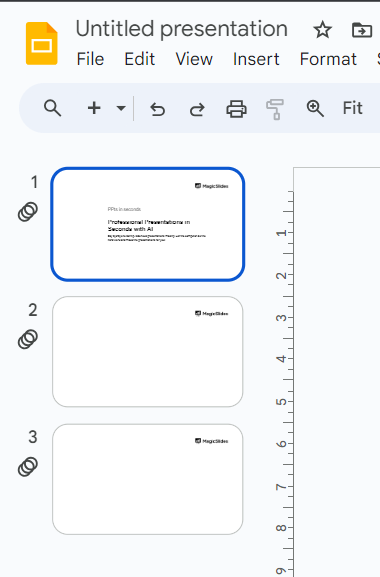
Step 3: Access the "Slide" Menu
Click on the "Slide" menu at the top of the screen. This action will unveil a drop-down menu with various options to enhance your slides.
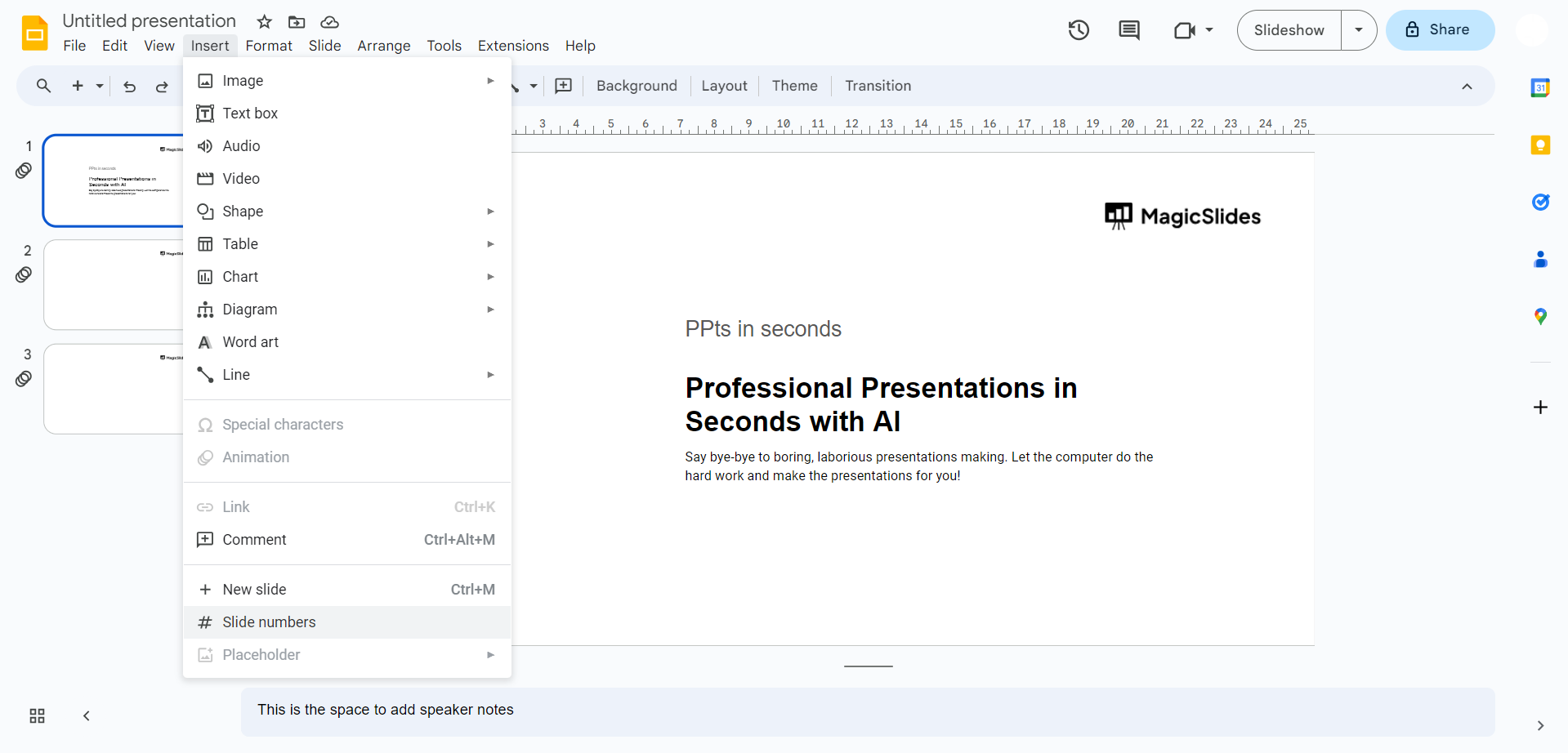
Step 4: Select "Slide Numbers"
Within the "Slide" menu, locate and click on the "Slide numbers" option. A submenu will appear, allowing you to customize where and how the slide numbers will be displayed.

Step 5: Choose Placement and Style
In the "Slide numbers" submenu, you can opt for different placements and styles for your slide numbers. Whether you prefer them at the top or bottom, centered or aligned, pick the option that complements your presentation design.

Conclusion:
By incorporating slide numbers into your Google Slides presentation, you not only enhance its professionalism but also provide a clear roadmap for your audience. This subtle yet impactful addition contributes to a more organized and engaging delivery. Elevate your presentations effortlessly with this straightforward feature!
Frequently Asked Questions:
Q1: Why should I bother adding slide numbers to my Google Slides presentation? Ans: Incorporating slide numbers enhances organization, aiding both you and your audience in tracking and referencing content seamlessly.
Q2: Can I customize the appearance of slide numbers in Google Slides? Ans: Absolutely! Google Slides allows you to choose from various styles and placements to ensure the slide numbers align with your presentation's aesthetics.
Q3: Where should I start numbering my slides? Ans: It's recommended to begin numbering from the title slide or the first content slide for a logical and structured sequence.
Q4: Can I easily toggle slide numbers on and off for specific slides? Ans: Yes, Google Slides offers the flexibility to enable or disable slide numbers selectively, allowing you to tailor the feature to your presentation's needs.
Have a look @these tutorial blogs by us:
- How To Add Bullet Points In Powerpoint: https://www.magicslides.app/blog/How-to-add-bullet-points-in-powerpoint
- How To Crop Images In Google Slides: https://www.magicslides.app/blog/How-to-crop-images-in-google-slides
- How To Insert A Drawing In Google Slides: https://www.magicslides.app/blog/How-to-insert-a-drawing-in-google-slides
- How To Remove Background In Powerpoint: https://www.magicslides.app/blog/how-to-remove-background-in-powerpoint


