How to add music to google slides in few simple clicks


Adding music to your slides in Google Slides, makes your presentation more engaging, here is a simple guide to do so.
Adding music to Google Slides can enhance your presentation and create a more engaging and immersive experience for your audience. Follow these simple steps to add music to your Google Slides presentation:
How to add music to google slides in few simple clicks
Step 1: Open your presentation in Google Slides.
Begin by accessing your Google Slides presentation. You can do this by signing into your Google account and navigating to the specific presentation you want to work on.
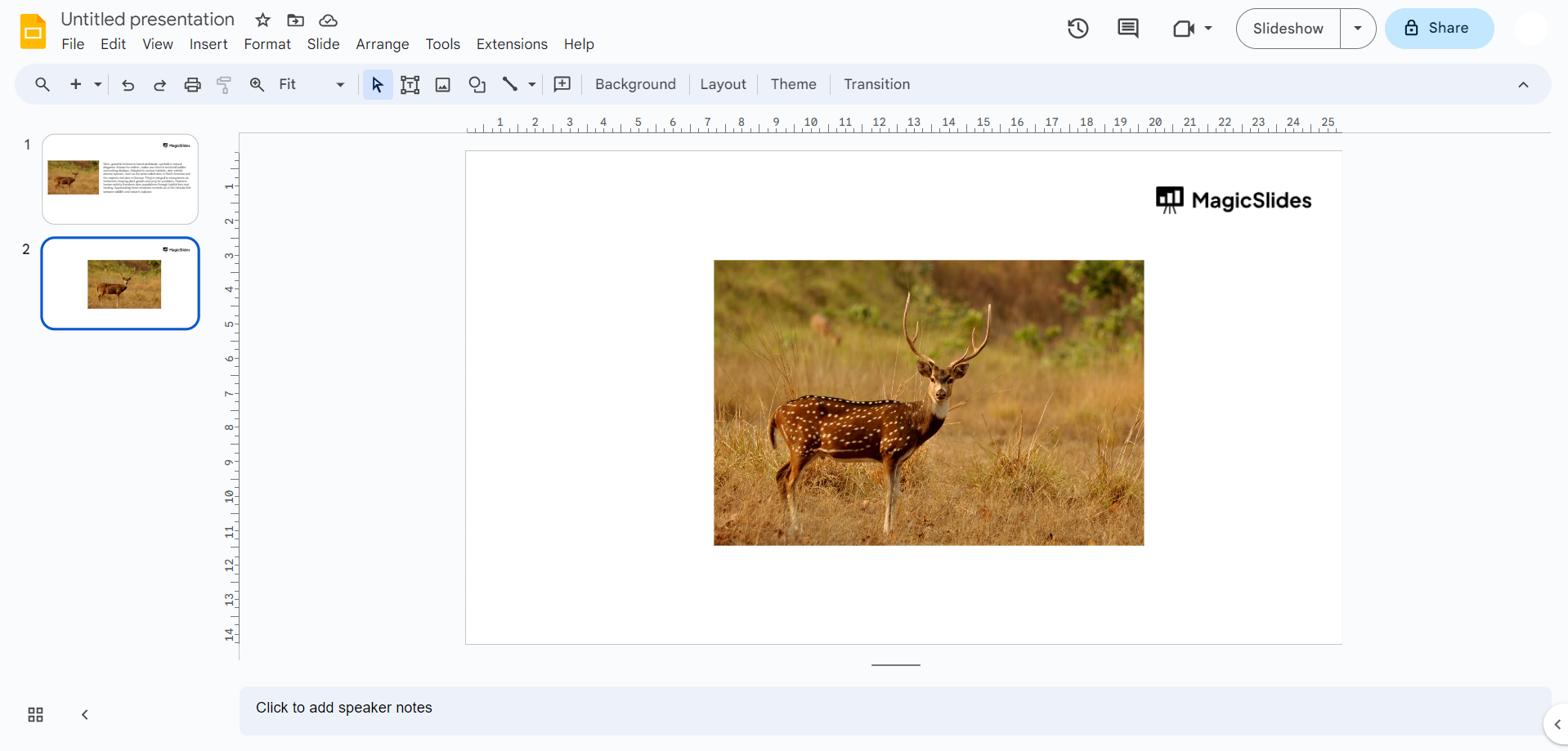
Step 2: Upload the audio you want to use.
- Click the "Insert" option located in the top menu bar.
- From the dropdown menu, select "Audio."
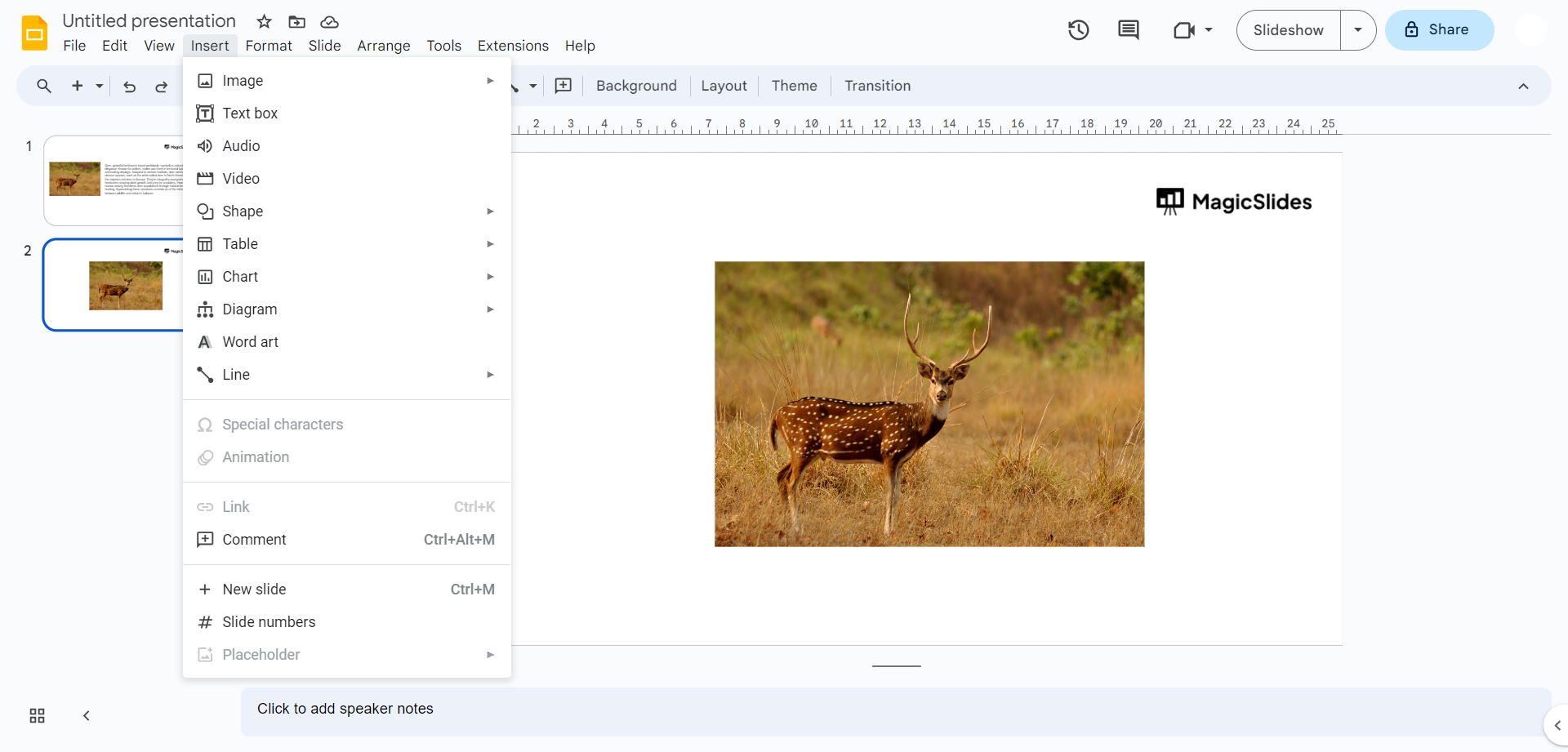
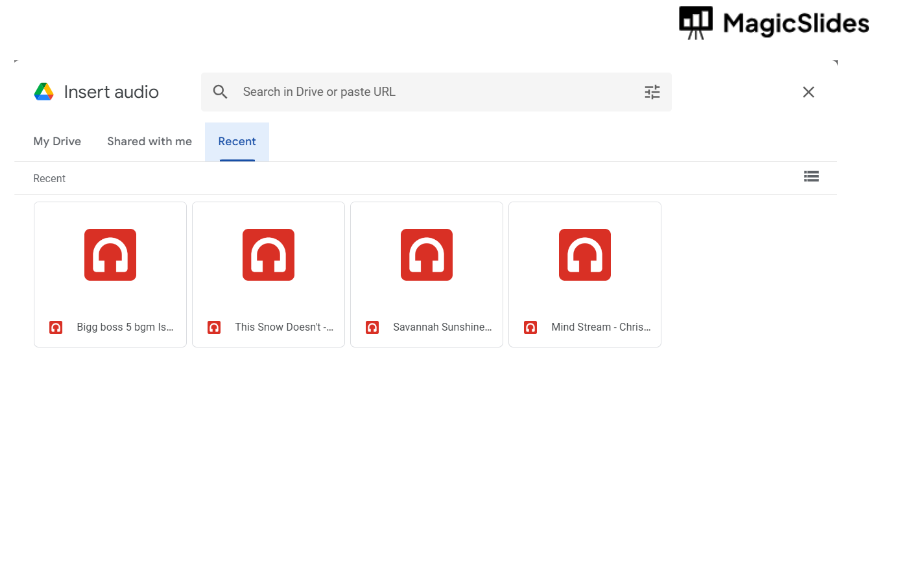
- You'll be prompted to upload the audio you've chosen to include in your presentation. Click on the "Upload" button to browse and select the audio file from your computer.
- Once the upload is complete, the audio will be added to your slide.
Step 3: An audio icon will appear at the top left corner.
After uploading the audio, an icon representing the audio file will automatically appear at the top left corner of the slide. This icon will be the control point for managing the audio within your presentation.
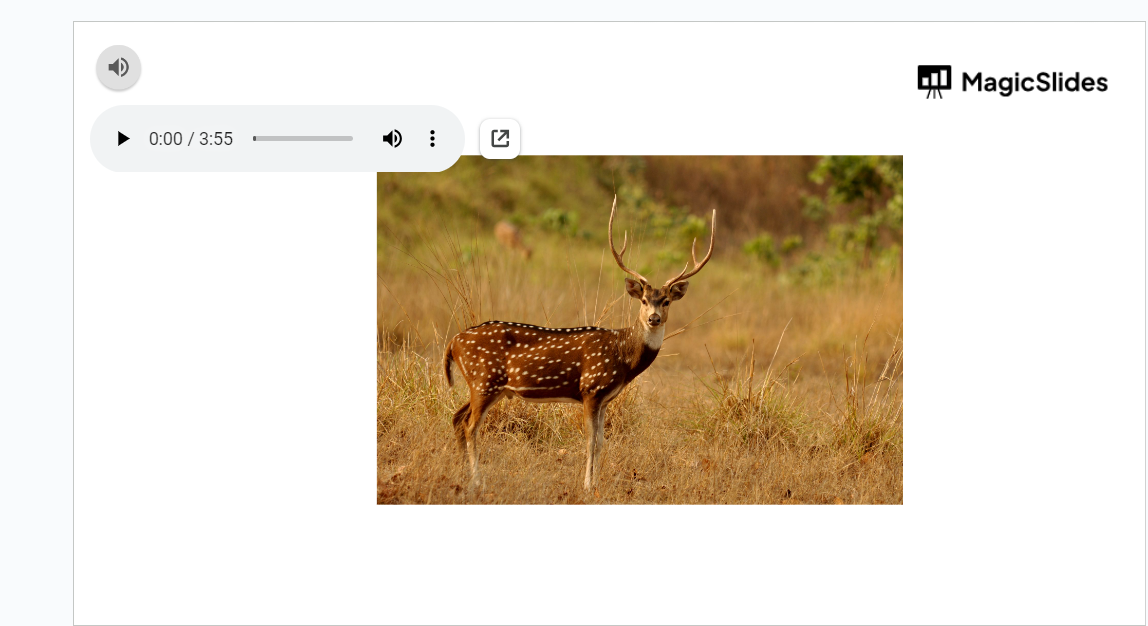
Step 4: Click the audio icon for basic formatting.
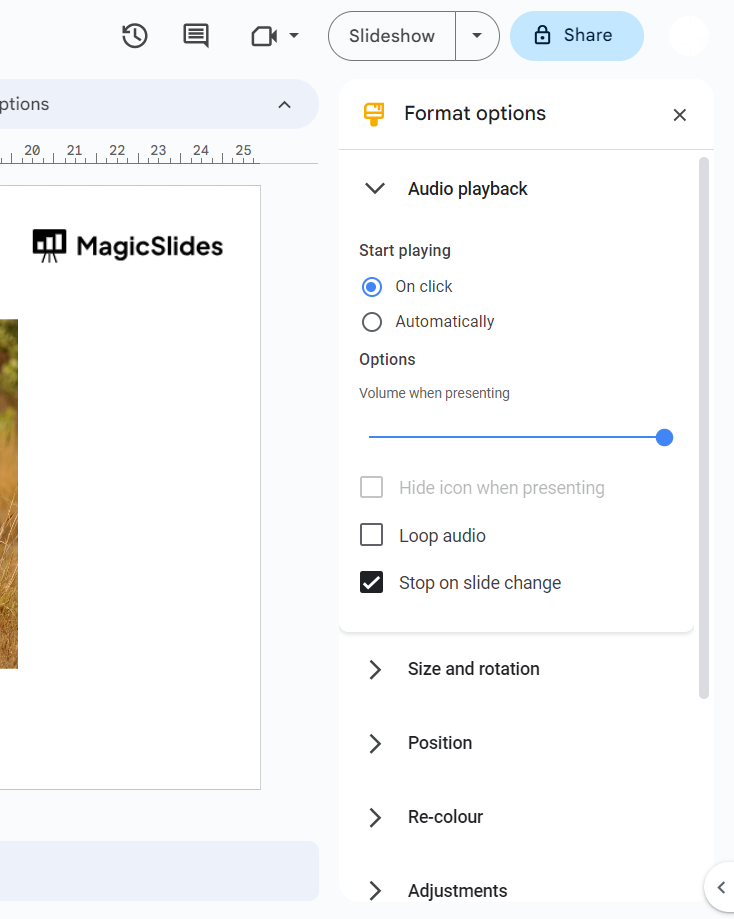
Click on the audio icon to select it. Upon selection, you can access a set of basic formatting options that allow you to adjust how the audio functions and appears within your presentation.
Step 5: Customize your audio:
- To control when it plays, you have the choice between two options:
- "On click": The audio will play when you click the audio icon during the presentation.
- "Automatically": The audio will start playing as soon as the slide appears.
- Use the volume slider to adjust the audio's playback volume according to your preference.
- You can also decide whether you want the audio icon to be hidden while presenting, set the audio to loop, or have it stop when you move to the next slide.
Step 6: Edit the appearance:
- Customize how the audio icon looks on the slide:
- Adjust the size and rotation of the icon while maintaining its aspect ratio for a balanced look.
- Set the precise position of the audio icon on the slide using the x and y coordinates.
- Modify the icon's color, transparency, brightness, and contrast to fit your design.
- Add visual effects such as a drop shadow or reflection to enhance its presence.
Conclusion:
In conclusion, adding music to Google Slides can significantly elevate your presentation by creating a dynamic and memorable atmosphere. Whether you're delivering a business proposal, an educational lecture, or a creative project, incorporating music can capture your audience's attention, evoke emotions, and leave a lasting impression. Use this feature thoughtfully to complement your content and enhance the overall impact of your Google Slides presentation.
Frequently Asked Questions:
Can I add music to specific slides in my Google Slides presentation?
Absolutely! When you're in the editing mode of your presentation, select the slide where you want to add music. Then, go to the "Insert" menu, choose "Audio," and follow the steps to insert the music file. The audio will be associated with that particular slide, creating a more customized and impactful presentation.
Can I use any music file format, or are there specific requirements?
Google Slides supports MP3 and WAV audio file formats. Before adding music, ensure that your chosen file is in one of these formats. If your music is stored on Google Drive, you can easily insert it into your presentation. For web links (URLs), make sure they lead directly to the audio file rather than a webpage.
How can I control when the music starts and stops playing in my presentation?
By default, the music will play automatically when you reach the slide where it's inserted and will continue across consecutive slides. If you want more control, click on the audio icon in the slide sorter view and use the toolbar that appears. From there, you can adjust settings such as autoplay, volume, and loop options. Additionally, you can manually stop the music by clicking on the audio icon during your presentation.


