Best Practices for Virtual Presentation Delivery


Learn the best practices for virtual presentation delivery to engage your audience effectively. Create high-quality presentations effortlessly with AI-powered MagicSlides.app.
Virtual presentations have become an essential part of business meetings, educational sessions, and conferences. With the rise of remote work and online learning, delivering a compelling virtual presentation is more important than ever. However, speaking to an online audience comes with its own set of challenges, including keeping engagement high, managing technical issues, and ensuring a smooth flow of content.
This guide covers the best practices for virtual presentation delivery, including practical tips to improve audience engagement, technical preparation, and content delivery. We will also introduce MagicSlides.app, an AI-powered tool that can help you create professional presentations quickly and efficiently.
1. Preparing for a Virtual Presentation
1.1 Define Your Objectives
Before you start creating your presentation, be clear on your goals. Ask yourself:
- What is the main message you want to convey?
- Who is your target audience?
- What action do you want your audience to take after the presentation?
A well-defined objective helps structure your content effectively.
1.2 Plan Your Content Carefully
- Use a clear and logical flow of information.
- Keep slides concise – avoid overloading them with text.
- Incorporate visual elements such as charts, graphs, and images to enhance understanding.
- Use bullet points rather than paragraphs to improve readability.
1.3 Select the Right Tools
- Choose a reliable video conferencing platform such as Zoom, Microsoft Teams, or Google Meet.
- Use high-quality presentation software like PowerPoint or Google Slides.
- Use AI-powered tools like MagicSlides.app to automate slide creation and ensure professional design.
2. Optimizing Slide Design for Virtual Presentations
2.1 Keep Slides Simple and Clean
- Use minimal text – slides should support your speech, not replace it.
- Stick to one idea per slide for better clarity.
- Choose high-contrast colors for text and background to improve readability.
2.2 Use Engaging Visuals
- Include relevant images, icons, and charts to illustrate key points.
- Avoid cluttered slides with too many elements.
- Use animations sparingly – excessive movement can be distracting.
2.3 Maintain a Consistent Design
- Use the same font styles and sizes throughout the presentation.
- Keep color schemes consistent for a professional look.
- Use a structured layout to guide the audience through the content smoothly.
3. Delivering the Presentation Effectively
3.1 Practice Beforehand
- Rehearse your presentation multiple times to ensure smooth delivery.
- Time yourself to stay within the allocated duration.
- Record yourself to identify areas for improvement.
3.2 Set Up Your Environment
- Choose a quiet, well-lit space for your presentation.
- Use a high-quality microphone and webcam for clear audio and video.
- Test your internet connection to avoid disruptions.
3.3 Engage with Your Audience
- Start with a strong opening to grab attention.
- Encourage interaction by asking questions or using polls.
- Address comments and questions throughout the session.
3.4 Use Body Language and Voice Modulation
- Speak clearly and confidently to maintain audience interest.
- Use hand gestures and facial expressions to add emphasis.
- Vary your tone and pace to keep the presentation dynamic.
4. Managing Technical Aspects
4.1 Test Your Equipment in Advance
- Ensure your microphone, camera, and screen-sharing features work properly.
- Keep a backup plan in case of technical failures.
4.2 Minimize Distractions
- Turn off notifications on your device.
- Close unnecessary tabs and applications.
- Use a neutral background to maintain a professional appearance.
4.3 Have a Contingency Plan
- If your internet disconnects, reconnect as quickly as possible.
- If slides fail to load, be prepared to continue speaking without them.
- Keep presentation files accessible on multiple devices.
5. How to Instantly Create a Professional Presentation with MagicSlides.app
Creating a high-quality virtual presentation can take time. MagicSlides.app simplifies the process by using AI to generate professional PowerPoint slides instantly.
Steps to Use MagicSlides.app:
- Visit MagicSlides.app.
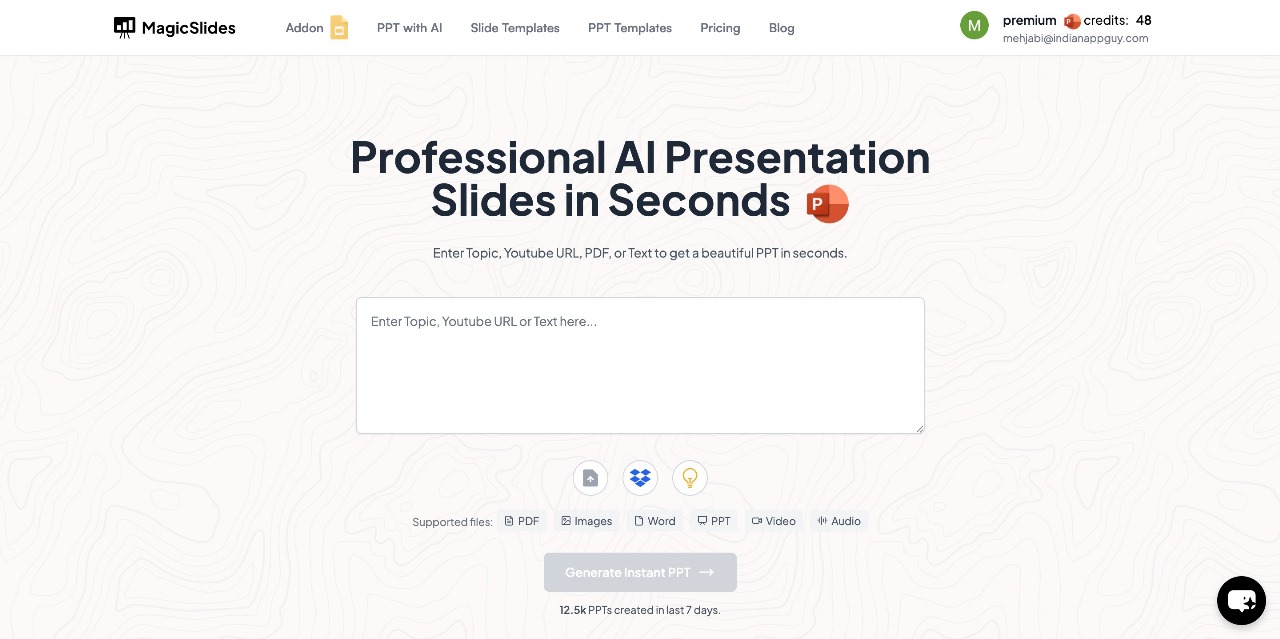
- Enter your topic in the provided space.
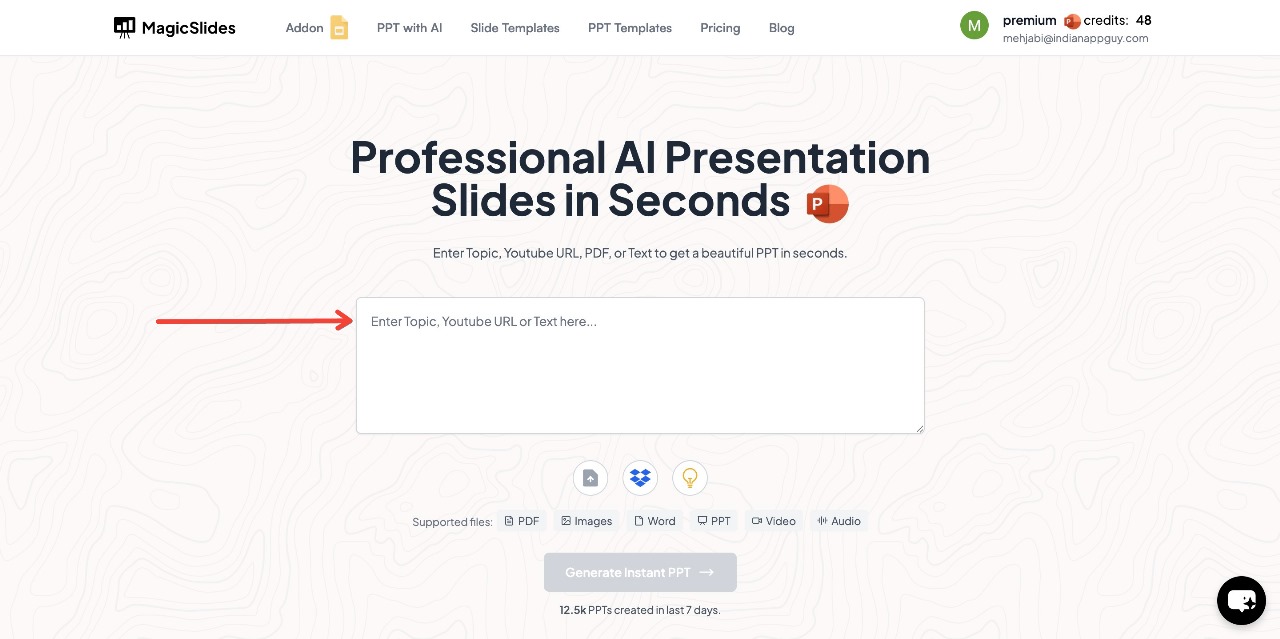
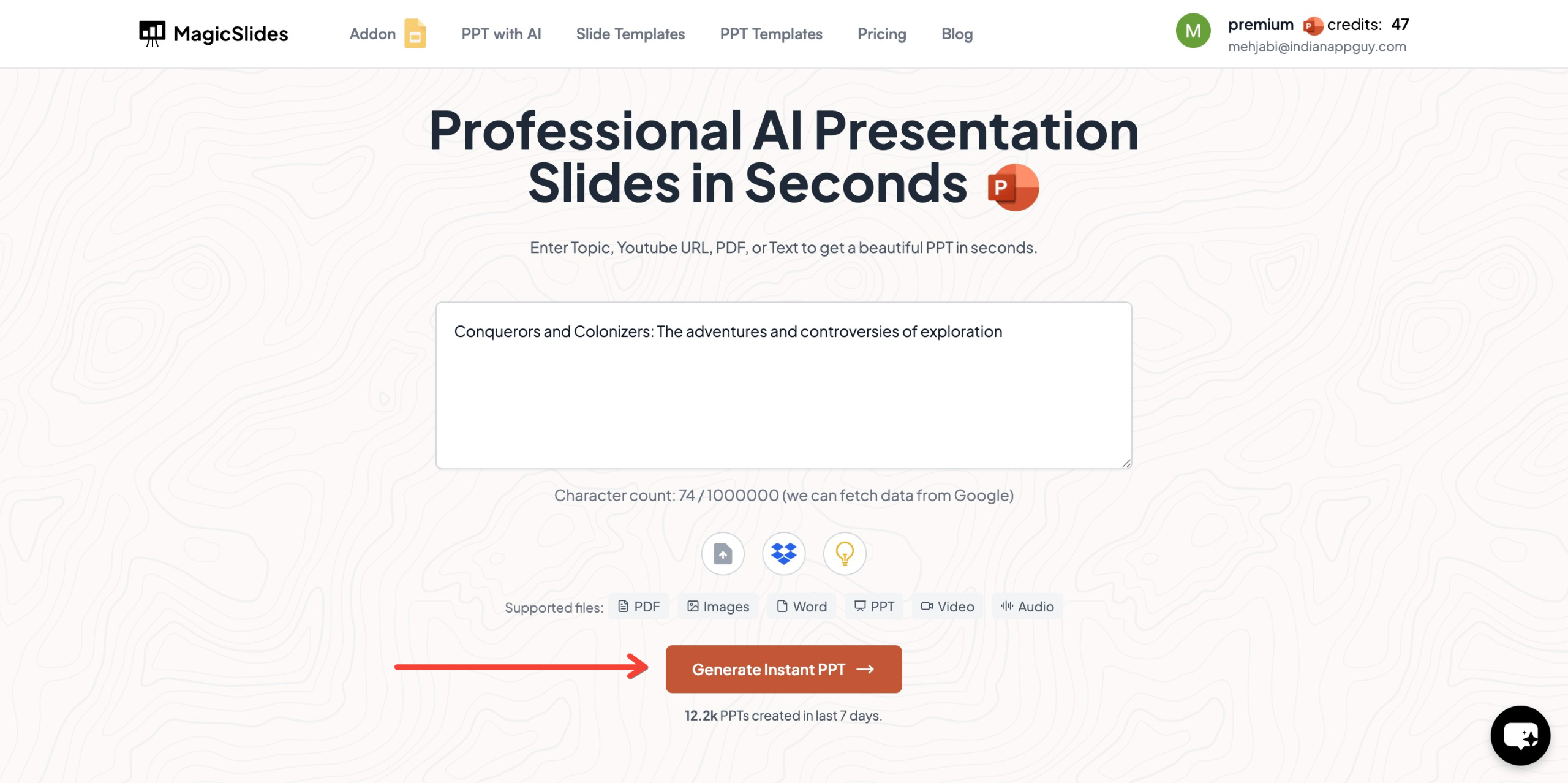
- Click "Generate Instant PPT" to start the process.
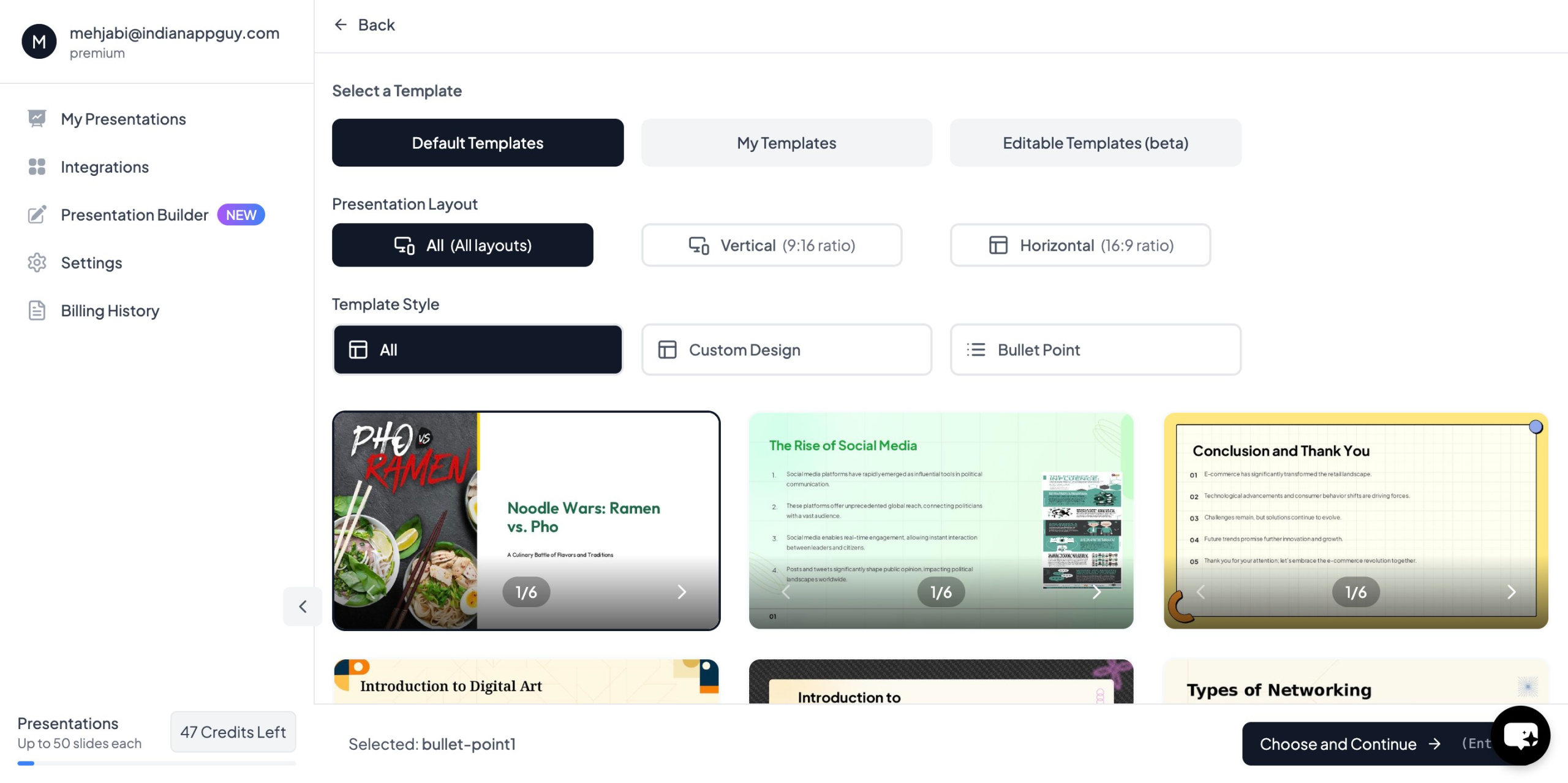
- Choose your template and the number of slides as prompted.
- Click "Start Generation" – The AI will create the slides automatically.
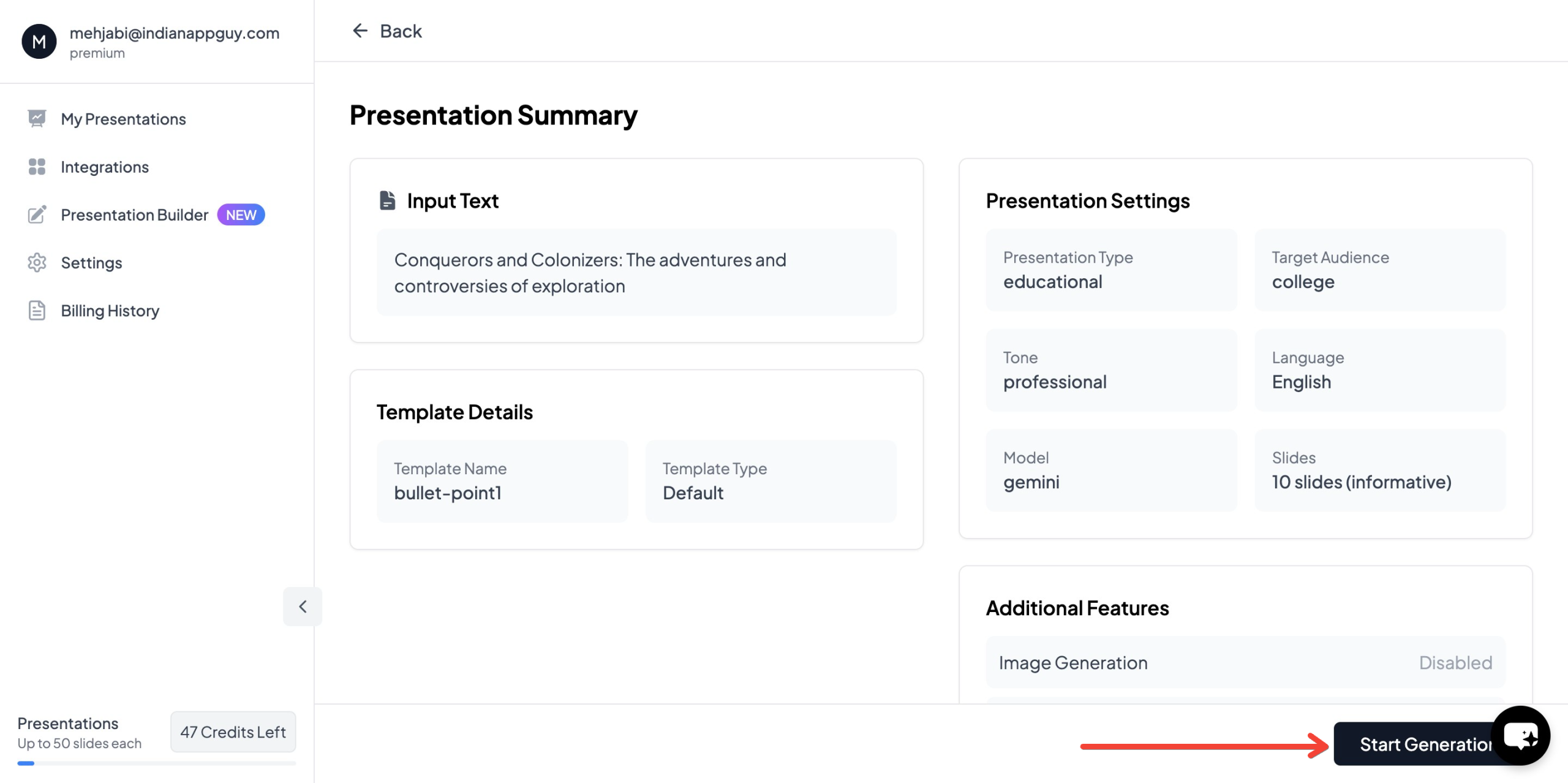
- Your Presentation is Ready – The generated PowerPoint will be available with structured content and relevant visuals.

With MagicSlides.app, you can save time and create a well-structured presentation in just a few clicks.
6. MagicSlides.app Pricing and Features
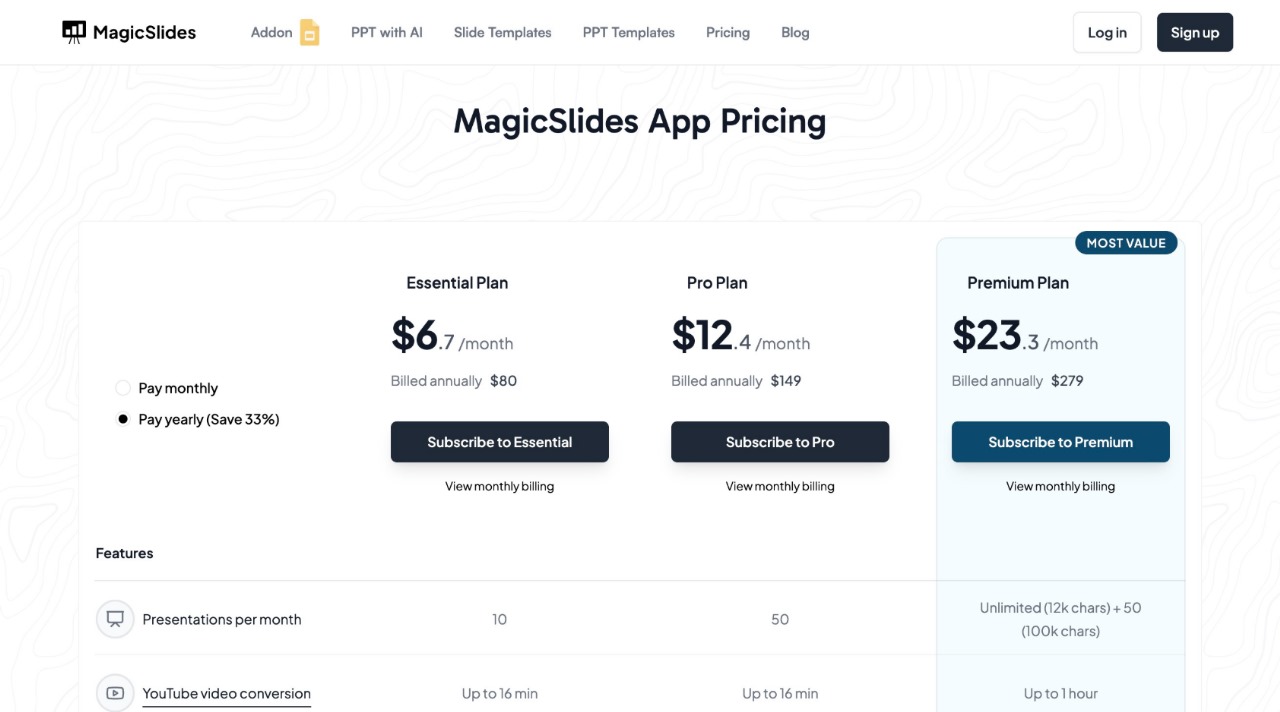
MagicSlides.app offers affordable plans suited for professionals, students, and businesses.
Key Features of MagicSlides.app
- AI-powered instant slide generation
- YouTube to PPT conversion (up to 1 hour for Premium users)
- PDF to PowerPoint conversion (5–20 pages depending on the plan)
- Integration with Google Slides, Figma, and Zapier
- AI-generated images (Pro & Premium plans)
- 100+ languages supported (Premium plan)
With these features, MagicSlides.app makes it easy to create well-structured presentations without spending hours on slide design.
7. Final Thoughts
Virtual presentations require a combination of technical preparation, engaging content, and strong delivery skills. By following the best practices for virtual presentation delivery, you can create impactful and engaging presentations that keep your audience interested.
If you want to save time and ensure professional slide design, MagicSlides.app is a great tool to help you generate high-quality presentations effortlessly.
Visit MagicSlides.app today and create your next presentation in minutes.


