Addon google slides iconPPT with AISlide TemplatesPPT TemplatesPricingBlog
    PPT with AISlide TemplatesPPT TemplatesPricingBlog
    1. Home
    2. Blog
    3. Can I get previously Deleted Pages back on Canva


    Can I get previously Deleted Pages back on Canva

    Ajay Sai

    Published By

    Ajay Sai

    Approved By

    Admin

    Published On

    January 15th, 2025

    Reading Time

    3 min read

    Learn how to recover deleted pages in Canva with simple steps to safeguard your creative projects

    Can I Get Previously Deleted Pages Back on Canva?

    Accidentally deleted a page in Canva? Don’t worry! Canva offers options to recover deleted pages or restore previous versions of your design.
    This step-by-step guide will help you retrieve lost pages and ensure your creative work remains intact.

    Steps to Recover Deleted Pages in Canva

    Step 1: Check the Undo Button

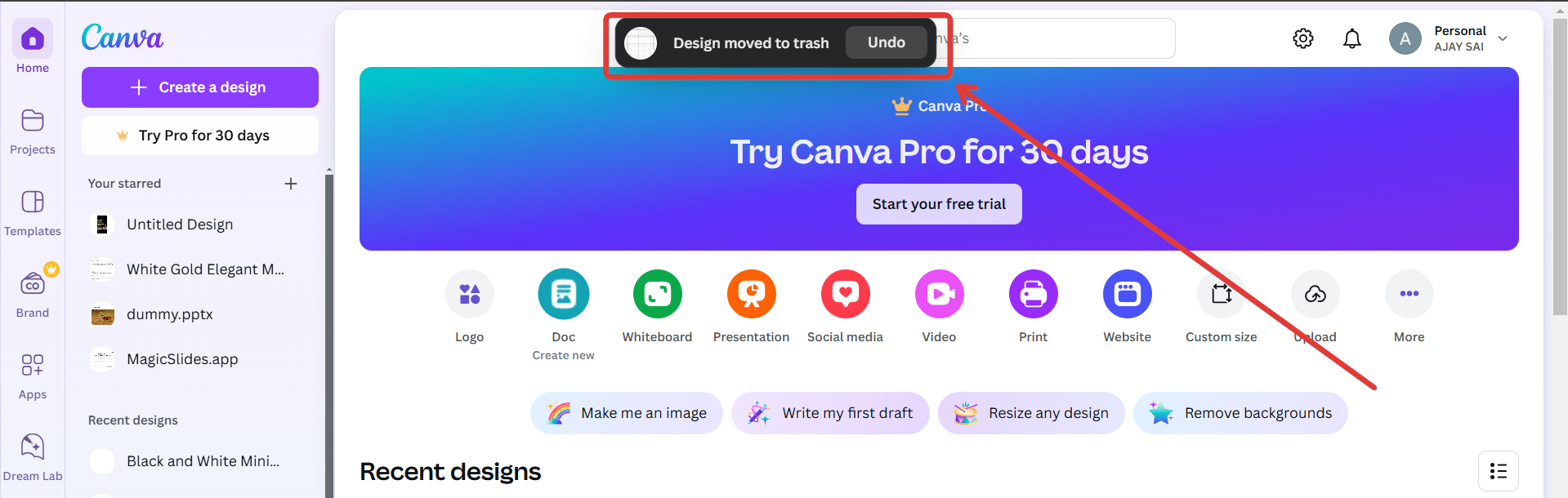
    If the page was recently deleted, click the Undo button (curved arrow icon) on the top toolbar.
    notion image
    This action immediately restores the most recent change, including deleted pages, if you act promptly.
    notion image

    Step 2: Revisit Version History (Canva Pro Only)

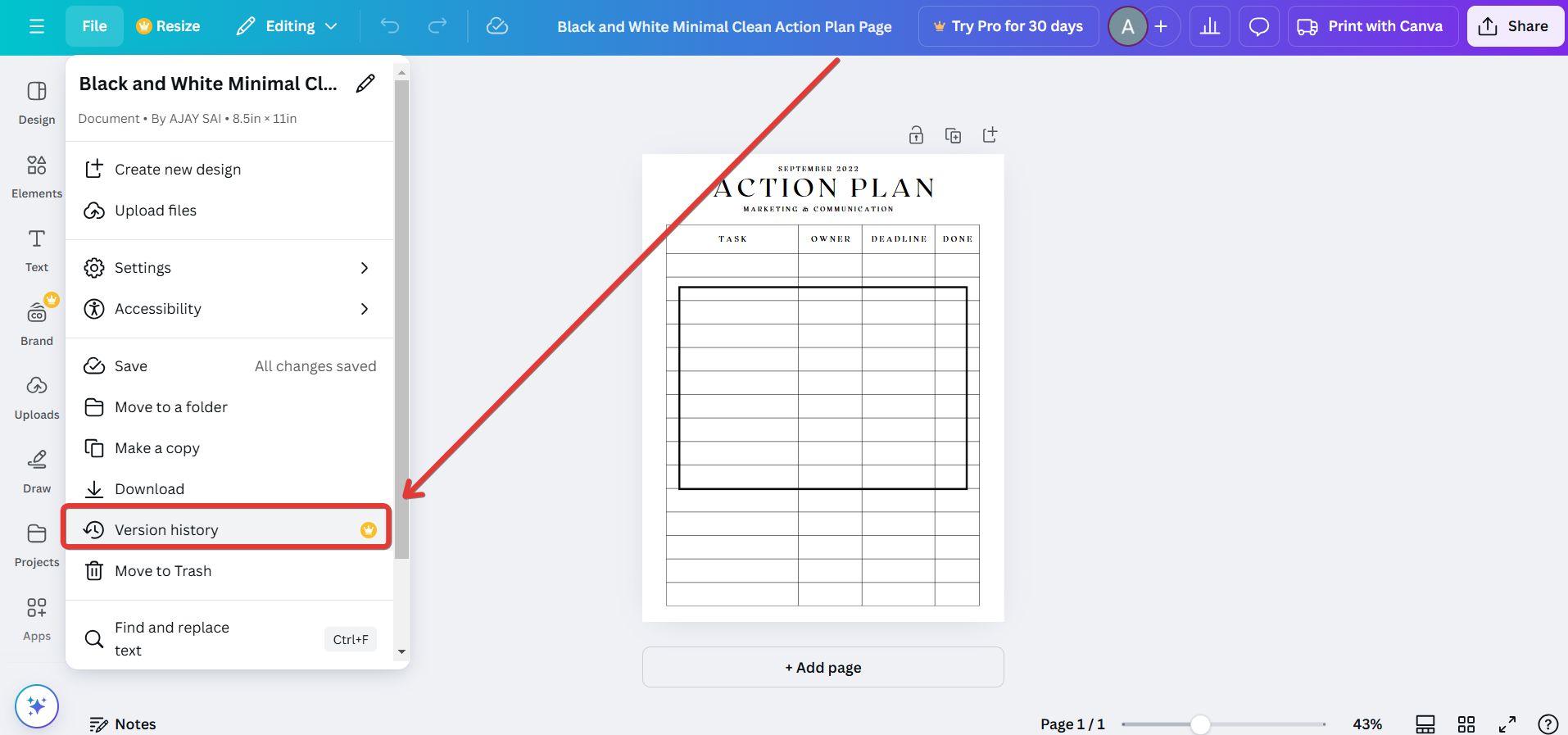
    Open your design and click on the “File” option in the top-left corner.
    Select “Version History” to view all saved versions of your design.
    notion image
    Browse through the versions, find the one containing the deleted page, and click Restore to recover it.

    Step 3: Duplicate the Design Before Recovery

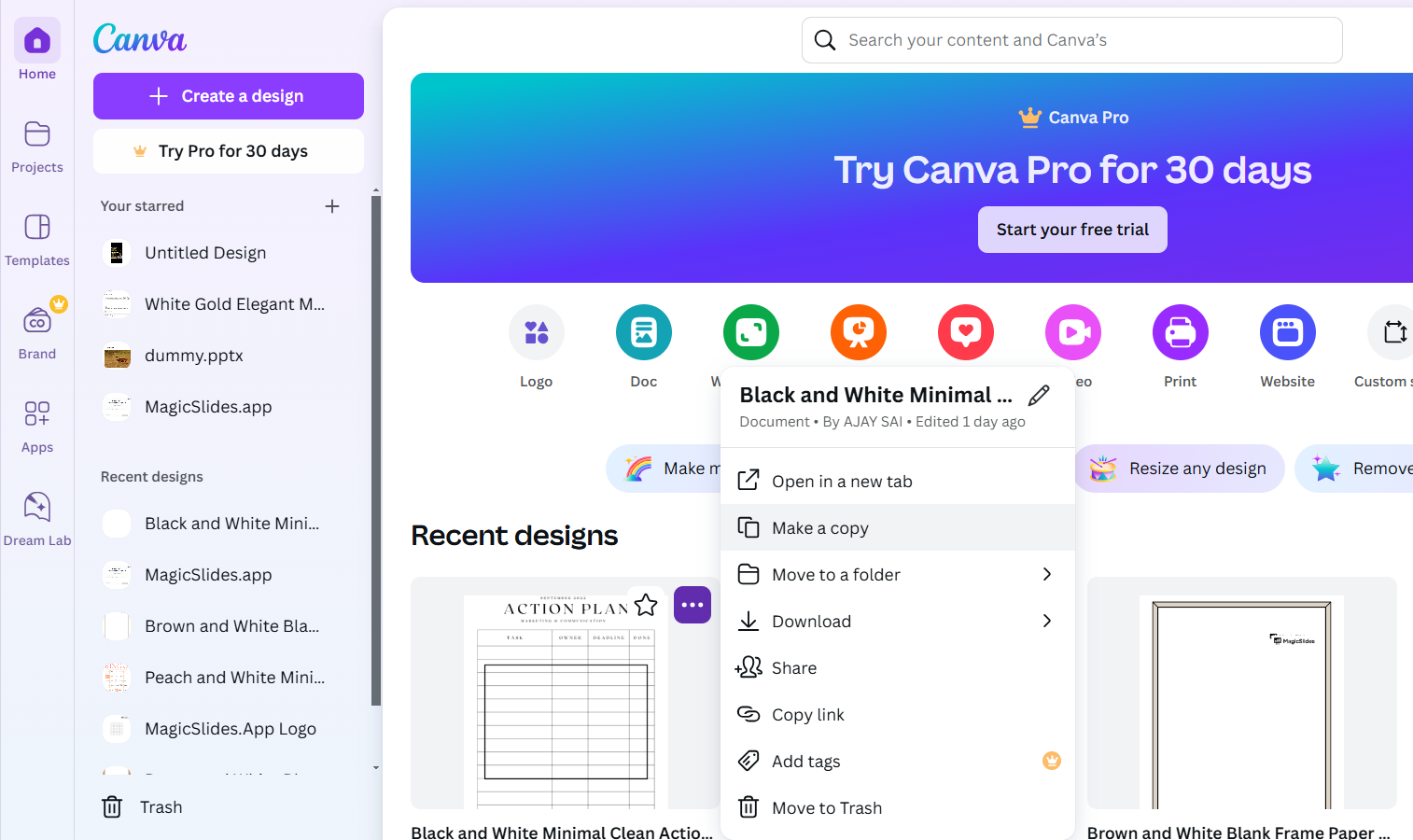
    To avoid overwriting your current progress, duplicate your design by selecting File > Make a Copy.
    notion image
    Open the duplicated design to restore deleted pages without losing recent updates.

    Step 4: Search in the Trash Folder

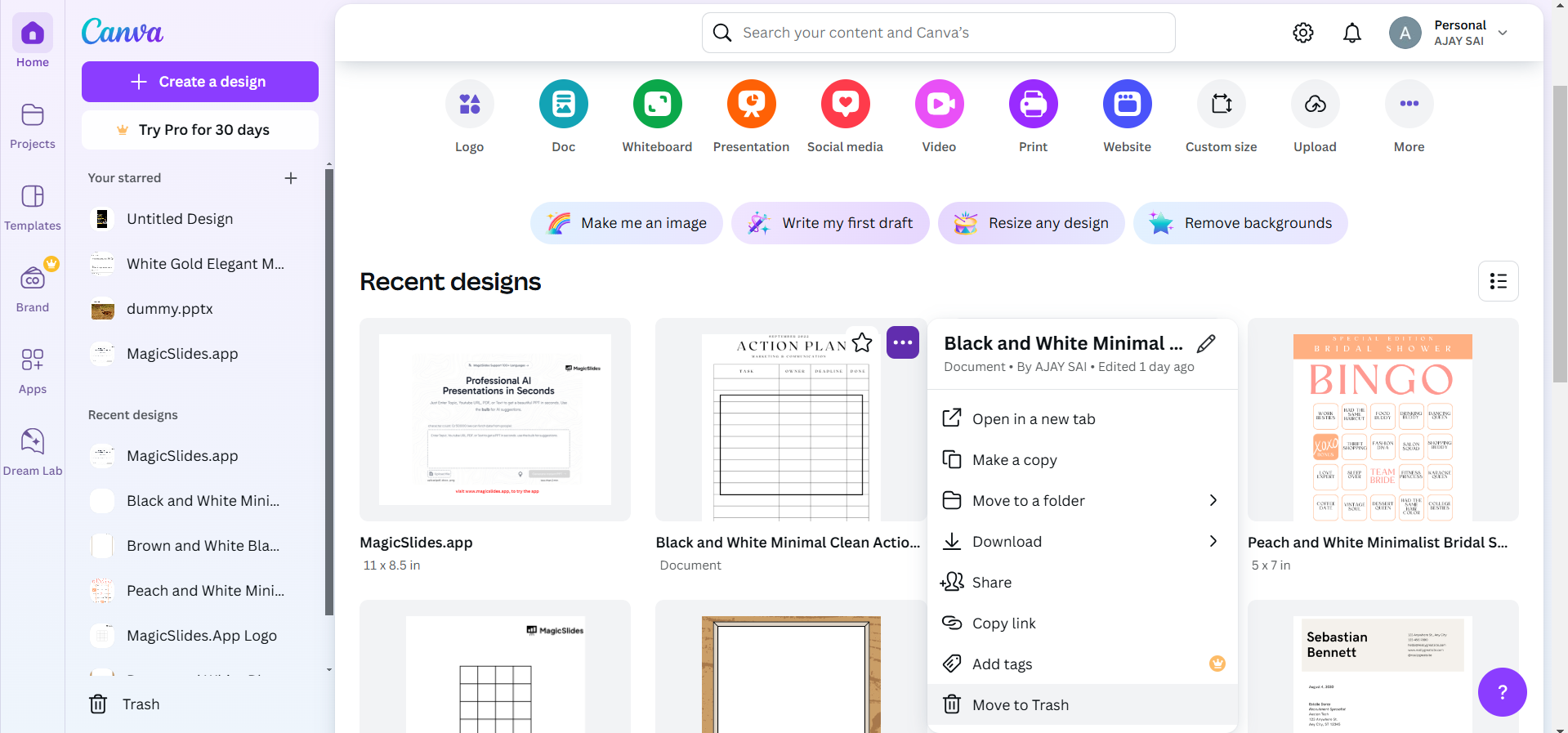
    For deleted designs, navigate to the Trash section under your account menu.
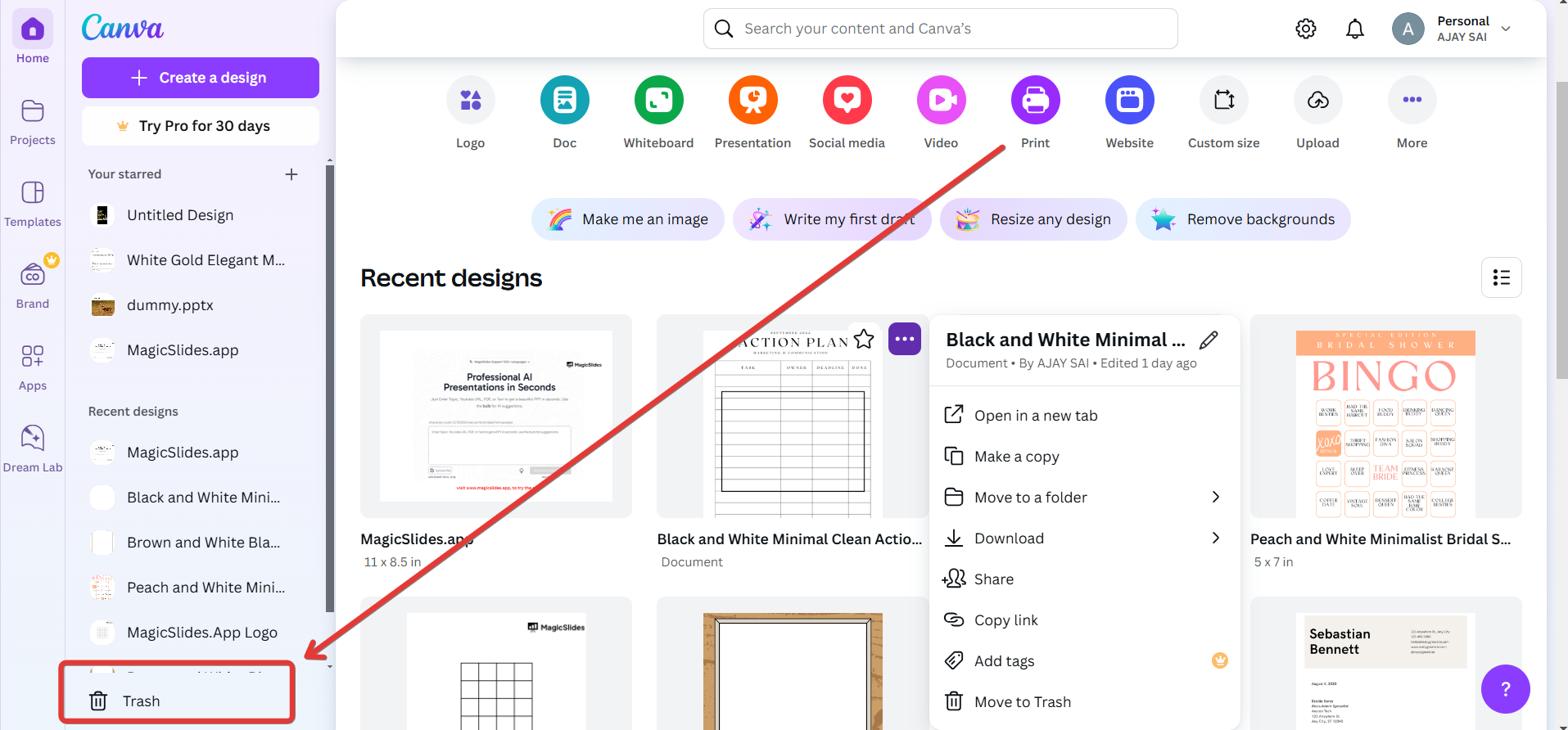
    notion image
    Locate the deleted design containing the page and click Restore to retrieve it. Note that this works only if the design was deleted within the last 30 days.

    Step 5: Recreate the Deleted Page

    If recovery isn’t possible, manually recreate the deleted page by replicating its elements.
    Use Canva’s Grids, Templates, and Uploads to speed up the recreation process.

    Step 6: Save and Backup Your Design

    After recovery, save your work frequently by downloading the design as a file.
    Consider creating duplicates of important projects to ensure you always have a backup.

    Conclusion

    Recovering deleted pages in Canva is possible through quick actions like the Undo button, exploring version history, or searching the Trash folder.
    By following these steps, you can restore your pages and safeguard your creative work effectively.
    Always save and back up your designs to avoid data loss in the future.

    FAQs on Recovering Deleted Pages in Canva

    Can I recover a deleted page in Canva’s free version?

    Yes, the Undo button can recover deleted pages immediately. However, Version History is available only in Canva Pro.

    How long are deleted designs stored in the Trash folder?

    Deleted designs remain in the Trash folder for 30 days before being permanently removed.

    Can I recover a specific page from a previous version?

    In Canva Pro, you can use Version History to restore a version containing the specific page. For free users, manual recreation might be necessary.
    By learning these recovery methods, you’ll be prepared to handle accidental deletions and protect your creative projects!

    Share on socials

    About the author

    Ajay Sai profile photo
    Ajay Sai— writer at MagicSlides.app

    Ajay have been a techincal writer for more than 2+ years. from coding tutorials to using day to day apps he have helped 100k+ visitors with their various queries

    More from Ajay

    More from the blog

      50+ Best AI Topics for Presentation

      6 February 2026

      How to Flip an Image in PowerPoint in 2026

      5 February 2026

      How to Make Text to Presentation Using AI in Few Minutes

      4 February 2026

      100+ Best Seminar Topics for Students in 2026

      3 February 2026

      Best Presentation AI Tool of 2026 (with Real Use Cases + Comparisons)

      2 February 2026

      250+ Good Morning Messages for Her (Romantic, Deep, Cute & Sweet)

      30 January 2026

      200+ Heart Touching Birthday Wishes for Sister (Short, Funny and More)

      29 January 2026

      50+ History Presentation Topics For 2026

      28 January 2026

      How to Add Music to Your Canva Presentation: A Step-by-Step Guide

      27 January 2026

    Table of Contents

    Create Presentations in Seconds

    Transform your ideas into professional presentations with AI. No design skills needed.

    Try MagicSlides Free

    Create Stunning Presentations with AI in Seconds ✨

    Transform any topic, text, YouTube video, PDF or URL into beautiful presentations instantly with MagicSlides AI.

    Try MagicSlides AI Presentation Maker
    MagicSlides AI Presentation

    Footer

    Solutions

    • MagicSlides App
    • Google Slides Add-on
    • MagicSlides in Chrome
    • MagicSlides in Figma
    • MagicSlides in ChatGPT
    • MagicSlides in Telegram
    • MagicSlides in Zapier
    • MagicSlides in Figma Slides

    Tools

    • AI PPT Tools
    • QR Code Generator
    • Design Tools
    • PPT Templates
    • Slide Templates
    • PDF Tools

    Examples

    • AI Presentations
    • PPT by MagicSlides
    • Quizzes
    • Charts
    • Coloring Pages

    Resources

    • Changelog
    • Documentation
    • API Docs

    Top Blogs

    • How to Create Presentation Using ChatGPT
    • 100+ Best Seminar Topics for Students in 2025

    Company

    • Help
    • MCP
    • Blog
    • Pricing
    • Affiliate Program
    • Manage Subscription
    • Privacy Policy
    • Contact Us
    • Terms & Conditions
    • Refund & Cancellation Policy

    We also built

    • SheetAI - GPT For Sheets
    • MagicForm - GPT For Google Forms
    • SecondBrain.fyi
    • BlogBee - Free Blogging Platform

    © 2026 IndianAppGuy Tech Pvt Ltd. All rights reserved.