Can I use Panopto with Google Slides


Easily integrate Panopto with Google Slides to record, enhance, and share engaging video presentations effortlessly
Can I Use Panopto with Google Slides?
Panopto is a powerful video platform that allows users to record, manage, and share presentations.
If you're using Google Slides and want to integrate Panopto for enhanced video recording and presentation features, this guide will walk you through the process step by step.
How to Use Panopto with Google Slides
Step 1: Set Up Your Panopto Account
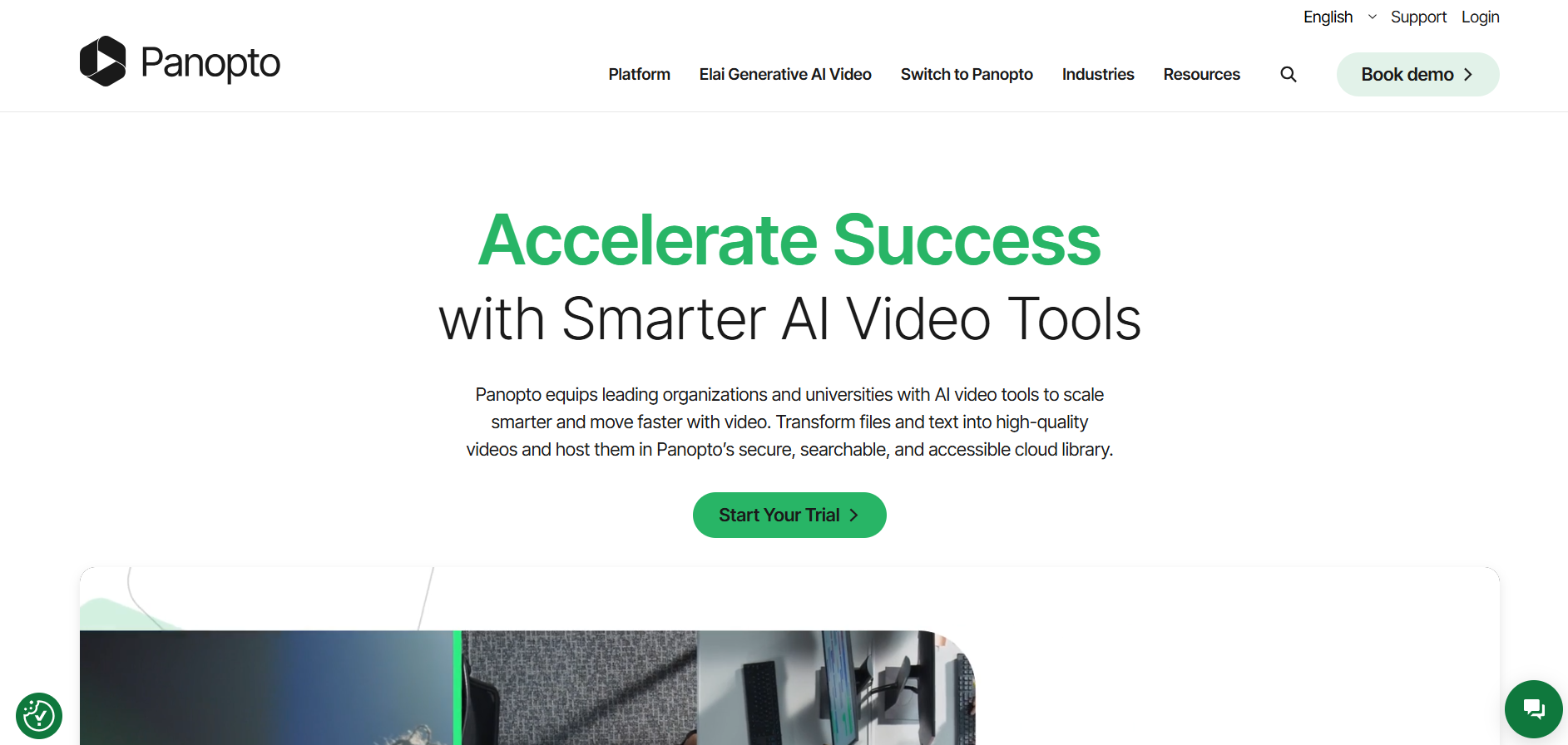
If you don’t already have a Panopto account, sign up or log in at Panopto’s website.
Ensure you have the necessary permissions to create and upload recordings.
Step 2: Prepare Your Google Slides Presentation
Open Google Slides and finalize your presentation. Make sure your slides include all necessary text, images, and animations.
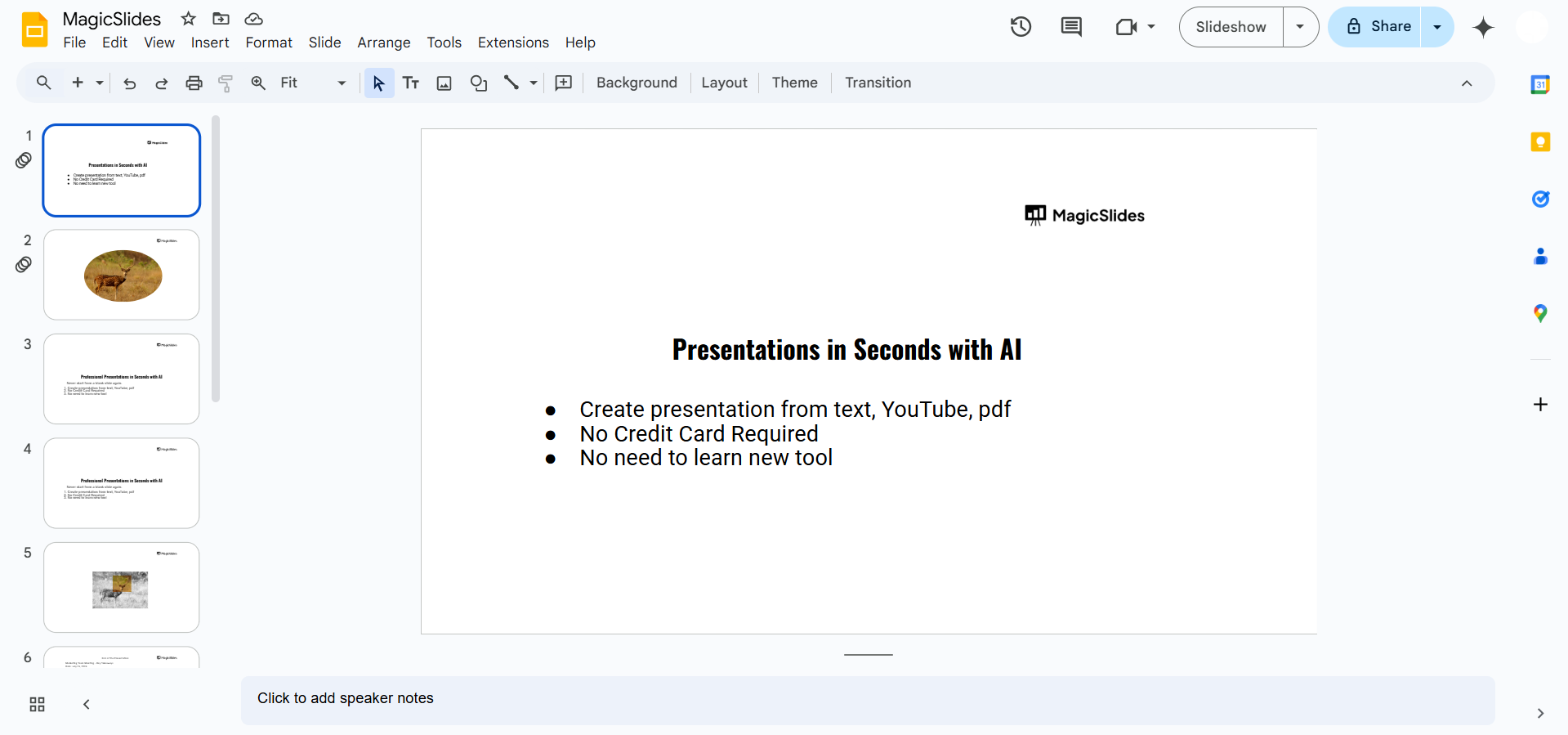
If using speaker notes, review them to stay organized during the recording.
Step 3: Open Panopto and Start a New Recording
Launch the Panopto Recorder on your computer or use the web version. Click “Create” → “Record a New Session” to start a new recording.
Select your webcam, microphone, and screen recording settings.
Step 4: Deliver Your Presentation
Navigate through your slides as you present. Use Panopto’s features like annotation tools, live captions, and multi-stream recording for an enhanced experience.
When finished, click “Stop Recording” in Panopto.
Step 5: Edit and Share Your Recording
Panopto allows you to trim, add captions, and insert quizzes into your recorded session.
Once satisfied, click “Publish” and share the video link with your audience.
You can also embed the Panopto video into Google Slides by inserting the video link into a slide.
Yes, you can integrate Panopto with Google Slides for recording and sharing presentations. But if you want to generate a complete, AI-powered slideshow effortlessly, check out MagicSlides.app just enter a topic, and it creates stunning slides instantly!
Conclusion
Yes, you can use Panopto with Google Slides to create engaging and interactive presentations.
By recording your screen and voice with Panopto, you can enhance your slides with video content, making them more dynamic and accessible.
Whether for lectures, business meetings, or training sessions, this integration helps you deliver high-quality presentations effortlessly.
FAQs on Using Panopto with Google Slides
Can I record my face along with Google Slides in Panopto?
Yes, Panopto allows you to record both your webcam and screen simultaneously for a more engaging presentation.
How do I add a Panopto video to Google Slides?
Copy the Panopto video link, go to Insert → Video in Google Slides, and paste the link.
Can I edit my Panopto recording after finishing my presentation?
Yes, Panopto has built-in editing tools to trim clips, add captions, and insert interactive elements before publishing.
Now you’re ready to integrate Panopto with Google Slides for a seamless, high-quality presentation experience! 🎥✨


