How Can You Convert Napkin AI PPT to PowerPoint?


Searching for a steps of Can Napkin AI be Converted to PowerPoint? Discover through this guide a complete steps to convert Napkin AI to PowerPoint
Napkin AI is a powerful tool for visualizing ideas and brainstorming. If you’ve created visuals or diagrams in Napkin AI and wish to use them in a PowerPoint presentation, you can easily convert them.
This guide explains how to transfer your Napkin AI PPT visuals in a few simple steps.
How to Convert Napkin AI to PowerPoint Presentation?
Step 1. Finalize Your Napkin AI Content
Open Napkin AI and review the visual or diagram you’ve created.
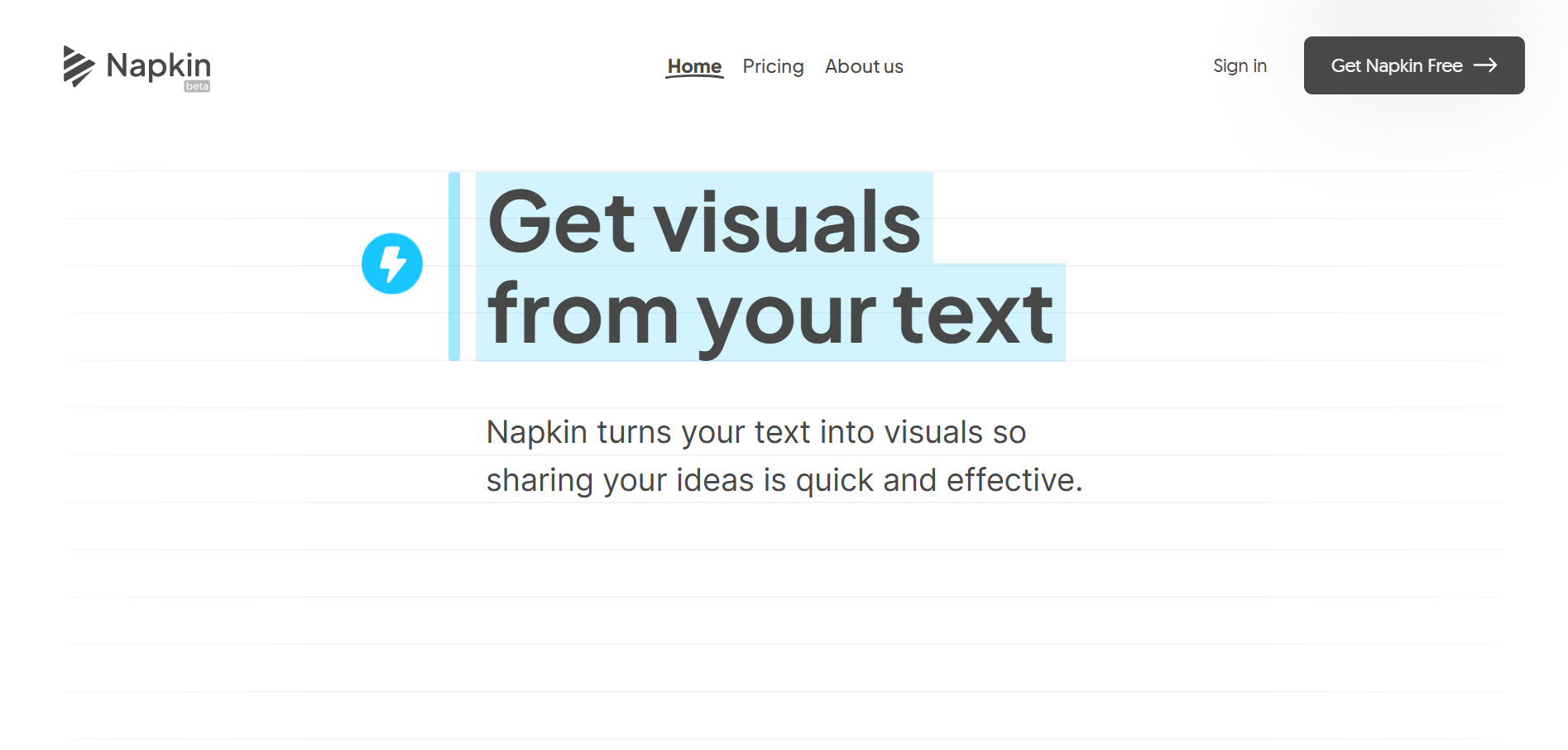
Ensure all elements are complete and arranged as intended.
Step 2. Export Your Napkin AI Content
Look for the Export or Download option in the Napkin AI interface. Export your content in a compatible format, such as PNG, JPEG, or PDF.
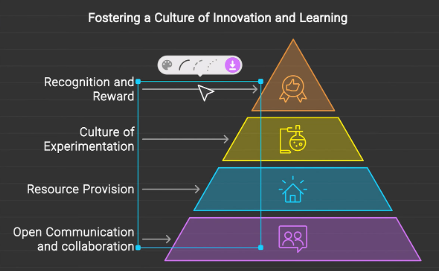
Save the file to a location on your device where you can easily access it later.
Step 3. Open PowerPoint
Launch PowerPoint and open the presentation where you want to add the Napkin AI PPT content.
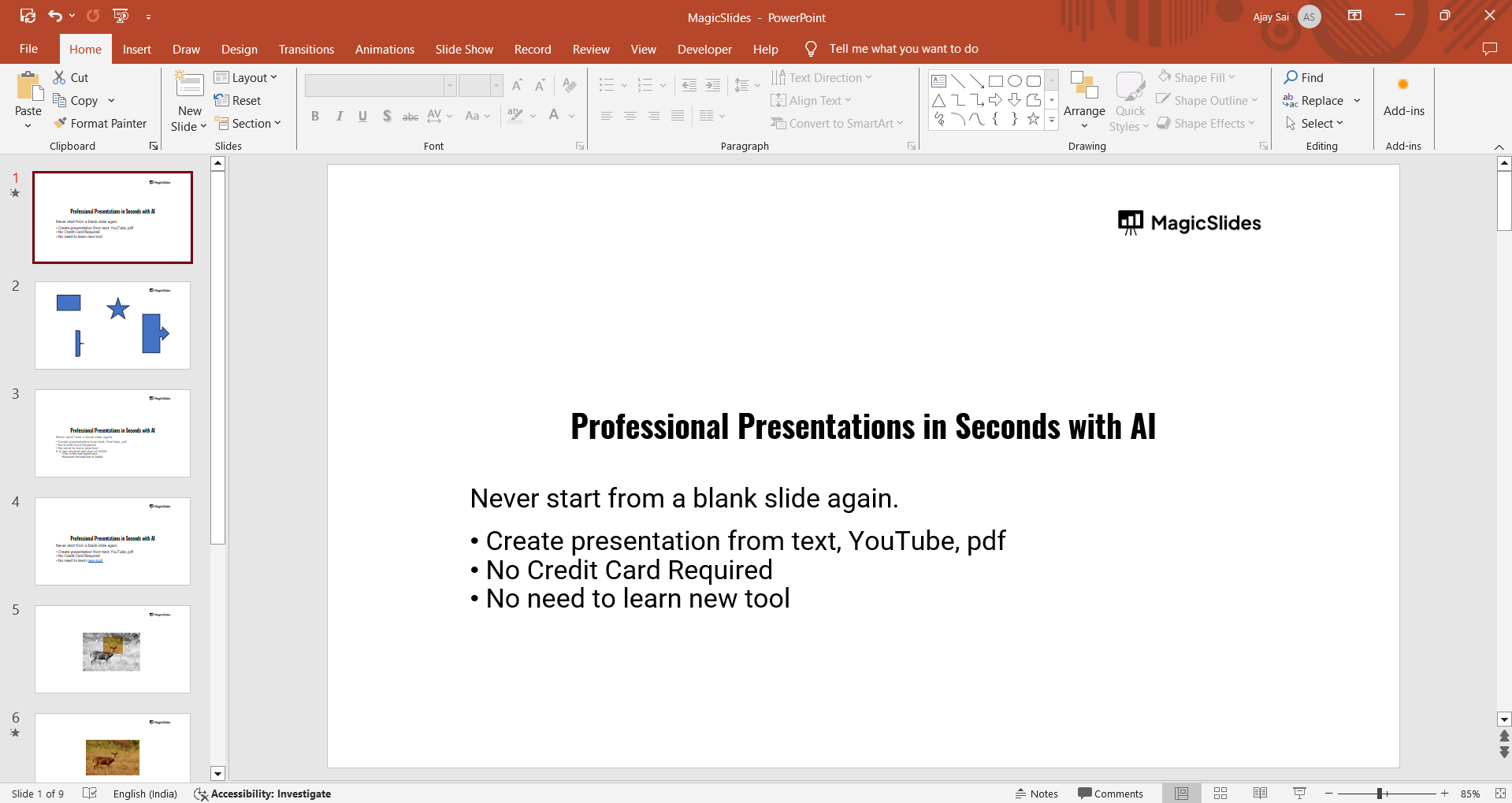
Alternatively, create a new presentation if you’re starting from scratch.
Step 4: Insert the Napkin AI Visuals
Navigate to the slide where you want to add the exported Napkin AI visual. Click on the Insert tab in the top menu.
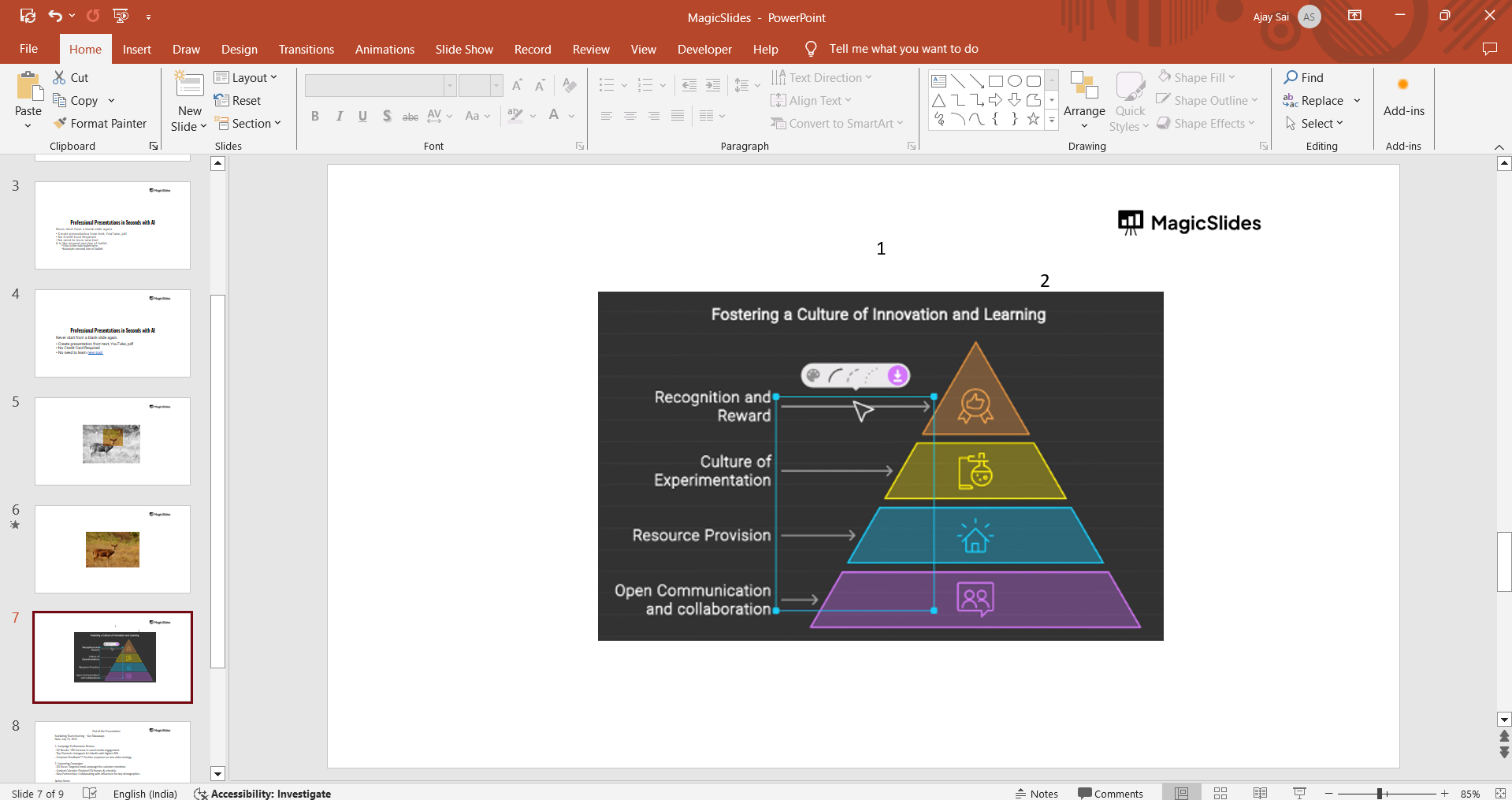
Select Pictures (or Insert > Pictures in some versions). Locate the exported Napkin AI file on your device, then click Insert to add it to the slide.
Step 5. Adjust and Optimize the Visual
Resize and position the visual on the slide as needed. Add additional text, captions, or design elements to enhance the presentation.
Repeat the process for additional Napkin AI PPT visuals, if necessary.
Step 6. Save Your PowerPoint Presentation
After completing your slides, save the presentation. Go to File > Save As and choose a location and file name.
Select the desired format, such as .pptx.
Create a Full Presentation from Your Ideas with AI
While Napkin AI is excellent for creating diagrams and visualizing concepts, you may still need to build the rest of your presentation manually in PowerPoint.
If you want to speed up the process, MagicSlides AI can help. It is an AI presentation tool that can generate professional PowerPoint presentations from a topic, text, PDF, URL, YouTube video, or document in just a few clicks.
After exporting your Napkin AI visuals, you can insert them into a presentation created with MagicSlides and customize the slides to match your needs.
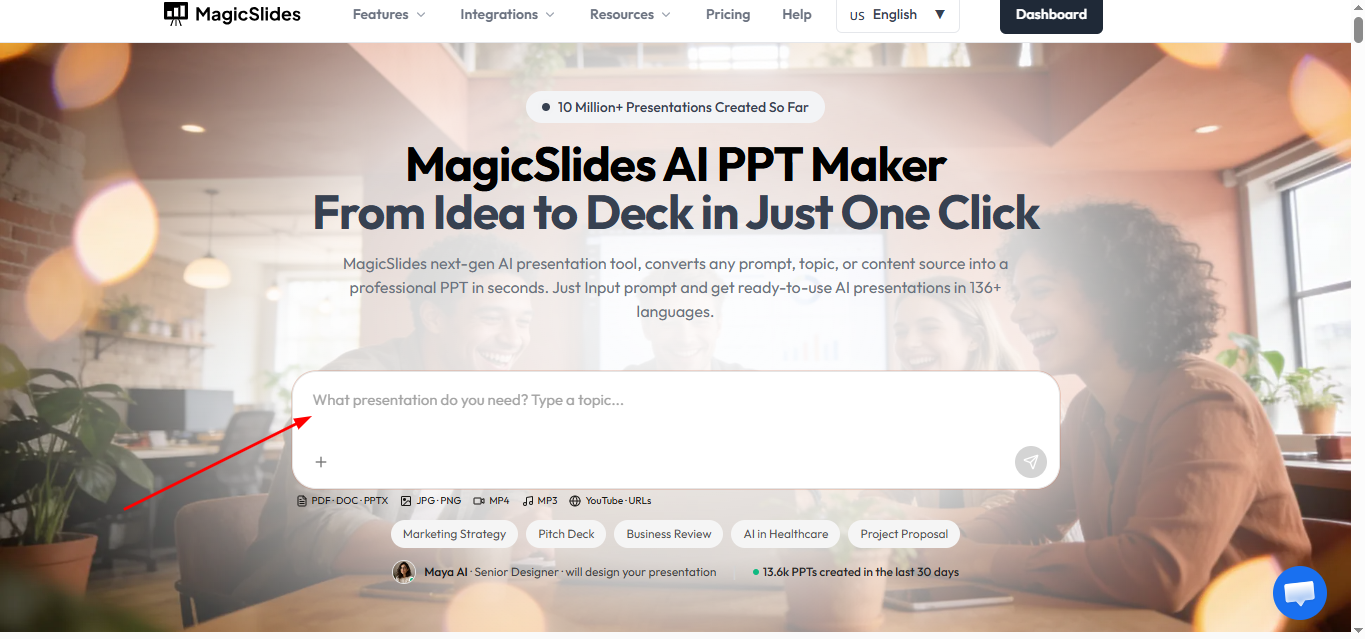
Benefits of using MagicSlides include:
Generate complete presentations in seconds Create slides from text, documents, URLs, and videos Access professionally designed templates Export presentations directly to PowerPoint Save time on slide creation and formatting By combining Napkin AI’s visual brainstorming capabilities with MagicSlides’ presentation-generation features, you can create polished and engaging presentations much faster.
Conclusion
Converting Napkin AI visuals to PowerPoint is straightforward and enhances your presentations with creative visuals.
By following these steps, you can seamlessly integrate Napkin AI PPT slides, ensuring a polished and professional result.
FAQs
Can I edit the Napkin AI content after inserting it into PowerPoint?
No, Napkin AI content inserted as an image cannot be directly edited in PowerPoint. However, you can edit its size, position, and surrounding elements.
What if Napkin AI doesn’t have an export option?
You can take a screenshot of your Napkin AI content and save it as an image file to insert into PowerPoint.
Can I animate Napkin AI visuals in PowerPoint?
Yes, once the visual is inserted into PowerPoint, you can apply animations to it, such as fades or zooms, to make your presentation more dynamic.
By following this guide, you’ll efficiently combine the creative power of Napkin AI with the presentation capabilities of PowerPoint.


