Can you change the aspect ratio of Google Slides


Easily change the aspect ratio in Google Slides to fit different screens, layouts, and presentation needs
Can You Change the Aspect Ratio of Google Slides?
Yes! Google Slides allows you to change the aspect ratio to fit different screen sizes and presentation needs.
Whether you need a standard 4:3 format, widescreen 16:9, or a custom size, you can easily adjust it in a few steps.
Follow this guide to change the aspect ratio of your Google Slides presentation.
Steps to Change the Aspect Ratio of Google Slides
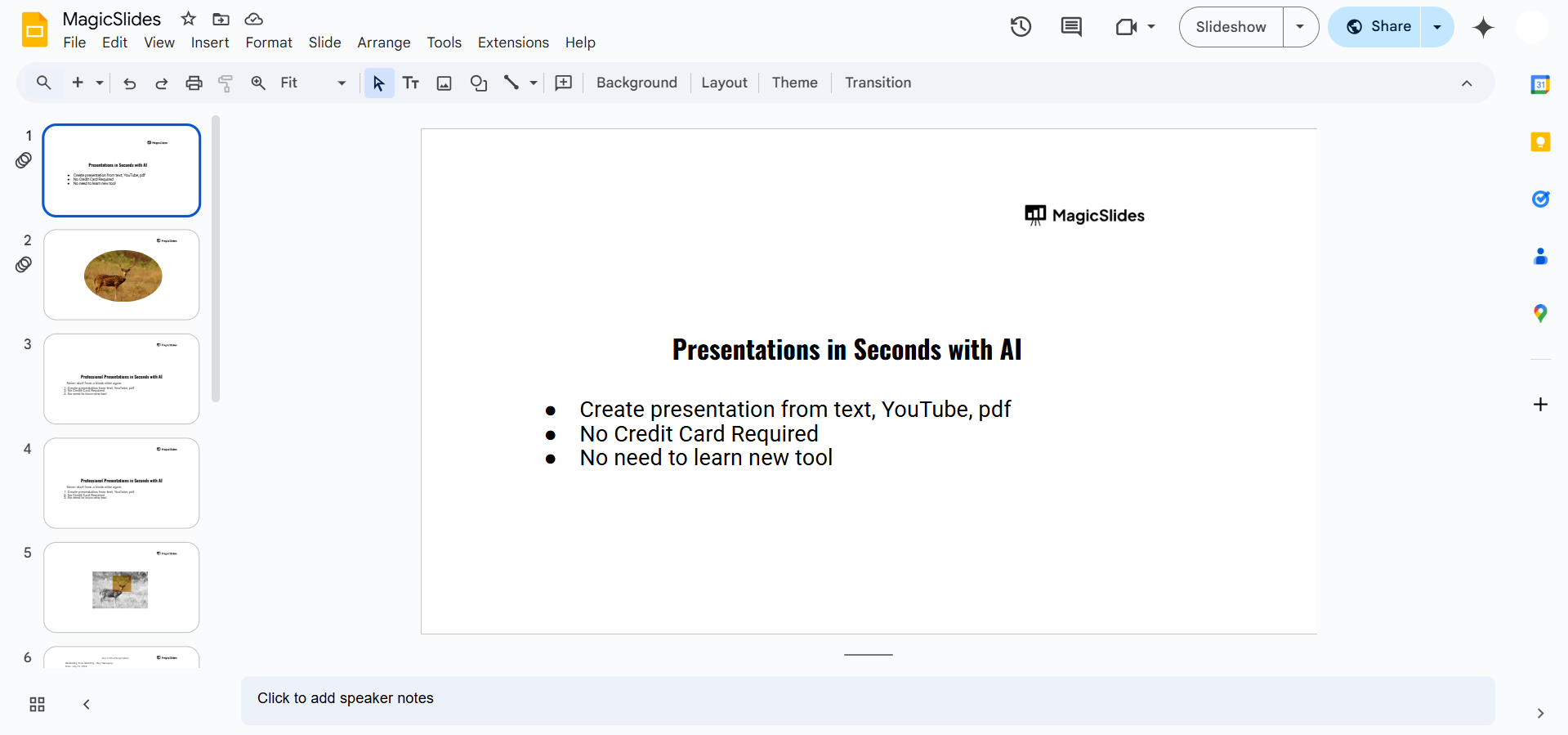
Step 1: Open Your Google Slides Presentation
Go to Google Slides and log in. Open the presentation where you want to adjust the aspect ratio.
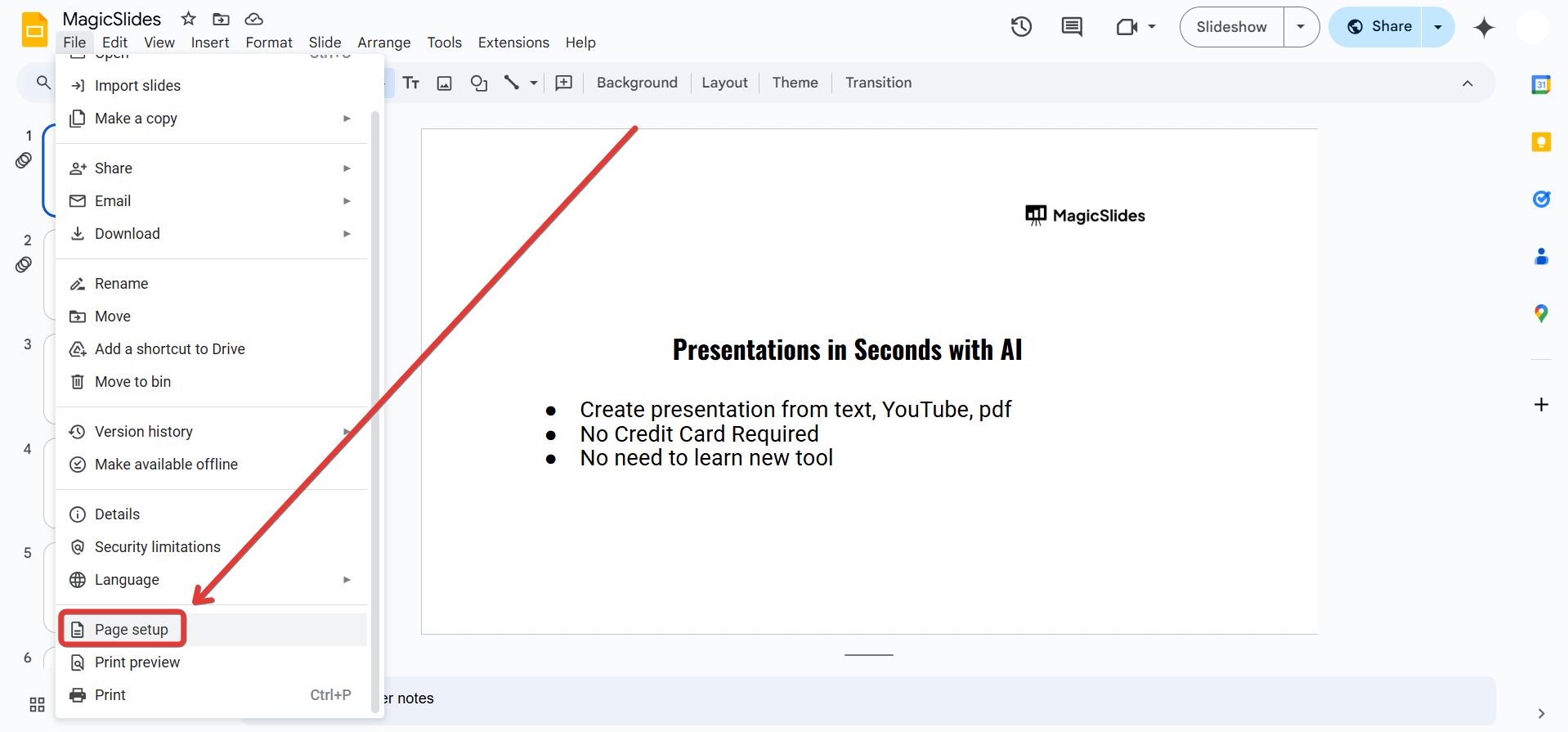
Step 2: Access the Page Setup Settings
Click on File in the top menu. Scroll down and select Page setup from the dropdown menu.
Step 3: Choose a Predefined Aspect Ratio
A Page setup pop-up window will appear.
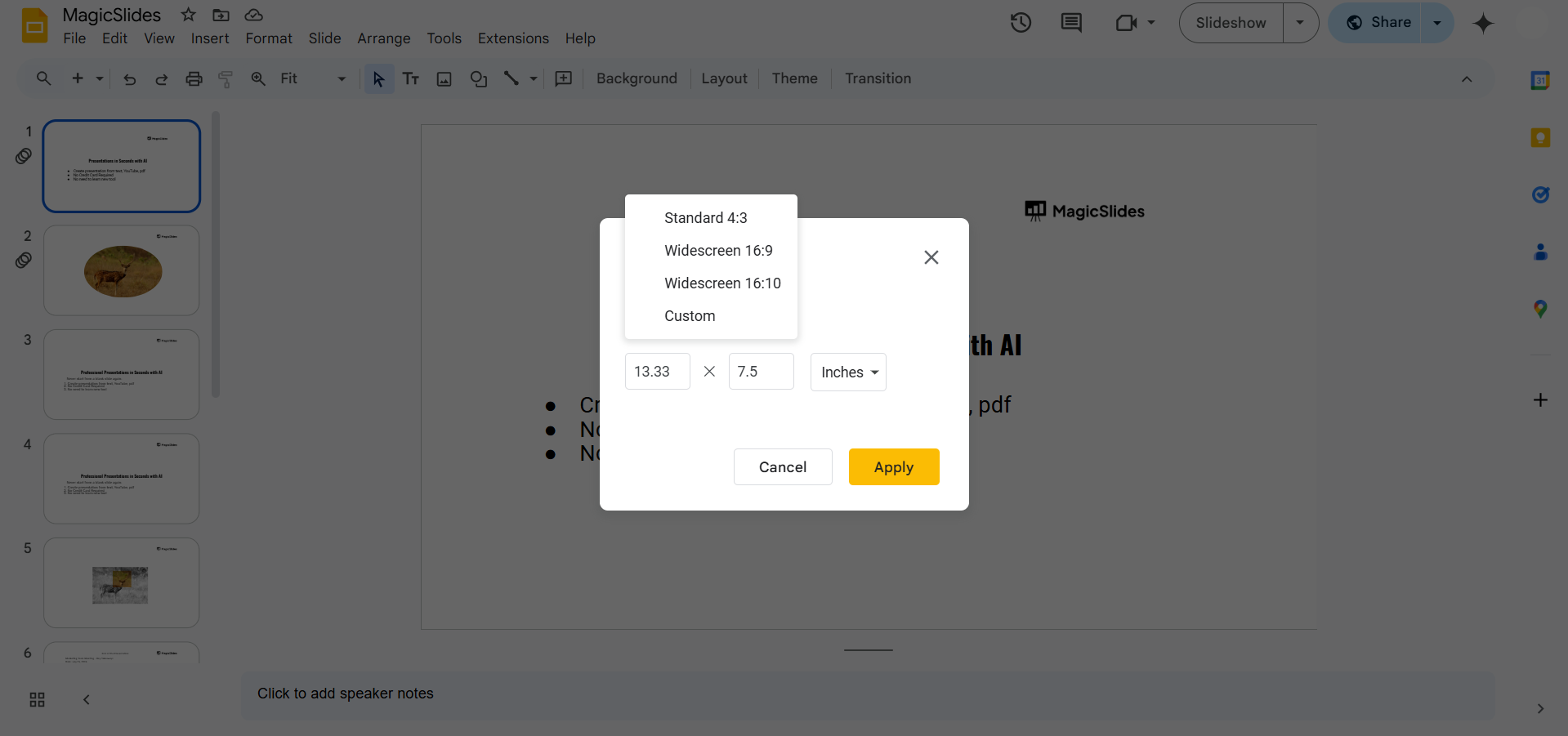
Click on the dropdown menu to view preset aspect ratios:
- Standard (4:3) – Traditional slide format.
- Widescreen (16:9) – Default setting for most presentations.
- Widescreen (16:10) – Slightly taller widescreen option.
Step 4: Set a Custom Aspect Ratio (Optional)
If the predefined sizes don’t fit your needs, select Custom from the dropdown menu.
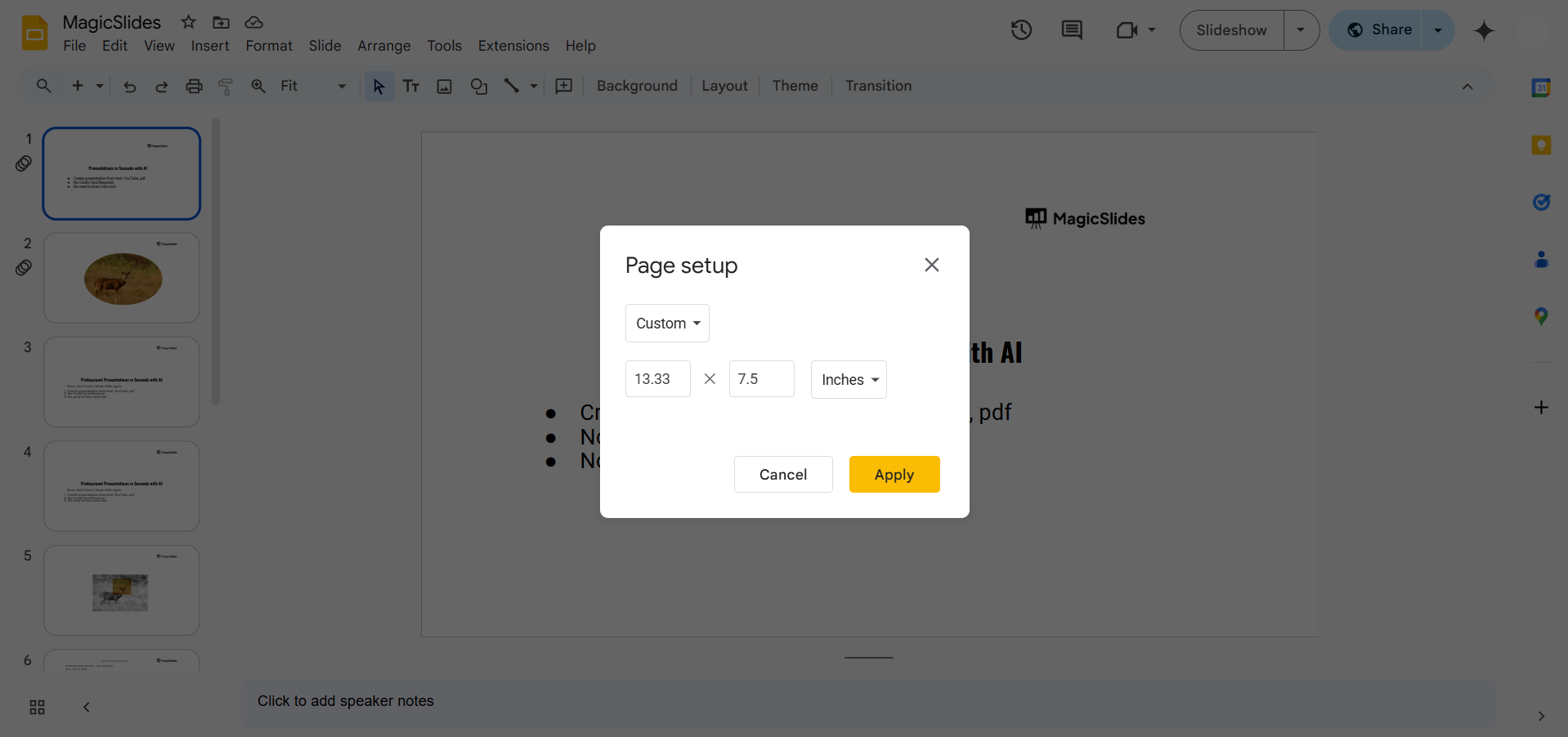
Enter your desired dimensions (e.g., 1080 x 1920 pixels for a vertical slide). Click Apply to save the changes.
Step 5: Adjust Slide Content (If Needed)
Changing the aspect ratio may affect the layout of your slides. Resize or reposition images, text, and elements to fit the new format.
Yes, Google Slides lets you adjust the aspect ratio, but if you need to create high-quality, AI-generated slides instantly, check out MagicSlides.app just enter a topic, and your presentation is ready in seconds!
Conclusion
Google Slides makes it easy to change the aspect ratio for different screens and presentations.
Whether you need a widescreen format for a projector or a custom size for social media graphics, you can adjust your slides in just a few clicks.
FAQs on Changing Google Slides Aspect Ratio
Will changing the aspect ratio affect my existing slides?
Yes, elements may shift or resize. You may need to adjust content manually after changing the aspect ratio.
Can I switch between portrait and landscape mode?
Yes! Use the Custom option to create a vertical (portrait) layout by swapping width and height values.
What is the best aspect ratio for a presentation?
For most modern screens, 16:9 is ideal. For printed slides, 4:3 may be a better choice.
Now you know how to customize your Google Slides aspect ratio for any presentation need! 🚀


