Can you do a voiceover on Google Slides


Add voiceovers in Google Slides to enhance engagement and provide explanations without being physically present
Can You Do a Voiceover on Google Slides?
Creating engaging presentations isn’t just about beautiful visuals it’s also about how well your message is delivered. When you're not presenting live, a voiceover can bridge that gap, making your slides feel more personal and easier to follow. Whether you’re an educator, marketer, or student, adding a voiceover helps you explain key points, add context, and keep your audience engaged.
Although Google Slides doesn’t offer a built-in voice recording feature, there’s a simple workaround using Google Drive and an external audio recording tool. In this blog post, we’ll walk you through exactly how to add voiceovers to your slides, step-by-step no technical skills required.
How to Add a Voiceover on Google Slides (Step-by-Step Guide)
Google Slides doesn’t have a built-in voice recording feature, but you can still add voiceovers by uploading audio files manually. Here’s how to do it:
Step 1: Record Your Voiceover
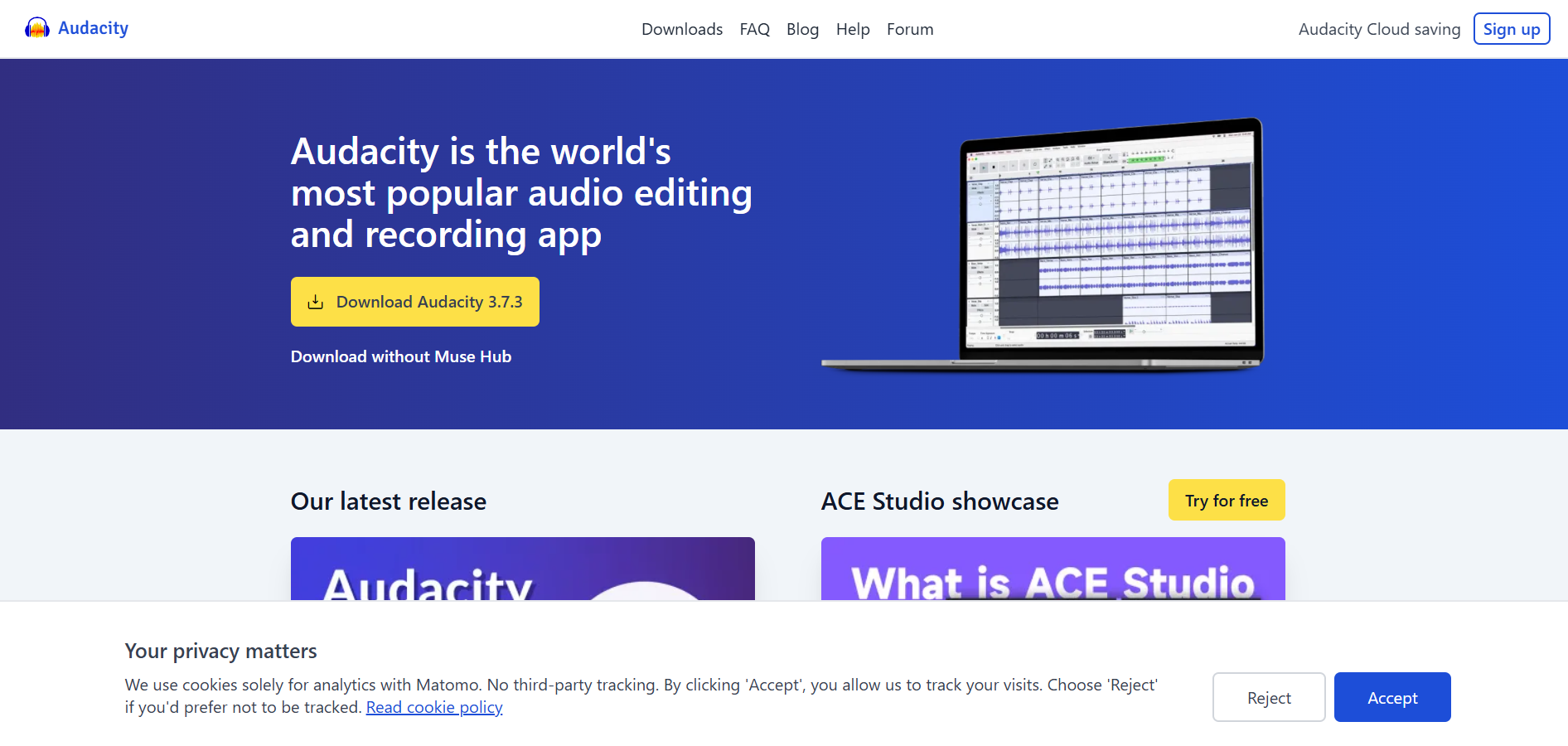
- Use any voice recording app (e.g., Audacity, Voice Memos, or Online Voice Recorder).
- Save your audio file in MP3 or WAV format.
- Name your audio files based on the slide number or topic to stay organized.
Step 2: Upload the Audio to Google Drive
- Go to Google Drive.
- Click New > File upload.
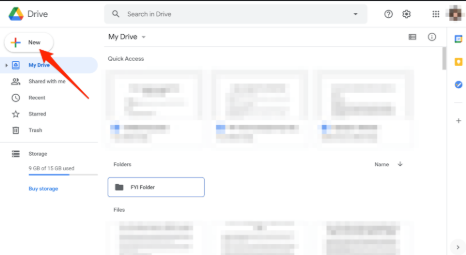
- Upload your audio files one by one.
- Once uploaded, right-click each audio file, choose Share, and set access to Anyone with the link or adjust according to your sharing preferences.
Step 3: Insert Audio into Your Slides
- Open your Google Slides presentation.
- Go to the slide where you want to add the voiceover.
- Click Insert > Audio from the top menu.
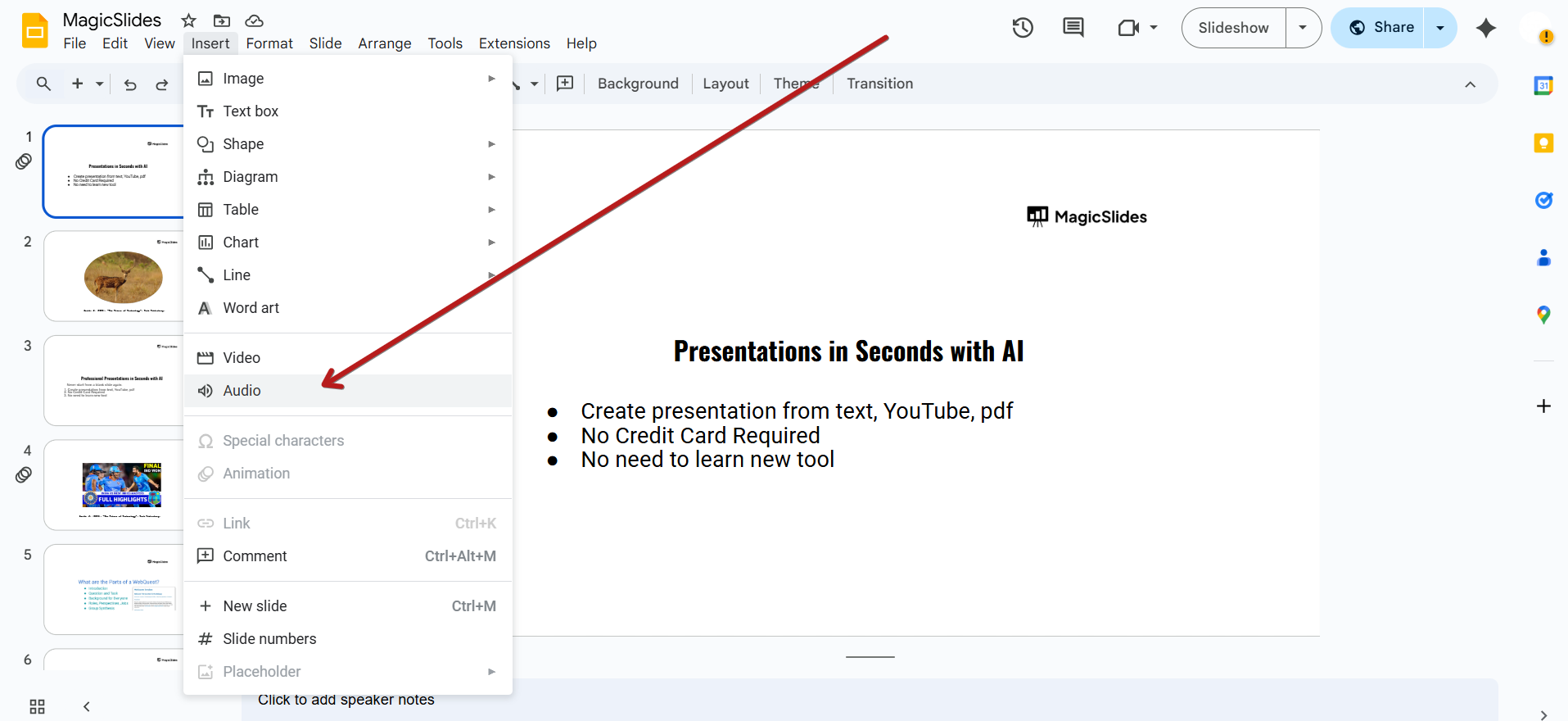
- Choose your uploaded audio file from Google Drive.
Step 4: Customize Audio Playback Settings
- Once inserted, an audio icon will appear on your slide.
- Click it, then go to Format options (top toolbar).
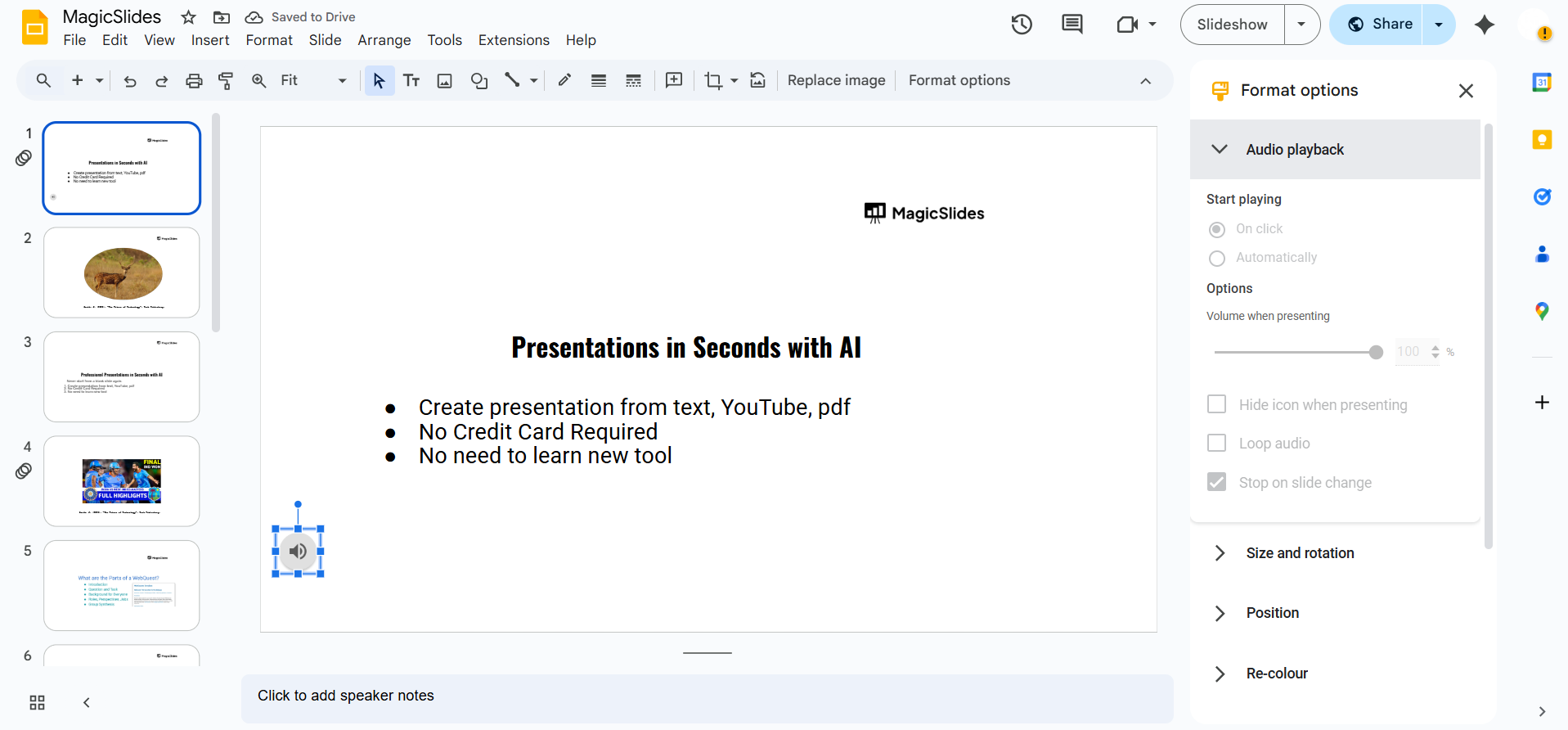
- In the side panel, you can:
- Set the audio to play automatically or on click.
- Adjust volume.
- Choose whether to hide the audio icon while presenting.
Step 5: Repeat for Other Slides
- If your voiceover spans multiple slides, repeat the same process for each one.
- Ensure each slide has the correct corresponding audio clip.
Adding a voiceover can make your presentations more engaging. But if you're looking to create full presentations content, structure, and flow in seconds, try MagicSlides.app, your AI-powered slide creation assistant!
Conclusion
While Google Slides doesn’t have a built-in voiceover feature, you can still effectively add narration by recording your voice and inserting audio files into each slide.
This is a great way to guide viewers through your presentation, especially when sharing it asynchronously.
FAQs are here to help!
Can I record audio directly in Google Slides?
No, Google Slides doesn’t support direct audio recording. You must record your voice using another tool.
Do voiceovers play automatically in Google Slides?
Yes, you can set the audio to play automatically by adjusting playback settings in Format Options.
Can I add different voiceovers to different slides?
Absolutely. Just repeat the insert-audio process for each slide and upload the correct audio file.


