Can you get a Canva Graphic Downloaded into PowerPoint


Learn how to download Canva graphics and easily insert them into your PowerPoint presentations
Can You Get a Canva Graphic Downloaded into PowerPoint?
Yes, it is possible to download graphics created in Canva and import them into PowerPoint.
Canva offers a variety of templates and design elements that you can download in multiple formats, and PowerPoint allows you to insert these graphics easily into your presentation.
This integration is great for adding high-quality visuals to your slides. In this blog post, we’ll walk you through the steps to download a Canva graphic and successfully transfer it into PowerPoint.
Steps to Download a Canva Graphic and Insert it into PowerPoint
Step 1: Design Your Graphic in Canva
Open Canva and start designing your graphic.

You can choose from a variety of templates (e.g., infographics, social media posts, posters) or create a custom design from scratch.
Customize the design by adding text, shapes, images, and other elements to suit your presentation needs.
Step 2: Download the Canva Graphic
Once your design is complete, click the "Share" button in the top right corner of Canva.
Select "Download" from the dropdown menu.
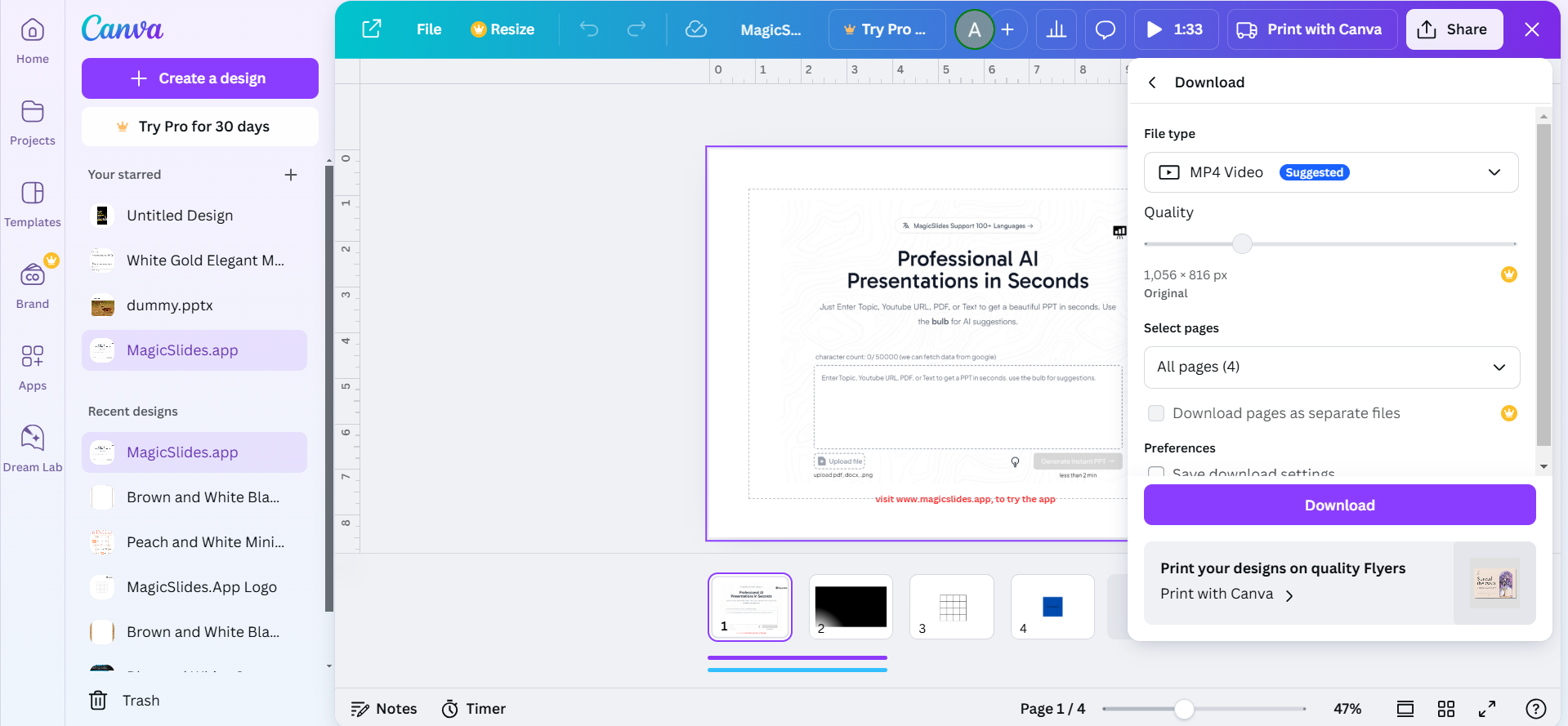
Choose the file format you want to download. For use in PowerPoint, the recommended formats are PNG or JPG for images or PDF for vector-based designs (if you need to maintain quality at different sizes).
Click the "Download" button to save the file to your computer.
Step 3: Open Your PowerPoint Presentation
Open PowerPoint and navigate to the slide where you want to insert the Canva graphic.
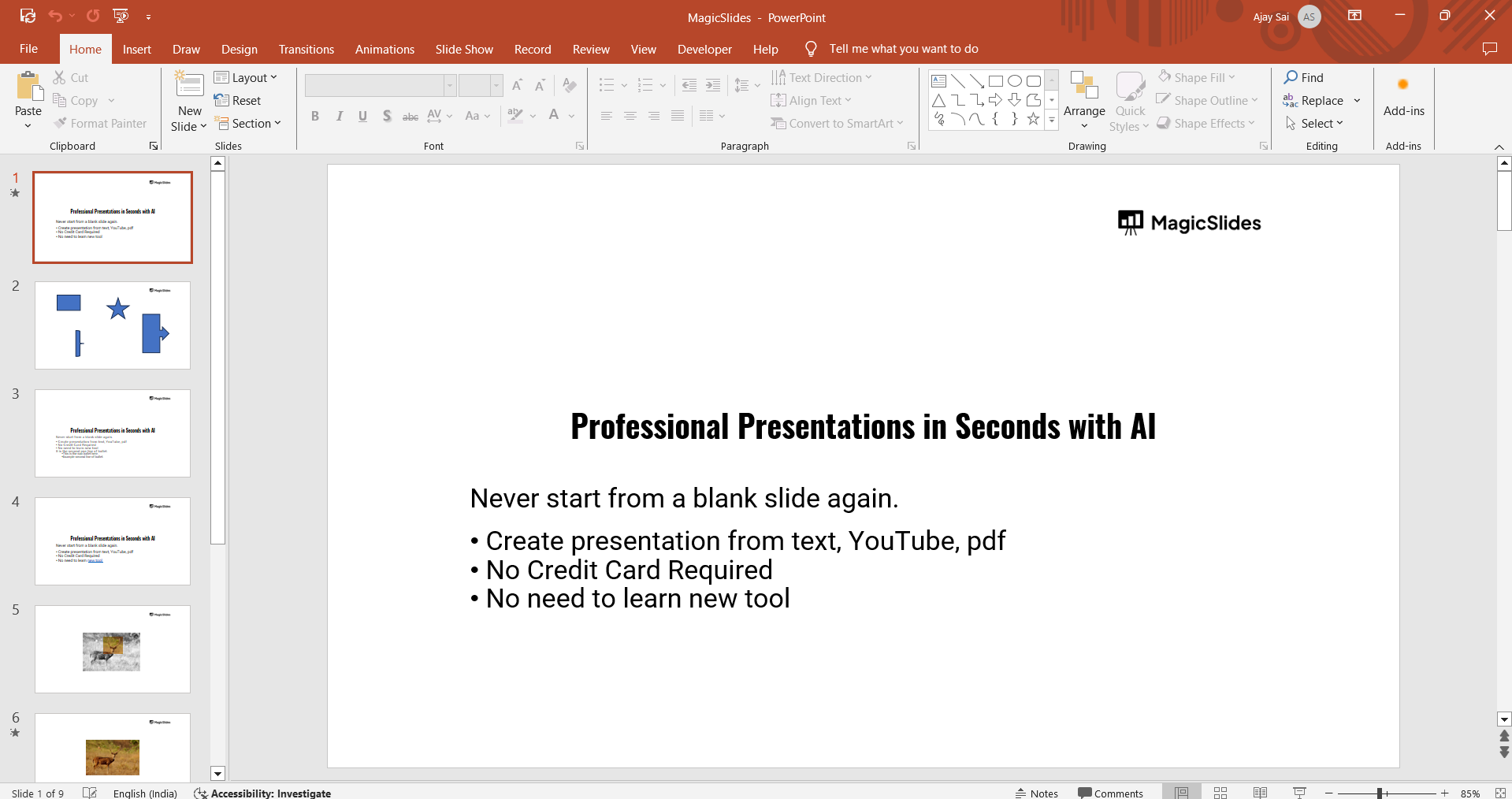
You can either create a new presentation or use an existing one, depending on your needs.
Step 4: Insert the Canva Graphic into PowerPoint
In PowerPoint, go to the "Insert" tab at the top of the window.
Click on "Pictures" if you're using a PNG or JPG file, or "Object" if you're using a PDF.
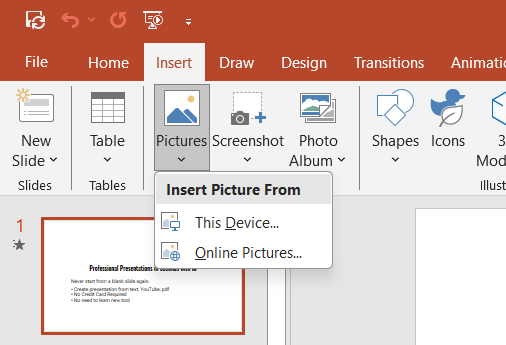
Locate the downloaded Canva file on your computer and click "Insert." Adjust the size and position of the graphic on the slide as needed.
Step 5: Edit the Graphic (Optional)
If needed, use PowerPoint's built-in editing tools to crop, resize, or apply effects to the graphic.
You can also use PowerPoint's "Picture Tools" tab to adjust brightness, contrast, or apply styles to the image.
Conclusion
Transferring graphics from Canva to PowerPoint is a simple process that enhances your presentation with custom, high-quality visuals.
By following these easy steps, you can design in Canva and quickly import your work into PowerPoint, improving the visual appeal and professionalism of your slides.
Canva's user-friendly platform combined with PowerPoint's versatile editing options makes this integration an ideal solution for creating engaging presentations.
FAQs on Getting Canva Graphics into PowerPoint
Can I import Canva designs directly into PowerPoint without downloading them first?
Currently, Canva doesn’t offer a direct PowerPoint export feature, so downloading and inserting manually is required.
What file formats are best for importing Canva graphics into PowerPoint?
For images, PNG and JPG are ideal. If you're using vector-based graphics, you can download as PDF.
Can I edit the Canva graphic directly in PowerPoint once it's inserted?
While you can resize, crop, and apply some effects in PowerPoint, further edits to the design are best done in Canva.
By following these steps, you can seamlessly use Canva graphics in your PowerPoint presentations to add creative and visually compelling elements that will capture your audience's attention.


