Designing Accessible Presentations for All Audiences


Learn best practices for designing accessible presentations for all audiences. Improve readability, engagement, and inclusivity with AI-powered tools like MagicSlides.
Creating presentations that are accessible to all audiences is essential in today's diverse and digital landscape. Whether you’re presenting to people with visual impairments, hearing difficulties, cognitive challenges, or language barriers, accessibility ensures everyone can engage with and understand your content.
In this guide, we’ll explore the best practices for designing accessible presentations for all audiences so your message reaches and resonates with everyone. Plus, we’ll introduce MagicSlides, an AI-powered tool that helps you create professional, accessible presentations in minutes.
Why Accessibility in Presentations Matters
An accessible presentation benefits everyone, not just those with disabilities. Here’s why accessibility should be a priority:
- Inclusion – Everyone should have equal access to the information you share.
- Better comprehension – Clear, well-structured presentations improve understanding.
- Legal compliance – Many organizations follow accessibility standards like WCAG (Web Content Accessibility Guidelines).
- Enhanced engagement – People engage more when they can easily follow your content.
By designing your presentations with accessibility in mind, you ensure that no one is left out.
Best Practices for Designing Accessible Presentations
1. Use Clear and Readable Fonts
The wrong font choice can make it difficult for people to read your slides, especially those with dyslexia or vision impairments.
Best fonts for accessibility:
- Arial
- Verdana
- Open Sans
- Lato
- Tahoma
Fonts to avoid:
- Cursive or script fonts
- Overly decorative fonts
- Fonts with tight spacing
Tip: Use a font size of at least 24 pt for body text and 32–44 pt for headings to ensure readability.
2. Maintain High Color Contrast
Low-contrast text is difficult to read, especially for people with low vision or color blindness.
Good contrast examples:
- Black text on a white background
- Dark blue text on a light yellow background
Bad contrast examples:
- Light gray text on a white background
- Yellow text on a light blue background
Tip: Use contrast checkers like WebAIM Contrast Checker to ensure your text is readable.
3. Provide Alternative Text for Images
Images can enhance understanding, but screen readers can’t interpret images unless they have alternative (alt) text.
How to write alt text:
- Be descriptive (e.g., “A bar chart showing company growth from 2015 to 2023”).
- Avoid unnecessary phrases like “Image of” or “Picture of.”
Tip: If an image is purely decorative, mark it as decorative so it doesn’t disrupt the screen reader flow.
4. Use Simple Slide Layouts
Cluttered slides overwhelm the audience and are harder to follow.
Best practices for layout:
- Use one key idea per slide.
- Leave white space to improve readability.
- Keep slides consistent in design and structure.
Tip: Stick to a simple left-aligned text layout, as centered text can be harder to read for some audiences.
5. Make Multimedia Elements Accessible
If you’re using videos or audio in your presentation, make sure they are accessible to all.
How to make multimedia accessible:
- Add captions to videos for people with hearing impairments.
- Provide transcripts for audio content.
- Ensure any animations do not cause seizure triggers (e.g., flashing content).
Tip: Use tools like YouTube’s automatic captions or Otter.ai to generate transcripts.
6. Use Descriptive Links
When adding links to your slides, avoid vague text like “Click Here” or “Read More.” Instead, use descriptive text so users know what to expect.
Good example:
Read the full accessibility guidelines on W3C
Bad example:
7. Test Your Presentation for Accessibility
Before presenting, test your slides to ensure they are accessible.
How to test for accessibility:
- Use Microsoft PowerPoint’s Accessibility Checker (Under Review > Check Accessibility).
- Try navigating slides with a keyboard only (no mouse).
- Have someone with a disability review your slides for usability feedback.
How to Instantly Create Accessible Presentations with MagicSlides
Creating an accessible presentation manually can take time. MagicSlides helps you generate well-structured, professional presentations instantly.
Steps to Use MagicSlides.app
- Visit MagicSlides.app
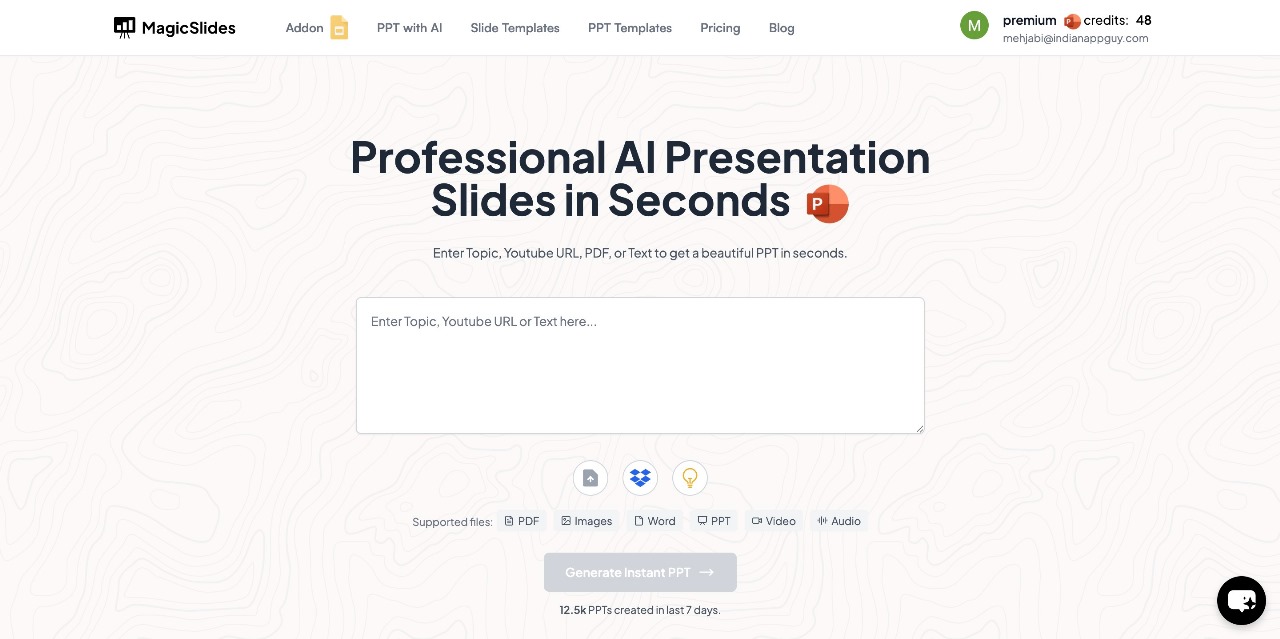
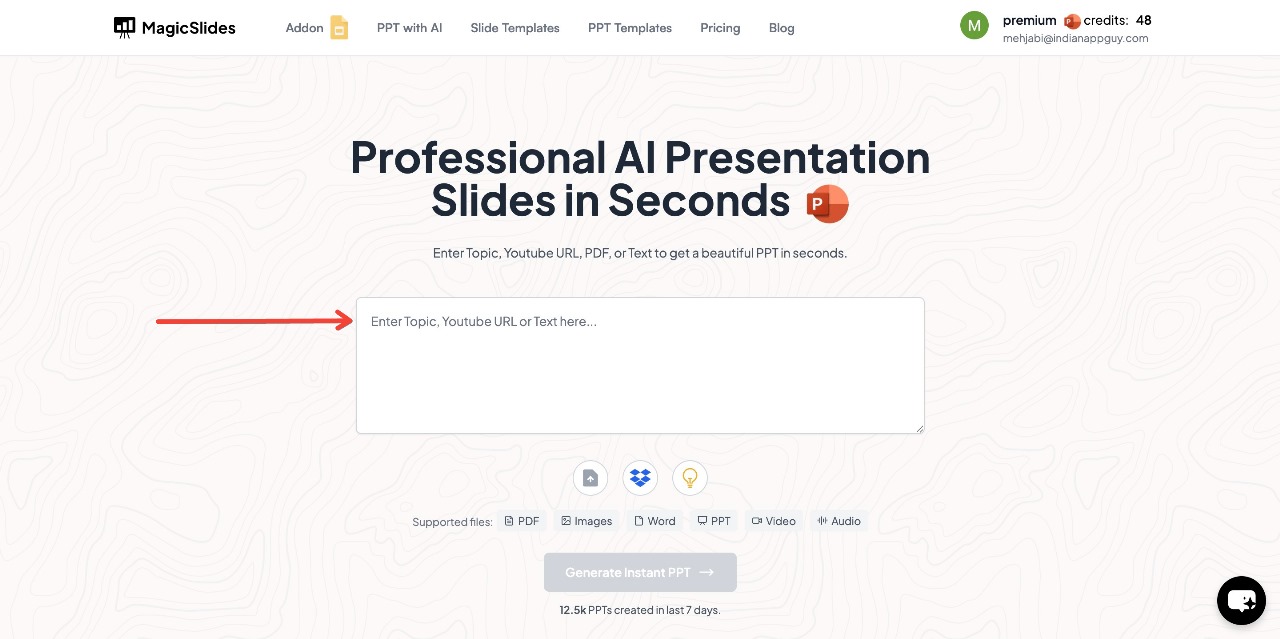
- Enter your topic in the provided space.
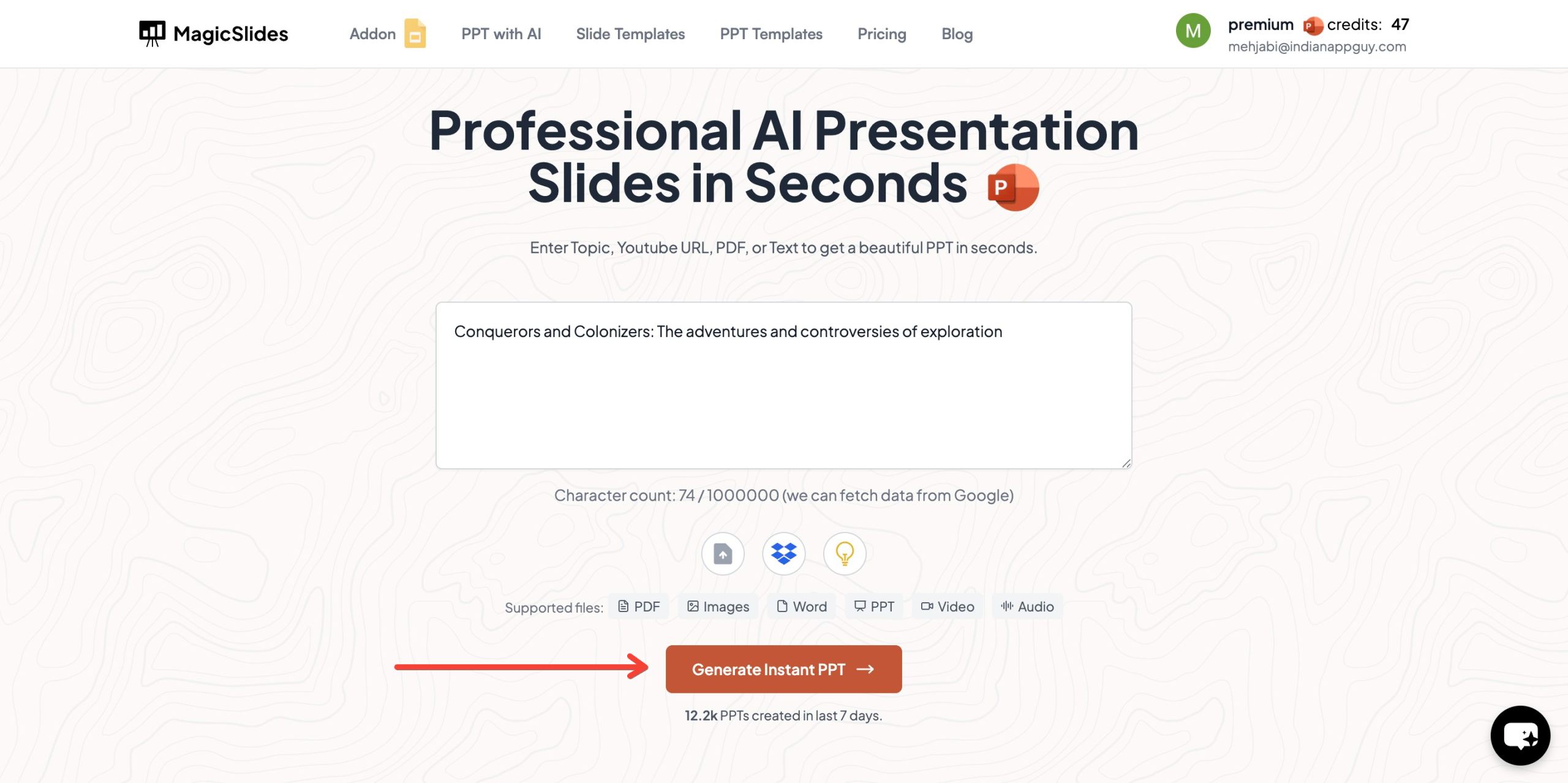
- Click "Generate Instant PPT" to start the process.
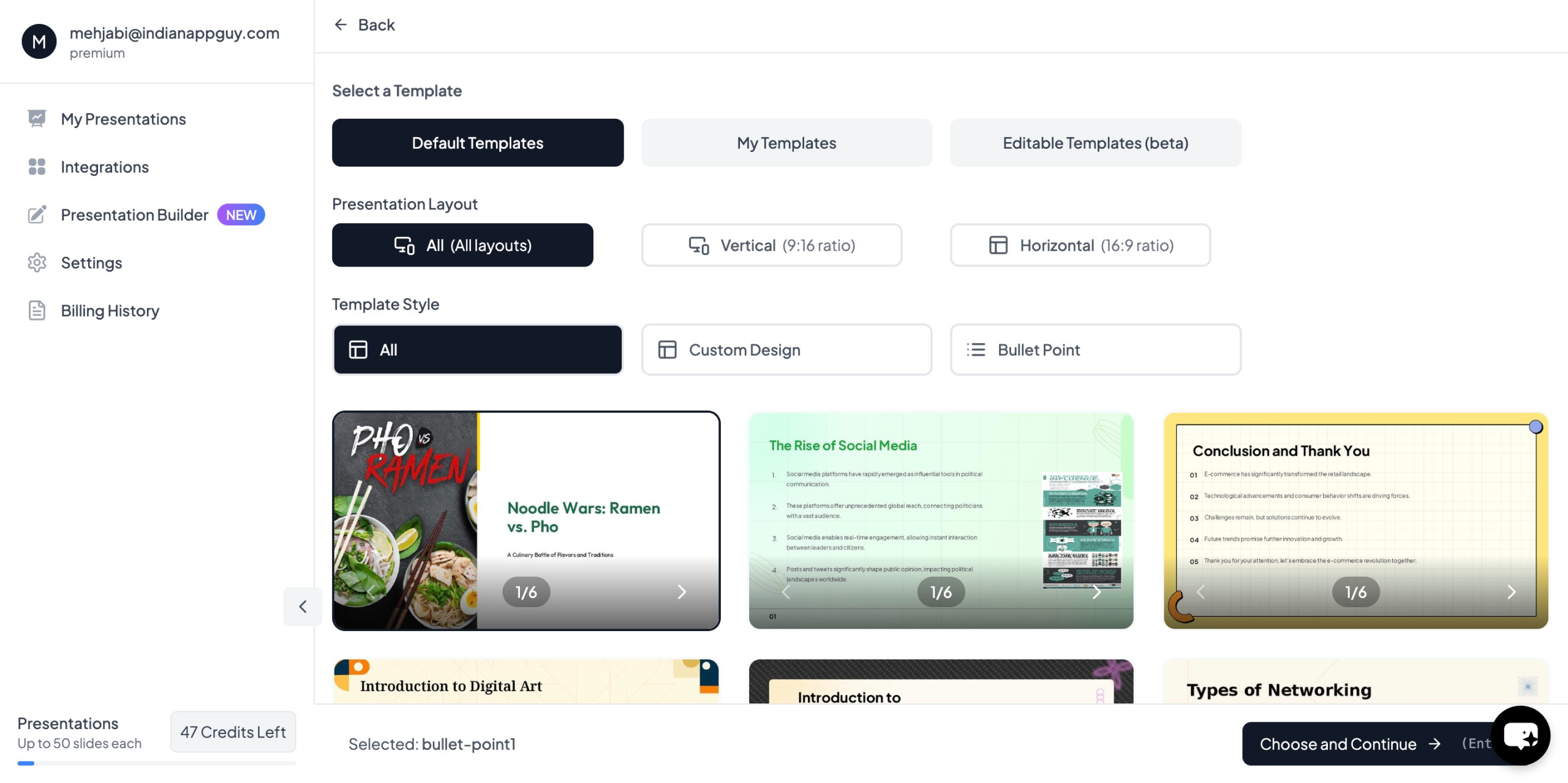
- Choose your template and the number of slides as prompted.
- Fill in the required details, then click "Generate Instant PPT."
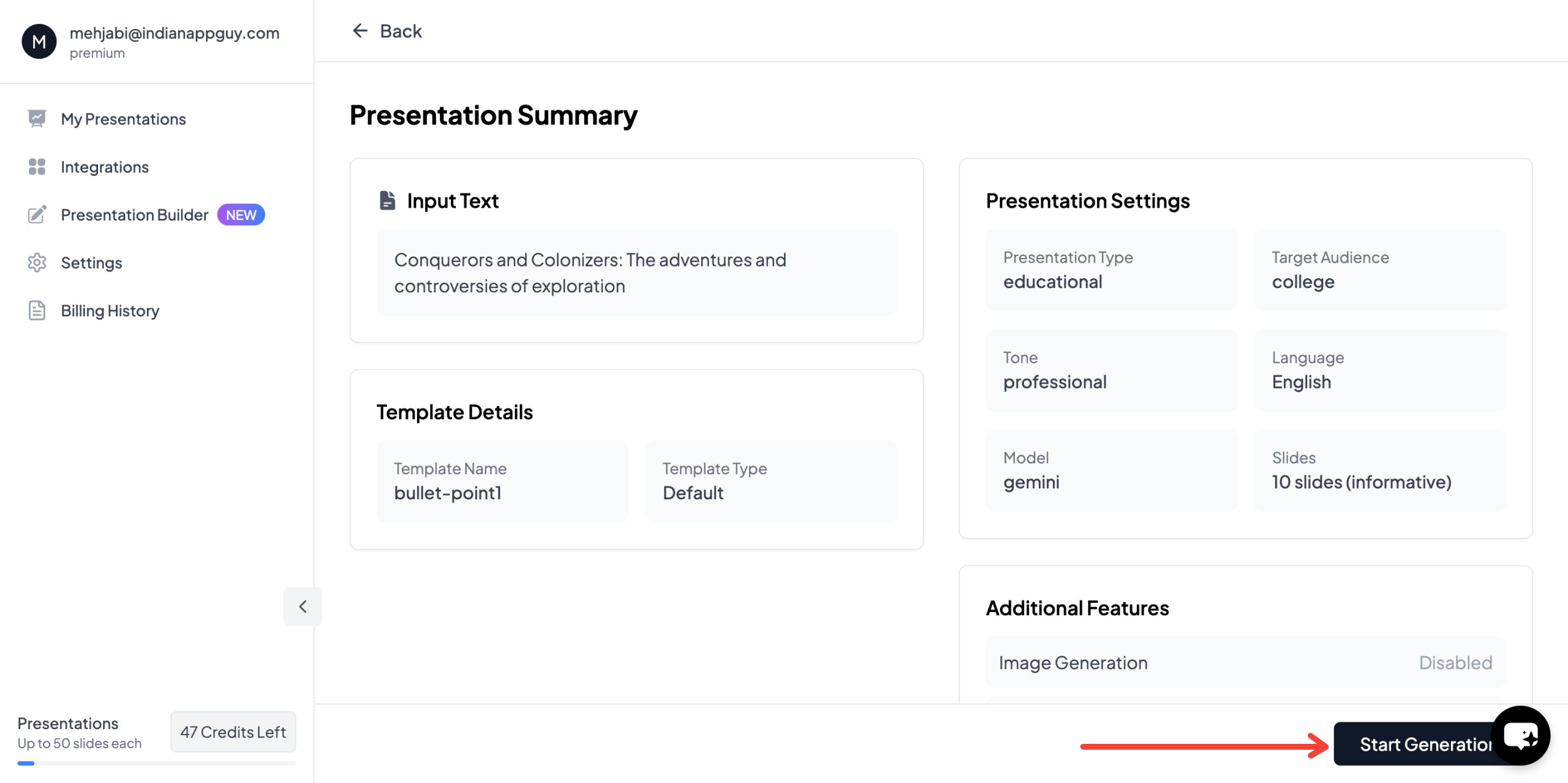
- Your professionally designed presentation will be ready in seconds.
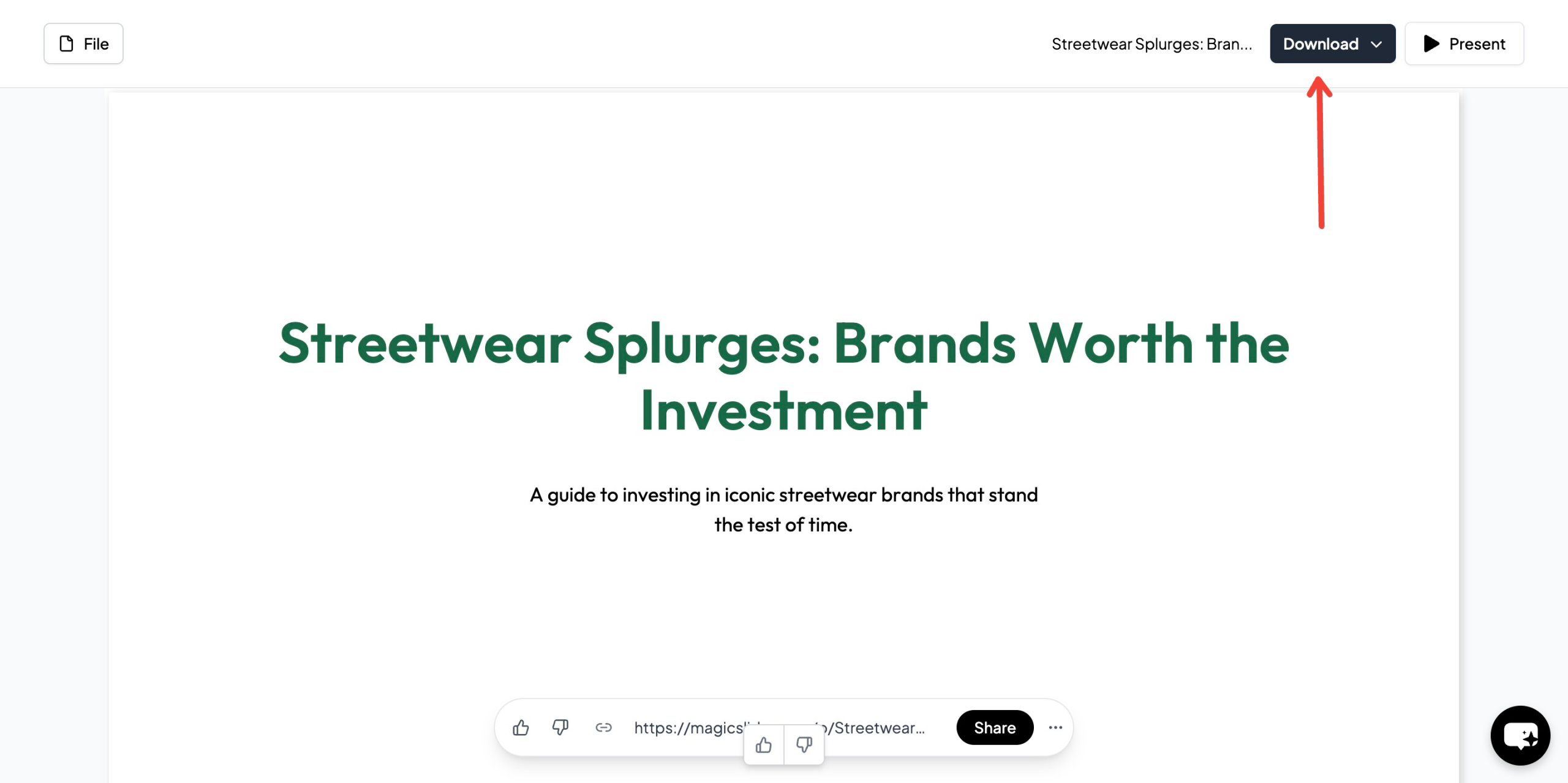
With MagicSlides, you save time while ensuring your presentation is clear and well-organized.
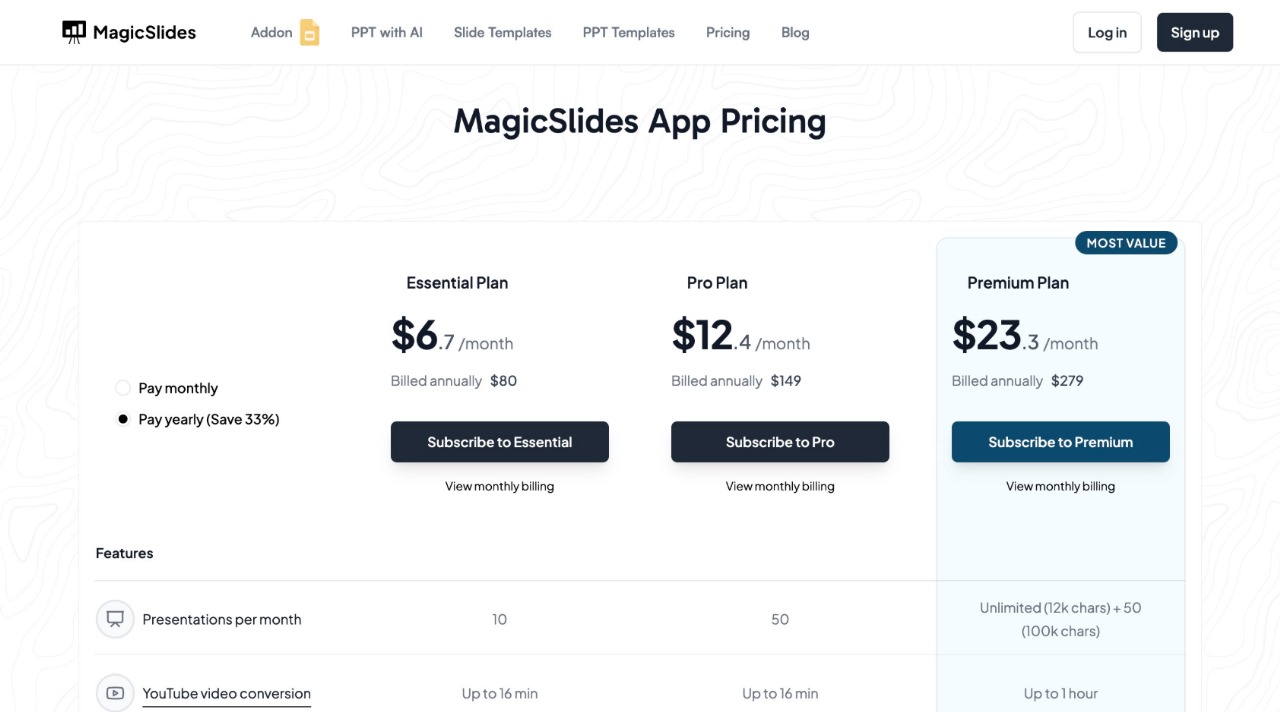
MagicSlides Pricing & Features
MagicSlides offers flexible pricing plans to suit different needs:
Why Use MagicSlides?
- Saves time – No need to manually design slides.
- AI-powered – Generates content based on your topic.
- Customizable – Choose templates and layouts that fit your style.
- Integrations – Works with Google Slides, Figma, Zapier, and more.
For those looking to create presentations quickly and efficiently, MagicSlides is a great solution.
Final Thoughts
Designing accessible presentations for all audiences is not just about following guidelines—it’s about ensuring inclusivity for everyone. When you make your slides accessible, you create a better experience for all attendees, whether they have a disability or not.
Key takeaways:
- Use clear, readable fonts and high-contrast colors.
- Add alt text for images and captions for videos.
- Keep slides simple, structured, and free from clutter.
- Test for accessibility before presenting.
If you want to create a presentation that’s engaging and accessible, try MagicSlides at MagicSlides.app.


