Designing Presentations for Hybrid Audiences


Learn how to design presentations for hybrid audiences effectively. Discover key strategies, best practices, and AI-powered tools like MagicSlides for seamless presentations.
The shift towards hybrid work environments has transformed the way presentations are delivered. With both in-person and remote attendees, designing presentations for hybrid audiences requires careful planning to ensure engagement, clarity, and inclusivity. A well-designed hybrid presentation bridges the gap between virtual and physical participants, ensuring that both groups receive the same level of interaction and understanding.
In this guide, we will explore how to design effective presentations for hybrid audiences, addressing key challenges and best practices. Additionally, we’ll introduce MagicSlides, an AI-powered tool that simplifies the process of creating professional presentations.
Why Hybrid Presentations Require a Different Approach
Hybrid presentations bring unique challenges:
- Audience division – Remote attendees may feel disconnected from in-person participants.
- Technical difficulties – Audio, video, and screen-sharing issues can disrupt engagement.
- Different levels of attention – Virtual attendees may multitask, affecting participation.
- Interaction gaps – Managing questions and discussions can be difficult when balancing two audience types.
To overcome these challenges, your presentation must be clear, interactive, and optimized for both virtual and in-person participants.
Best Practices for Designing Presentations for Hybrid Audiences
1. Optimize Slides for Both Online and In-Person Viewing
Your slides need to be readable for both physical and virtual audiences.
- Keep text large and legible (Minimum 30 pt font size)
- Use high-contrast colors to ensure clarity across different screen types
- Limit the amount of text per slide to keep content digestible
- Incorporate visuals and infographics for better engagement
Tip: Use clean, modern sans-serif fonts like Montserrat or Open Sans for better readability.
2. Maintain Consistent Engagement Between Both Audiences
It’s easy for remote attendees to feel disconnected, so ensure that engagement strategies include both groups.
- Use live polls to get real-time feedback from both in-person and online participants
- Ask questions and invite responses from virtual attendees using chat or reaction features
- Use breakout rooms to encourage discussion among all attendees
- Acknowledge both audiences throughout your presentation
3. Ensure Audio and Visual Clarity
Clear communication is essential.
- Use a high-quality microphone for clear audio pickup
- Ensure your camera setup is stable and captures the presenter effectively
- Share slides in advance so remote attendees can follow along
- Test your internet connection before the session starts
Tip: Use an external webcam instead of a laptop’s built-in camera for better quality.
4. Create a Structured Flow for Your Presentation
Hybrid presentations require careful pacing and structure to keep both audiences engaged.
- Start with an introduction that acknowledges both remote and in-person attendees
- Use a clear agenda slide to outline the presentation flow
- Alternate between speaker focus and slide focus for variety
- Pause for questions at regular intervals to engage the audience
Tip: Assign a co-host or moderator to manage chat questions and technical issues.
5. Leverage AI-Powered Tools for Presentation Design
Creating a presentation manually can be time-consuming. AI-powered tools like MagicSlides help generate high-quality slides instantly, allowing you to focus on content delivery.
How to Instantly Create Hybrid-Friendly Presentations with MagicSlides
MagicSlides is an AI-powered tool that helps you generate presentation slides instantly, saving time and effort while ensuring a professional look.
Steps to Use MagicSlides.app
- Visit MagicSlides.app
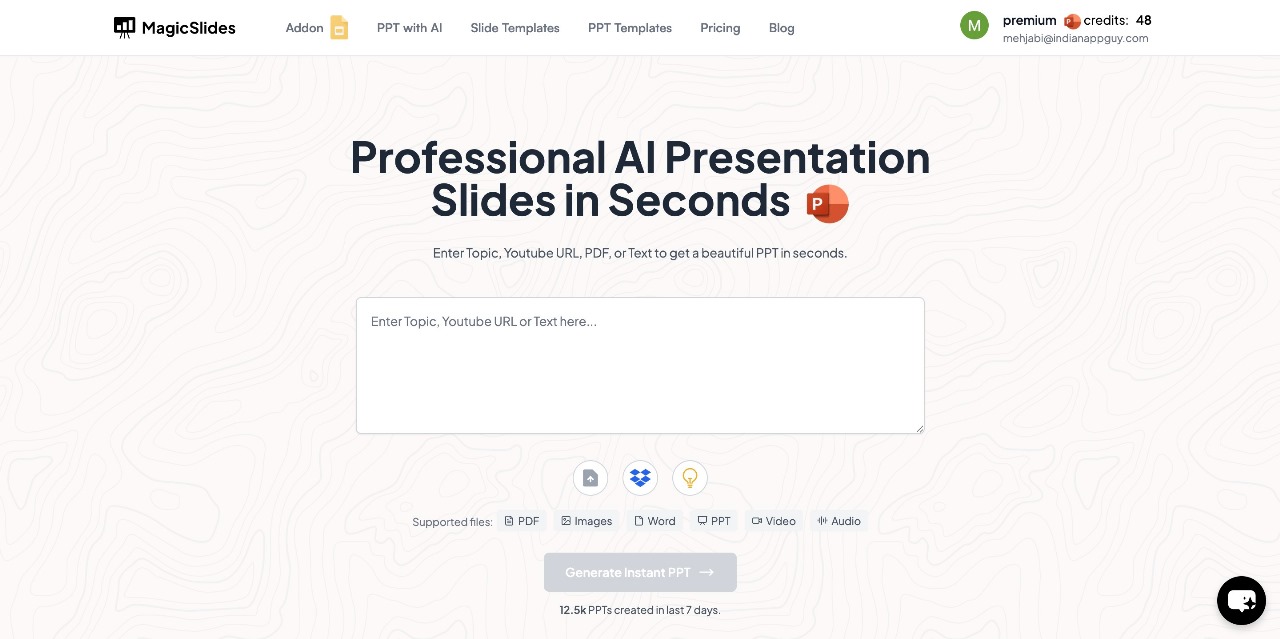
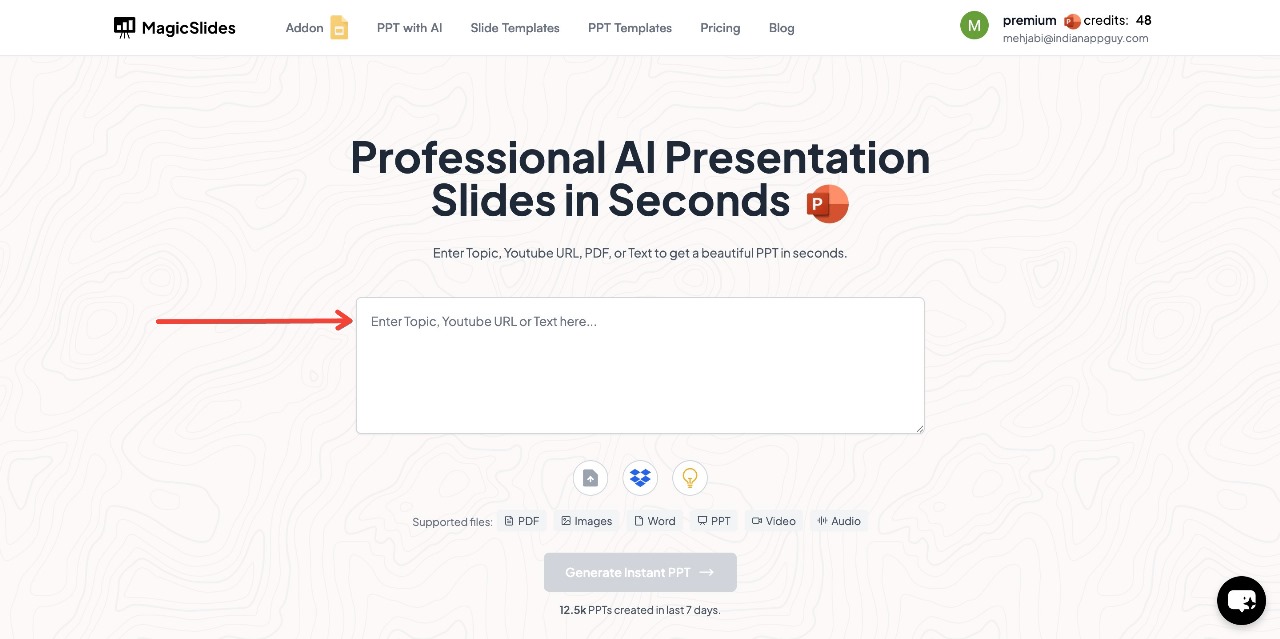
- Enter your topic in the provided space
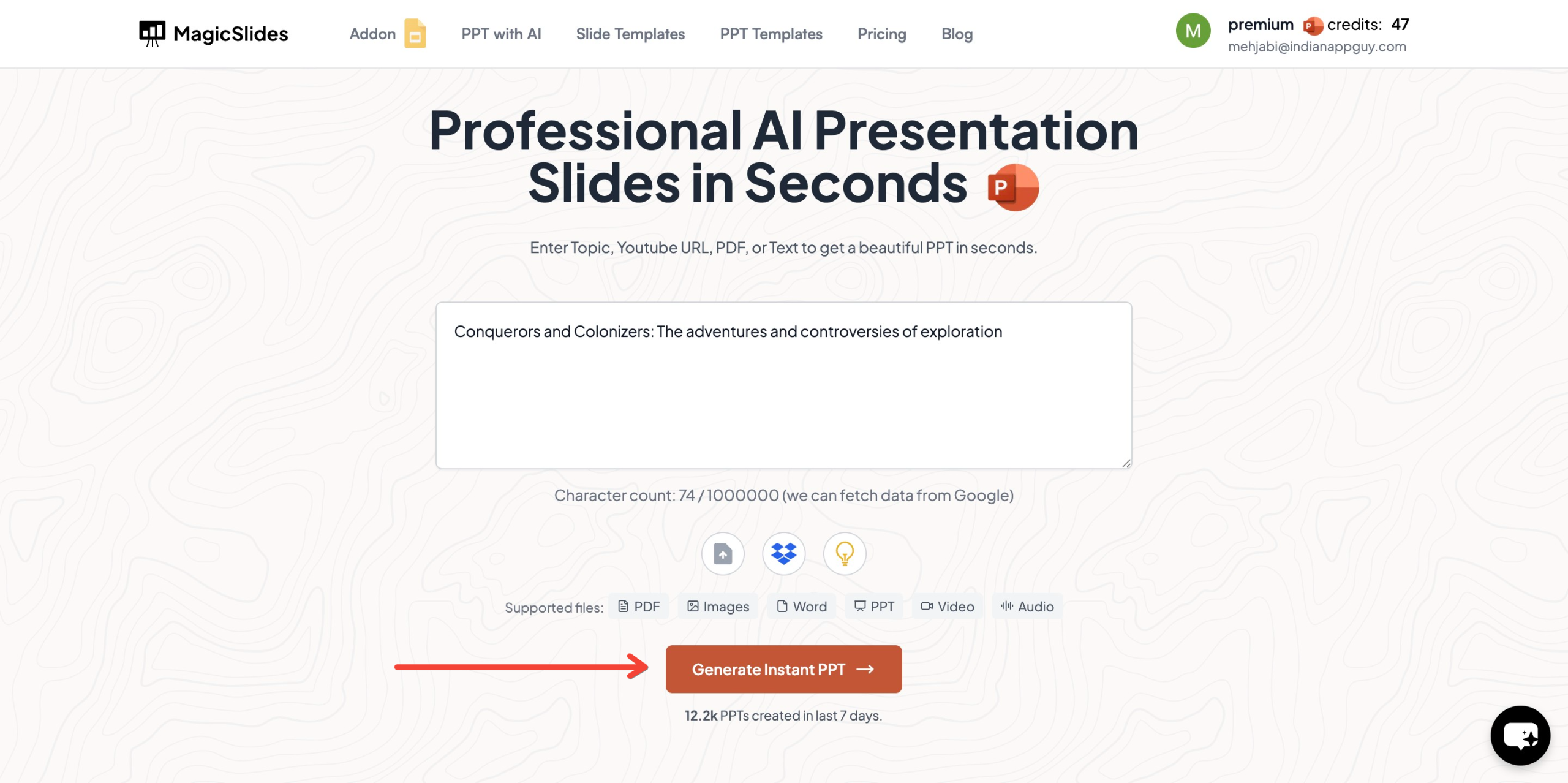
- Click "Generate Instant PPT" to start the process
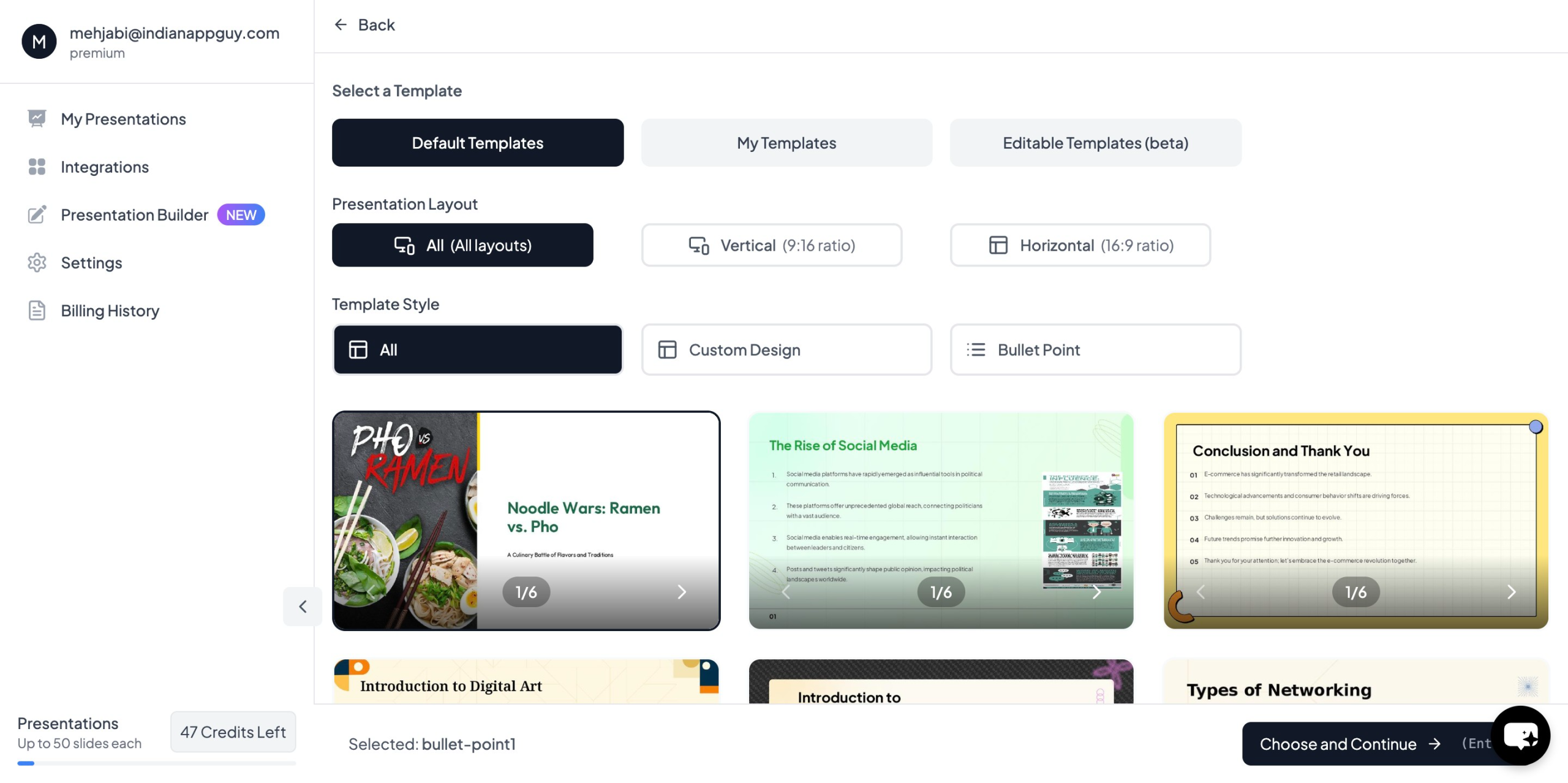
- Choose your template and number of slides as prompted
- Fill in the required details, then click "Generate Instant PPT"
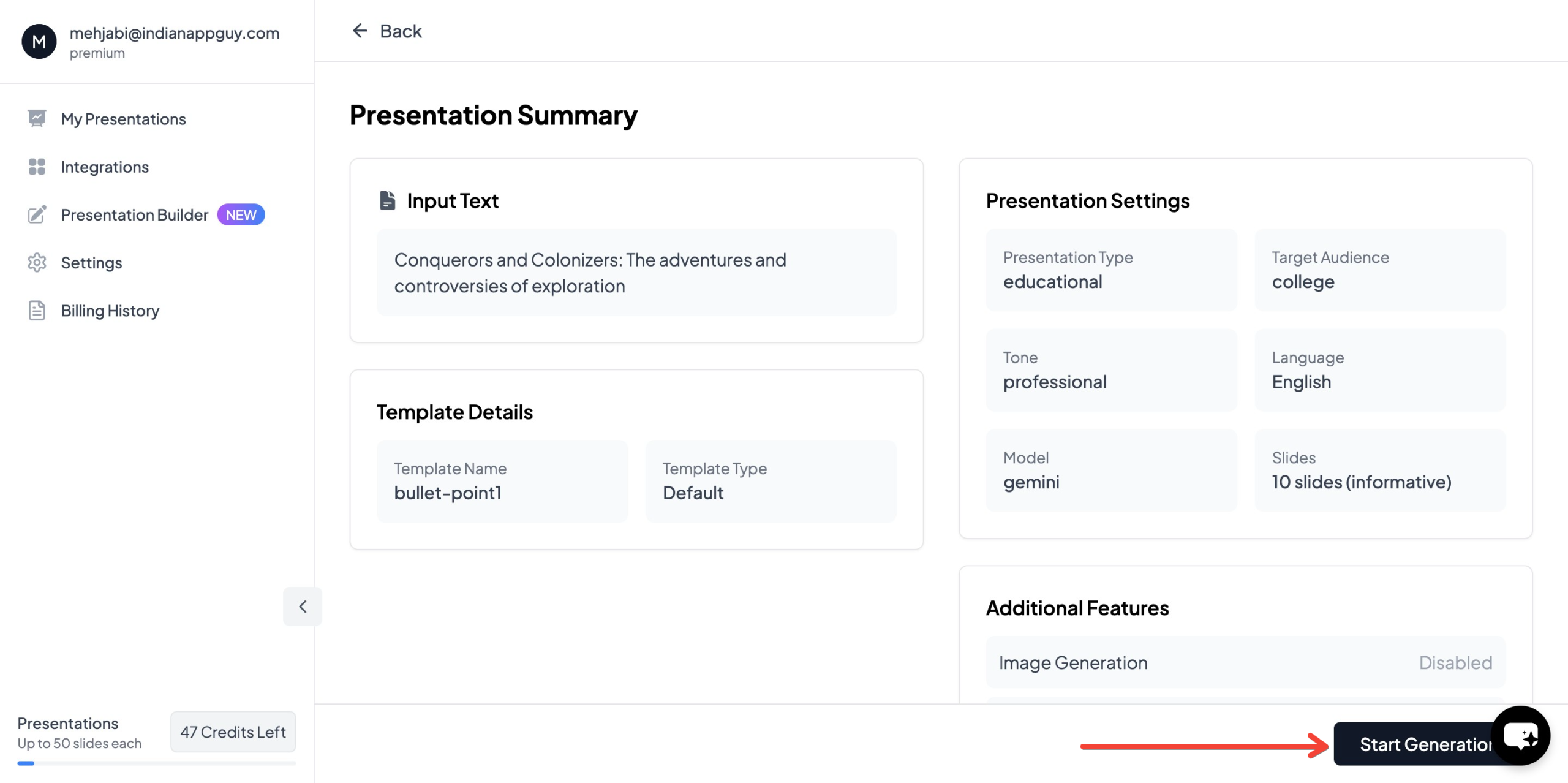
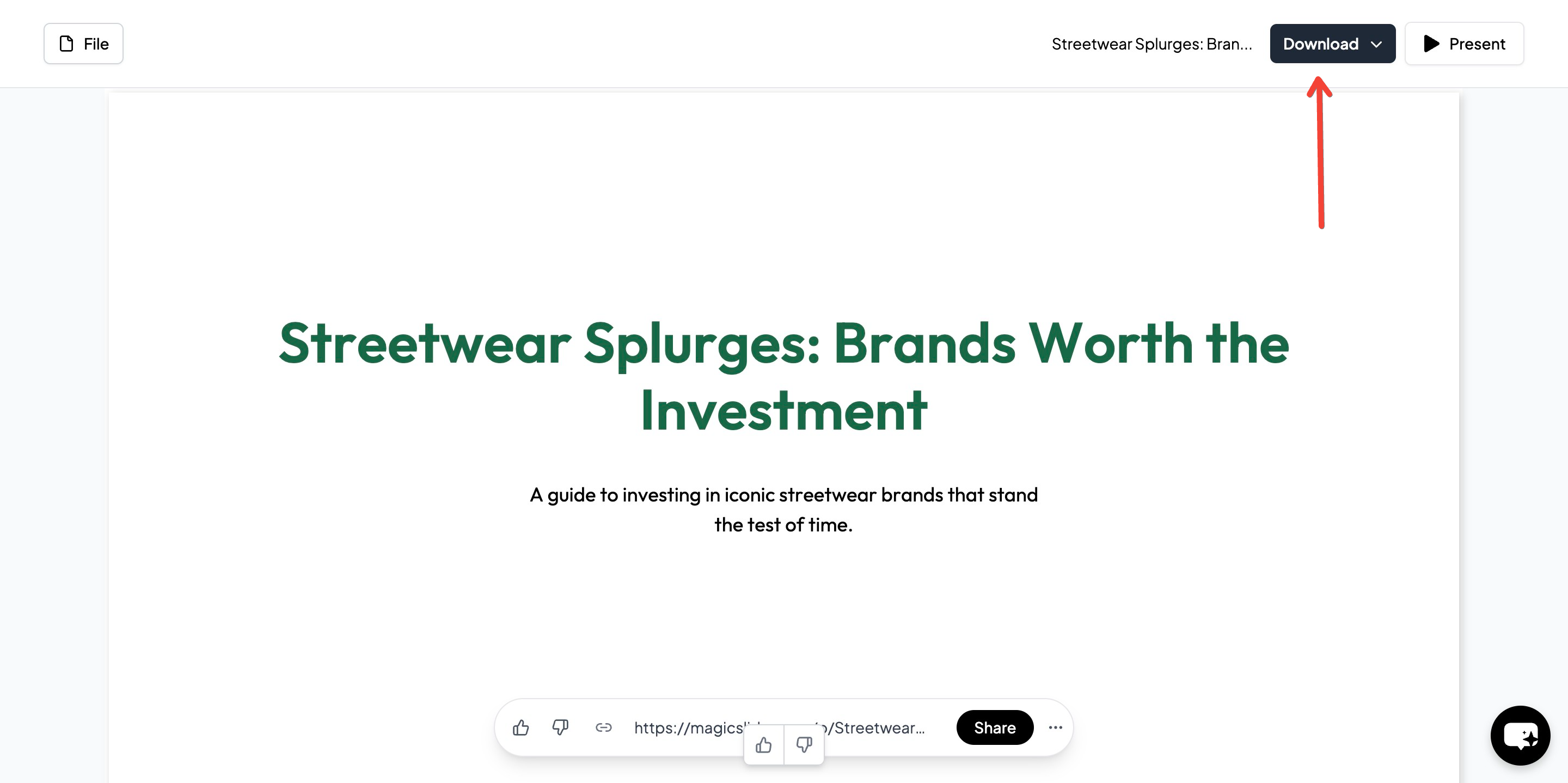
- Your professionally designed presentation will be ready in seconds
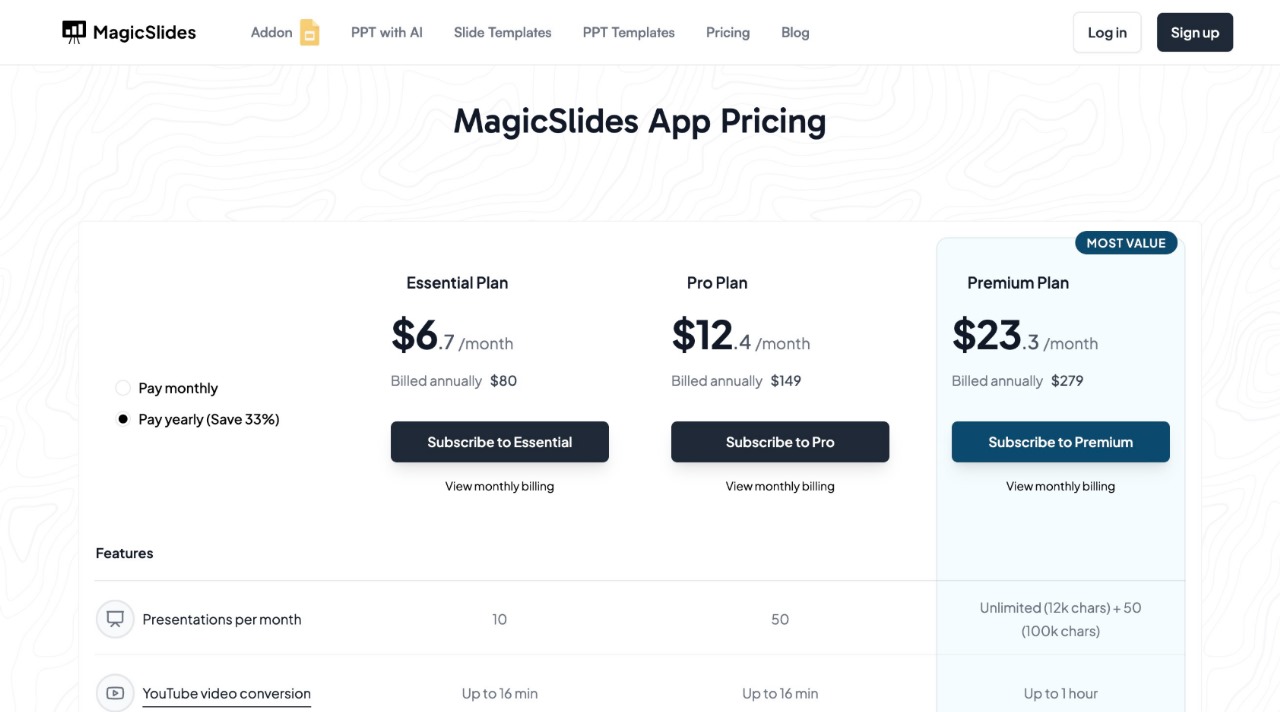
MagicSlides Pricing & Features
MagicSlides offers flexible plans depending on your needs:
Why Use MagicSlides?
- Saves time – No need to manually design slides
- AI-powered – Generates content based on your topic
- Customizable – Choose templates and layouts that fit your style
- Integrations – Works with Google Slides, Figma, Zapier, and more
If you want to create high-quality presentations in minutes, give MagicSlides a try.
Final Thoughts
Designing presentations for hybrid audiences requires a thoughtful approach that balances engagement, clarity, and inclusivity. By following best practices such as optimizing slides, maintaining interaction, and ensuring clear audio-visual quality, you can create impactful hybrid presentations.
For those looking to streamline the process, MagicSlides provides an easy way to generate high-quality slides instantly. Try it out at MagicSlides.app.


