How to adjust dimensions in Google Slides in simple clicks


Adjusting the Dimensions of the slides while creating presentations to our need is an important step. Here is a guide to do so.
Dimension 1: Standard Aspect Ratio (4:3): This classic aspect ratio, with dimensions like 1024×768 pixels, is well-suited for traditional on-screen presentations. It maintains a balanced layout that has been widely used over the years.

Dimension 2: Widescreen Aspect Ratio (16:9): In tune with modern trends, the 16:9 aspect ratio is a popular choice for presentations. With dimensions like 1280×720 or 1920×1080 pixels, it provides a broader canvas, making it effective for widescreen displays and contemporary visual aesthetics.
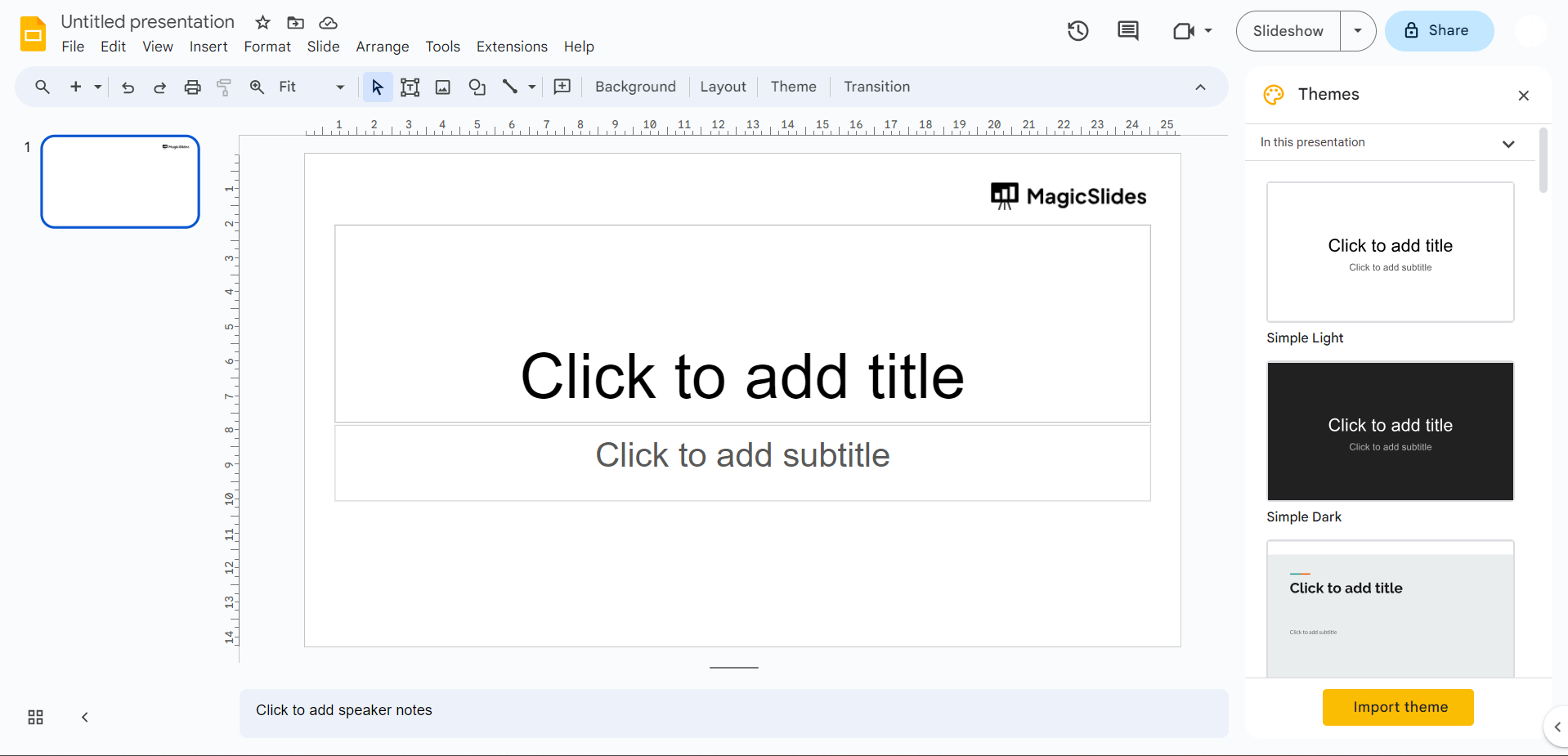
Dimension 3: Custom Dimensions: Beyond the predefined options, Google Slides allows you to establish custom dimensions. This flexibility is beneficial when you have specific requirements, ensuring your presentation fits precisely within your desired size parameters.
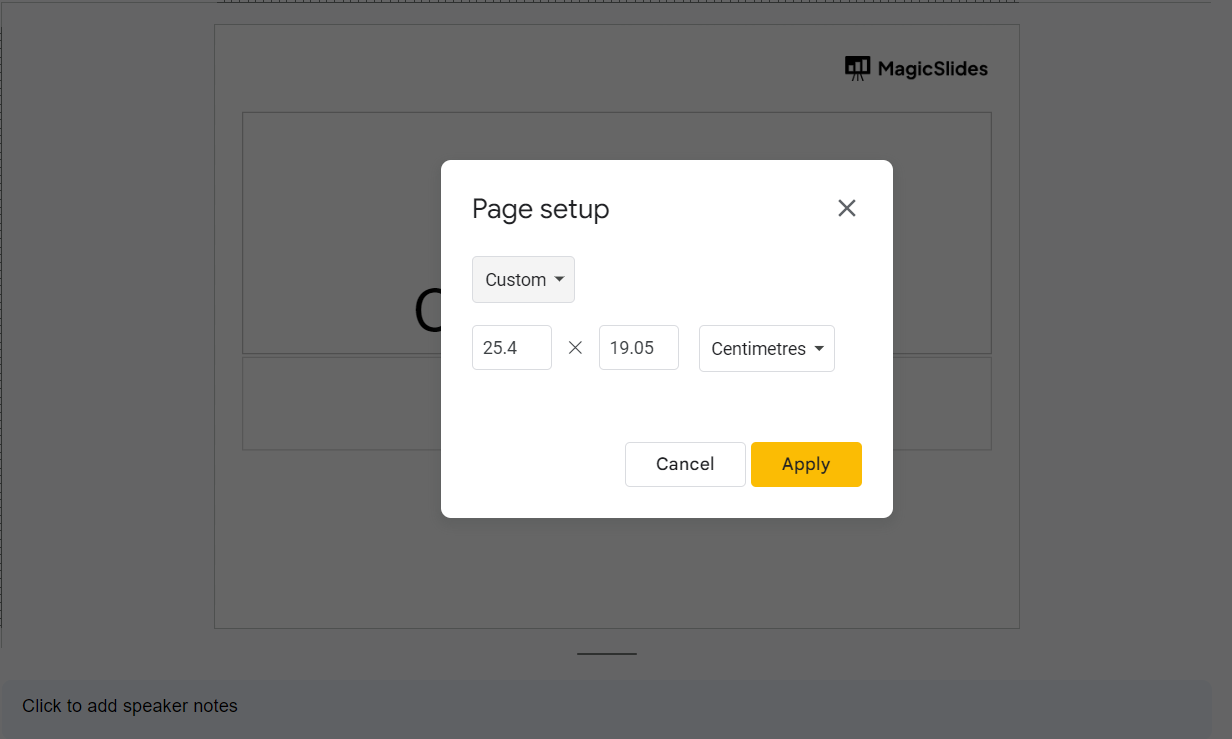
Dimension 4: Mobile-Friendly Formats: Furthermore, considering the rise in mobile device usage, Google Slides also lets you create presentations with dimensions tailored for mobile screens. This feature enhances accessibility and readability, particularly when your audience engages with your content on smartphones or tablets.
Collaborative Adjustments: It's important to note that while selecting dimensions, Google Slides' collaborative nature remains intact. Multiple users can seamlessly collaborate on presentations, and the dimensions you choose adapt well to accommodate diverse contributions, maintaining visual consistency.


