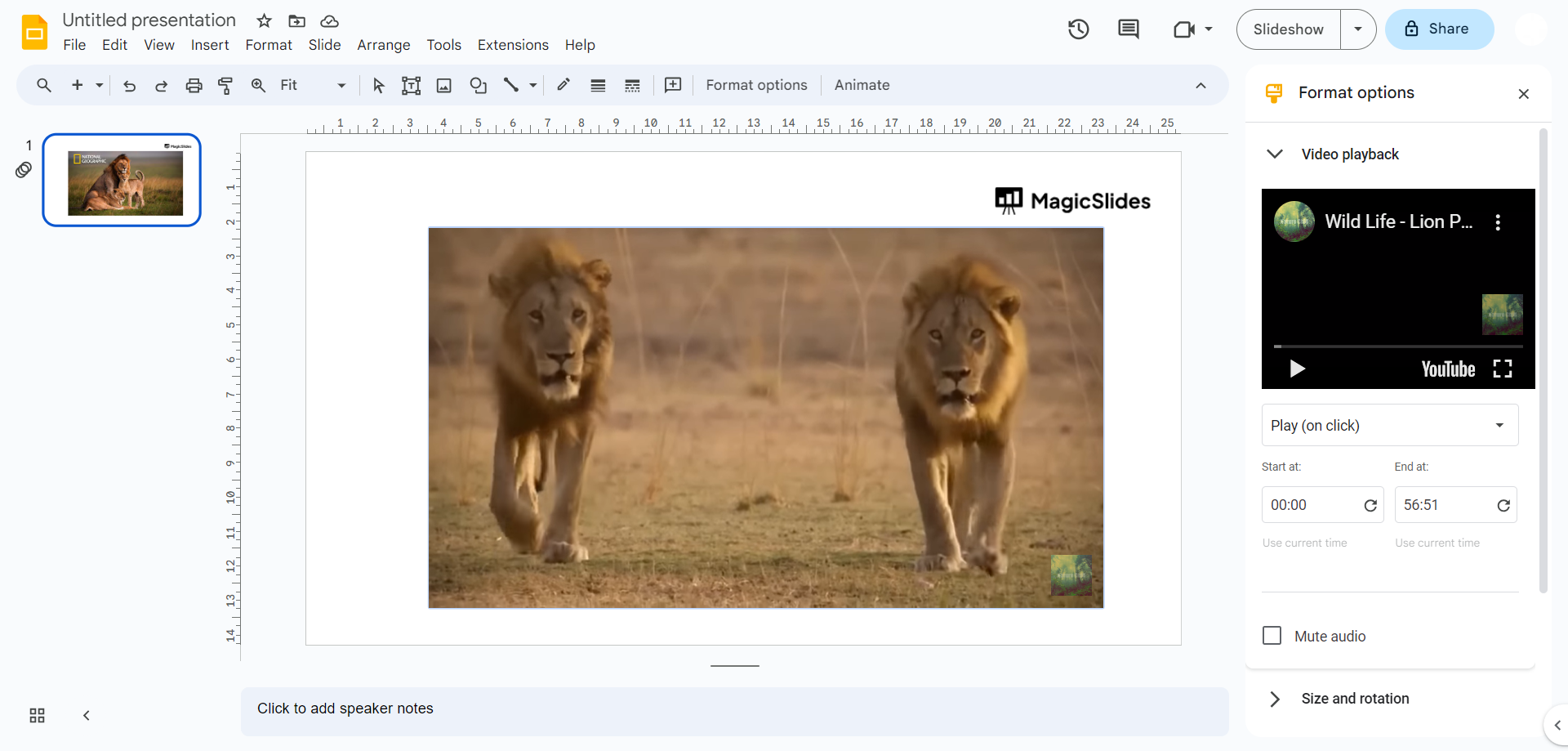
How to embed a YouTube video in Google Slides


embedding a YouTube video could be a life saver while creating presentations, here is a simple guide to achieve the embeddig
Step 1: Open Presentation: Begin by opening your Google Slides presentation. If you haven't started one yet, create a new presentation and add the slides you need.
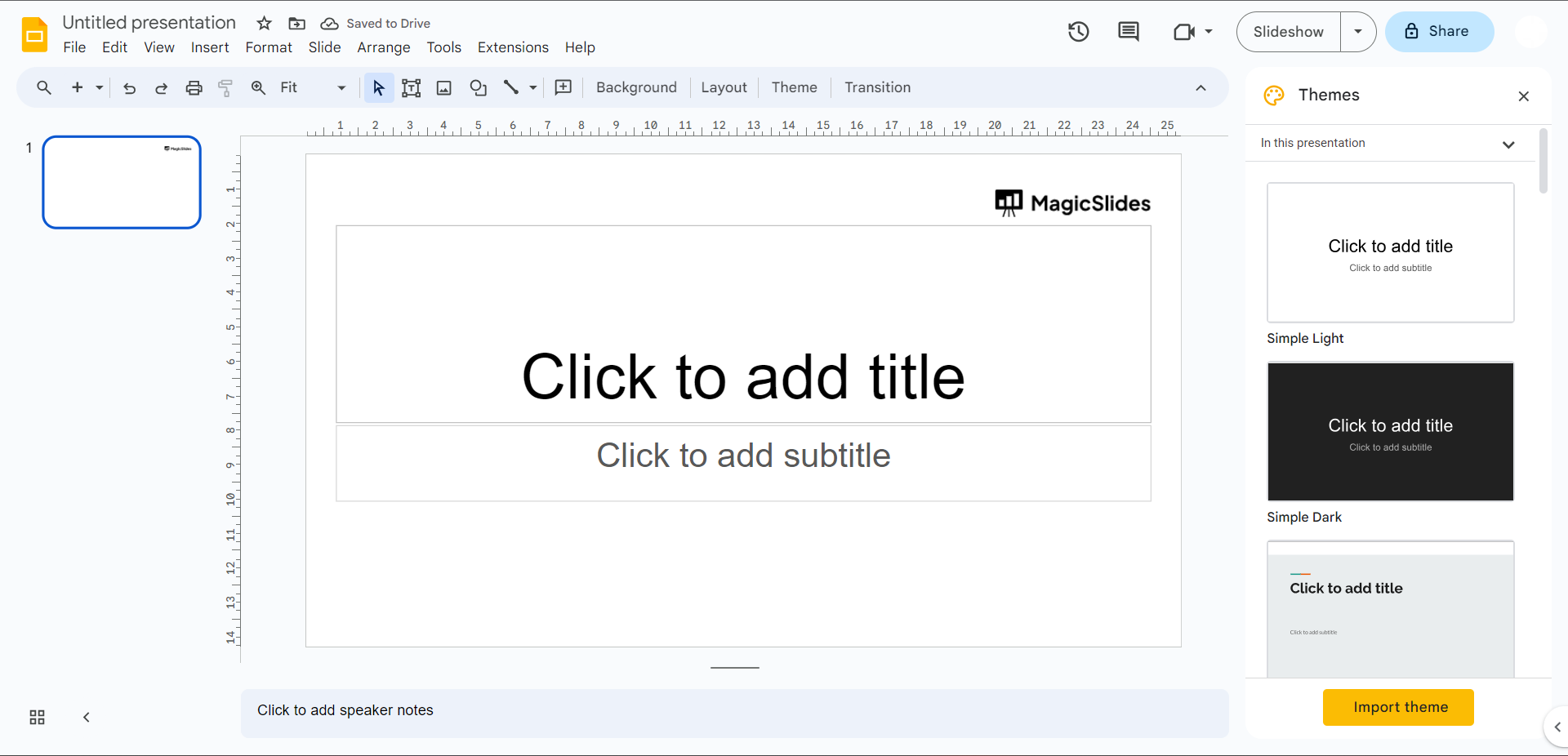
Step 2: Navigate to Slide: Move to the specific slide where you want to add the YouTube video. Click on the slide's thumbnail on the left-hand side or use the slide navigation at the bottom.
Step 3: Insert Video: At the top menu, locate and click on the "Insert" option.
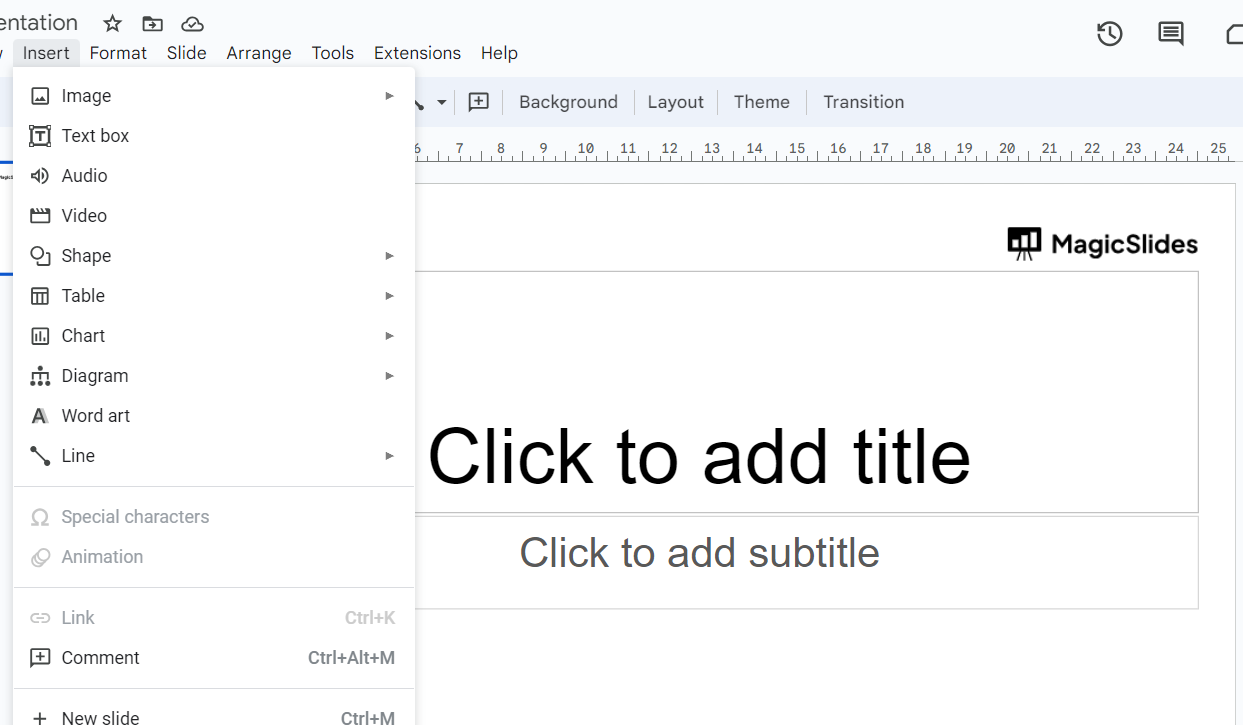
Step 4: Video Selection: From the dropdown menu that appears, select "Video."
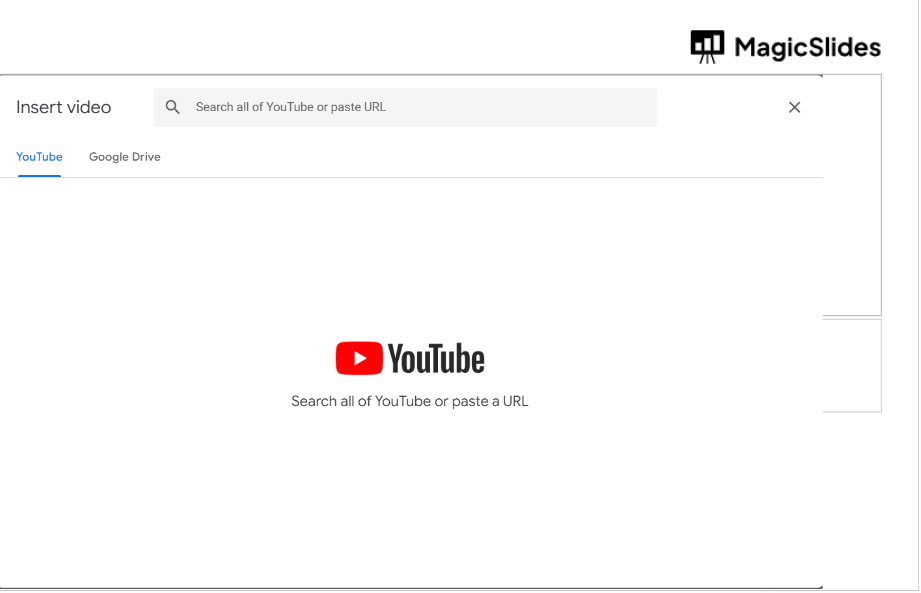
Step 5: Video Dialog Box: A dialog box will pop up. Here, you'll have two options. Choose the "Search YouTube" tab if you want to find a video directly from YouTube. If you already have a YouTube video URL, switch to the "By URL" tab.
Step 6: Search for Video (Optional): If you selected the "Search YouTube" tab, you can enter relevant keywords to search for the video you want. Browse through the results and find the appropriate video.
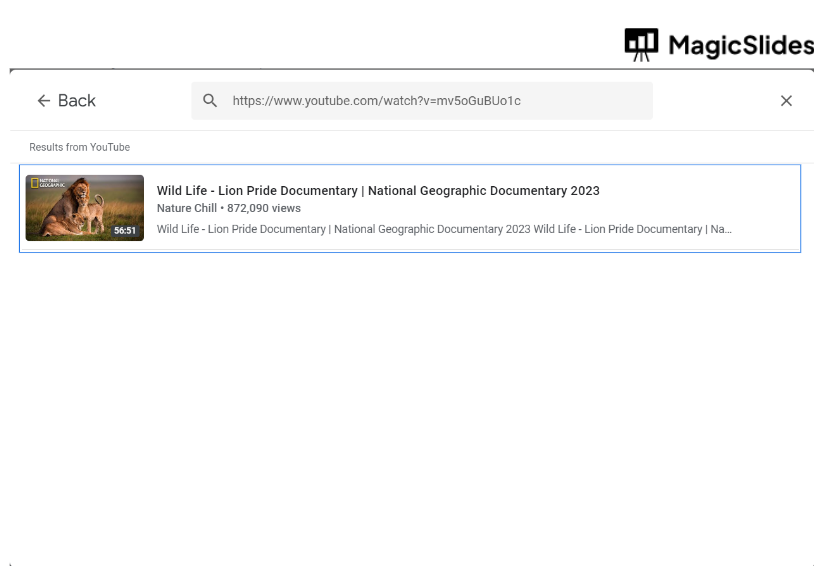
Step 7: Insert Video: Once you've found the video you want to use, click the "Select" button. The video's thumbnail or placeholder will appear on your slide.
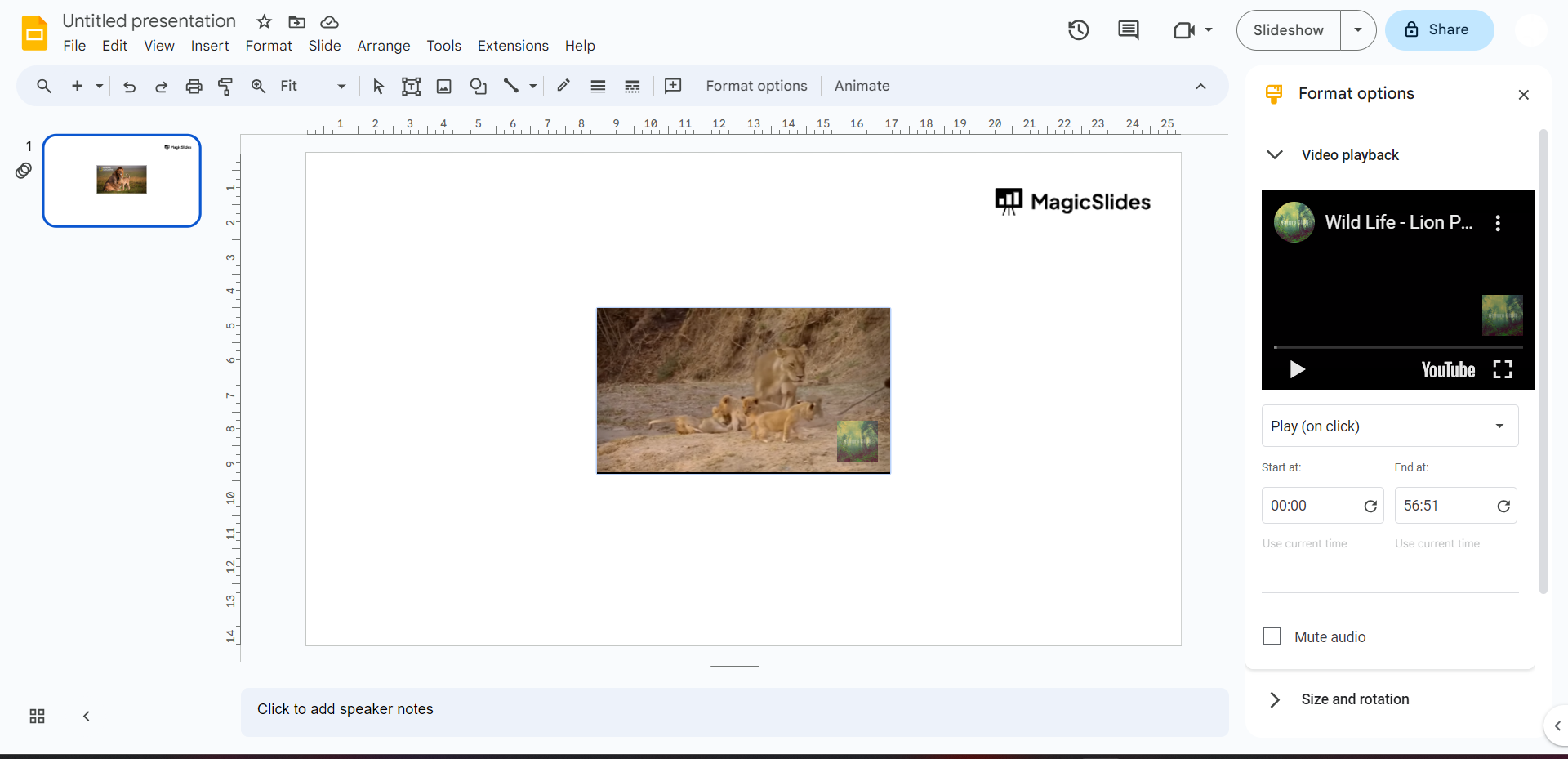
Step 8: Adjust Video Size and Position: Click on the inserted video to select it. Resize and reposition the video on the slide as needed. You can drag the corners to adjust its dimensions, and click and drag from the center to move it around.