How to highlight keypoints in Google Slides in few simple clicks


Highlight key points in Google Slides with color, bold text, icons, shapes, and strategic formatting for clarity and emphasis.
To highlight key points in Google Slides, you can use various techniques that don't necessarily involve animations. Here's a step-by-step guide:
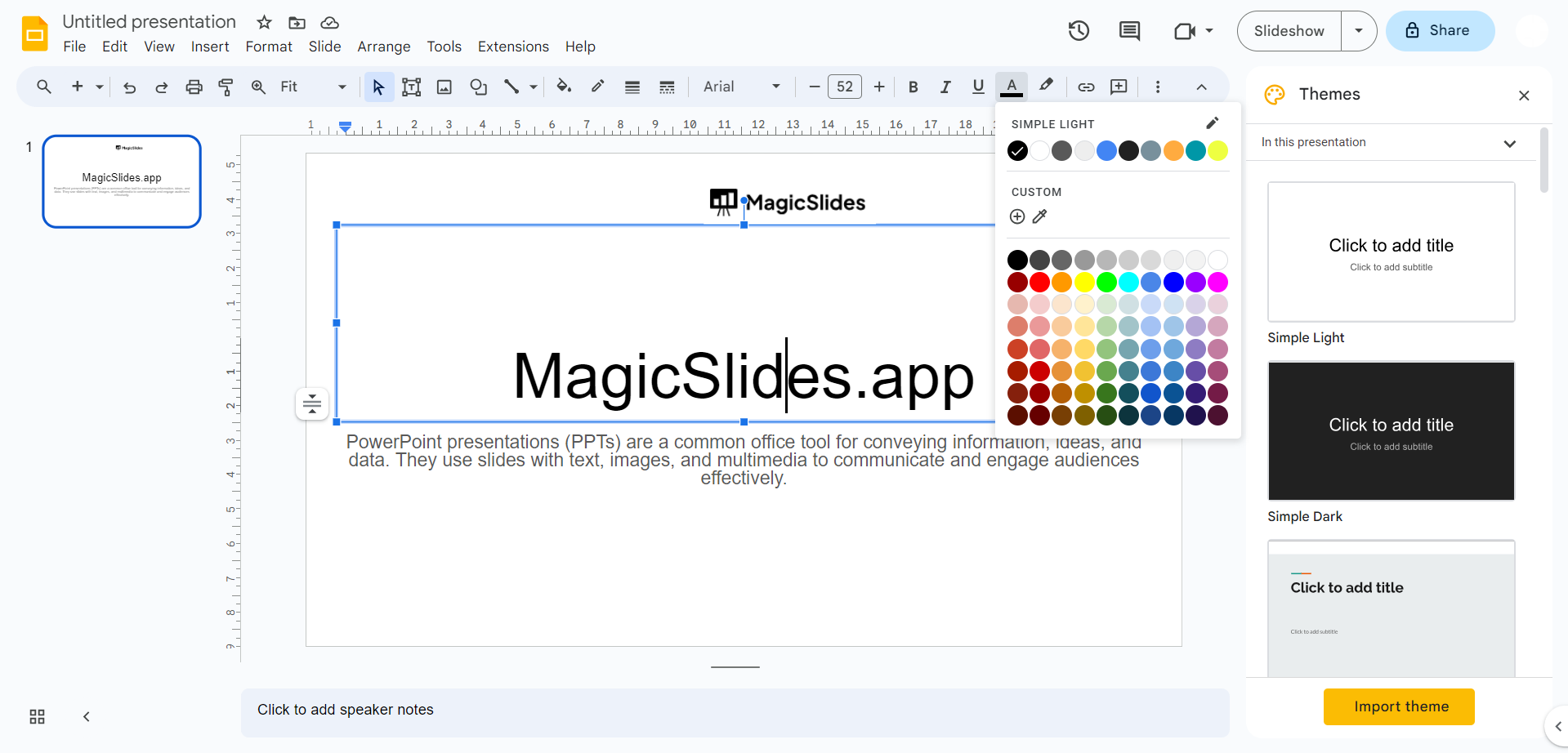
Change Text Color or Bold/Italicize:
- Select the text you want to highlight.
- Use the toolbar at the top to change the text color to a contrasting one or make it bold or italicized for emphasis.
Use Font Size:
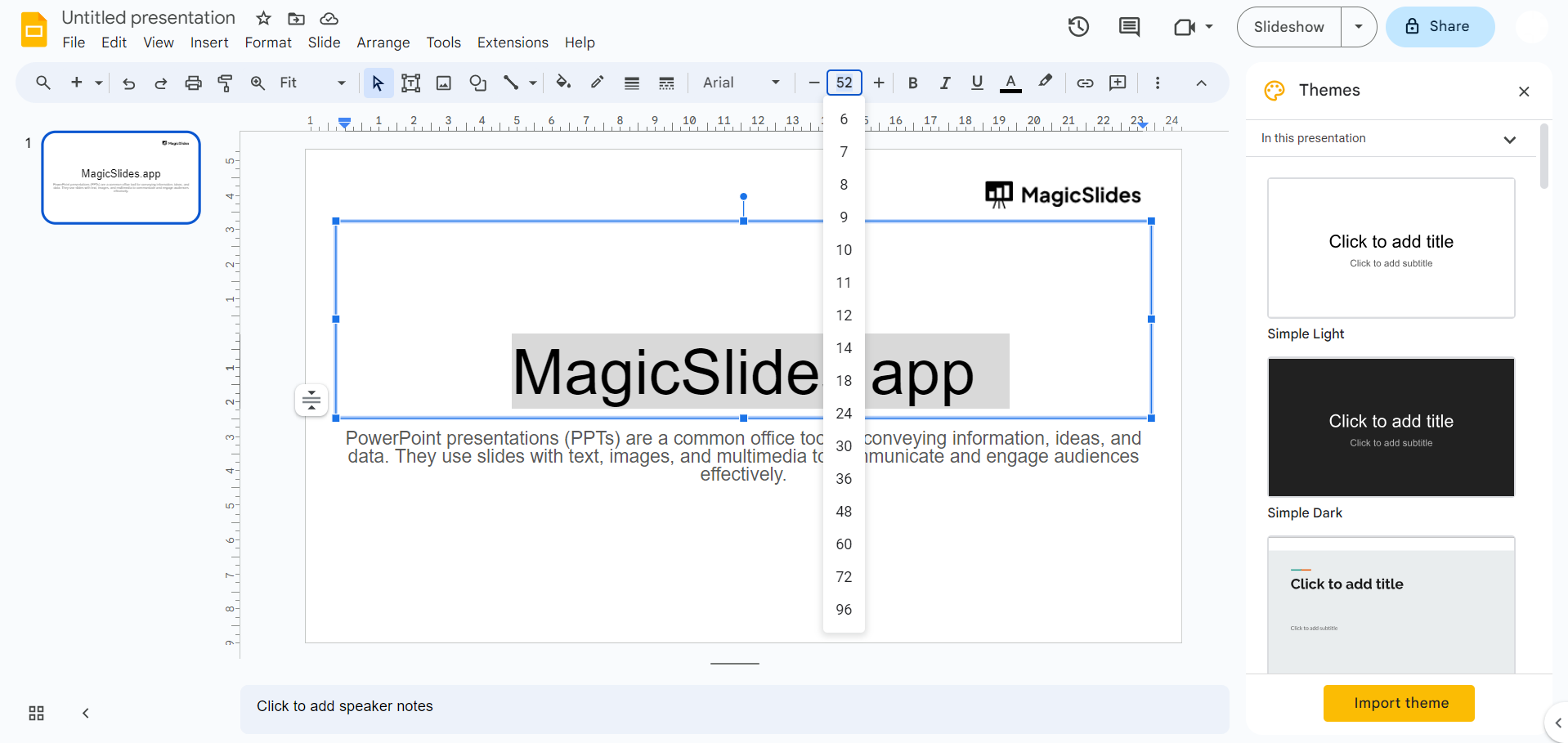
- Increase the font size of key points to make them stand out.
Apply Text Highlighting:
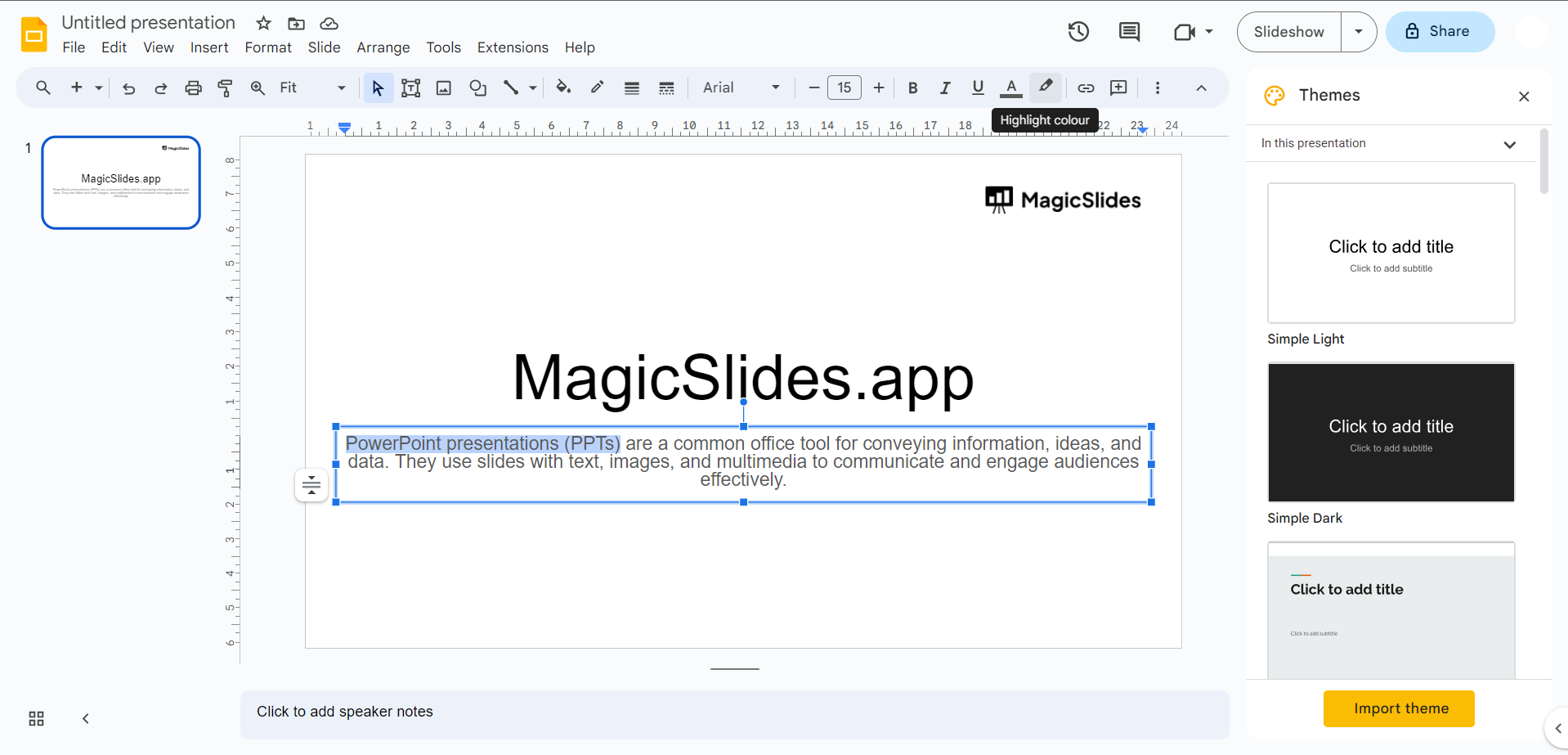
- Select the text you want to highlight.
- Click on the "Text color" icon in the toolbar (looks like a "T" with a color palette).
- Choose a highlight color for the selected text.
Use Shapes and Text Boxes:
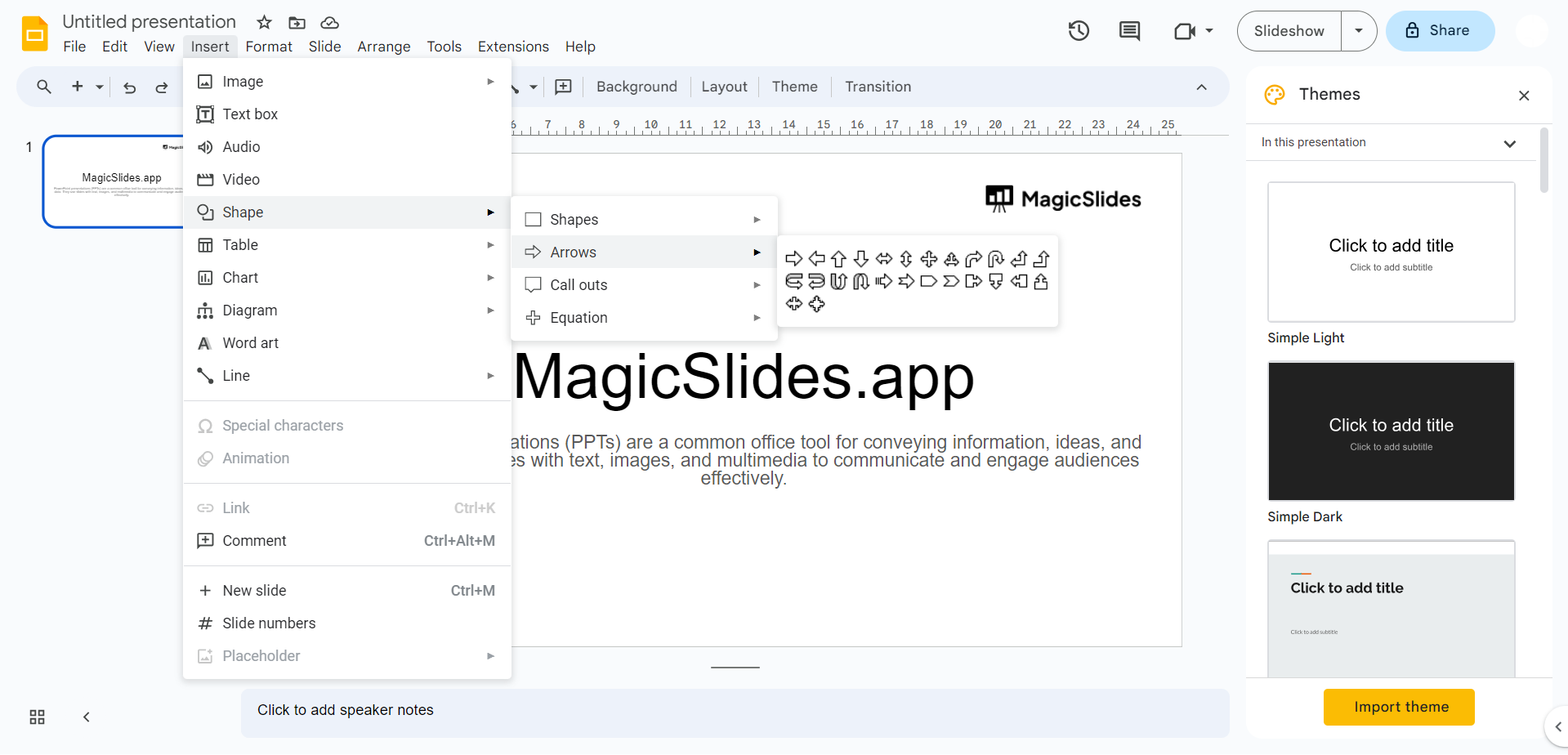
- Insert shapes or text boxes around key points.
- Adjust the shape's fill color and line color to make it visually distinct.
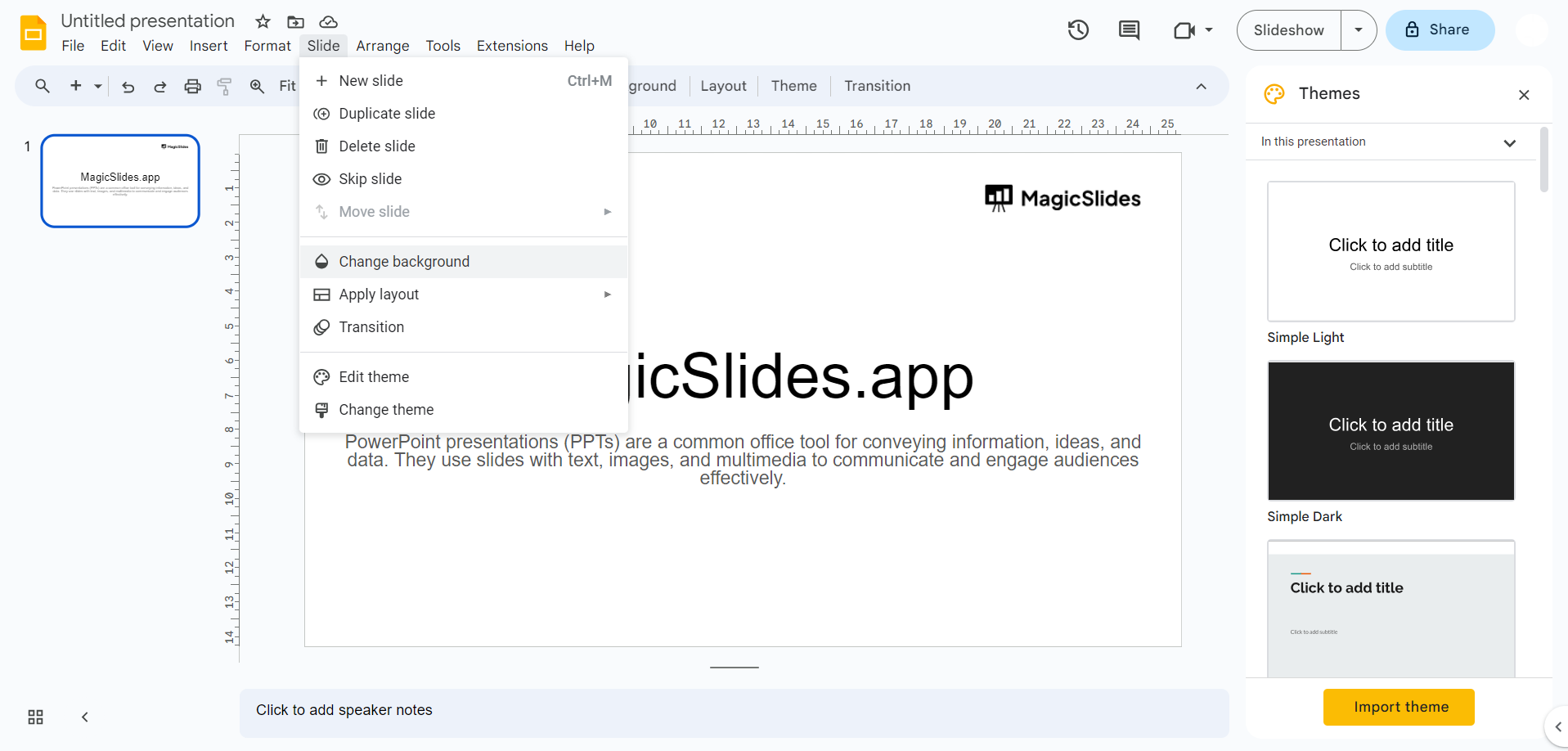
Change Background Color:
- For key points on a slide, consider changing the slide's background color to draw attention.
Insert Icons or Symbols:
- Add icons or symbols next to key points to reinforce their importance.
Add Images:
- Use images or graphics to complement and highlight key points.

Utilize Slide Layouts:
- Choose slide layouts that emphasize content, such as a title and content layout for clear separation.
Remember that effective highlighting should not overwhelm the audience. Use these techniques judiciously to draw attention to the most critical information and maintain a clean and professional presentation.


