How Can I make my slides in Google more Interesting


Make your Google Slides more engaging with visuals, animations, interactive elements, and concise, well-structured content
How Can I Make My Slides in Google Slides More Interesting?
Creating engaging and visually appealing slides in Google Slides is essential for capturing your audience's attention.
A well-designed presentation can enhance understanding, keep viewers interested, and make your message more memorable.
In this guide, we will explore various ways to make your Google Slides more interesting and impactful.
Step-by-Step Guide to Enhancing Your Google Slides
Step 1: Use High-Quality Images and Graphics
Avoid plain text-heavy slides and add relevant, high-quality images or icons.
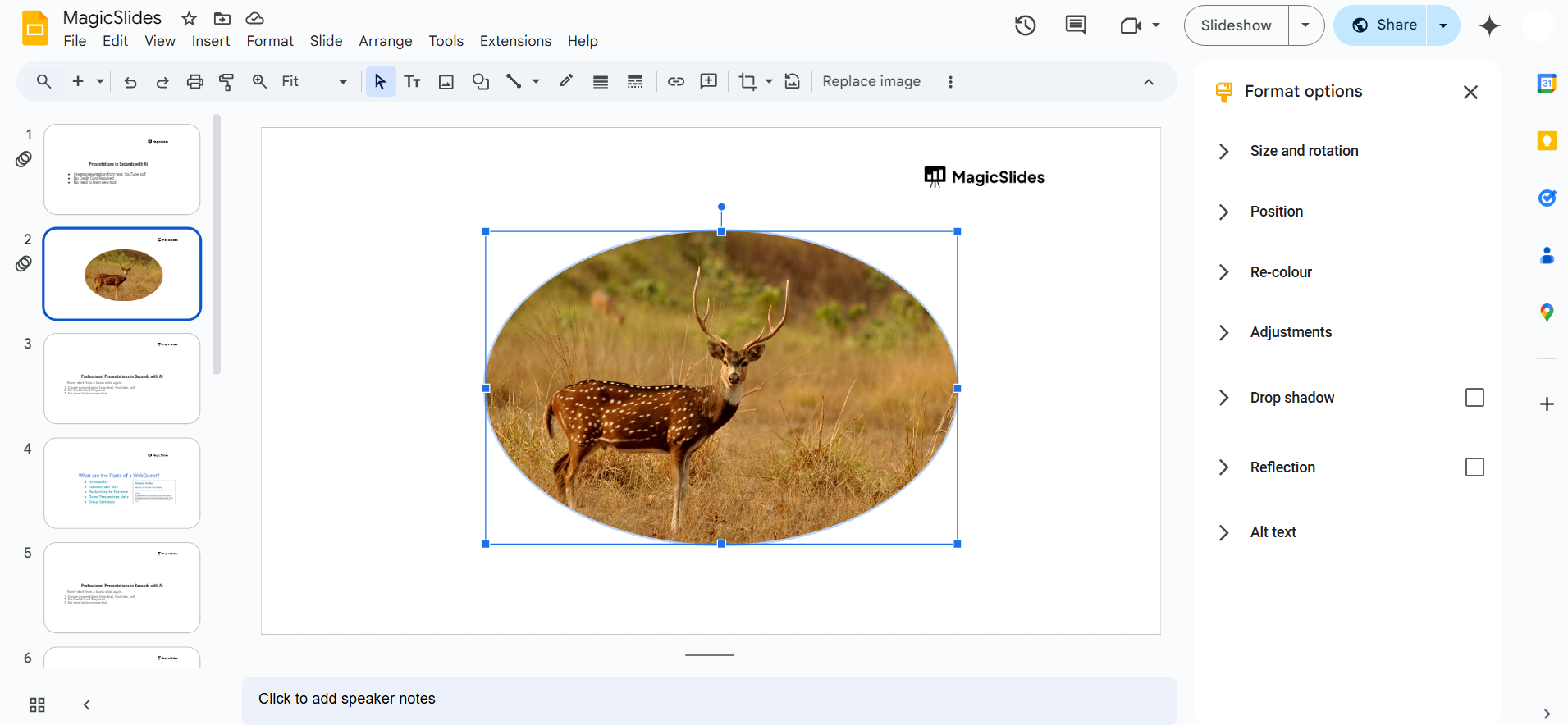
Use Google Images (Tools > Usage Rights > Labeled for Reuse) or Canva for free graphics.
Ensure images are clear, high-resolution, and relevant to your content. Use transparent PNGs for a professional look.
Step 2: Choose a Visually Appealing Theme
Click on Slide > Change Theme to explore different built-in Google Slides themes.
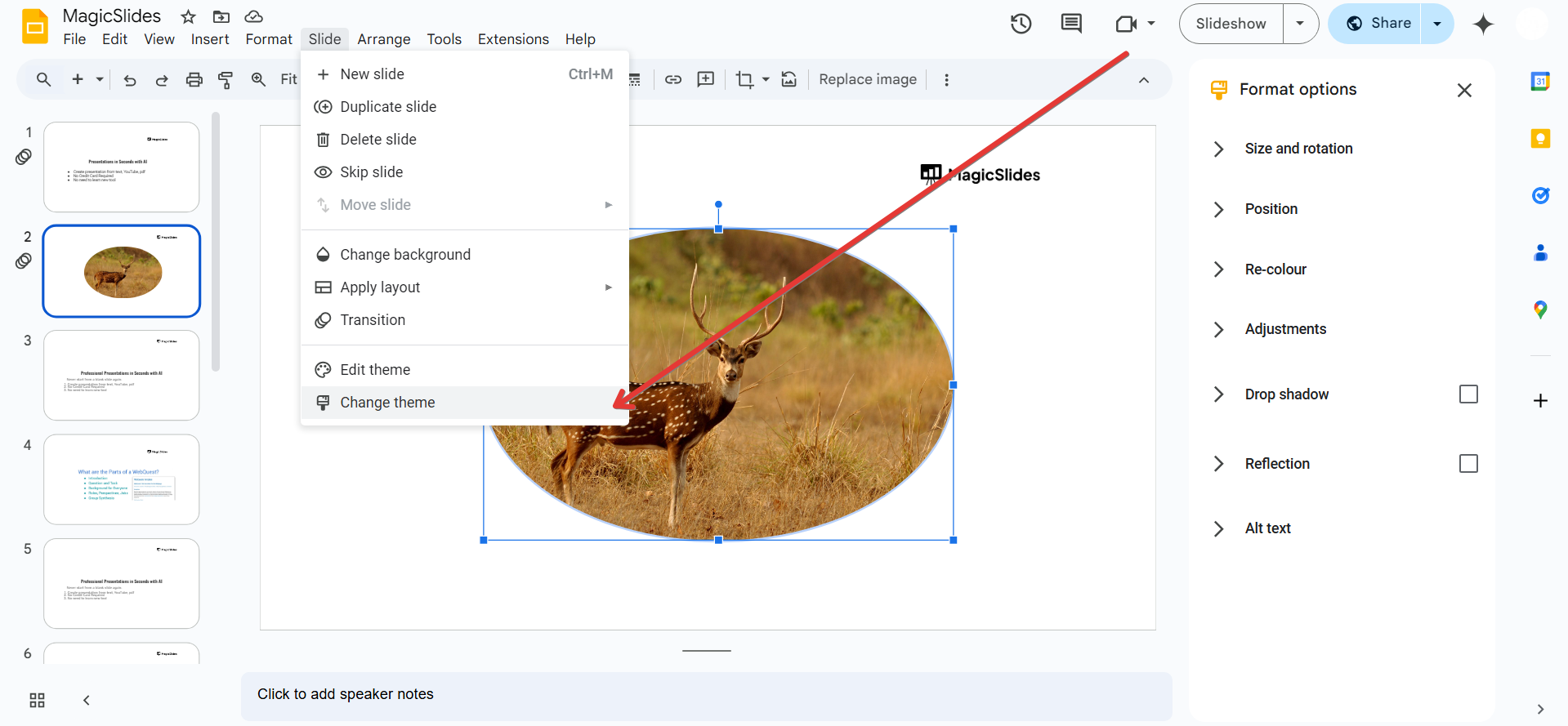
If you want a custom design, upload themes from Canva, Slidesgo, or Envato Elements.
Keep a consistent color palette throughout your slides.
Step 3: Use Engaging Fonts and Text Formatting
Use bold, readable fonts like Montserrat, Poppins, or Roboto for better clarity.
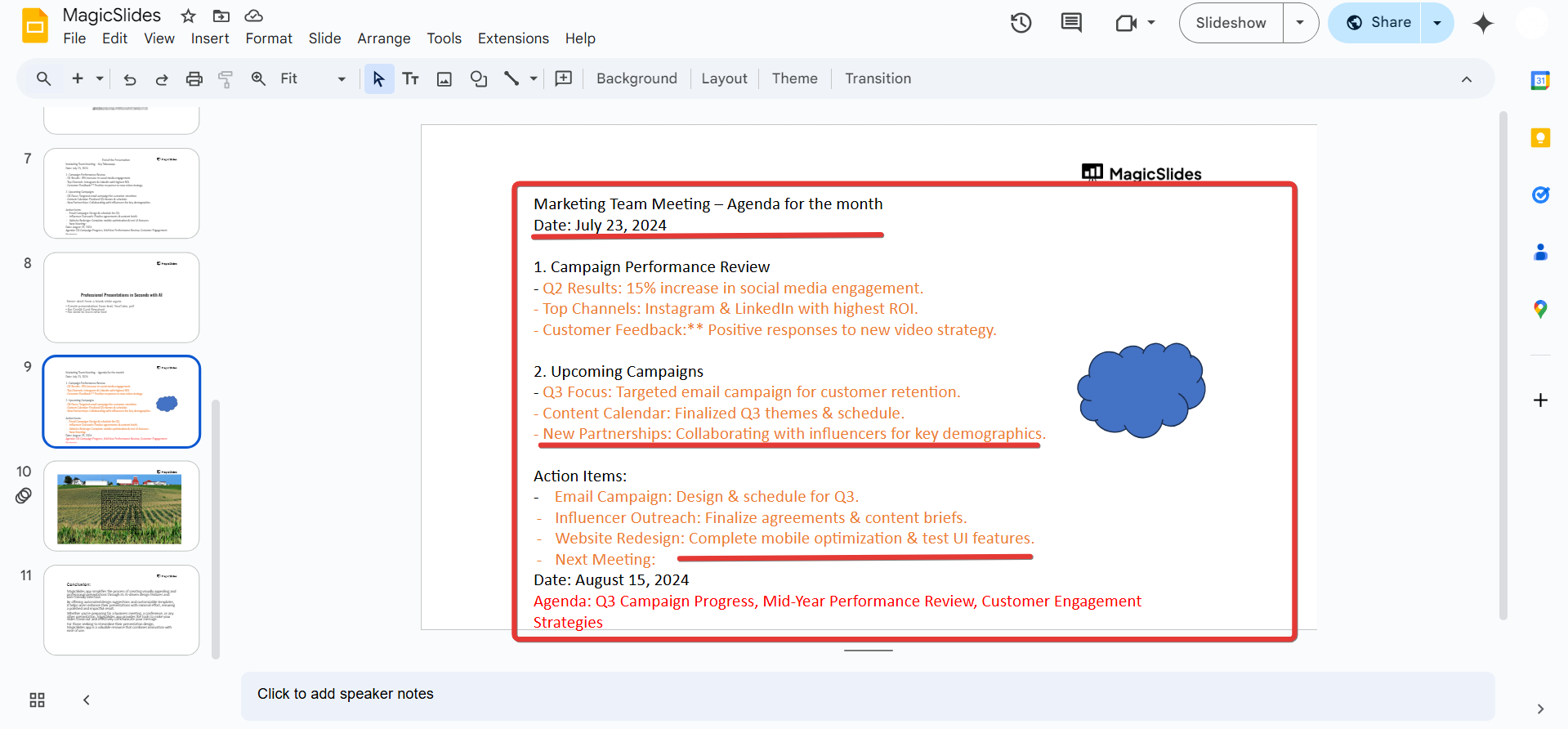
Avoid using more than two to three different fonts in your presentation. Use bold, italics, and color highlights to emphasize key points.
Step 4: Add Smooth Transitions and Animations
Go to Slide > Transition and choose an animation style for smoother slide changes.
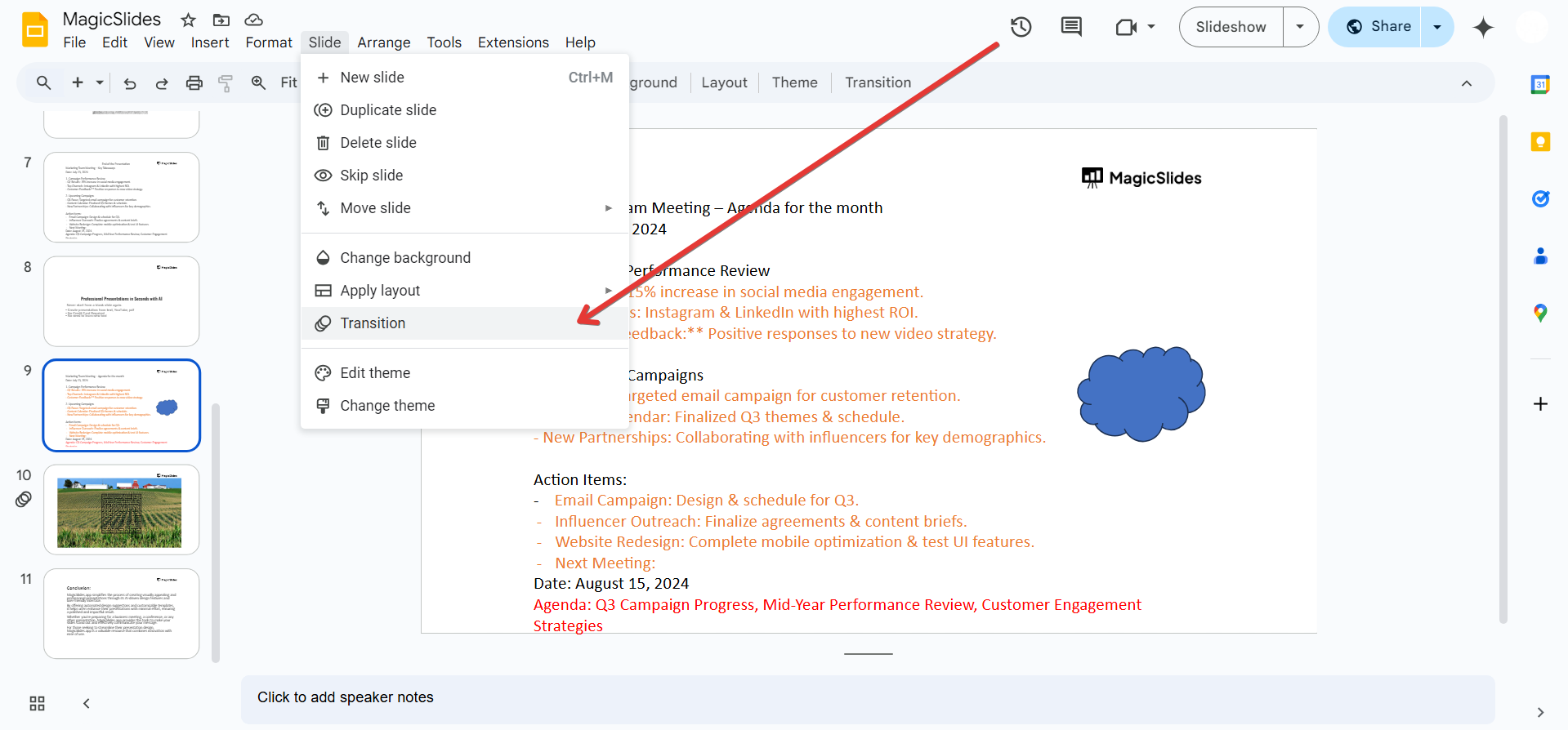
Use animations for text and images (but avoid excessive effects). Keep transitions subtle and professional to maintain flow.
Step 5: Incorporate Infographics and Charts
Use Insert > Chart to add bar graphs, pie charts, and line charts.
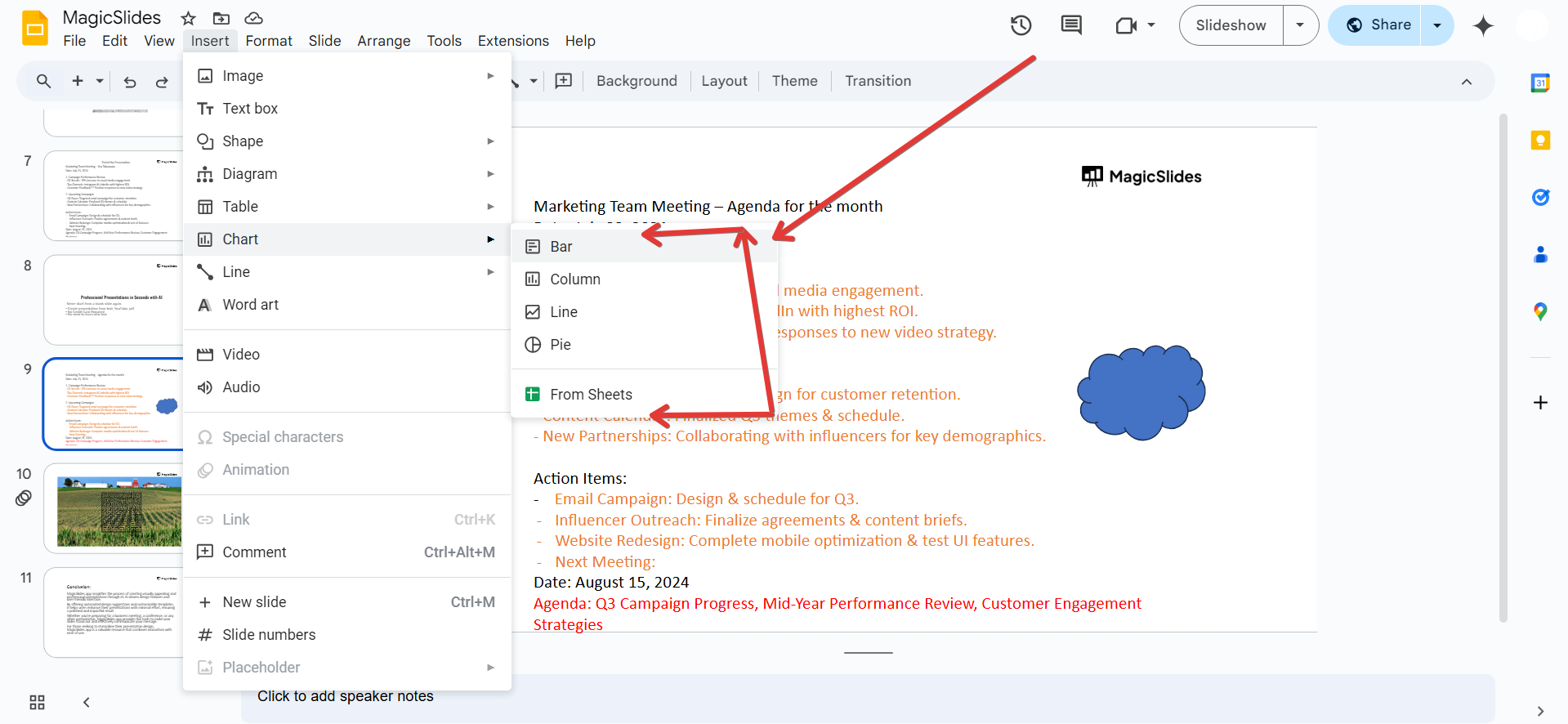
Create custom infographics using Canva or Google Drawings. Ensure data visualizations are clear and easy to read.
Step 6: Embed Videos and Audio for More Engagement
Click Insert > Video and add relevant YouTube videos for additional context.
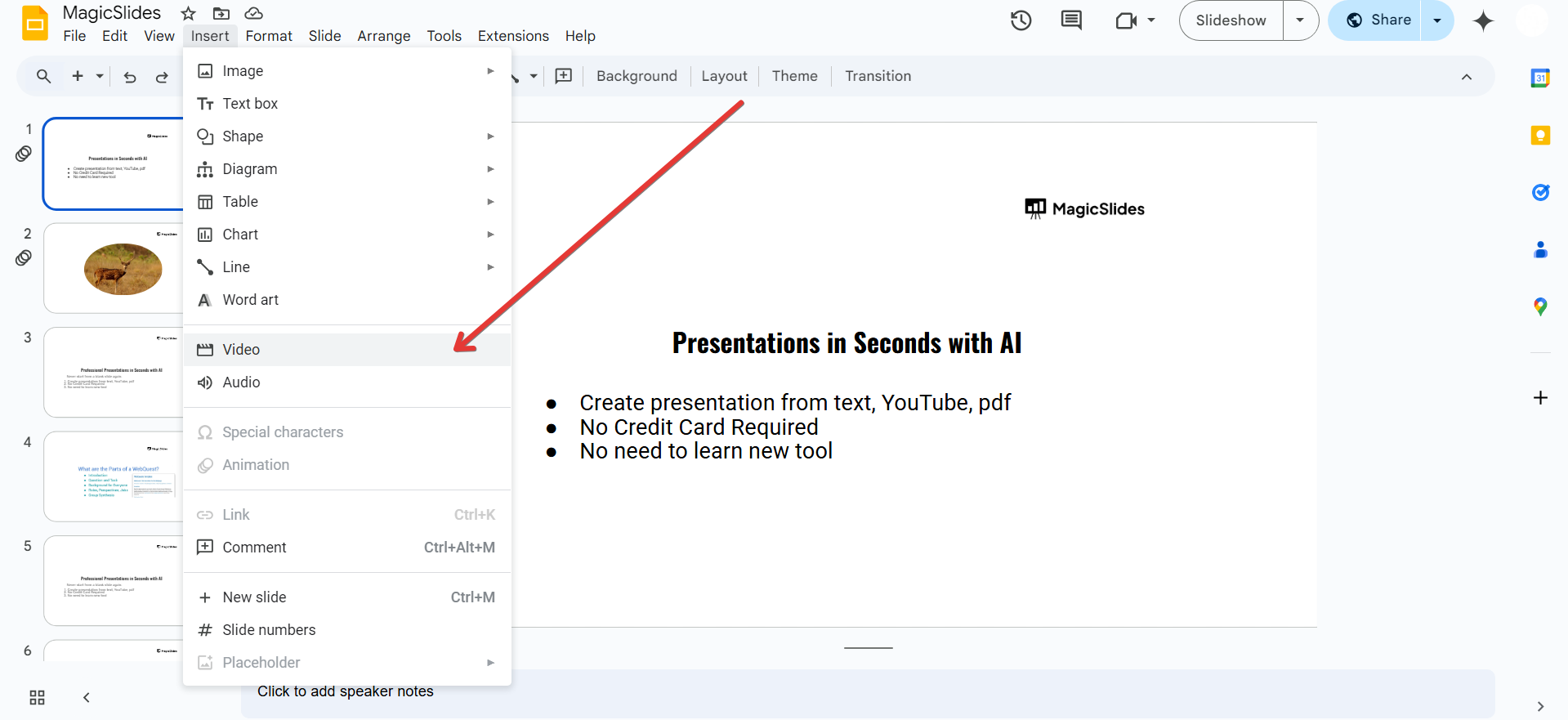
Use Insert > Audio to add background music or voiceovers for a professional touch.
Make sure video and audio don’t autoplay too loudly to avoid distractions.
Step 7: Keep Slide Content Concise and Engaging
Follow the 6×6 rule: No more than six words per line and six lines per slide.
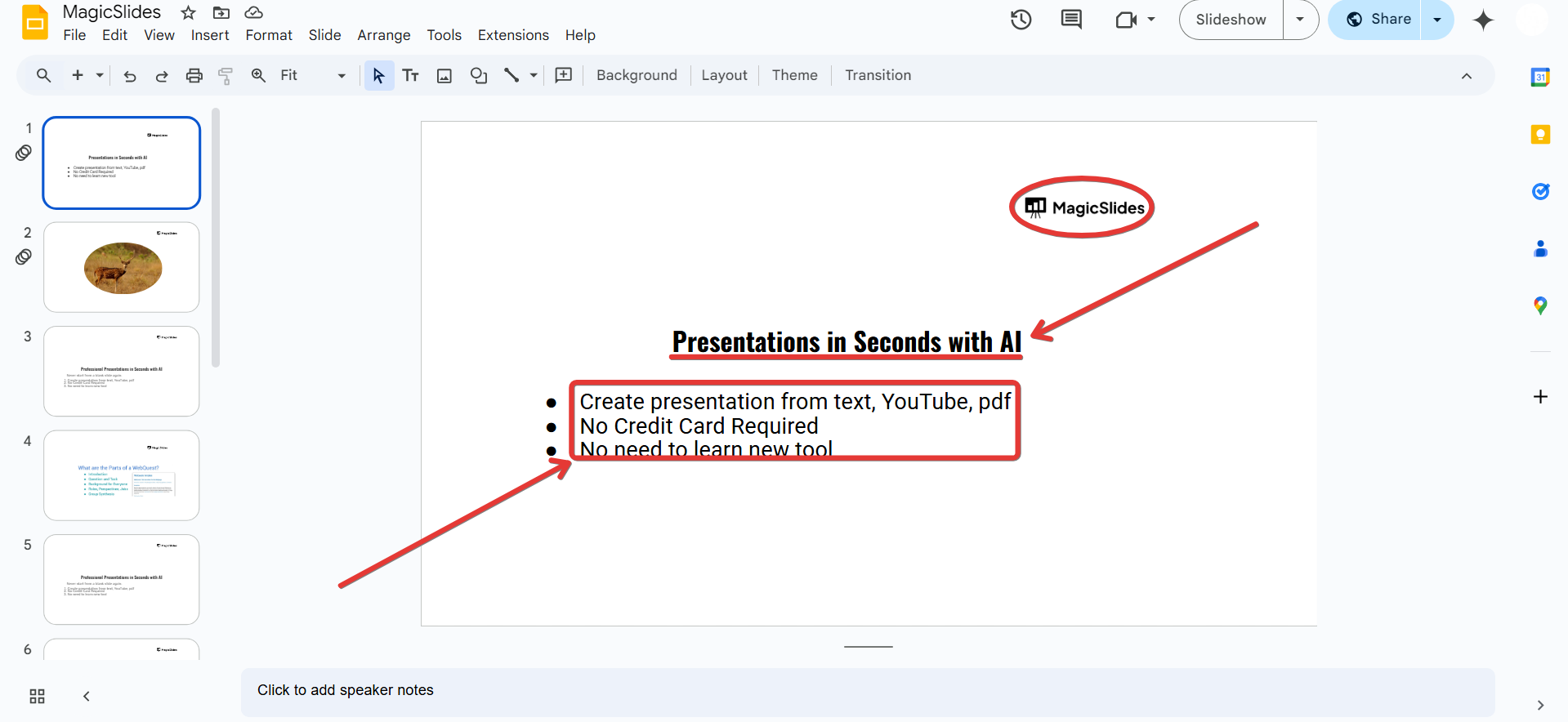
Use bullet points instead of paragraphs. Highlight key takeaways to make slides easy to scan.
Step 8: Use Interactive Elements (Hyperlinks & Polls)
Add clickable buttons or links using Insert > Link to navigate between slides.
Use tools like Mentimeter or Google Forms to add live polls or audience interactions.
Conclusion
By incorporating these simple yet effective techniques, you can make your Google Slides more engaging, visually appealing, and interactive.
Well-designed slides improve comprehension and leave a lasting impression on your audience.
Start applying these tips today to create stunning presentations! 🚀
FAQs About Making Google Slides More Interesting
How do I make my Google Slides interactive?
Use hyperlinks, live polls, and embedded videos to keep your audience engaged.
What’s the best way to structure my slides for better engagement?
Keep slides minimal, use bullet points, and follow the 6×6 rule for readability.
How can I add custom fonts to Google Slides?
Click More Fonts in the font dropdown and select new fonts from the Google Fonts library.
Now you can create eye-catching and engaging Google Slides presentations like a pro! 🎨🔥


