How do I get back text I’ve deleted on PowerPoint


Learn how to recover deleted text in PowerPoint using quick, simple, and effective methods
Accidentally deleting text in PowerPoint can be frustrating, especially when it's crucial to your presentation.
Fortunately, PowerPoint offers multiple ways to recover lost text, saving you from unnecessary stress.
This guide will walk you through step-by-step methods to get back deleted text and continue your work seamlessly.
How to Retrieve Deleted Text in PowerPoint | Steps to Retrieve Deleted Text in PowerPoint
Step 1: Use the Undo Feature
As soon as you notice the text is deleted, press Ctrl + Z (Windows) or Cmd + Z (Mac).

Alternatively, click the “Undo” button on the toolbar, located in the top-left corner.
Continue pressing Undo until the deleted text reappears.
Step 2: Check the Slide History
If the undo option doesn’t work, check if your presentation is saved in OneDrive with Version History enabled.
Go to File > Info > Version History to view previously saved versions.
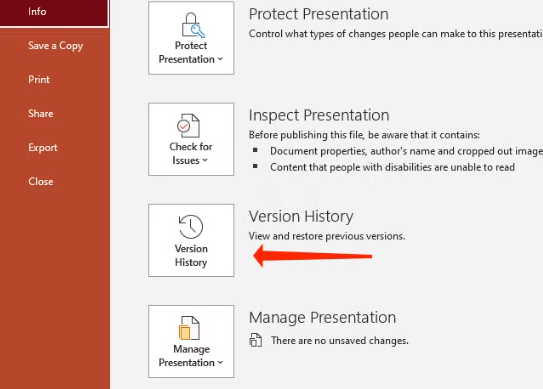
Select a version before the text was deleted and restore it by clicking “Open Version.”
Step 3: Use the Clipboard History (Windows Only)
Press Windows Key + V to open the Clipboard history.
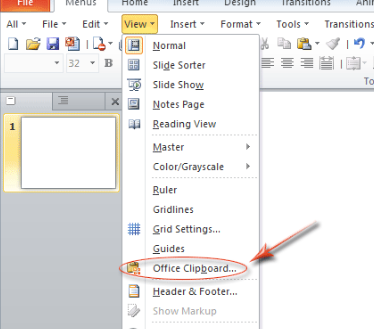
Look through the copied items to see if your deleted text is there. If found, click the text to paste it back onto the slide.
Step 4: Search in Notes or Other Slides
If you copied text elsewhere in the presentation, check the Notes section below the slides.
Alternatively, navigate through your slides to see if the text was copied or moved accidentally.
Step 5: Recover from a Backup
If none of the above methods work, check if you have a backup file.
Go to File > Open > Recover Unsaved Presentations to browse for unsaved or auto-recovered files.

Open the file and locate your deleted text.
Step 6: Recreate the Text
As a last resort, try to recall and retype the text.
If you emailed the presentation or shared it, ask the recipient if they have a version with the text.
Conclusion
Losing text in PowerPoint doesn’t have to derail your progress.
By following these steps, you can recover deleted text quickly and effectively, minimizing disruptions to your workflow.
Always save your work frequently and consider enabling version history to avoid similar issues in the future.
FAQs on Retrieving Deleted Text in PowerPoint
Can I recover text if I closed PowerPoint without saving?
Yes, you can check the Recover Unsaved Presentations option under the File tab to find auto-recovered files.
How far back can the Undo feature go?
The Undo feature in PowerPoint has a limit based on the number of actions you’ve performed since opening the file.
Does PowerPoint automatically save my work?
If AutoSave is enabled, PowerPoint saves your work automatically to OneDrive or SharePoint at regular intervals.
With these methods, you’ll never have to worry about lost text derailing your presentation!


