How do you Add Image through text in PowerPoint


Create stunning PowerPoint text effects by filling text with images using the Merge Shapes tool
How to Add an Image Through Text in PowerPoint
Adding an image through text in PowerPoint creates a stunning visual effect, making your presentation more engaging.
This technique, known as "text masking" or "clipping text with an image," allows your text to be filled with an image, making it more creative and eye-catching.
Follow the step-by-step guide below to achieve this effect easily.
Step-by-Step Guide to Adding an Image Through Text in PowerPoint
Step 1: Open PowerPoint and Create a New Slide
Open Microsoft PowerPoint and create a new presentation or open an existing one.

Select a slide where you want to apply the effect.
Step 2: Insert a Text Box
Click on Insert > Text Box from the PowerPoint ribbon.
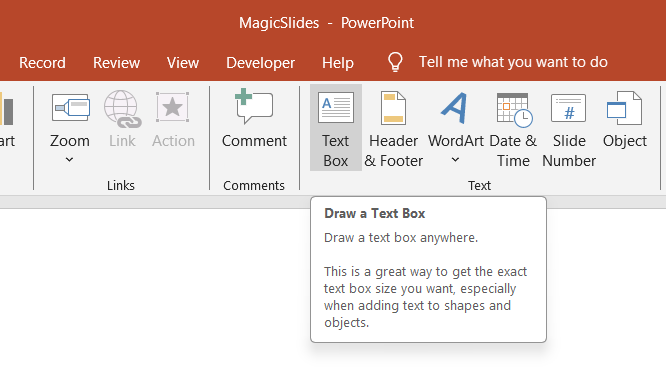
Type your desired text and choose a bold, thick font (e.g., Impact, Arial Black) for better visibility.
Increase the font size to make the effect more prominent.
Step 3: Insert an Image
Go to Insert > Pictures and choose an image from your computer or online sources.
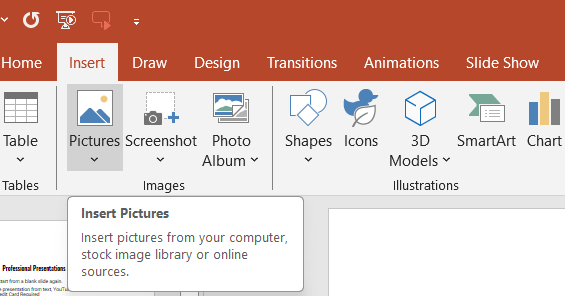
Resize and position the image over your text so it covers it completely.
Step 4: Apply the "Merge Shapes" Tool
Select the text box and the image (hold Shift and click both).
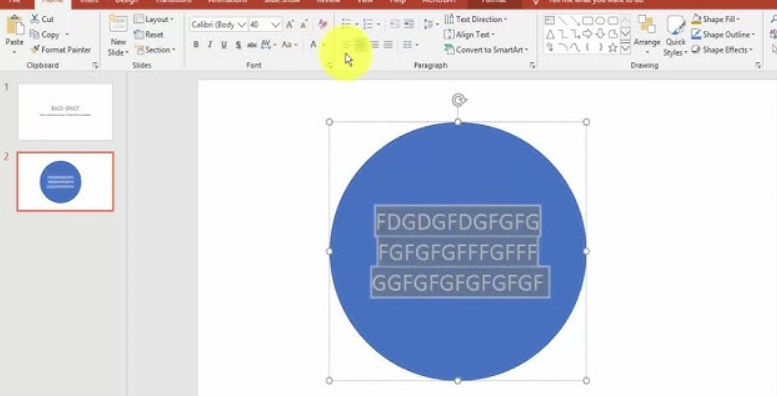
Click on Shape Format > Merge Shapes > Intersect (Note: If the option is disabled, ensure your text is not in a text box but converted into a shape).
Your image will now appear inside the text, creating a masked effect.
Step 5: Adjust and Customize
If needed, resize or reposition the image within the text. Add a background color or shadow effect to enhance visibility.
Save your slide and preview the effect in presentation mode.
Adding images through text in PowerPoint can create stunning effects. But if you're looking for an even easier way to design engaging slides, check out MagicSlides.app AI-generated presentations with custom layouts in seconds!
Conclusion
Using the "Merge Shapes" tool in PowerPoint, you can easily fill text with an image to create visually appealing presentations.
This technique is perfect for title slides, banners, and creative design elements in PowerPoint presentations.
FAQs About Adding an Image Through Text in PowerPoint
Why is the "Merge Shapes" option disabled?
Ensure that the text is converted into a shape before merging. Right-click the text, select Convert to Shape, and then try merging again.
Can I use any font for this effect?
It's best to use bold, thick fonts like Impact, Arial Black, or Cooper Black for a clearer image fill.
Can I edit the text after applying the image?
No, once you merge the image with text, it becomes a shape. You must redo the process to edit the text.
Now, you can create visually striking presentations by adding images through text in PowerPoint! 🚀🎨


