How many types of Layouts are in the PowerPoint


PowerPoint layouts organize slide content, helping you create clear, professional, and visually appealing presentations
Layouts in PowerPoint are essential building blocks that determine how content is arranged on your slides.
Each layout offers a different way to present text, images, charts, and other elements, allowing you to create visually appealing and organized slides.
Understanding the different types of layouts available in PowerPoint can help you choose the right one for your content, ensuring your presentation is both effective and engaging.
In this blog post, we’ll explore the various types of layouts in PowerPoint, explain their purposes, and show you how to use them in your presentations.
How many types of layouts are in the PowerPoint
Type #1: Title Slide Layout
The Title Slide layout is typically the first slide in your presentation. It includes two placeholders: one for the title of your presentation and another for a subtitle.
This layout sets the stage for your presentation, introducing your topic and providing any necessary context.
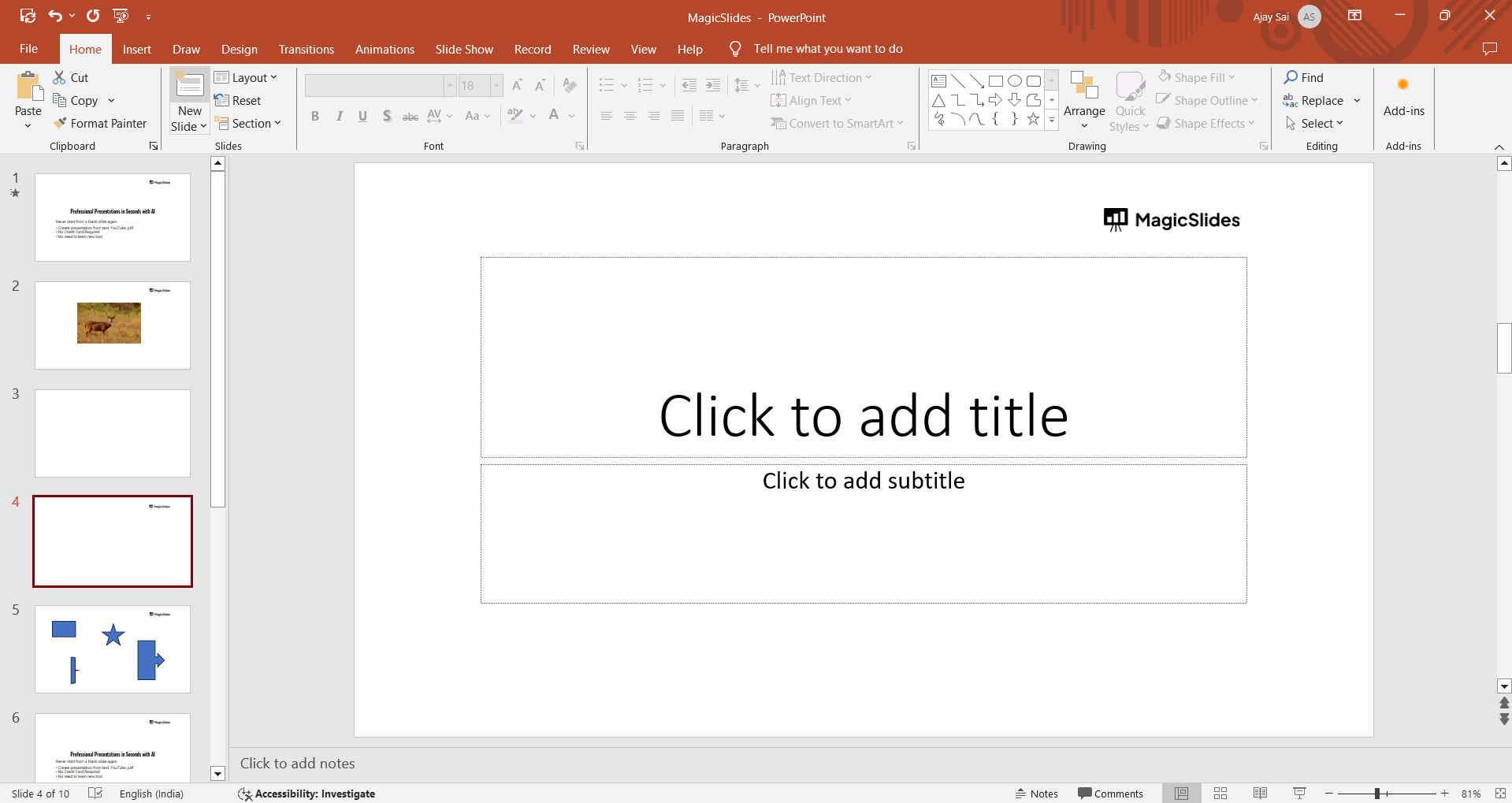
When to use: Use the Title Slide layout for the opening slide of your presentation to clearly communicate the title and any relevant details, such as the presenter’s name or the date.
Type #2: Title and Content Layout
The Title and Content layout is one of the most commonly used layouts in PowerPoint. It features a placeholder for the slide title at the top and a larger content area below.
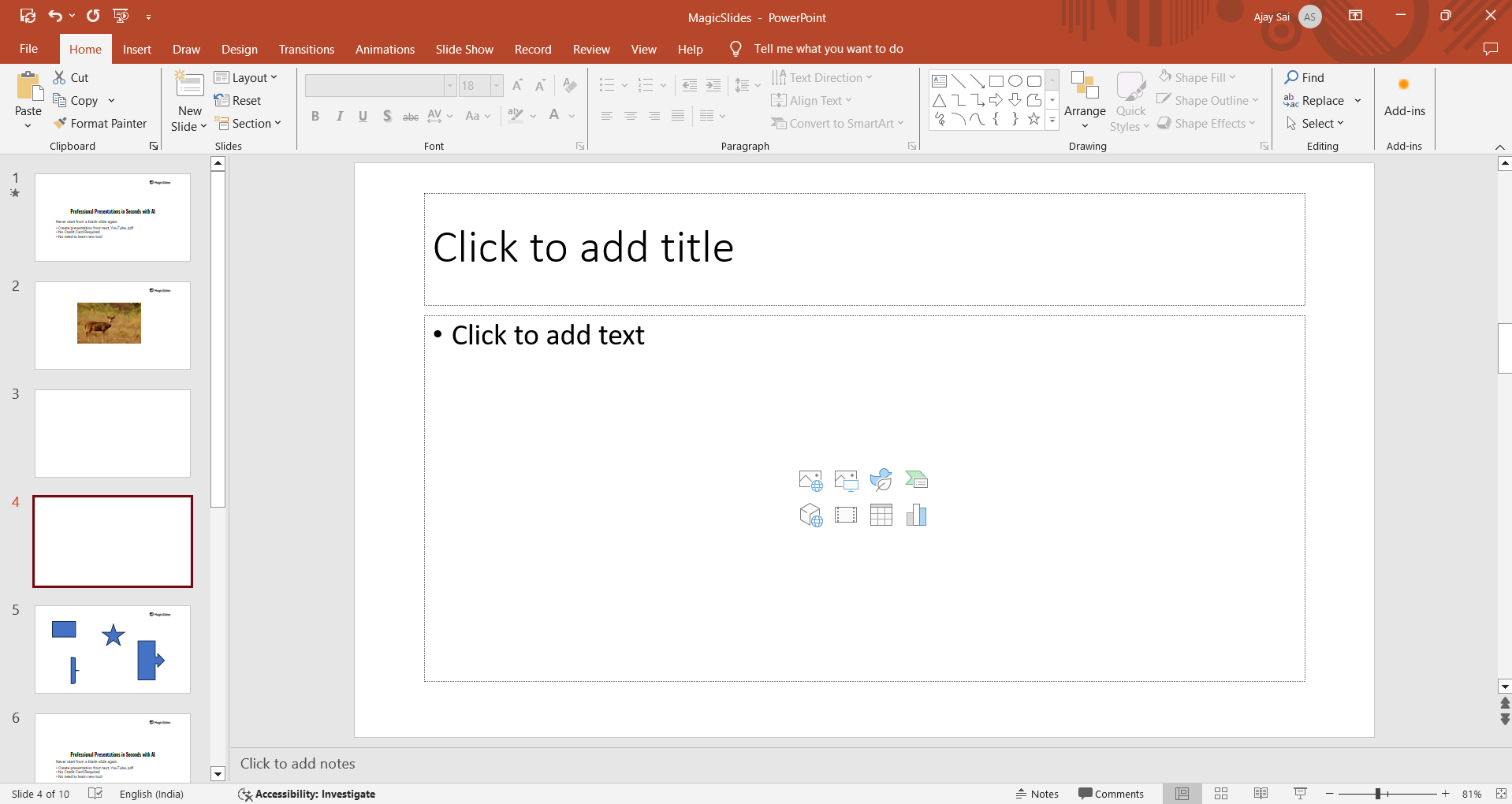
The content area can accommodate various elements, such as text, images, charts, tables, SmartArt, or videos.
When to use: This layout is versatile and can be used for any slide where you need to present information alongside a title, making it ideal for most of your content slides.
Type #3: Section Header Layout
The Section Header layout is designed to introduce a new section within your presentation.
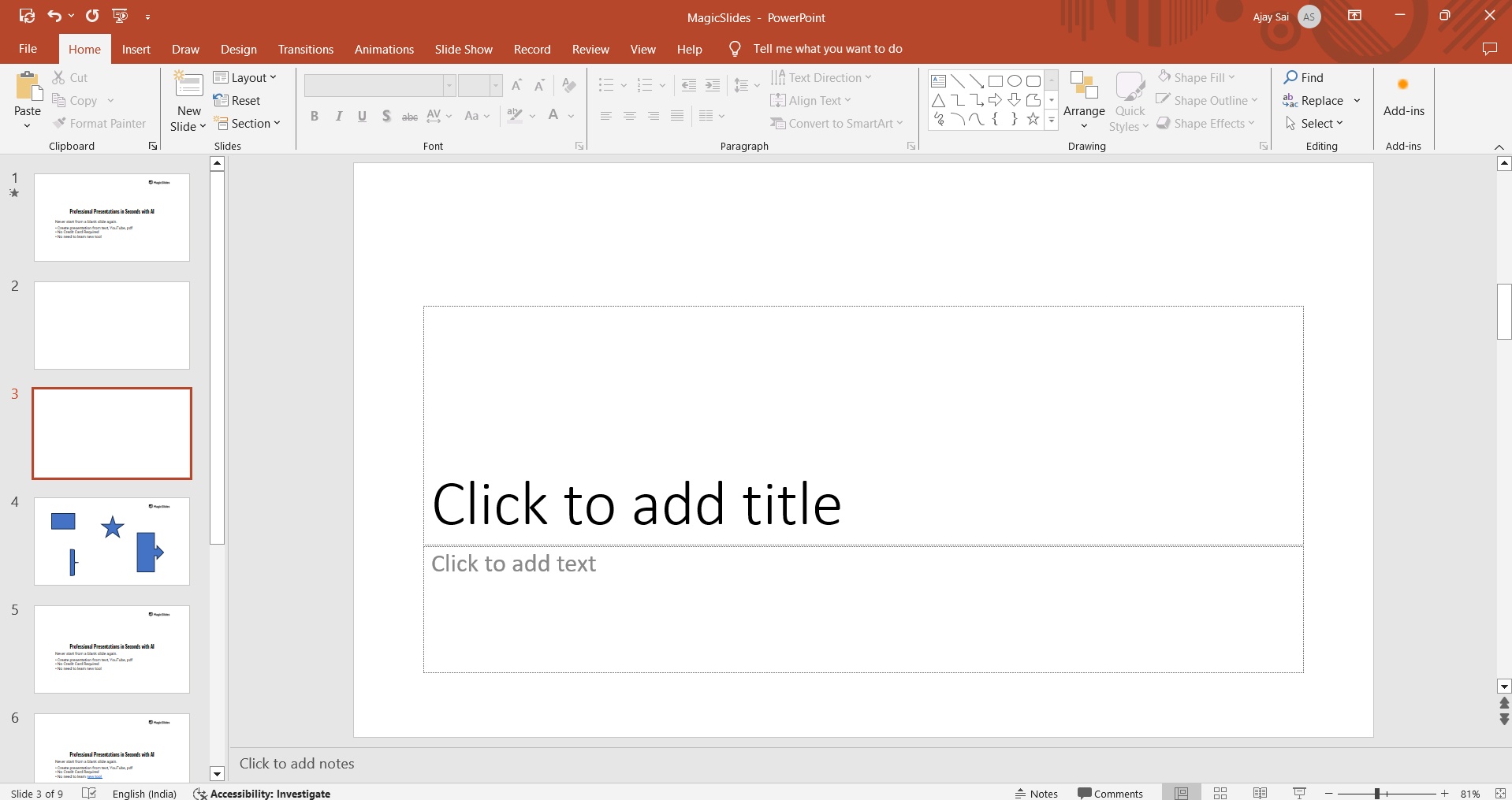
It includes placeholders for a section title and a subtitle or brief description. This layout helps to break up your presentation into manageable sections, making it easier for your audience to follow along.
When to use: Use the Section Header layout when transitioning between different parts of your presentation to signal a shift in topic or focus.
Type #4: Two Content Layout
The Two Content layout is similar to the Title and Content layout but with two side-by-side content areas below the title. This allows you to compare or contrast two sets of information on the same slide.
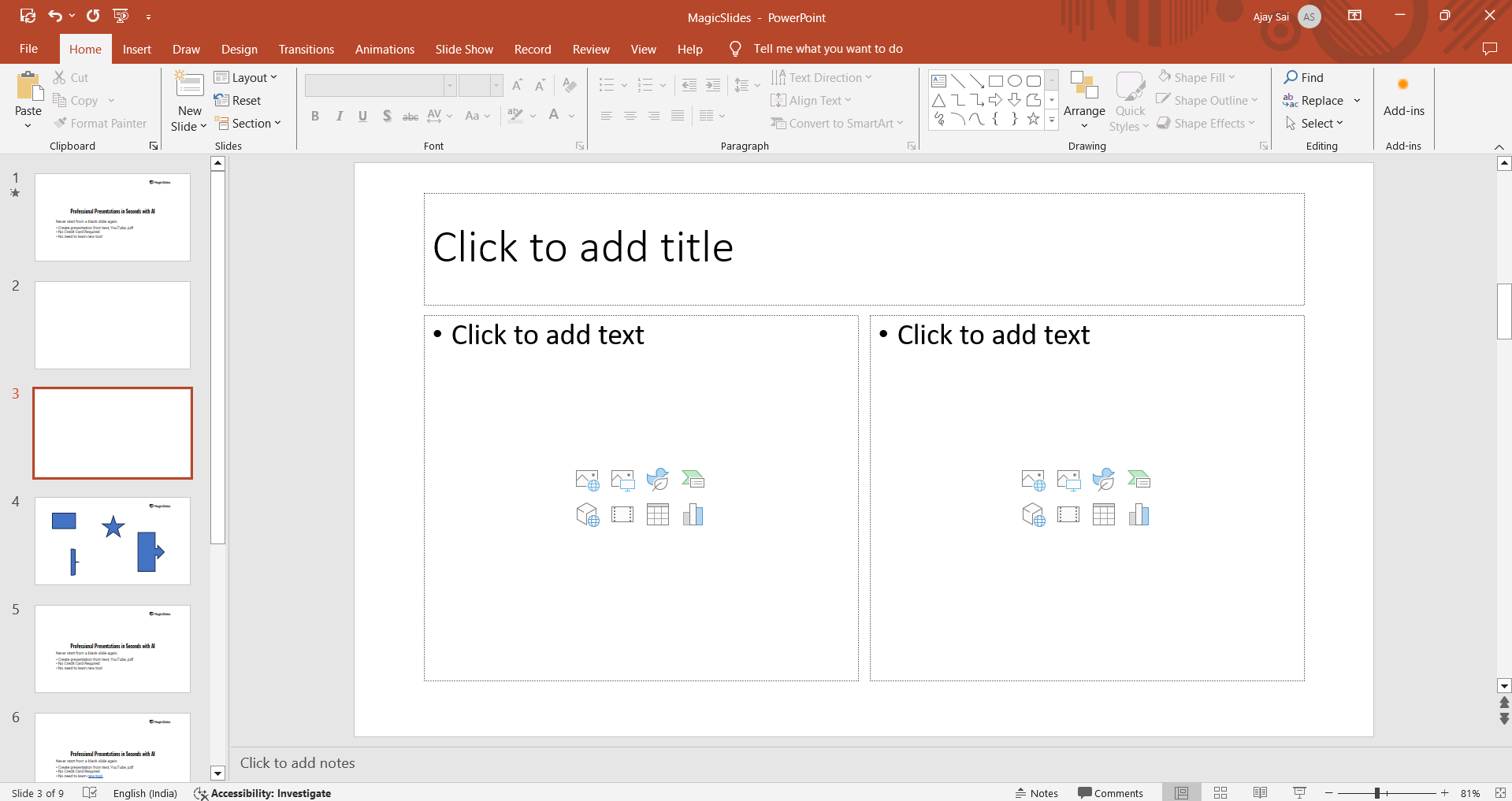
When to use: Use the Two Content layout when you need to present two related pieces of content side by side, such as comparing pros and cons, showing before-and-after scenarios, or displaying two charts or images.
Type #5: Comparison Layout
The Comparison layout is an extension of the Two Content layout. It includes two title placeholders above each content area, allowing you to label each side of the comparison.
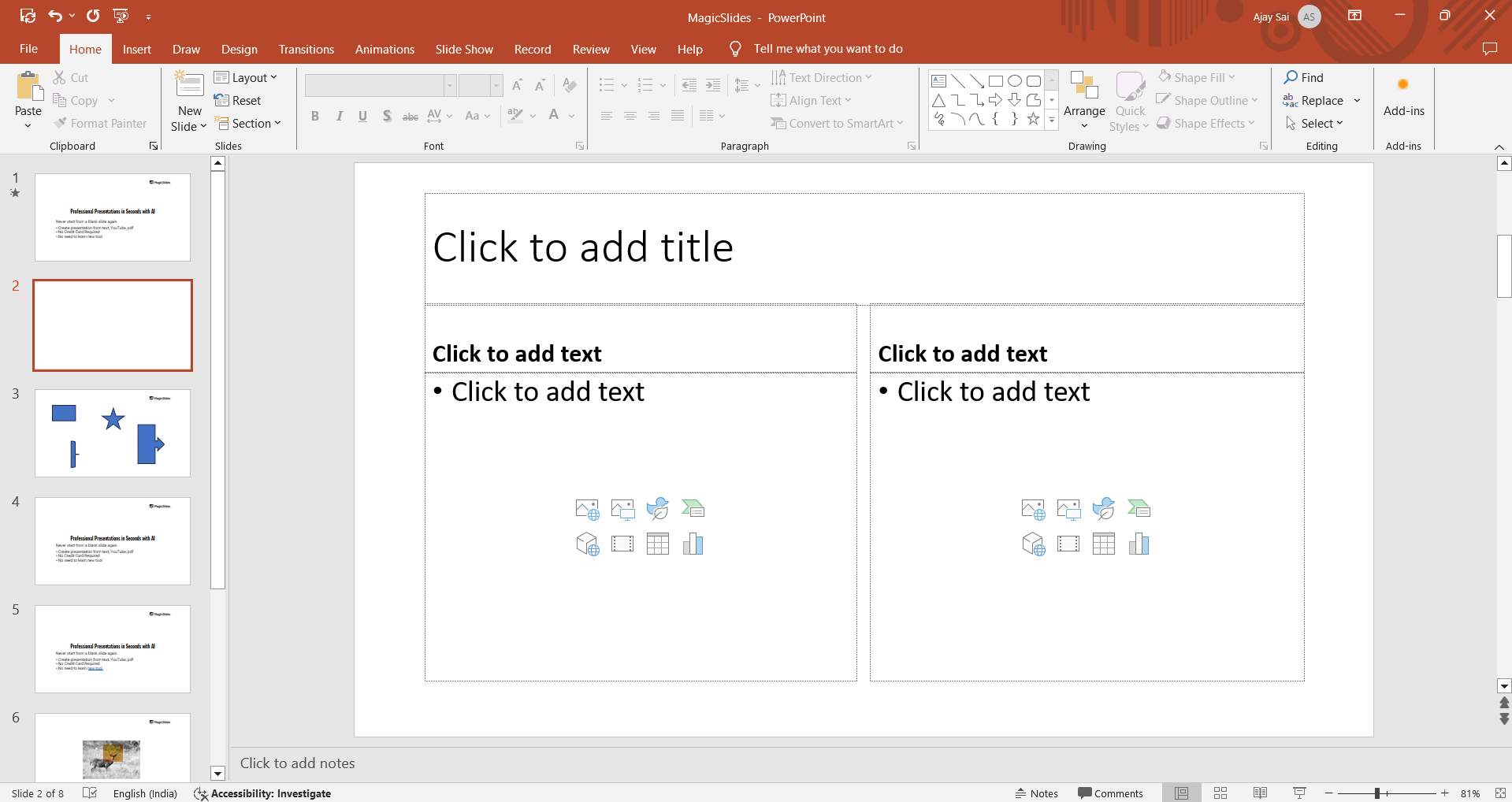
When to use: Use the Comparison layout when you want to present a direct comparison between two items or ideas, with clear labels for each.
Type #6: Title Only Layout
The Title Only layout provides a single placeholder for the slide title, with no content area below it. This layout is useful when you want to include a title or headline without any additional content.
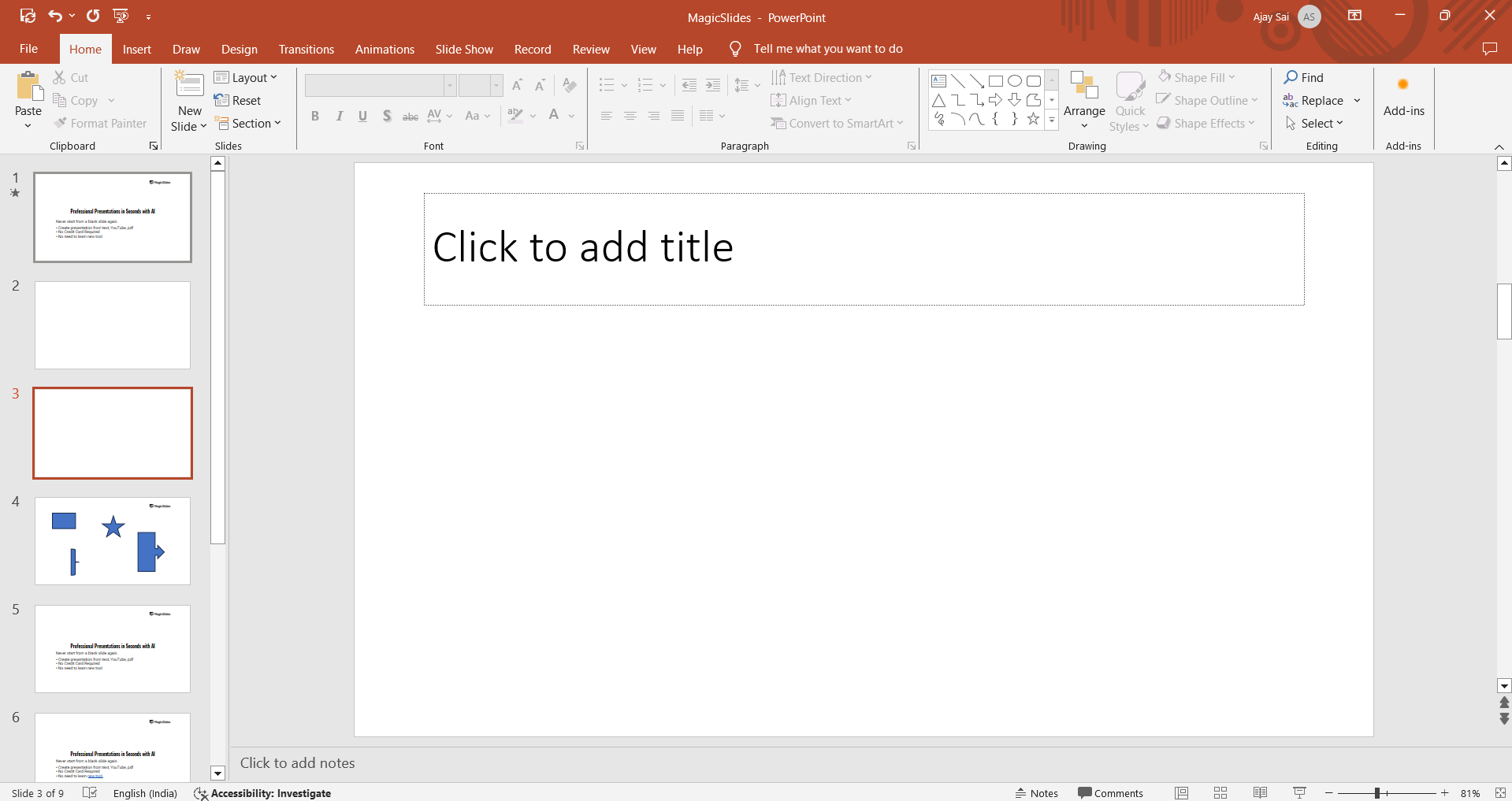
When to use: Use the Title Only layout for slides that serve as separators or when you want to display a large, impactful title or quote without any other distractions.
Type #7: Blank Layout
The Blank layout is a clean slate, with no placeholders at all. This layout gives you complete freedom to design your slide from scratch, adding any elements you like.
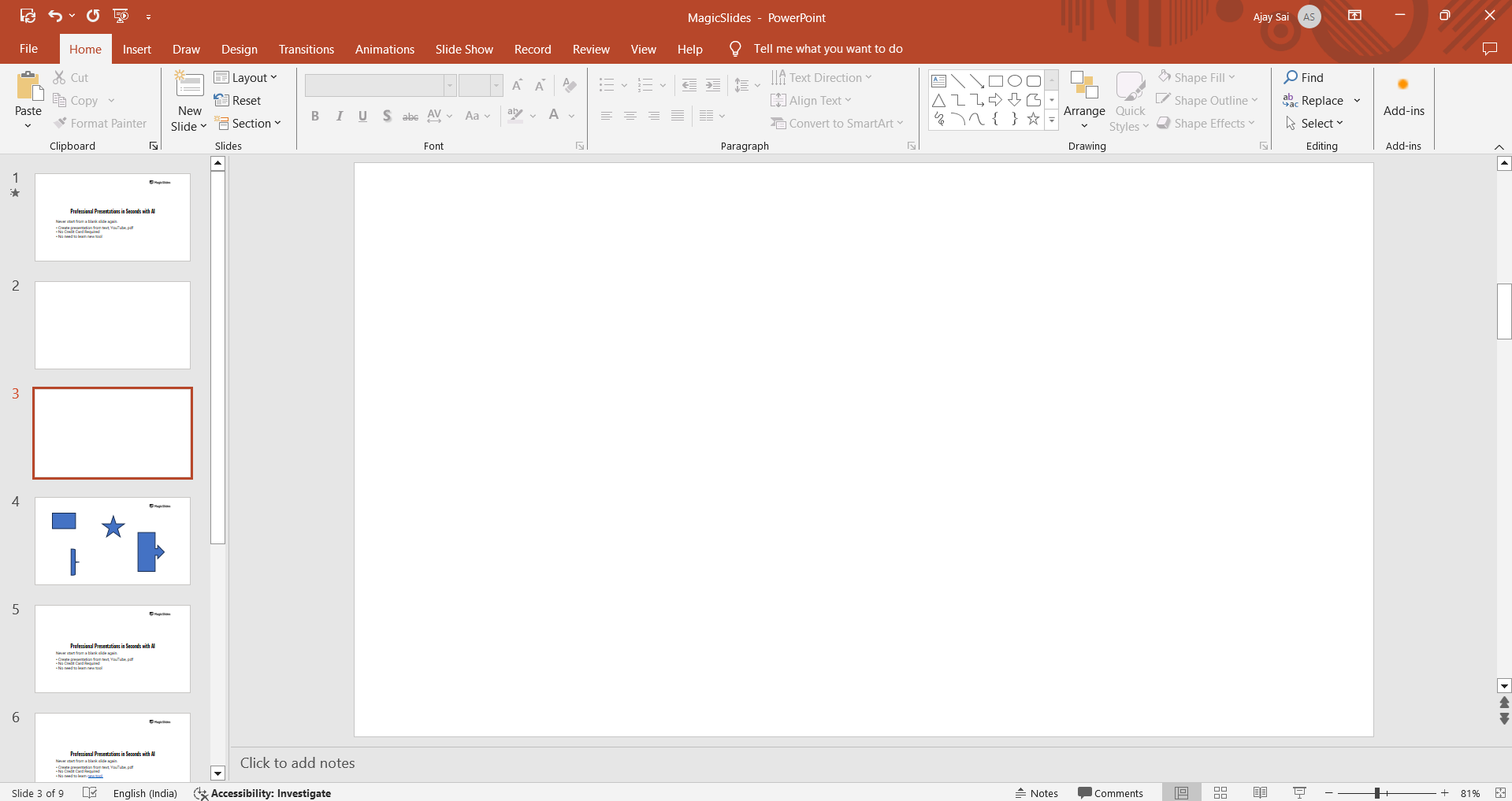
When to use: Use the Blank layout when you want to create a custom slide design that doesn’t fit into any of the predefined layouts, or when you need maximum flexibility in arranging content.
Type #8: Content with Caption Layout
The Content with Caption layout includes a title placeholder, a large content area on the right, and a smaller caption area on the left.
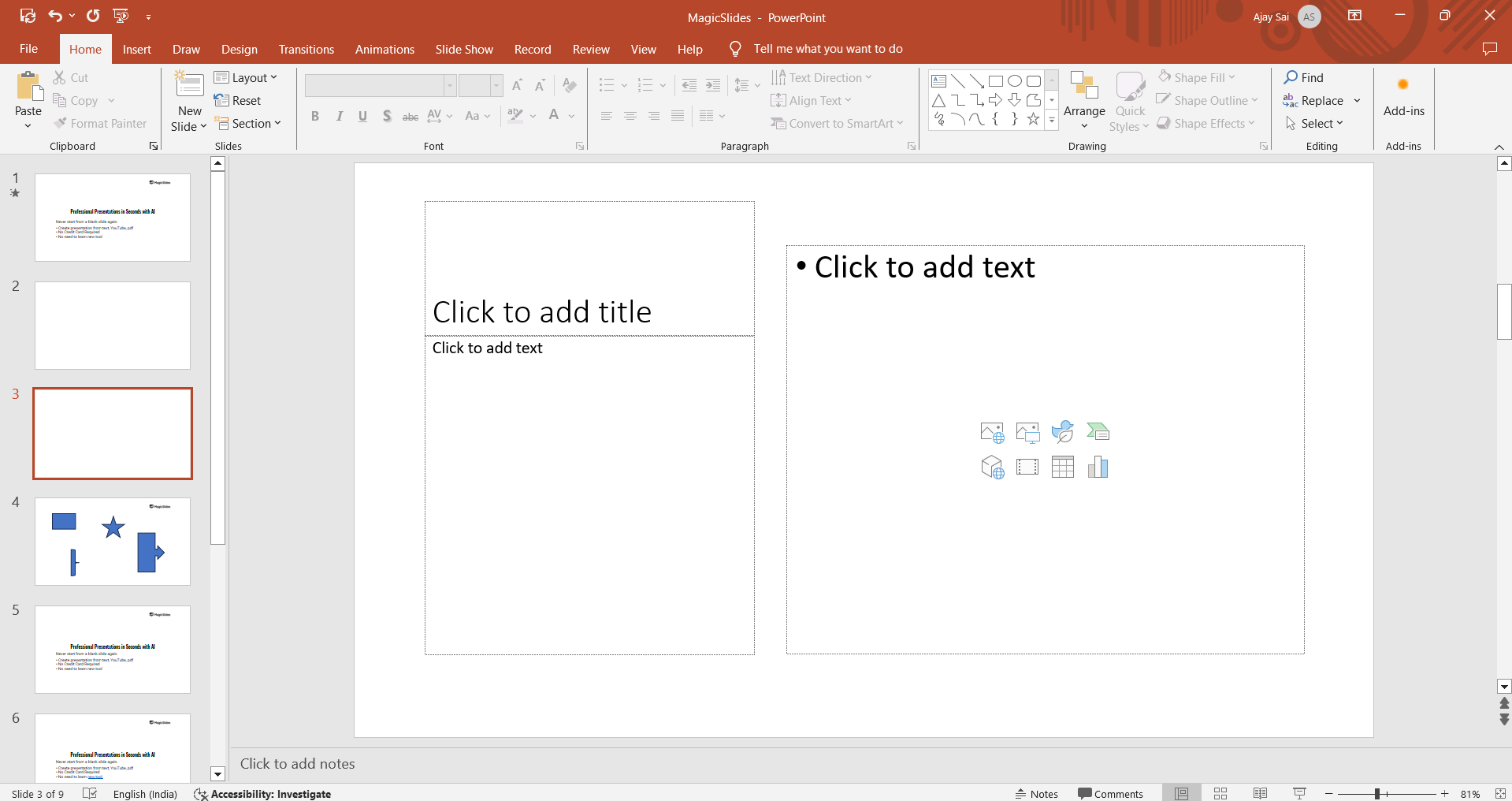
This layout is ideal for situations where you want to provide a brief explanation or context alongside your main content.
When to use: Use the Content with Caption layout when you want to highlight an image, chart, or video with a brief caption or description to explain its significance.
Type #10: Picture with Caption Layout
The Picture with Caption layout is designed specifically for slides that feature an image with a caption. It includes a large placeholder for a picture and a smaller text area for the caption.
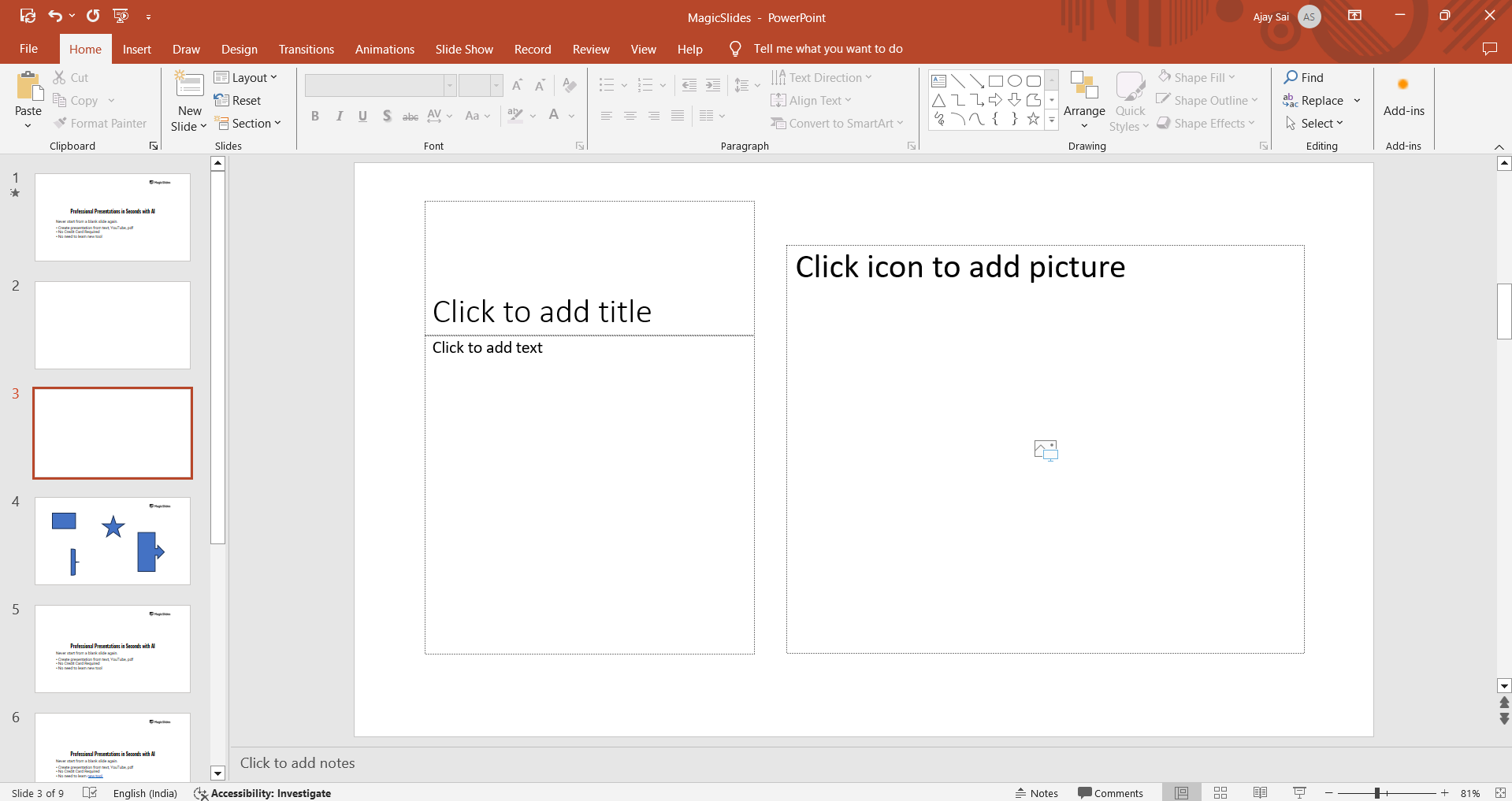
When to use: Use the Picture with Caption layout when you want to focus on an image and provide a brief caption or description to accompany it, making it ideal for photo slides, case studies, or visual storytelling.
Conclusion
PowerPoint offers a variety of layouts to suit different types of content and presentation needs.
By understanding these layouts and when to use them, you can create more organized and visually appealing slides.
Whether you're introducing a new section, comparing ideas, or showcasing images, choosing the right layout can enhance your presentation and make your message more impactful.
Experiment with these layouts in your next presentation to see how they can help you convey your ideas effectively.
FAQs are here to help you!
What is the purpose of using different PowerPoint layouts?
Different layouts organize content effectively, ensuring clarity and visual appeal in your presentation.
Can I customize PowerPoint layouts?
Yes, you can modify layouts by adding, moving, or resizing placeholders to fit your specific needs.
How do I choose the best layout for my slide?
Select a layout based on the type of content you want to present, such as text, images, or comparisons.


