How to Add a Border in Google Docs: A Step-by-Step Guide


Learn how to easily add borders to your Google Docs using tables, drawings, and templates with this detailed, step-by-step guide.
Google Slides is a versatile tool for creating engaging presentations, and sometimes, a simple border can make a significant difference in the visual appeal of your slides. Whether you want to highlight content or add a professional touch, the process of adding borders in Google Slides is straightforward. In this guide, we'll walk you through the steps to seamlessly incorporate borders into your presentation slides.
Steps to Add a Border in Google Slides:
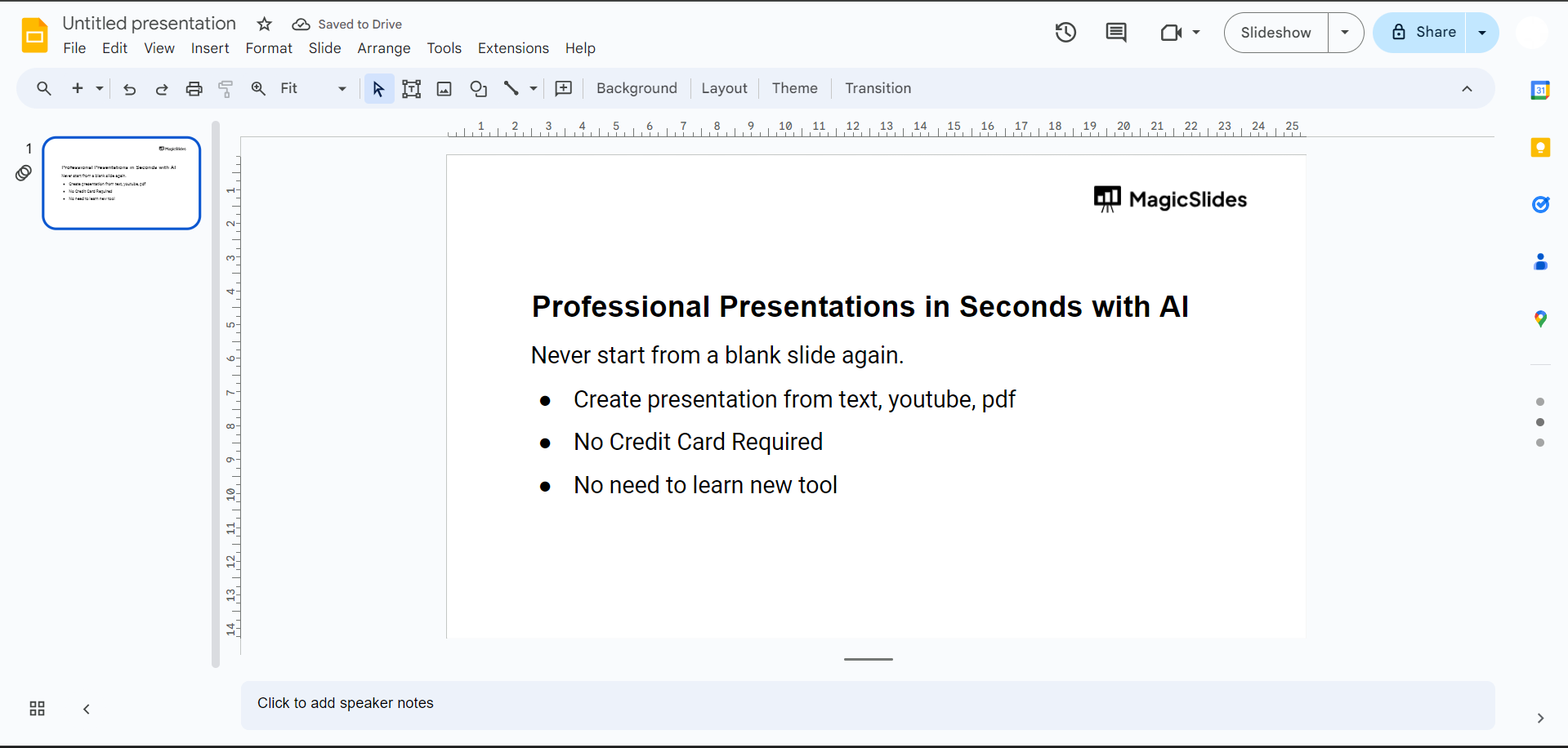
Open your Presentation:
Launch Google Slides and open the presentation in which you want to add borders.
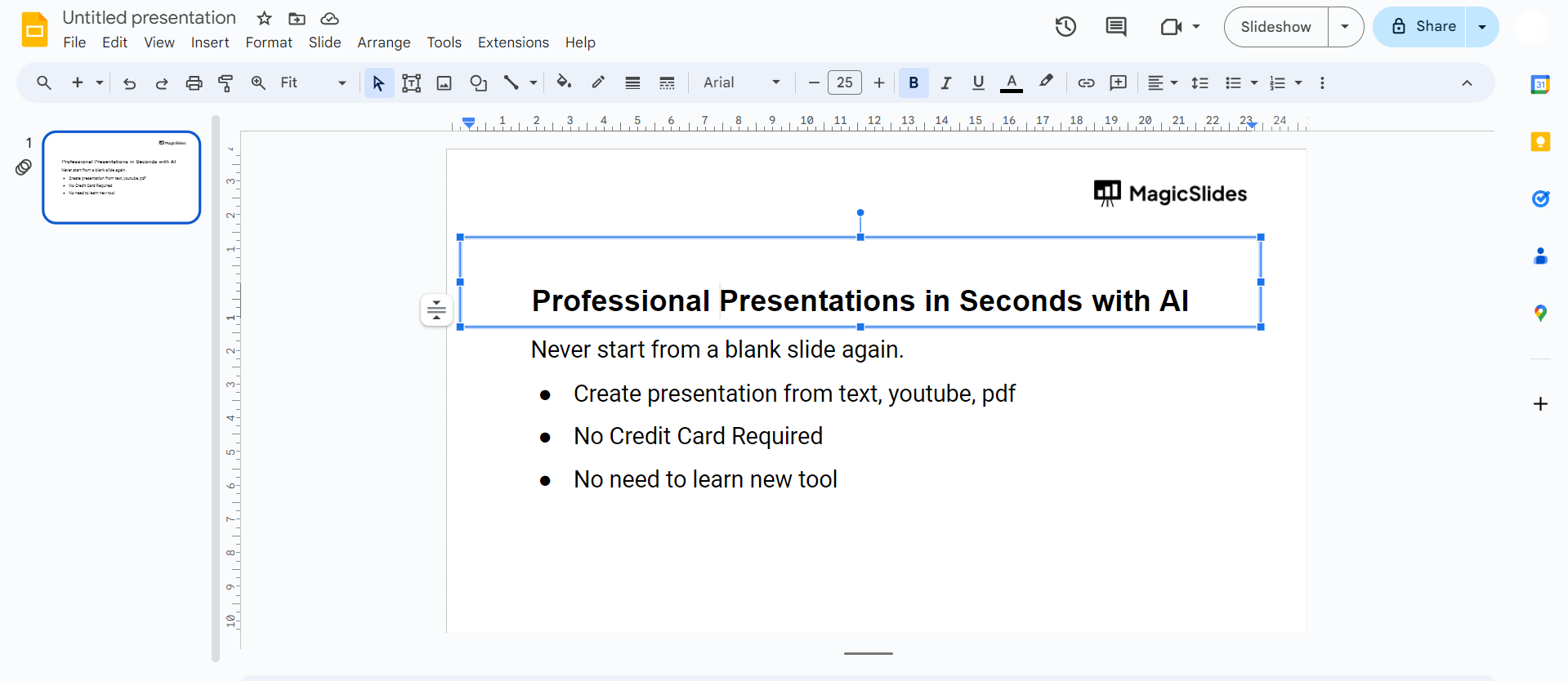
Select the Object or Text Box:
Identify the object or text box to which you want to add a border. Click on it to select it.
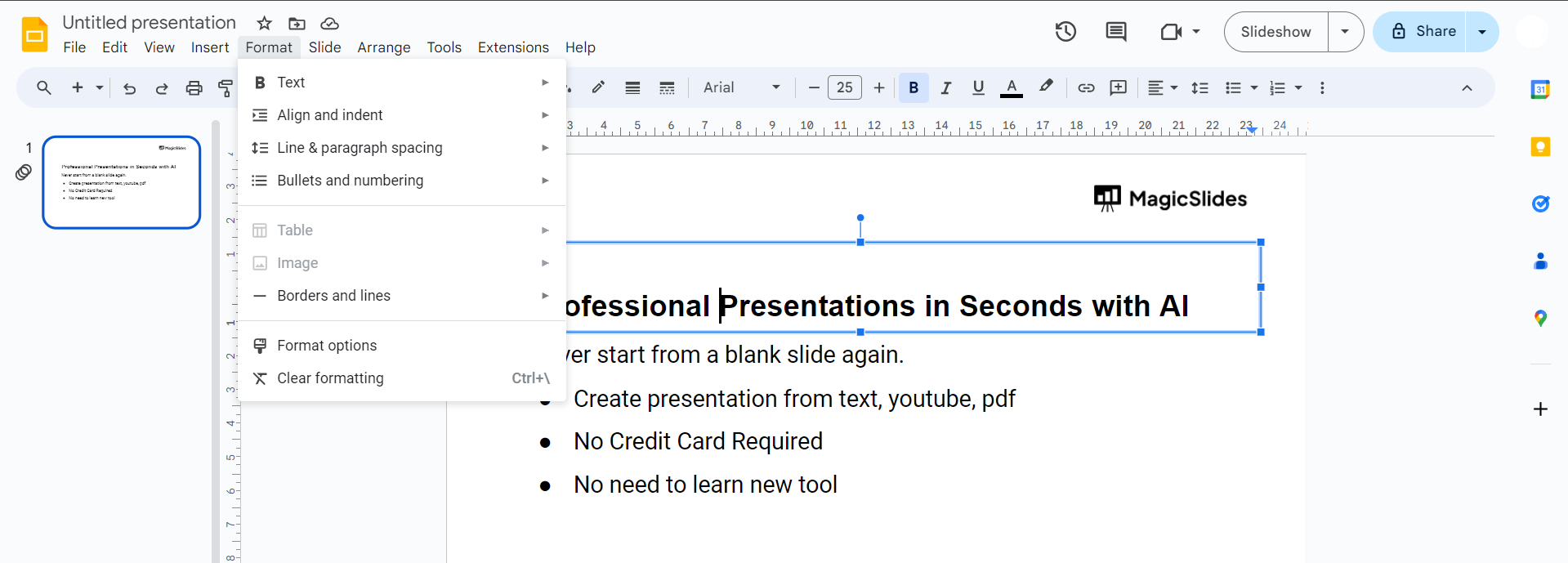
Access the Format Options:
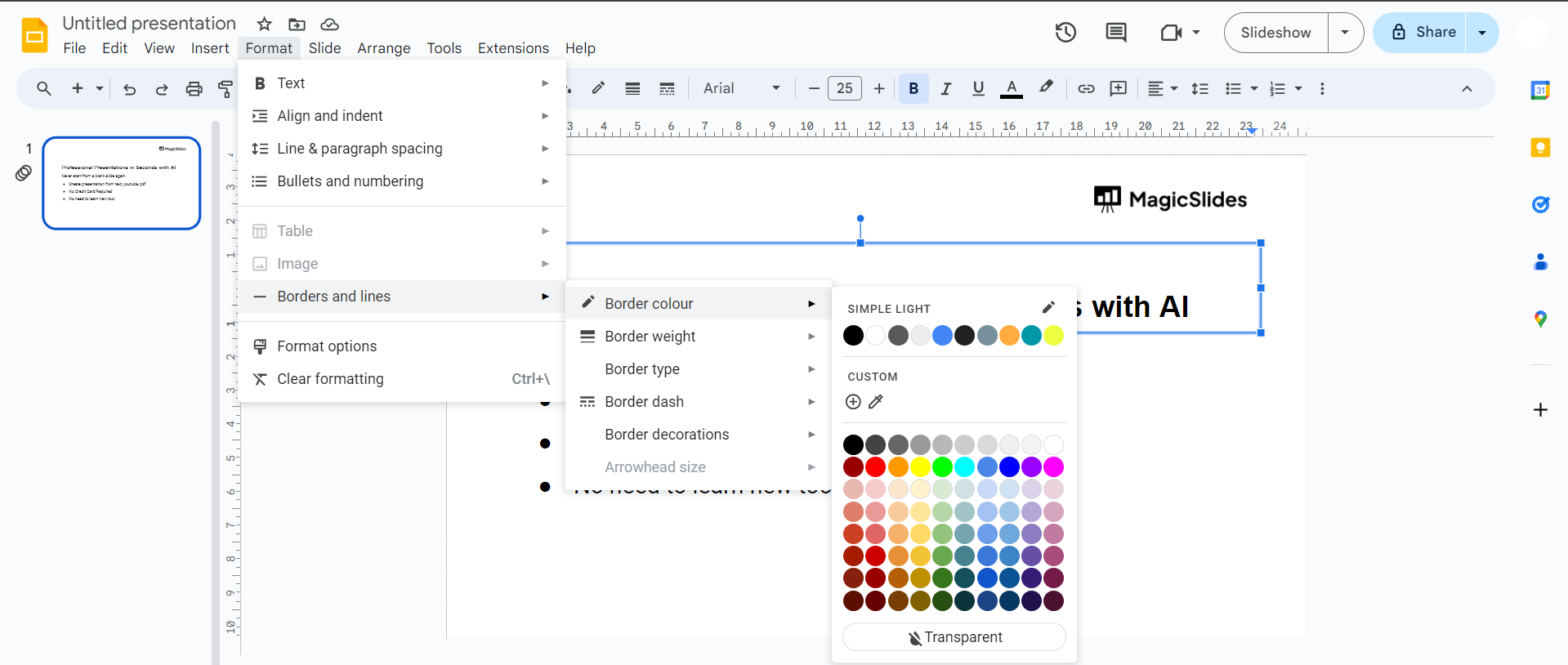
In the toolbar, click on "Format" in the top menu. A drop-down menu will appear.
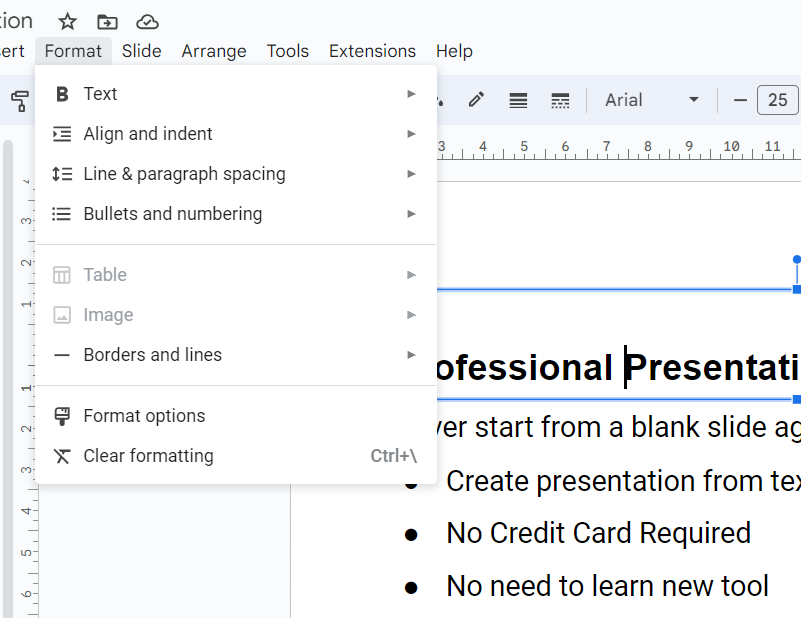
Choose "Borders and Lines":
Hover over the "Borders and lines" option in the Format menu. A sub-menu will pop up.
Select "Border Color":
Click on "Border color" to choose the color of your border. You can pick from the available colors or customize it according to your preferences.
Adjust Border Thickness:
Next, click on "Border weight" to adjust the thickness of your border. Experiment with different weights to find the one that suits your design.
Apply the Border:
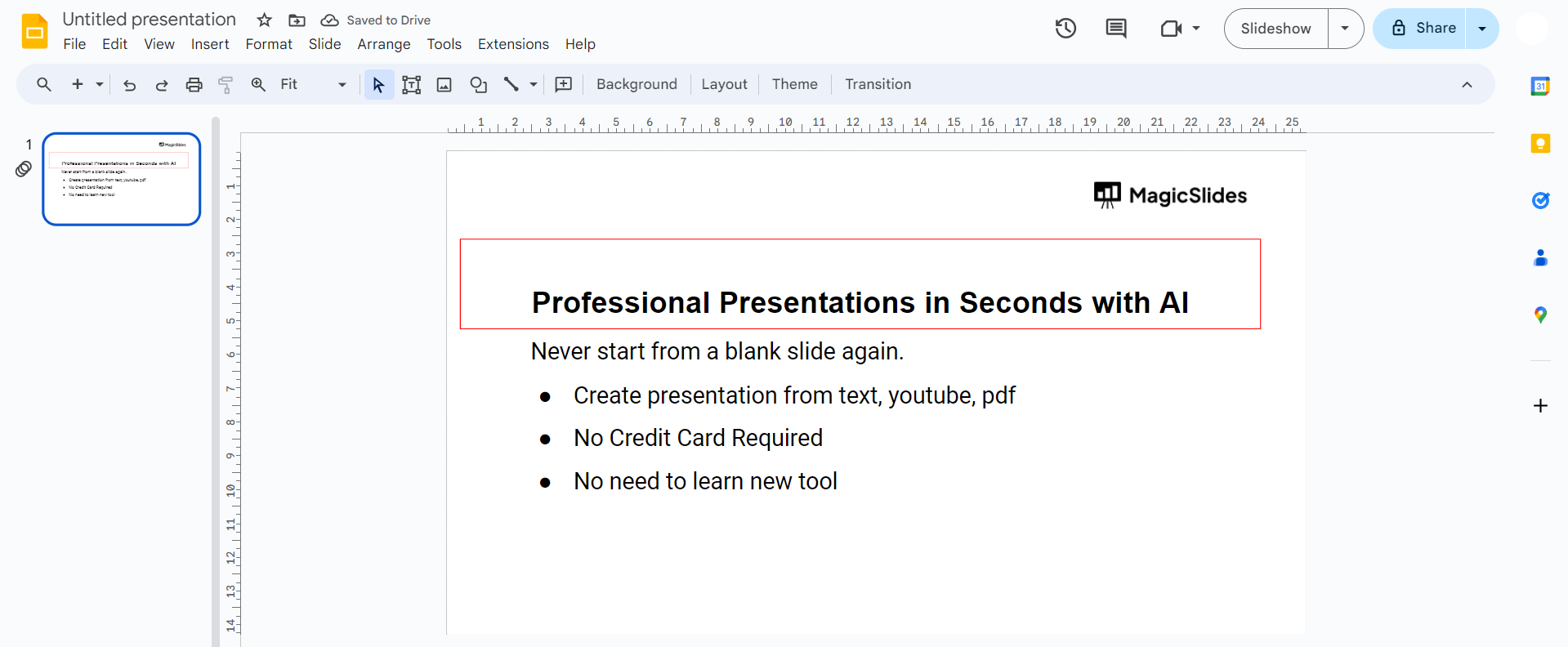
Once you've customized the color and thickness, click on "Apply border" to add the border to your selected object or text box.
Repeat for Other Objects (Optional):
If you wish to add borders to multiple objects, repeat the process for each one.
Conclusion:
Adding borders to your Google Slides can elevate the overall aesthetics of your presentation, helping to draw attention to key elements and creating a more polished look. By following these simple steps, you can customize borders to match your presentation's theme and style. Experiment with different colors, thicknesses, and styles to find the perfect combination that enhances the visual impact of your slides. Incorporating borders is a small yet effective way to make your presentations more visually appealing and professional.
Frequently Asked Questions:
Can I add borders to images and shapes in Google Slides?
Yes, you can enhance images and shapes by selecting them and applying borders through format options.
Are there predefined border styles in Google Slides?
While there are no predefined styles, you can choose colors, thickness, and styles for customization.
Can I remove a border once it's applied to an object?
Certainly. Click on the object, navigate to "Format," and choose "Borders and lines" to remove or modify.
Do borders appear in presentation mode in Google Slides?
Yes, borders remain visible in presentation mode, ensuring your enhanced design is showcased seamlessly.


