how to add a font to power point


Elevate your PowerPoint game: Discover how to add a font to PowerPoint for a unique and captivating presentation.
Introduction:
Your choice of fonts in a PowerPoint presentation can greatly influence its visual appeal and the impact of your message. While PowerPoint offers a variety of default fonts, you might want to add a custom font to align with your brand or personal style. In this guide, we'll explore the process of adding a font to PowerPoint.
This skill is invaluable for designers, professionals, and anyone looking to take their presentations to the next level. By adding your own fonts, you can maintain consistency in your branding, achieve unique design aesthetics, and make your presentations truly stand out. Let's dive into the steps for this font customization journey.
Steps to Add a Font to PowerPoint:
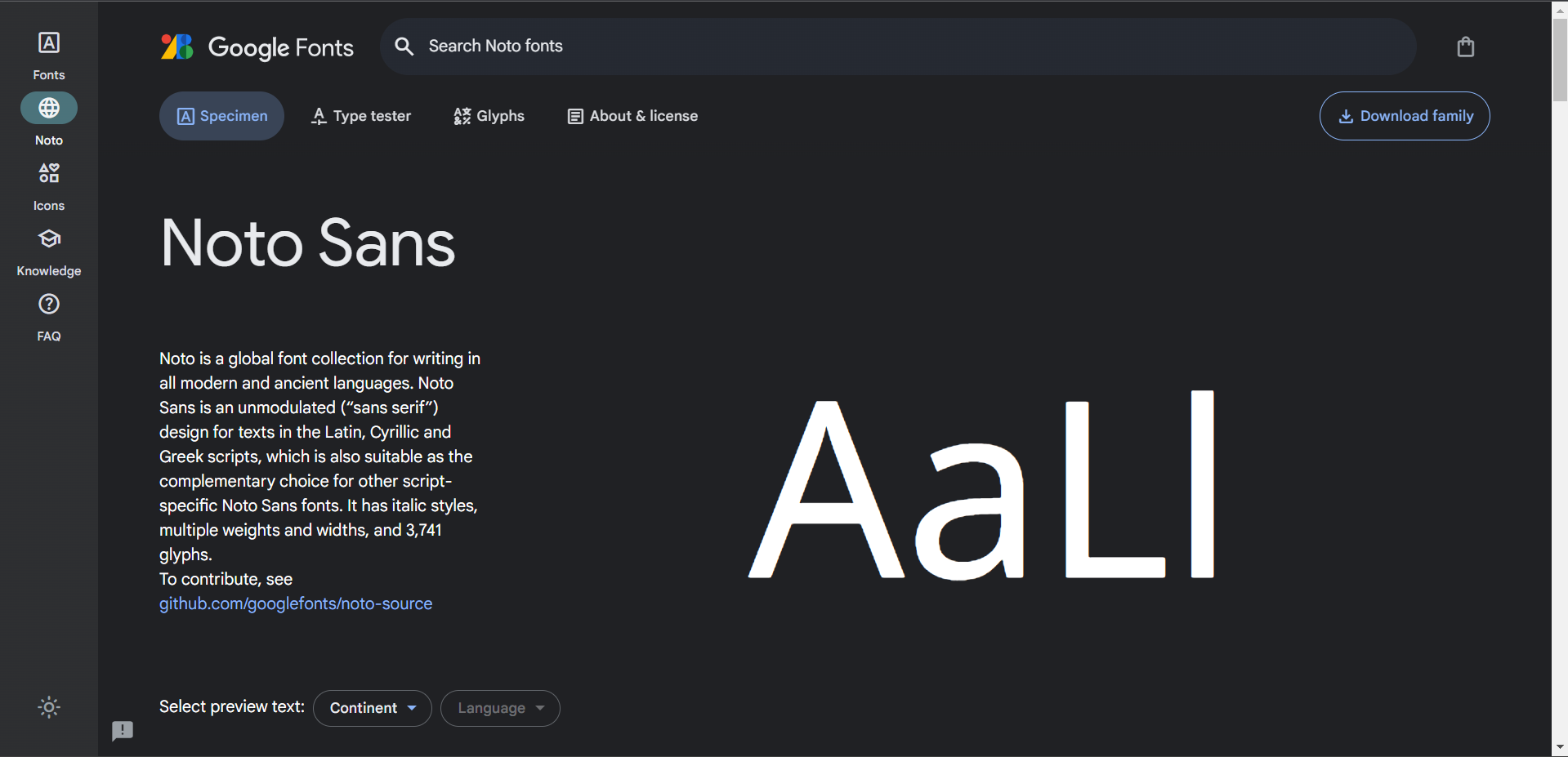
→ Download Your Font: Start by downloading the desired font from a reputable source. Ensure it's in a compatible format, like TTF or OTF.
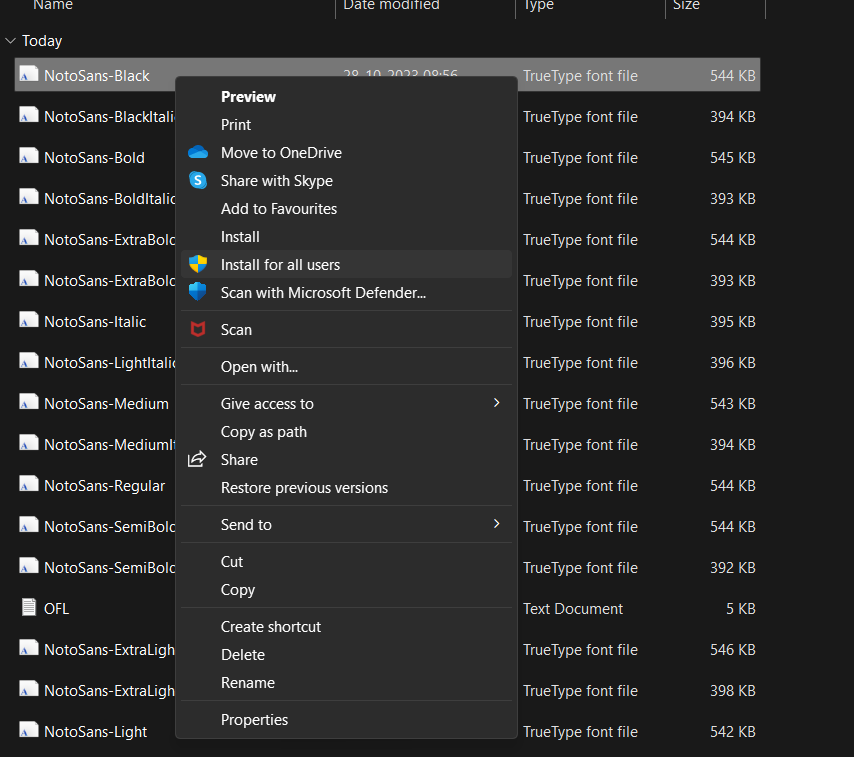
→ Install the Font: Double-click on the font file and click the "Install" button.
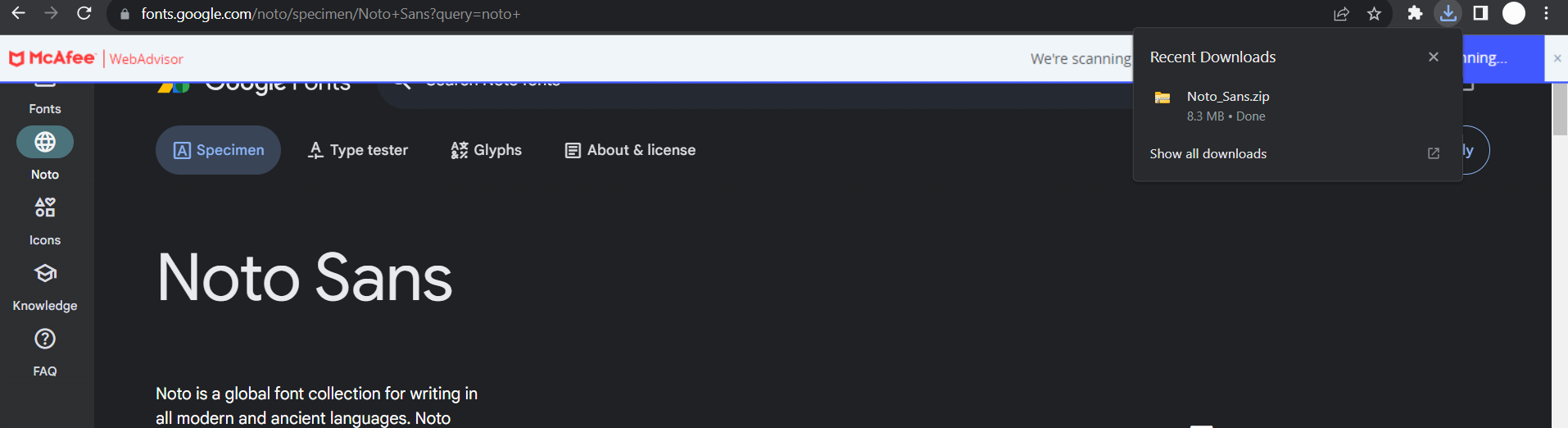
This installs the font on your computer and extract all from the downloaded place.

Choose desired font and right click & choose make available for other users.
→ Open PowerPoint: Launch PowerPoint and open your presentation or create a new one.
→ Access the Font Dialog: Go to the slide where you want to use the custom font. Click on the text box you want to apply the font to.
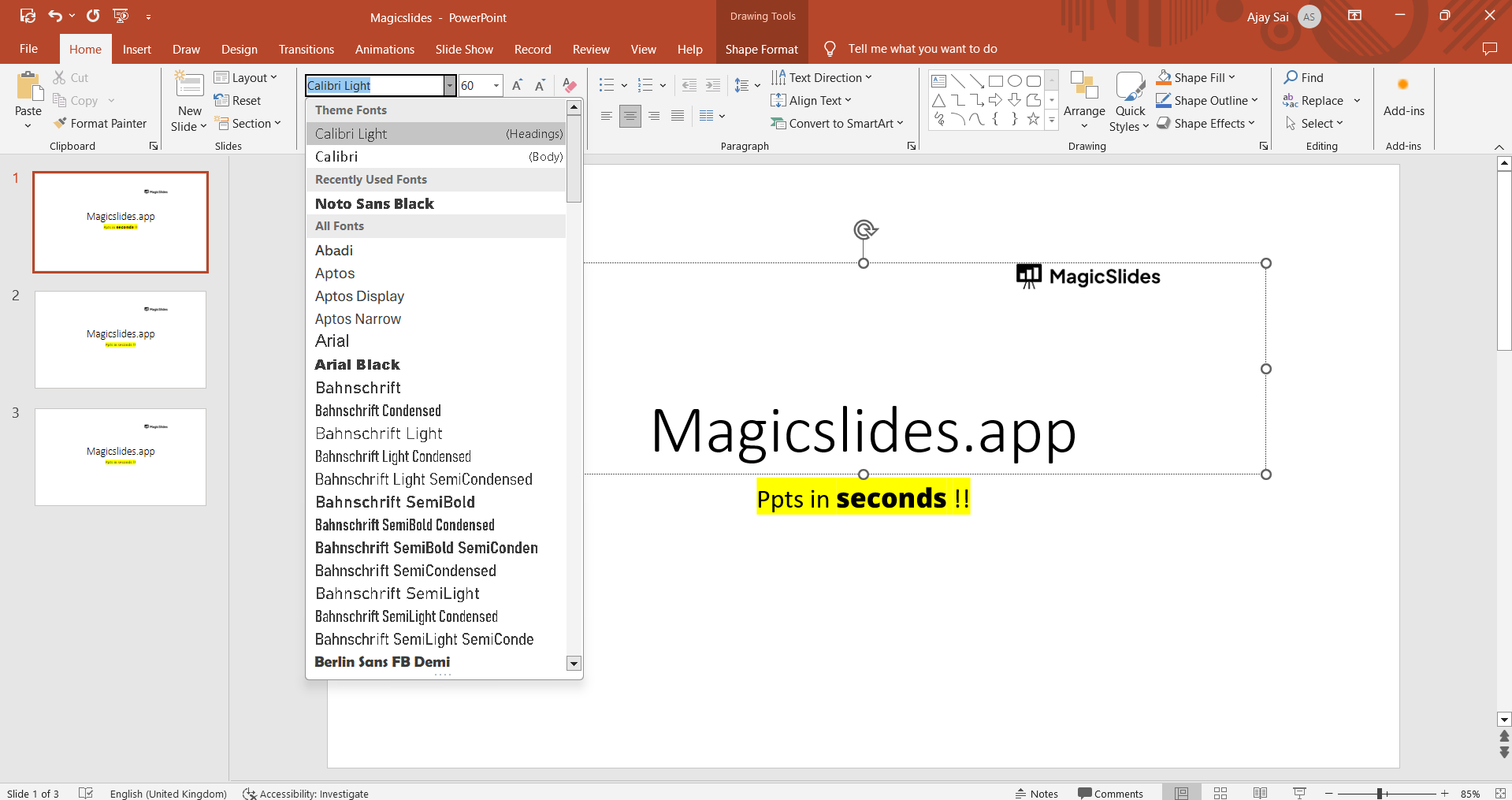
→ Select the Custom Font: In the "Home" tab, navigate to the "Font" dropdown menu. Here, you should see your newly installed font listed alongside the default fonts.
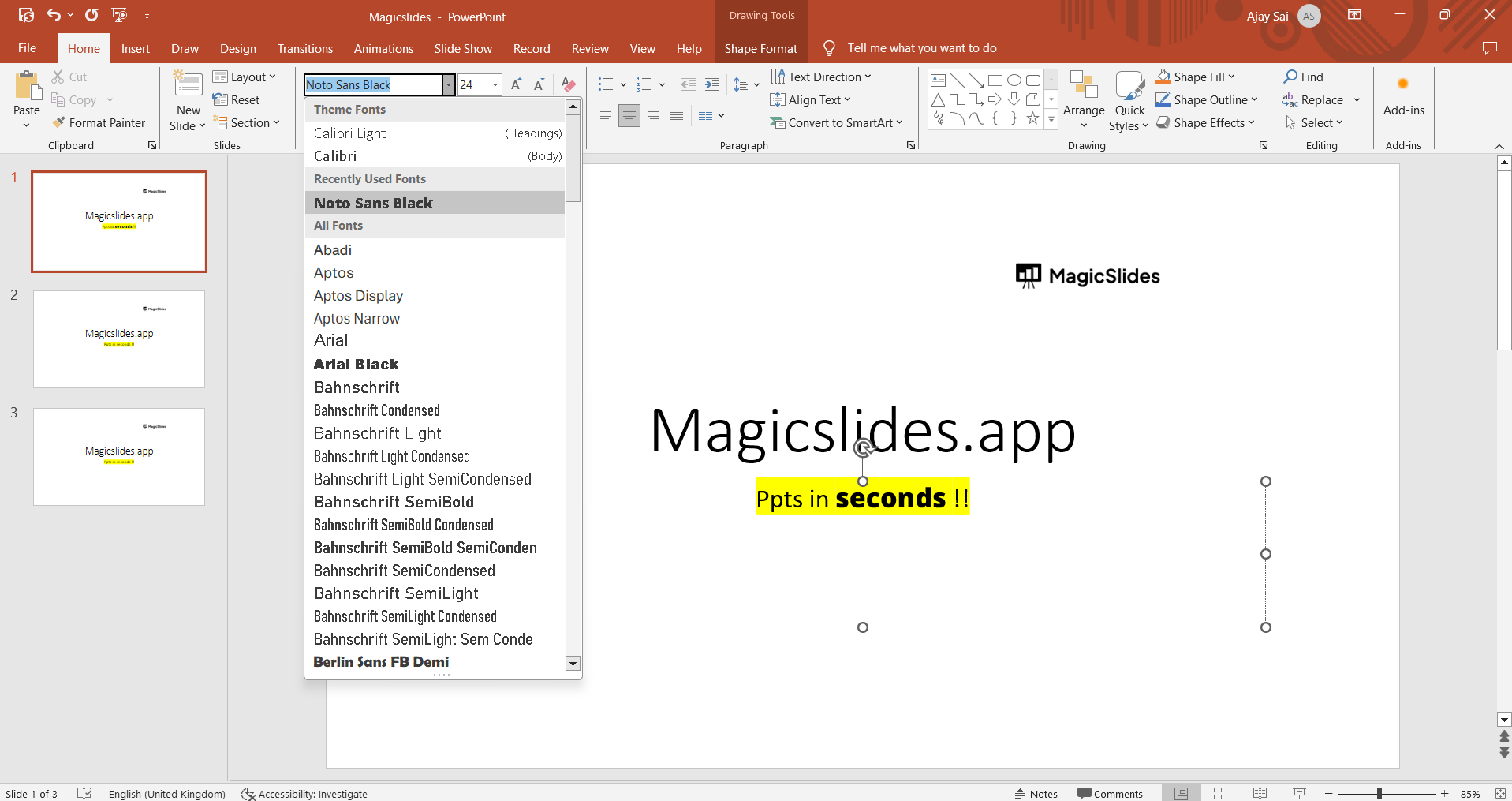
→ Apply the Font: Click on your custom font to apply it to the selected text box.
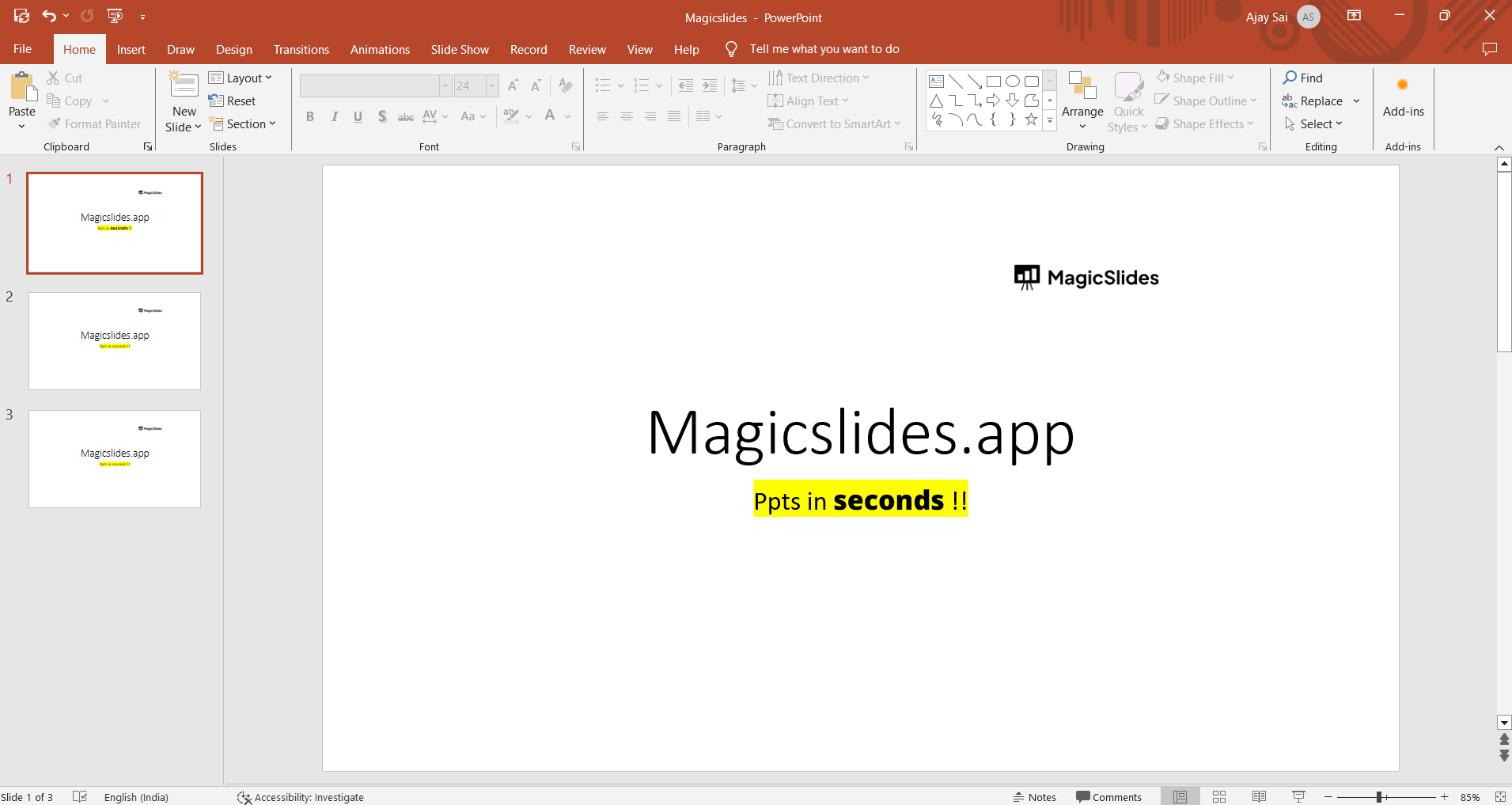
→ Save Your Presentation: Don't forget to save your presentation to keep your font settings.
Conclusion:
Adding a custom font to PowerPoint is a fantastic way to infuse your presentations with personality and uniqueness. Whether you're crafting a corporate presentation, an educational lecture, or a creative pitch, custom fonts can help you maintain branding consistency and achieve a more appealing design.
The process, as outlined in this guide, is straightforward and accessible to anyone. By following these steps, you can quickly bring your brand's distinct typography into your presentations. As you explore the world of custom fonts, remember that they're not just about aesthetics but also about conveying your message effectively.
So, download your preferred fonts, install them, and customize your presentations to make a lasting impression. Custom fonts are the key to giving your PowerPoint presentations that professional, polished edge.
Frequently Asked Questions:
Why would I need to add a custom font to PowerPoint?
Answer: Adding a custom font helps you personalize your presentations, maintain branding consistency, and create a unique design.
Where can I find custom fonts to use in PowerPoint?
Answer: You can find custom fonts on various font websites, such as Google Fonts, Adobe Fonts, and Font Squirrel.
Do custom fonts work in both the online and desktop versions of PowerPoint?
Answer: Yes, custom fonts work in both versions. However, you need to ensure the font is installed on your system.
Can I use custom fonts for all text elements in my presentation?
Answer: Yes, you can use custom fonts for titles, headings, and body text, providing a consistent look.
Will others see my custom font if I share the presentation?
Answer: To ensure others see your custom font, you can embed it in your presentation or share it as a PDF.


