How to Add a Link to Google Slides on Chromebook


Easily add hyperlinks in Google Slides on a Chromebook to enhance presentations with clickable links
How to Add a Link to Google Slides on Chromebook
Adding links in Google Slides allows you to enhance your presentation by directing viewers to external websites, other slides, or even files.
If you're using a Chromebook, the process is simple and works just like on any other device.
Follow this step-by-step guide to insert clickable links into your Google Slides presentation.
Step-by-Step Guide to Adding a Link in Google Slides on Chromebook
Step 1: Open Google Slides
On your Chromebook, open your browser and go to Google Slides. Open an existing presentation or create a new one by visiting slide.new.
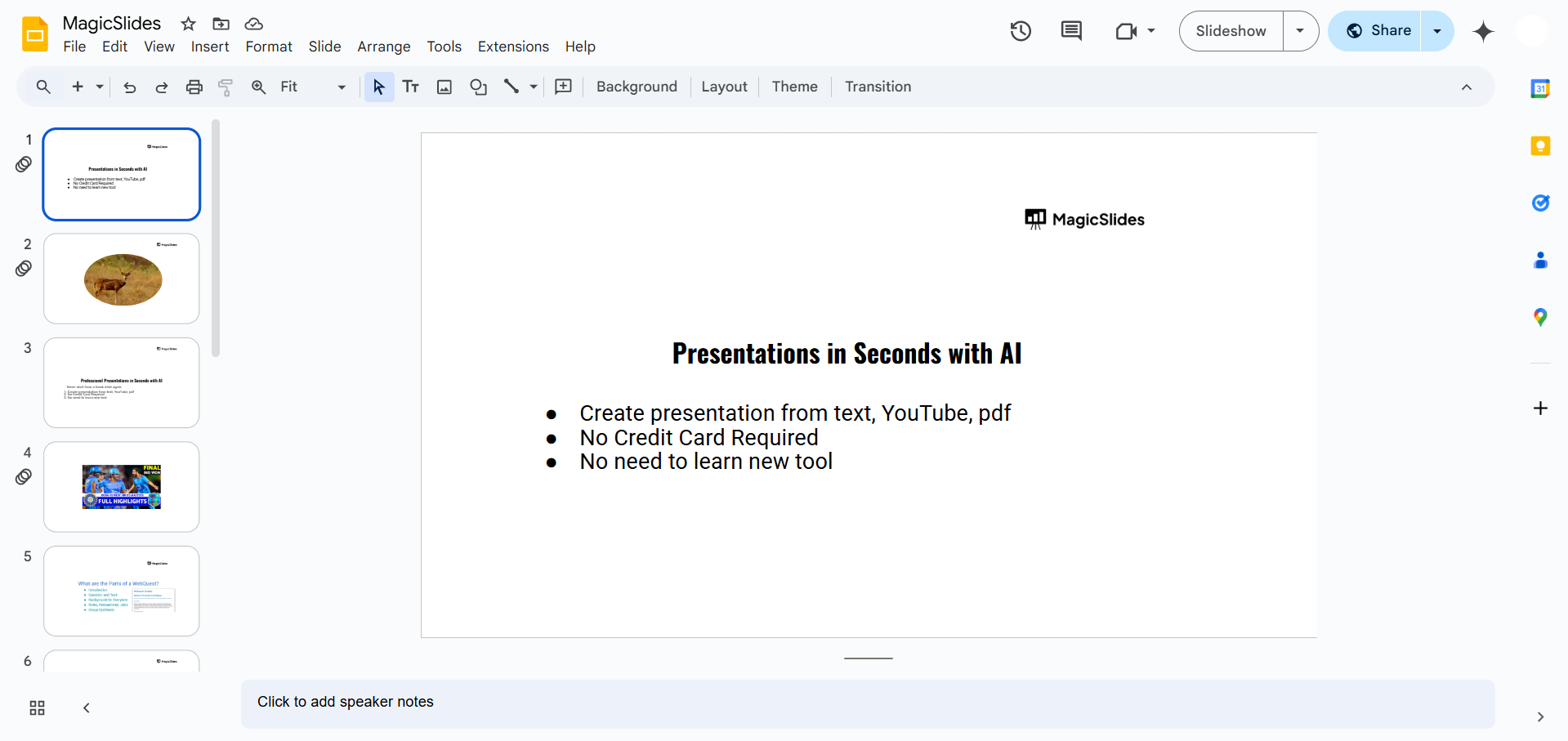
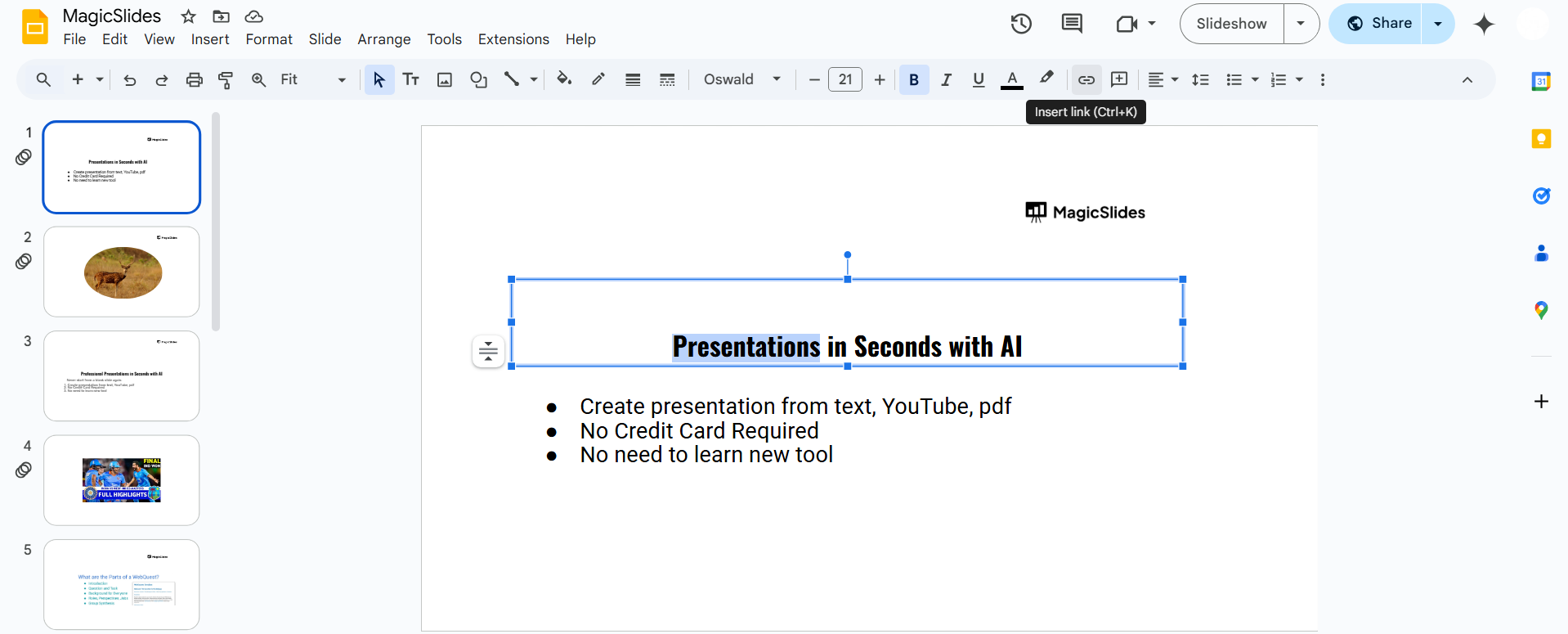
Step 2: Select the Text or Object for the Link
Click on the text box, image, or shape that you want to hyperlink. If you're linking text, highlight the specific words.
Step 3: Insert the Link
Press Ctrl + K on your keyboard (or right-click and select Insert link). A small pop-up window will appear.
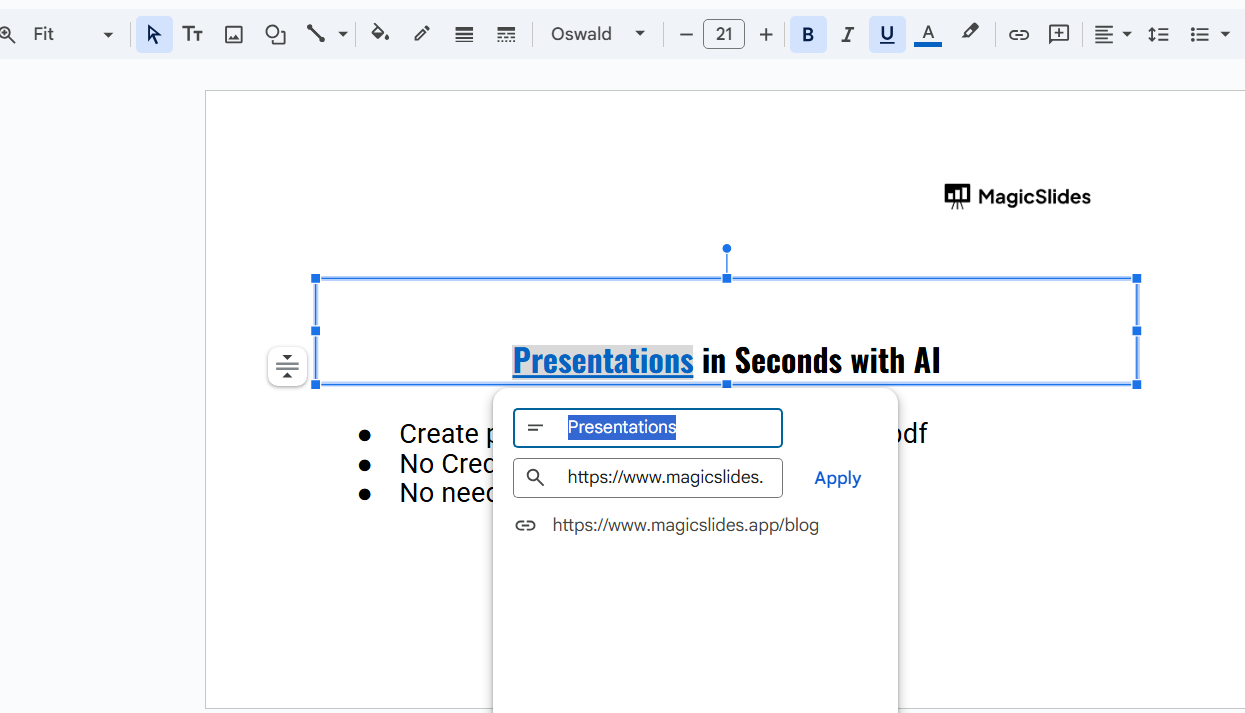
Step 4: Enter the Link
In the URL field, type or paste the website link you want to add.

If you want to link to another slide in the same presentation, click Slides in this presentation, then select the specific slide.
Step 5: Apply the Link
Click Apply to save the hyperlink. The linked text or object will now be clickable.
Step 6: Test the Link
Click Present in the top-right corner to enter presentation mode.
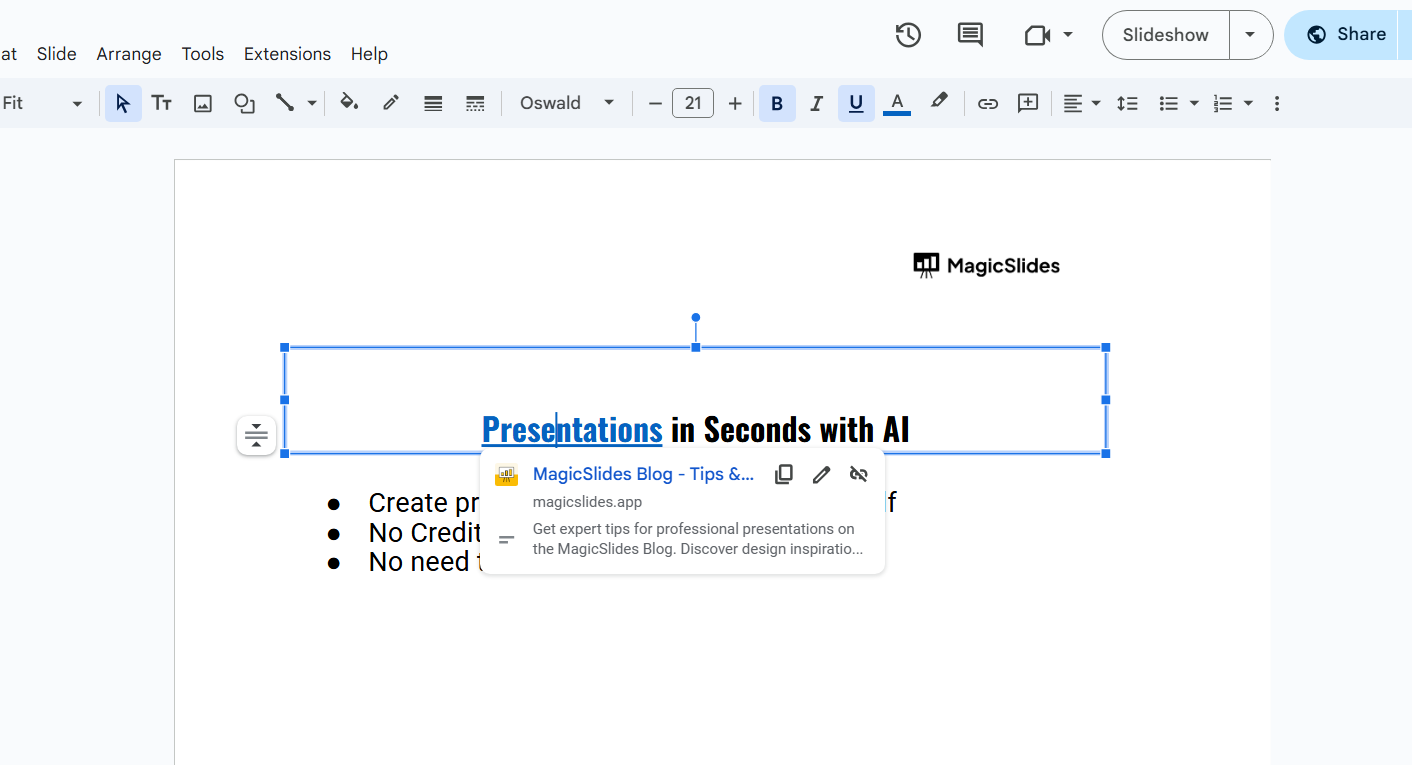
Click on the linked text or object to ensure it directs you to the correct destination.
Conclusion
Adding a link in Google Slides on a Chromebook is quick and easy. Whether linking to a website, another slide, or an external file, this feature helps make your presentations more interactive and engaging.
Adding links improves navigation in Google Slides, but if you need a smarter way to create fully structured slides, check out MagicSlides.app AI-generated presentations in just a few clicks!
FAQs are here to help!
Can I link a Google Drive file in Google Slides?
Yes! Copy the shareable link of the Google Drive file and paste it using Ctrl + K in Google Slides.
How do I remove or edit a hyperlink in Google Slides?
Click on the linked text or object, then select Edit link or Remove link from the pop-up menu.
Why isn’t my link working in Google Slides?
Ensure the link is correct and formatted properly. Also, check your internet connection, as external links require internet access to open.


