How to Add Blooks into Presentation Google Slides


Enhance your Google Slides presentation by adding interactive Blooks using images, links, or videos easily
How to Add Blooks into a Google Slides Presentation
Blooks are interactive elements or game-like content used in educational tools like Blooket to engage audiences.
Adding Blooks to a Google Slides presentation can make learning fun and interactive. While Google Slides doesn’t directly support Blooks, you can embed them using links, images, or videos.
Follow this step-by-step guide to seamlessly integrate Blooks into your presentation.
Steps to Add Blooks into a Google Slides Presentation
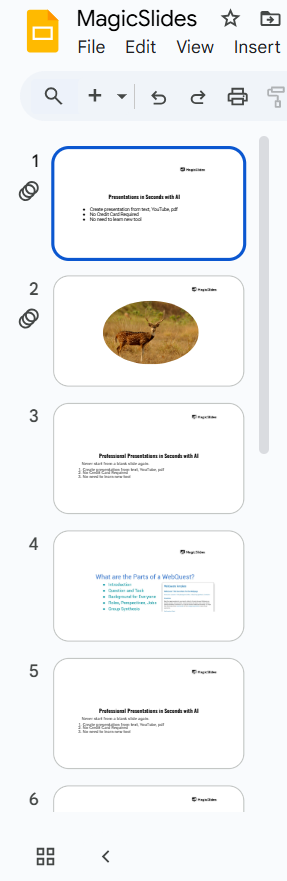
Step 1: Open Google Slides and Choose Your Slide
Visit Google Slides and open your presentation. Select the slide where you want to add the Blook content.
Step 2: Find or Create Your Blook in Blooket
Go to Blooket and log into your account. Browse available Blooks or create a custom one.
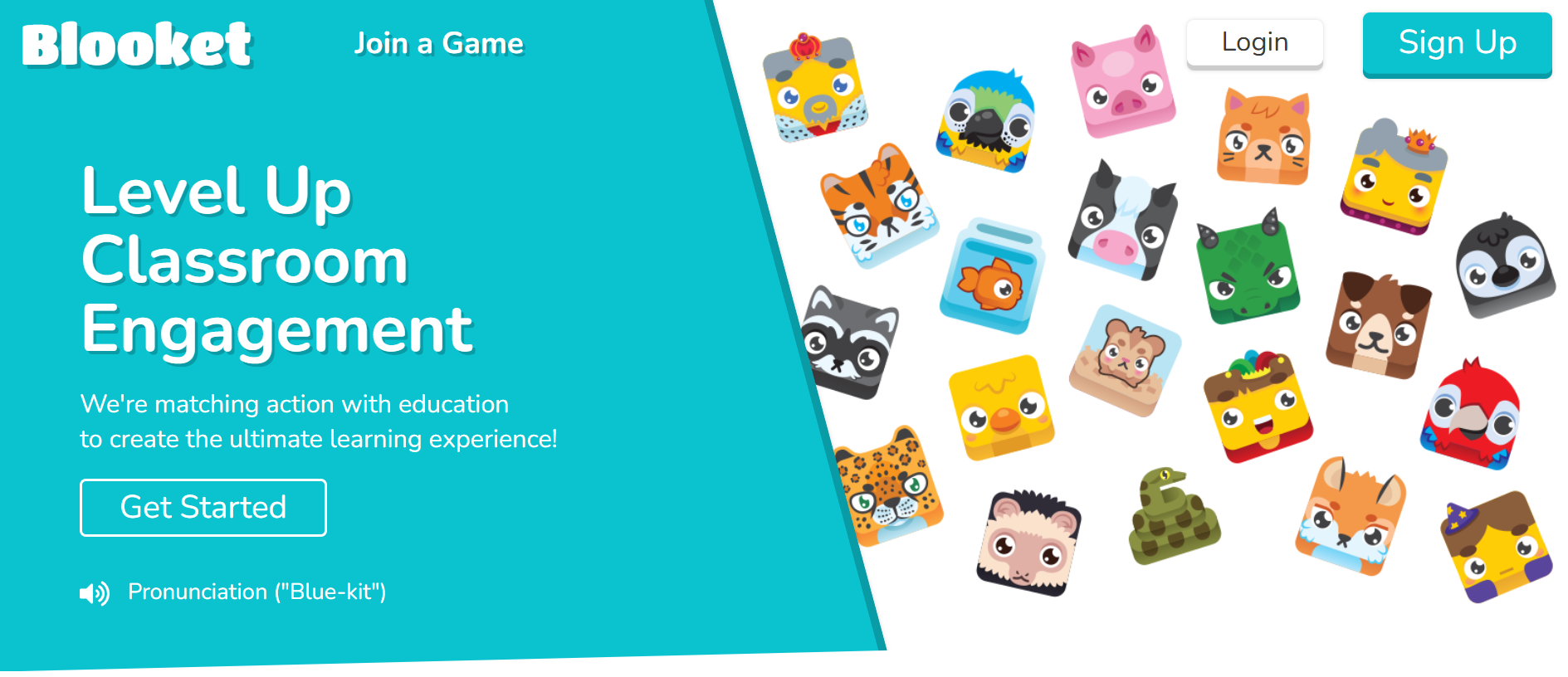
Copy the link or take a screenshot of the Blook you want to insert.
Step 3: Insert a Blook as an Image
Click Insert > Image > Upload from Computer if you have a saved Blook image.
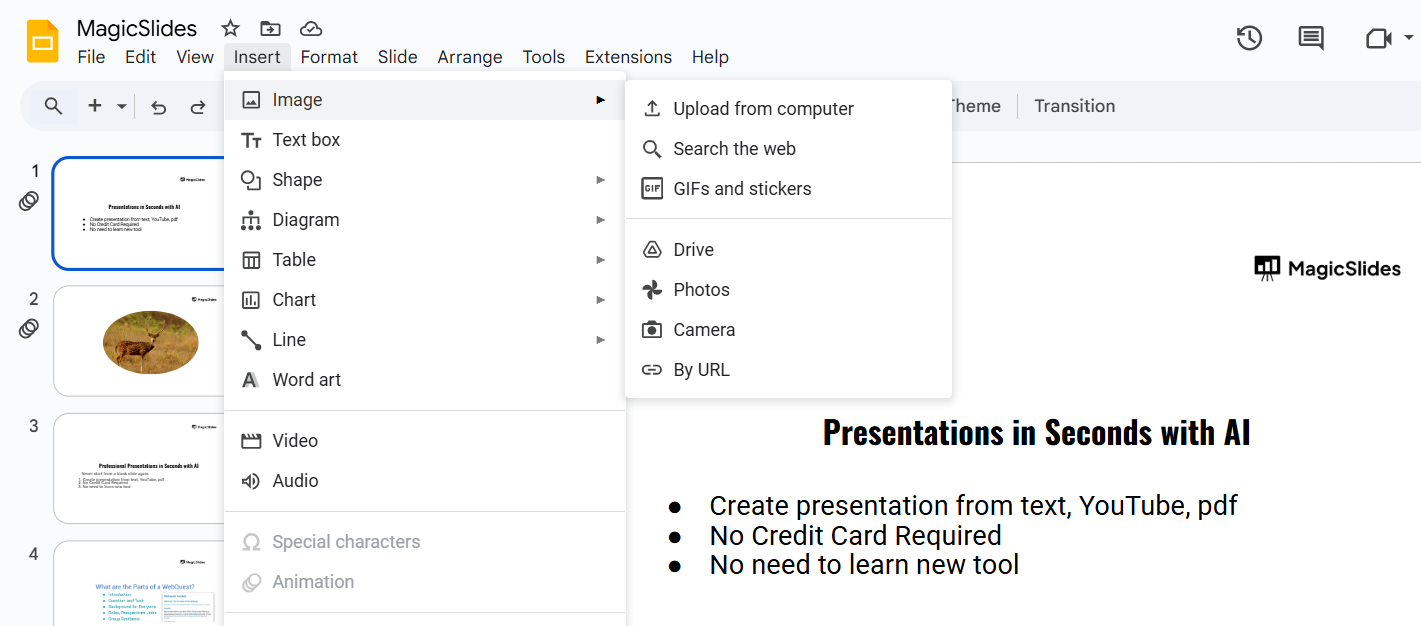
If using a screenshot, adjust the size and position on the slide.
Step 4: Embed a Blooket Link
Select text, an image, or a button where you want to add the link. Click the Link icon (🔗) in the top toolbar.
Paste the copied Blooket link and press Apply.
Step 5: Insert a Blooket Video (Optional)
Click Insert > Video and choose YouTube or Google Drive. If using YouTube, search for a relevant Blooket video and insert it.
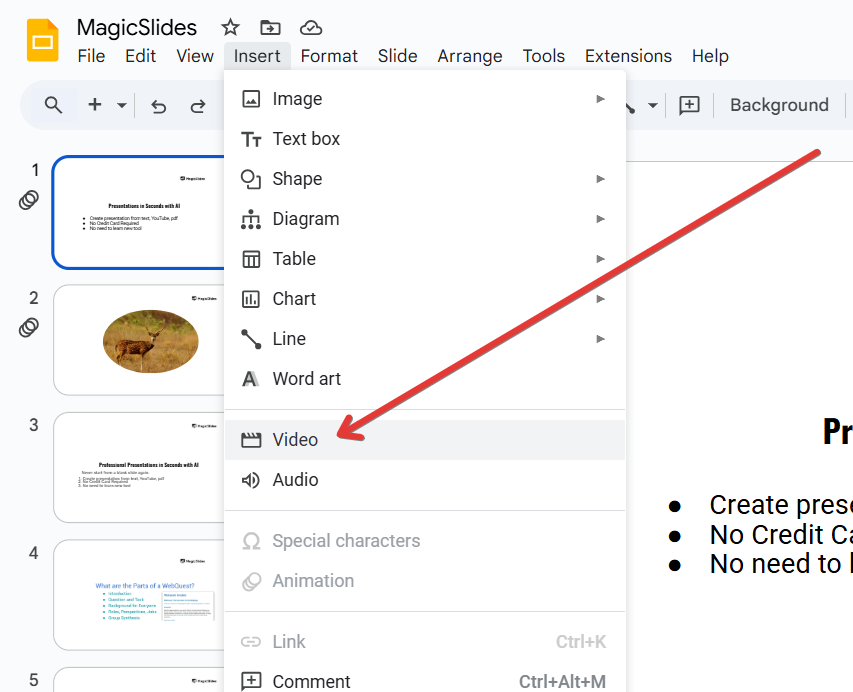
If using Google Drive, upload your saved Blook video and insert it into the slide.
Step 6: Present and Interact with the Blooks
Click Present in Google Slides. If you added a link, click it to open Blooket in a new tab.
If you added a video, play it directly from your slide.
Adding Blooks to Google Slides can make your presentation more interactive, but if you're looking for an AI-powered way to build slides quickly, try MagicSlides.app just input your topic, and it generates a complete presentation in seconds!
Conclusion
Adding Blooks to Google Slides helps make presentations more engaging and interactive.
By embedding images, links, or videos, you can easily incorporate Blooket into your slides for an enhanced learning experience.
FAQs on Adding Blooks to Google Slides
Can I play Blooket directly in Google Slides?
No, but you can add a clickable link that opens the Blooket game in a new tab.
Do I need a Blooket account to add Blooks?
Yes, you need an account to access and generate Blooks for your presentation.
Can I customize Blooks before adding them to my slides?
Yes, Blooket allows you to create and modify Blooks before inserting them as images or links.
Now, you can easily integrate Blooks into your Google Slides presentations for an engaging and interactive experience! 🚀🎮


