Addon google slides iconPPT with AISlide TemplatesPPT TemplatesPricingBlog
    PPT with AISlide TemplatesPPT TemplatesPricingBlog
    1. Home
    2. Blog
    3. How to Add Captions in Canva


    How to Add Captions in Canva

    Ajay Sai

    Published By

    Ajay Sai

    Approved By

    Admin

    Published On

    November 22th, 2024

    Reading Time

    3 min read

    Enhance your Canva designs with captions to convey messages, provide context, and improve visual engagement

    Adding captions to your designs in Canva is a simple yet effective way to convey information, provide context, or enhance the visual appeal of your work.
    Whether you’re creating social media posts, presentations, or videos, captions can help make your content more engaging and accessible.
    Follow these step-by-step instructions to easily add captions to your Canva projects.

    How to Add Captions in Canva


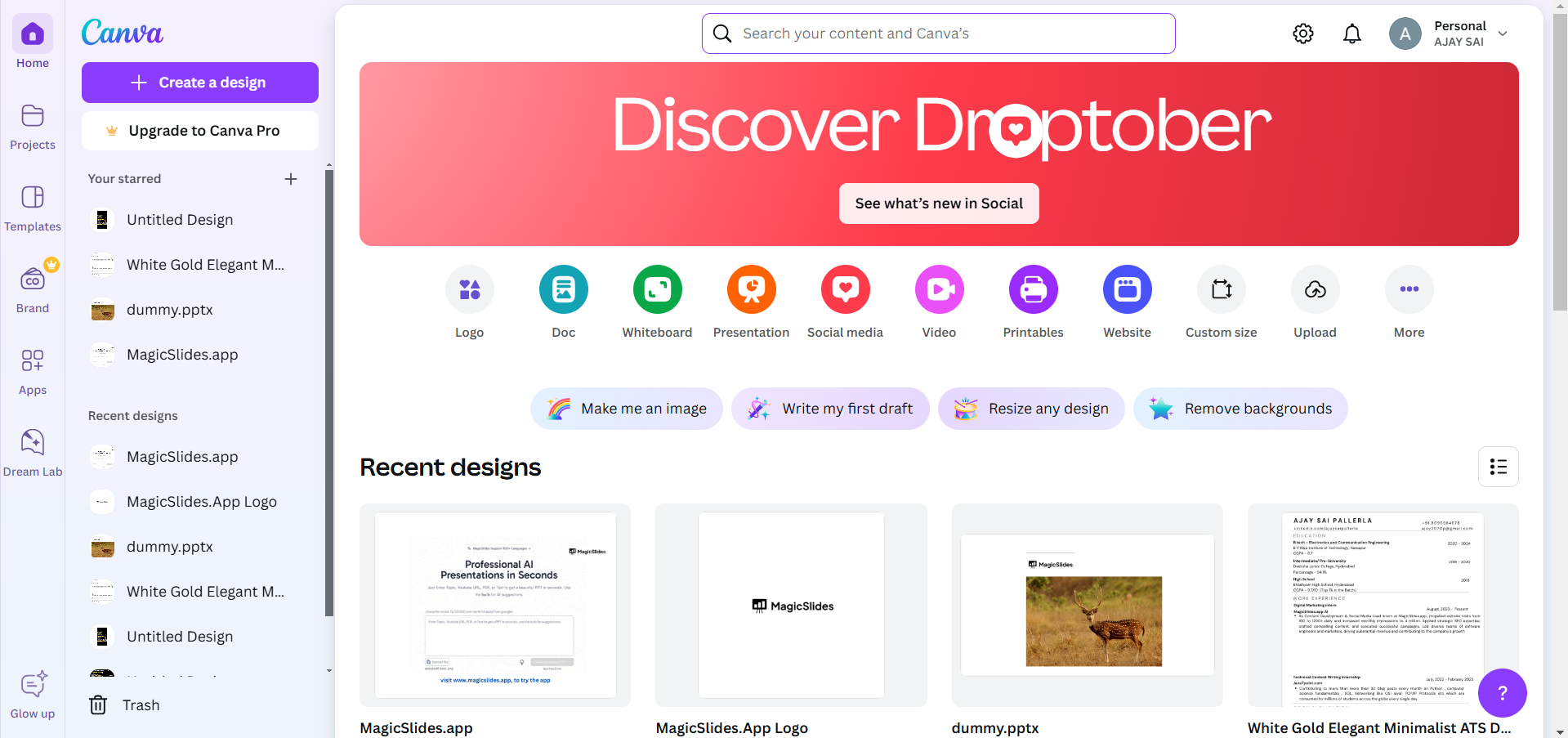
    Step 1: Open Your Canva Design

    Log in to your Canva account and open an existing design or start a new project.
    notion image
    Ensure your design includes the image, video, or graphic where you want to add captions.

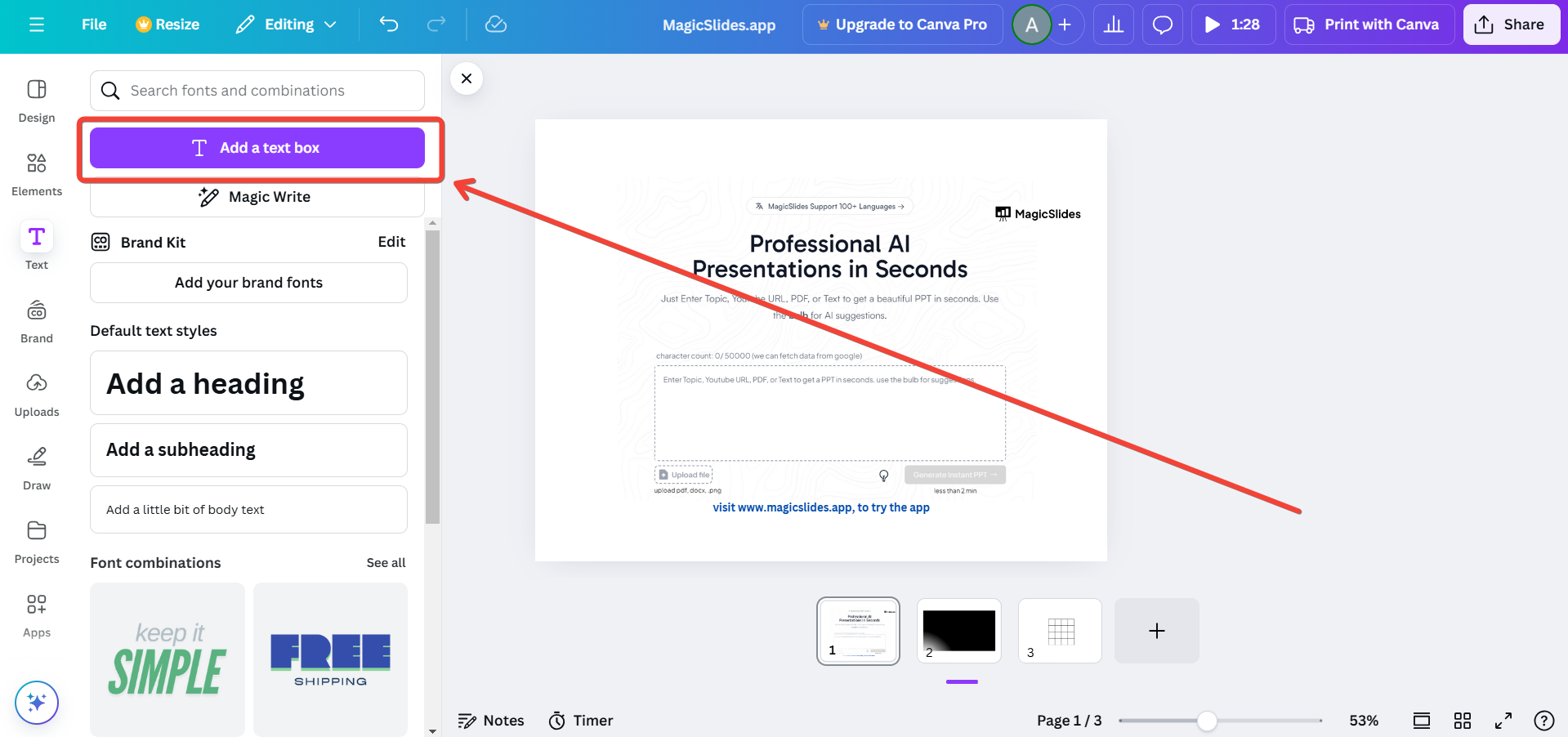
    Step 2: Add a Text Box

    In the left-hand toolbar, click on “Text” to access the text options.
    notion image
    Choose a text style, such as “Add a heading”, “Add a subheading”, or “Add a little bit of body text.”
    Click and drag the text box to the desired position on your design.

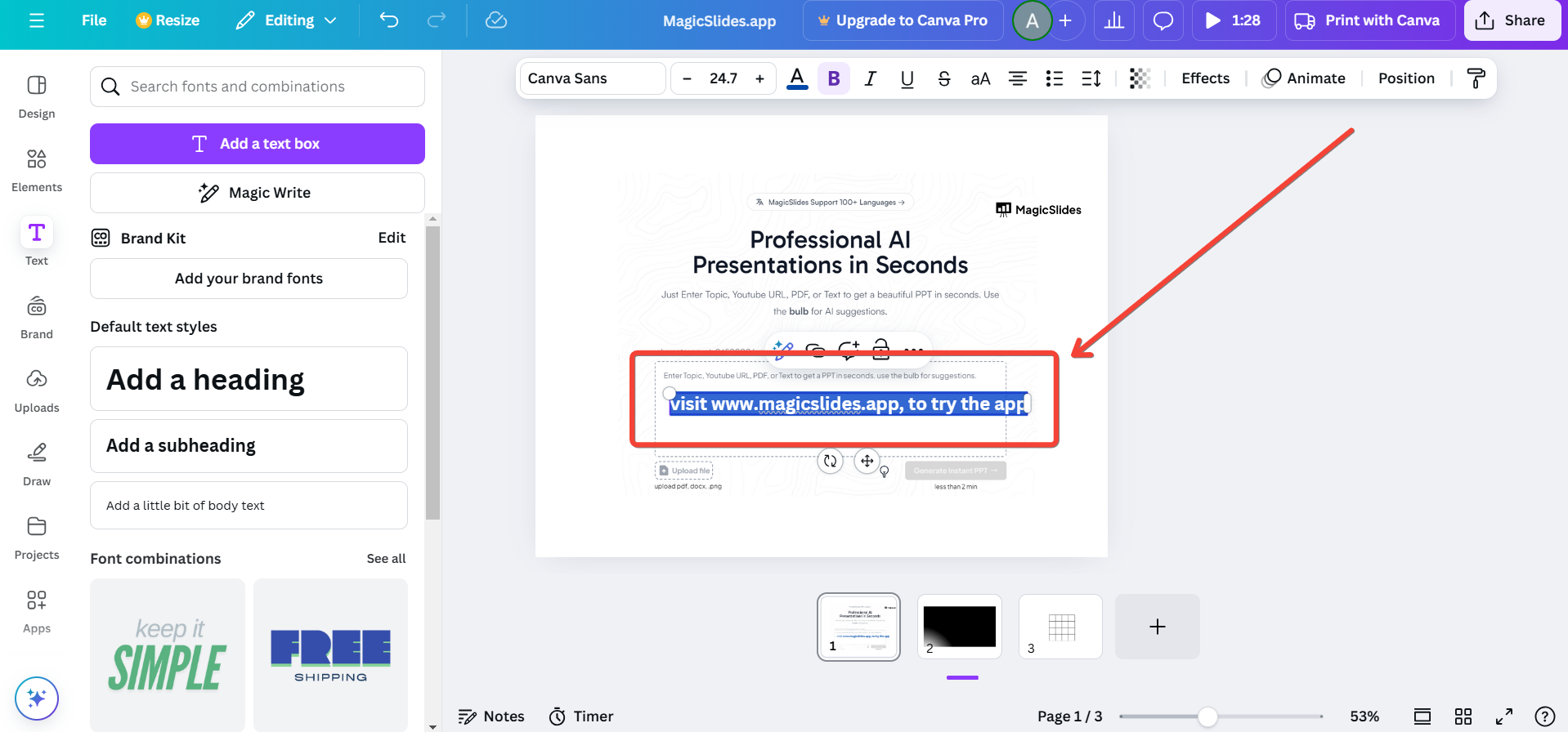
    Step 3: Type Your Caption

    Click inside the text box and type your caption.
    notion image
    Ensure the text is clear and concise, keeping it aligned with your design's tone and message.

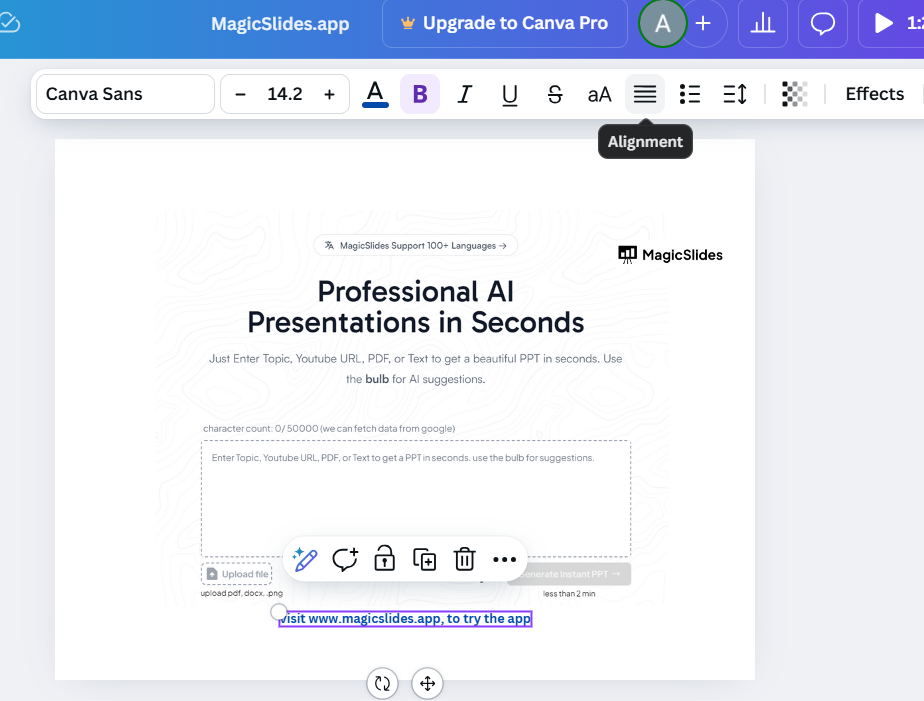
    Step 4: Customize the Caption Style

    Adjust the font, size, and color using the toolbar at the top.
    notion image
    Use the alignment tool to center, left-align, or right-align the caption.
    Add effects like shadows, outlines, or background highlights to make the text stand out.

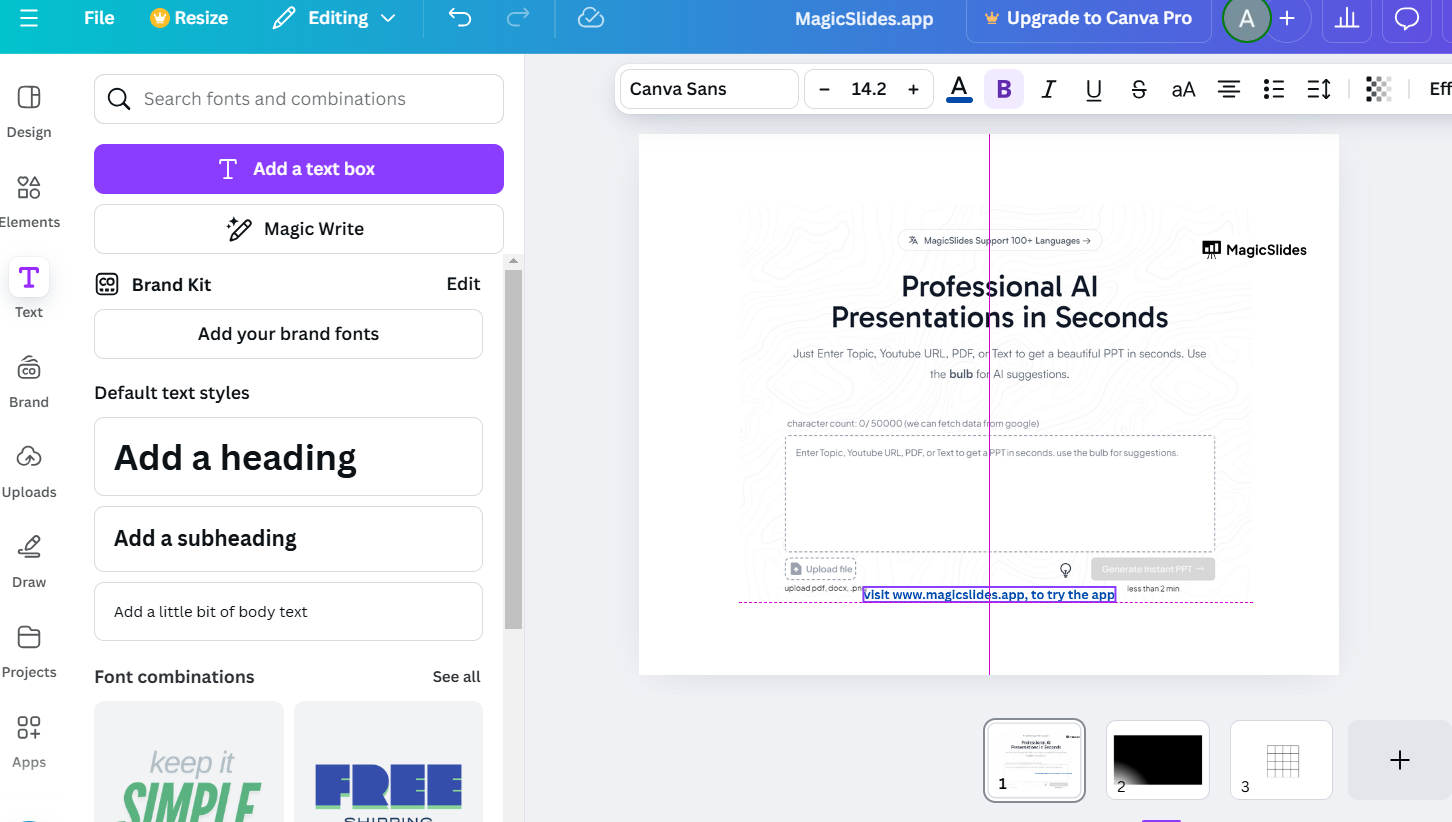
    Step 5: Position the Caption

    Drag the text box to place the caption where it complements the design.
    For images: Place it at the bottom or over a designated area.
    notion image
    For videos: Position it where it’s easily visible without obstructing the main content.

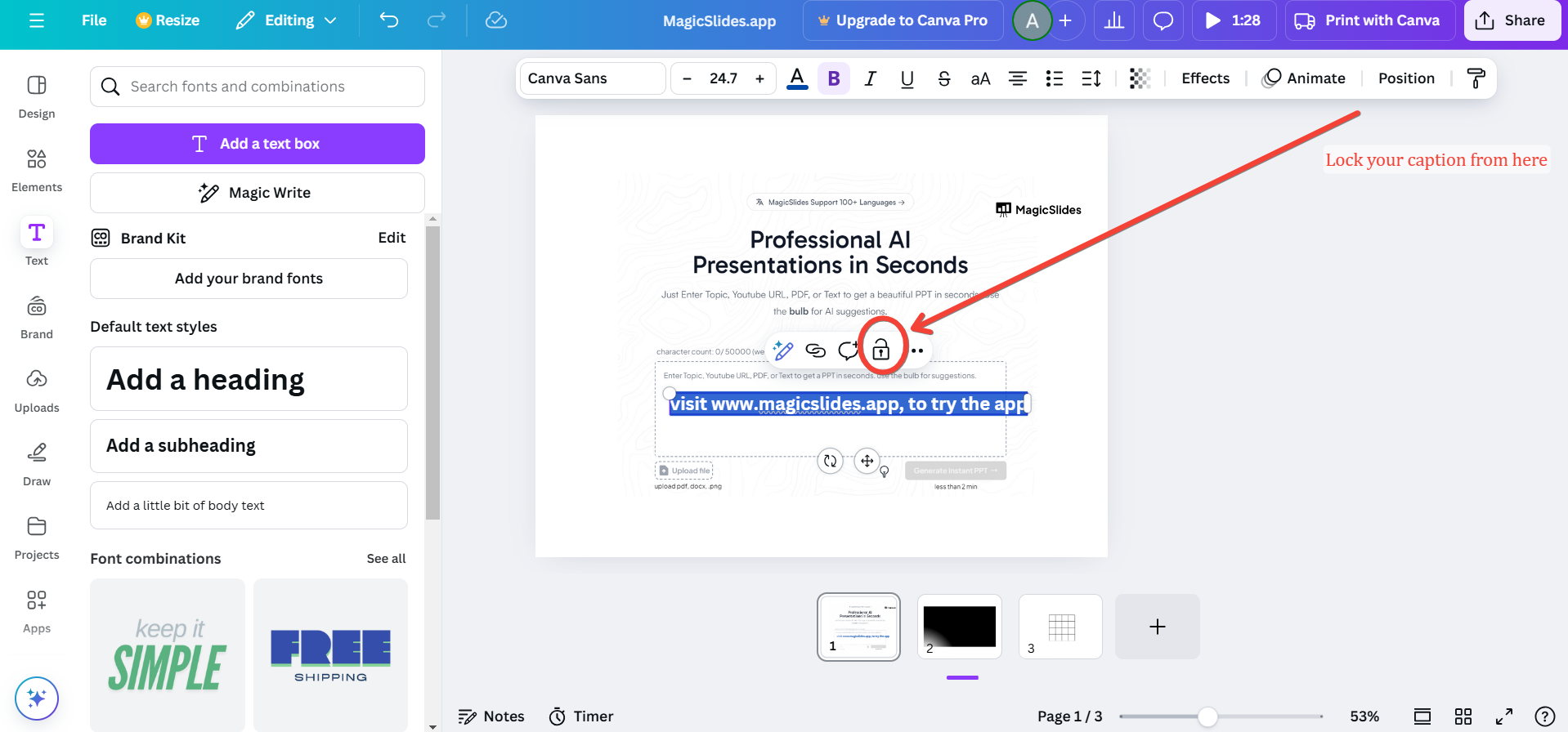
    Step 6: Lock the Caption (Optional)

    To prevent accidental movement, select the text box and click the “Lock” icon in the toolbar.
    notion image

    Conclusion

    Adding captions in Canva is a straightforward process that significantly enhances your designs by providing context and improving accessibility.
    By customizing text styles and strategically placing captions, you can create polished, professional-looking visuals for any purpose.
    Captions not only make your content more engaging but also help communicate your message effectively.

    FAQs on Adding Captions in Canva

    Can I add captions to videos in Canva?

    Yes, Canva allows you to overlay text on videos. Simply add a text box and position it accordingly.

    Can I animate captions in Canva?

    Yes, you can animate text in Canva by selecting the caption and clicking on “Animate” in the toolbar.

    How can I ensure captions are readable on busy backgrounds?

    Use contrasting colors, add a background highlight to the text, or adjust transparency for better readability.
    Start adding captions to your Canva designs today and elevate your content with clear and stylish messaging!

    Share on socials

    About the author

    Ajay Sai profile photo
    Ajay Sai— writer at MagicSlides.app

    Ajay have been a techincal writer for more than 2+ years. from coding tutorials to using day to day apps he have helped 100k+ visitors with their various queries

    More from Ajay

    More from the blog

      100+ Best Seminar Topics for Students in 2026

      3 February 2026

      Best Presentation AI Tool of 2026 (with Real Use Cases + Comparisons)

      2 February 2026

      250+ Good Morning Messages for Her (Romantic, Deep, Cute & Sweet)

      30 January 2026

      200+ Heart Touching Birthday Wishes for Sister (Short, Funny and More)

      29 January 2026

      50+ History Presentation Topics For 2026

      28 January 2026

      How to Add Music to Your Canva Presentation: A Step-by-Step Guide

      27 January 2026

      15 Quick Tips To Use ChatGpt At Work

      22 January 2026

      11 Best AI Tools for Business in 2025

      22 January 2026

      How to Create an Infographic That Clearly Communicates Your Message

      20 January 2026

    Table of Contents

    Create Presentations in Seconds

    Transform your ideas into professional presentations with AI. No design skills needed.

    Try MagicSlides Free

    Create Stunning Presentations with AI in Seconds ✨

    Transform any topic, text, YouTube video, PDF or URL into beautiful presentations instantly with MagicSlides AI.

    Try MagicSlides AI Presentation Maker
    MagicSlides AI Presentation

    Footer

    Solutions

    • MagicSlides App
    • Google Slides Add-on
    • MagicSlides in Chrome
    • MagicSlides in Figma
    • MagicSlides in ChatGPT
    • MagicSlides in Telegram
    • MagicSlides in Zapier
    • MagicSlides in Figma Slides

    Tools

    • AI PPT Tools
    • QR Code Generator
    • Design Tools
    • PPT Templates
    • Slide Templates
    • PDF Tools

    Examples

    • AI Presentations
    • PPT by MagicSlides
    • Quizzes
    • Charts
    • Coloring Pages

    Resources

    • Changelog
    • Documentation
    • API Docs

    Top Blogs

    • How to Create Presentation Using ChatGPT
    • 100+ Best Seminar Topics for Students in 2025

    Company

    • Help
    • MCP
    • Blog
    • Pricing
    • Affiliate Program
    • Manage Subscription
    • Privacy Policy
    • Contact Us
    • Terms & Conditions
    • Refund & Cancellation Policy

    We also built

    • SheetAI - GPT For Sheets
    • MagicForm - GPT For Google Forms
    • SecondBrain.fyi
    • BlogBee - Free Blogging Platform

    © 2026 IndianAppGuy Tech Pvt Ltd. All rights reserved.