How To Add Extensions In Google Docs


Learn how to enhance your Google Docs experience with extensions. Follow simple steps to add extensions and boost productivity effortlessly.
Google Docs is a powerful tool for document creation and collaboration. While it offers a wide range of features out of the box, you can enhance its functionality even further by adding extensions. These extensions, also known as add-ons, can help streamline your workflow, increase productivity, and add new capabilities to your documents. In this guide, we'll walk you through the process of adding extensions to Google Docs, step by step.
How To Add Extensions In Google Docs?
The first step is to open Google Docs in your web browser. If you're not already signed in to your Google account, you'll need to do so.
Accessing Extensions
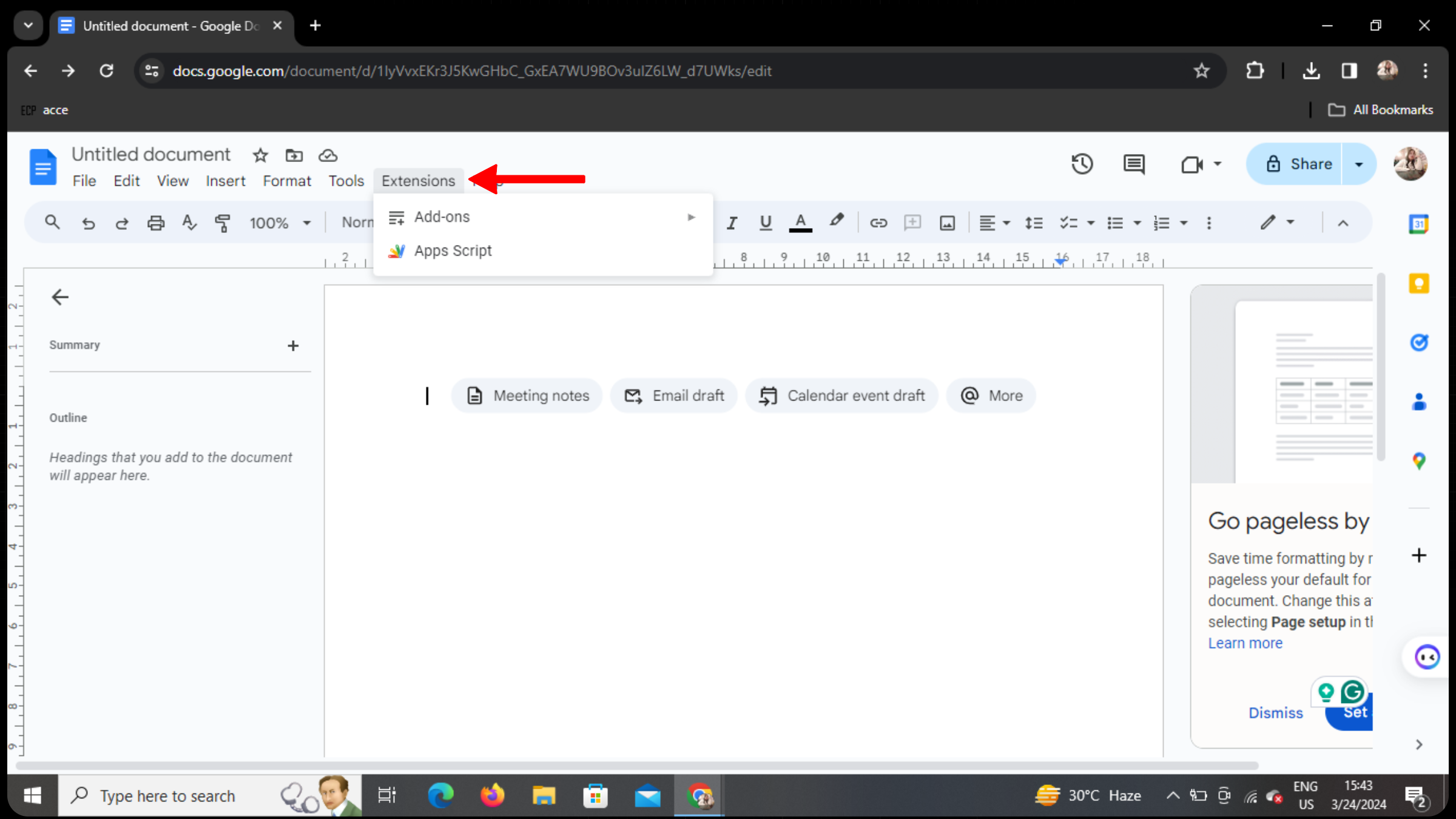
Once you're in Google Docs, look for the "Extensions" menu in the top toolbar. It's located between "Tools" and "Help". Click on it to reveal a dropdown menu.
Navigating to Add-ons
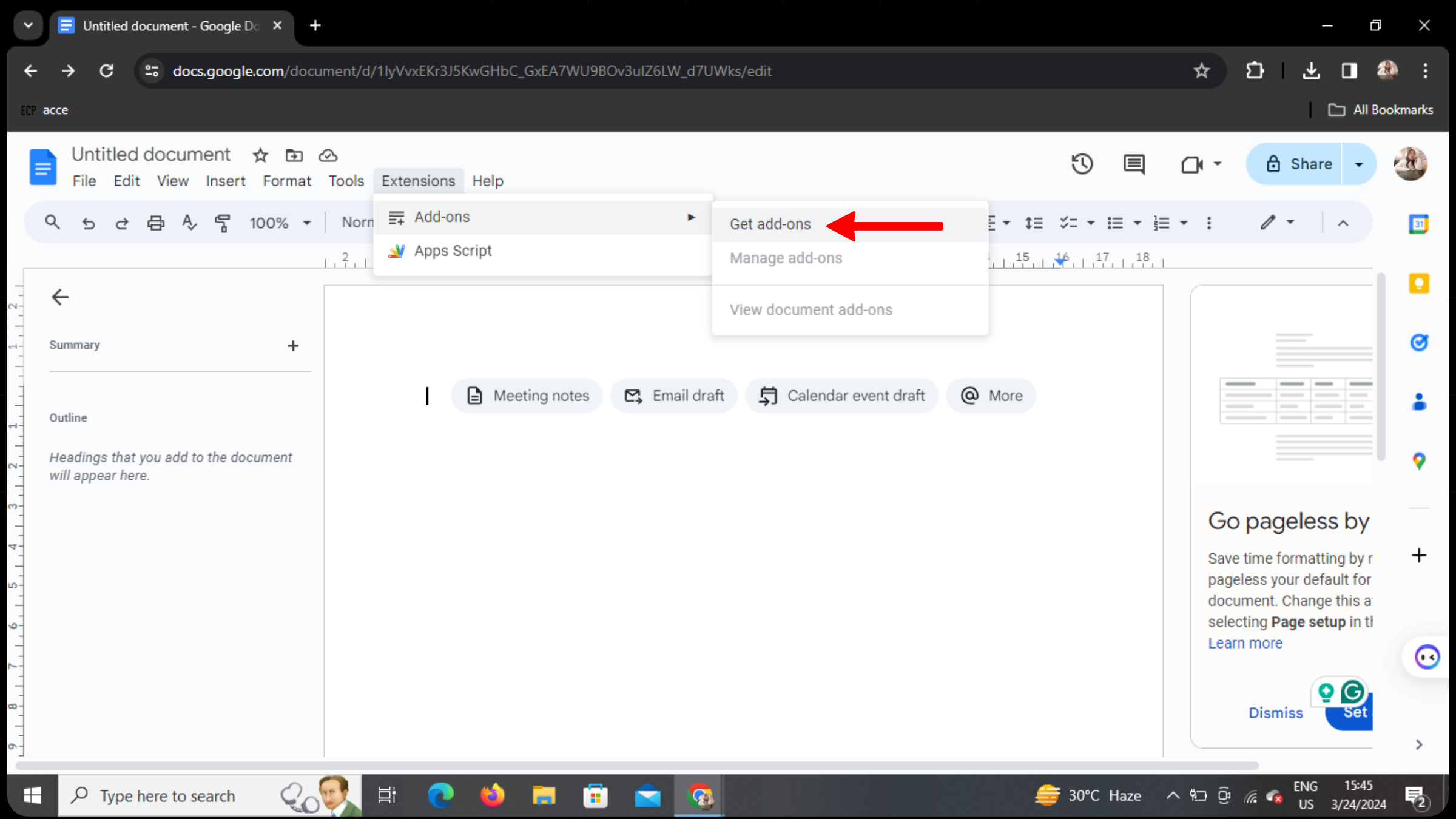
Within the Extensions submenu, you'll find an option labeled "Get add-ons". Click on this option to proceed.
Exploring Available Add-ons
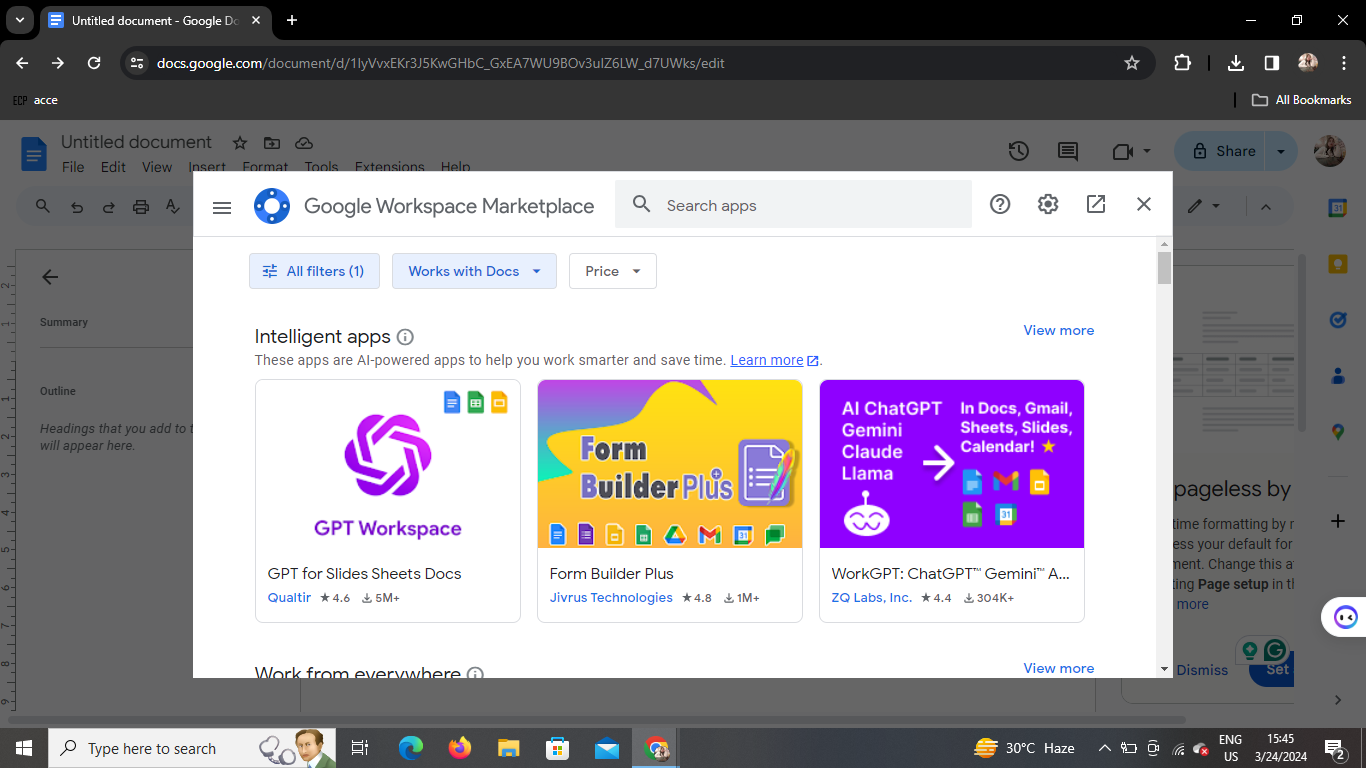
A small window will appear, displaying various add-ons available for Google Docs. You can browse through the featured add-ons or use the search bar to find specific extensions.
Installing an Extension
Once you've found an extension you're interested in, click on it to view more details. If it meets your requirements, click the "Install" button. You may need to grant permissions for the add-on to access your Google account and Docs data.
Using Installed Extensions
After installation, the extension will be available within Google Docs. Depending on the functionality of the extension, it may appear as a separate menu, a sidebar, or integrated within the document editing interface.
Conclusion
Adding extensions to Google Docs can significantly enhance your document creation and editing experience. Whether you're looking to streamline tasks, add new features, or improve collaboration, there's likely an extension available to meet your needs. By following the simple steps outlined in this guide, you can easily discover, install, and utilize extensions to maximize the potential of Google Docs.
Frequently Asked Questions
How do I uninstall an extension from Google Docs? To uninstall an extension, simply go back to the Extensions menu, click on "Manage extensions", and then find the extension you want to remove. Click on the "Remove" button next to it.
Are all extensions free to use? While many extensions for Google Docs are free, some may require a subscription or one-time purchase. Make sure to check the pricing details before installing an extension.
Can I use the same extensions across different Google accounts? Yes, once you've installed an extension, it will be available across all the Google accounts you're signed in to on the same device.
Are extensions available on the mobile version of Google Docs? Currently, extensions are only available on the desktop version of Google Docs. They cannot be installed or used on mobile devices.
How can I find out about new extensions or updates to existing ones? Google periodically updates the list of available extensions, and you can also stay informed through tech blogs, Google's official announcements, or by following extension developers on social media platforms.


