How to Put GIFs in Google Slides: A Step-by-Step Guide


Learn how to easily add GIFs to Google Slides with this step-by-step guide, plus tips for optimizing your presentation.
If you want to make your presentation more engaging, adding an animated GIF to Google Slides is one of the easiest ways to grab your audience’s attention. Whether you’re creating a business presentation, classroom lesson, marketing deck, or personal slideshow, GIFs can make your slides more interactive and memorable.
In this guide, I’ll show you exactly how to insert a GIF into Google Slides, resize it, fix common playback issues, and share a few best practices for using GIFs effectively.
Why Use GIFs in Google Slides?
Before diving into the steps, let’s explore why adding a GIF to your presentation could be beneficial:
- Visual Engagement: GIFs grab attention with their movement and make the content more lively.
- Simplify Complex Ideas: Animation can simplify concepts that are hard to explain through static images.
- Create a Memorable Impact: A well-placed GIF can make your slide more memorable and help emphasize your point.
- Humor and Fun: Use GIFs to inject humor or lighten up the mood, making your presentation more relatable.
Now that you know why adding GIFs can be a great idea, let’s dive into how you can easily do it.
Can Google Slides Play GIFs?
Yes. Google Slides fully supports animated GIFs. Once you start Present mode, the GIF automatically begins playing and loops continuously. In edit mode, the GIF may appear as a static image until you start the presentation.
Step-by-Step Guide to Adding a GIF in Google Slides
Step 1: Open Google Slides
- Open Google Slides in your web browser.
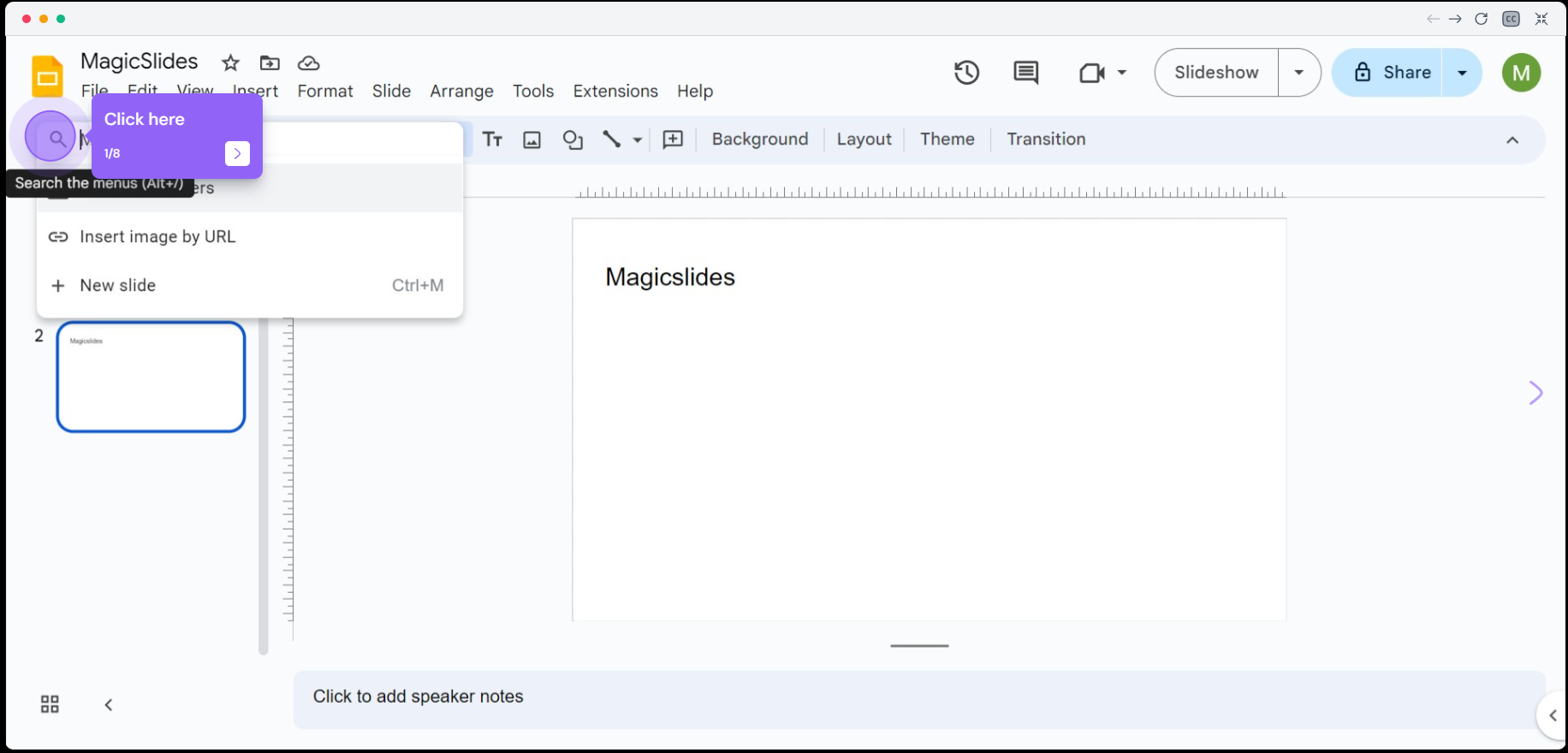
- Select a presentation to work on or start a new one by clicking on the “+” button.
Step 2: Choose the Slide for Your GIF
- Navigate to the specific slide where you want to insert your GIF.
- You can select an existing slide or create a new one by clicking on the “+” icon on the left panel.
Step 3: Find a GIF
You have two options to insert a GIF into your Google Slides:
- Option 1: Search for a GIF on platforms like Giphy, Tenor, or any website offering GIF downloads.
- Option 2: If you already have a GIF saved, you can directly upload it.
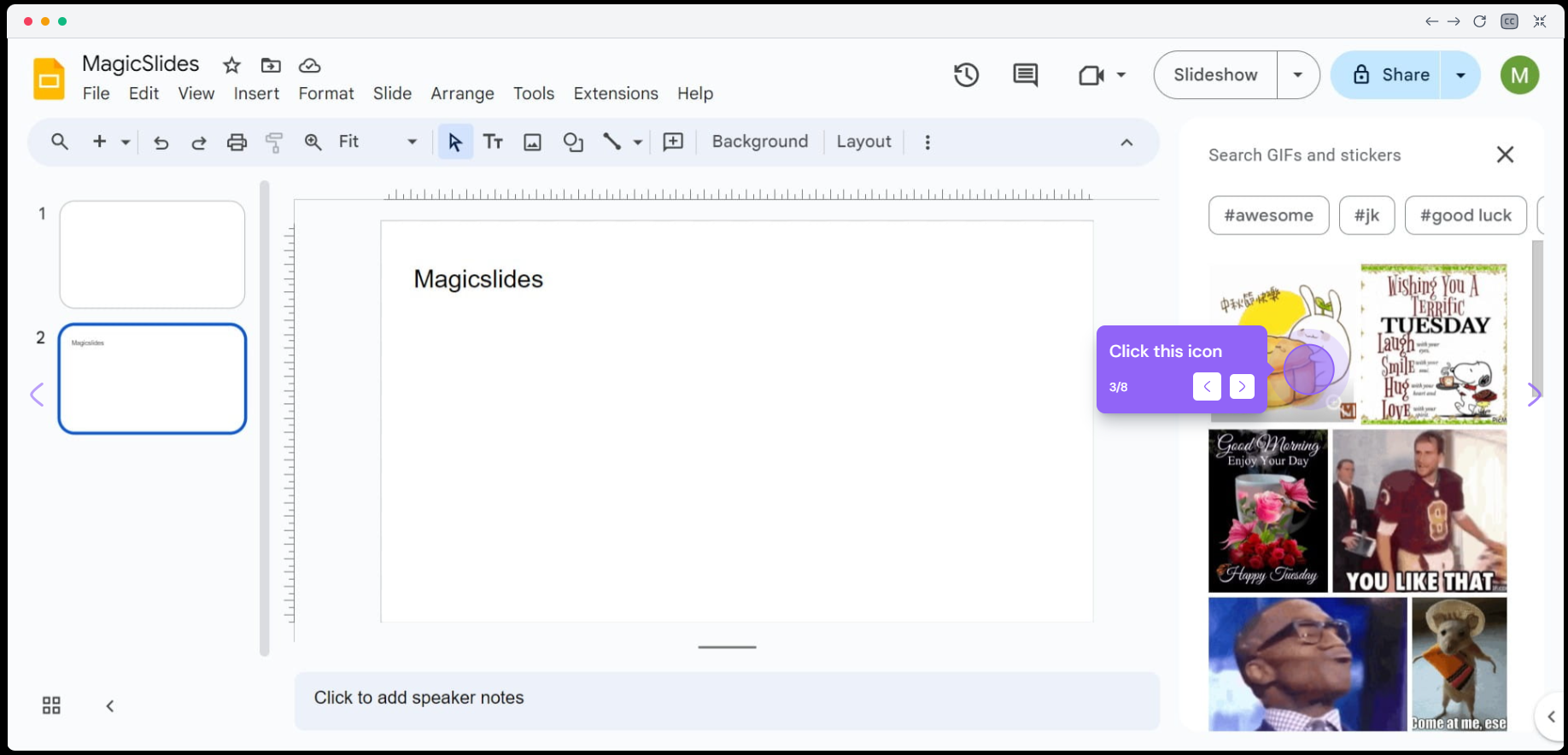
Tip: Ensure that the GIF is high quality and relevant to your presentation. Avoid overly complex or distracting GIFs that might take the focus away from your message.
Step 4: Insert the GIF
Here are the different ways to insert a GIF into your Google Slides:
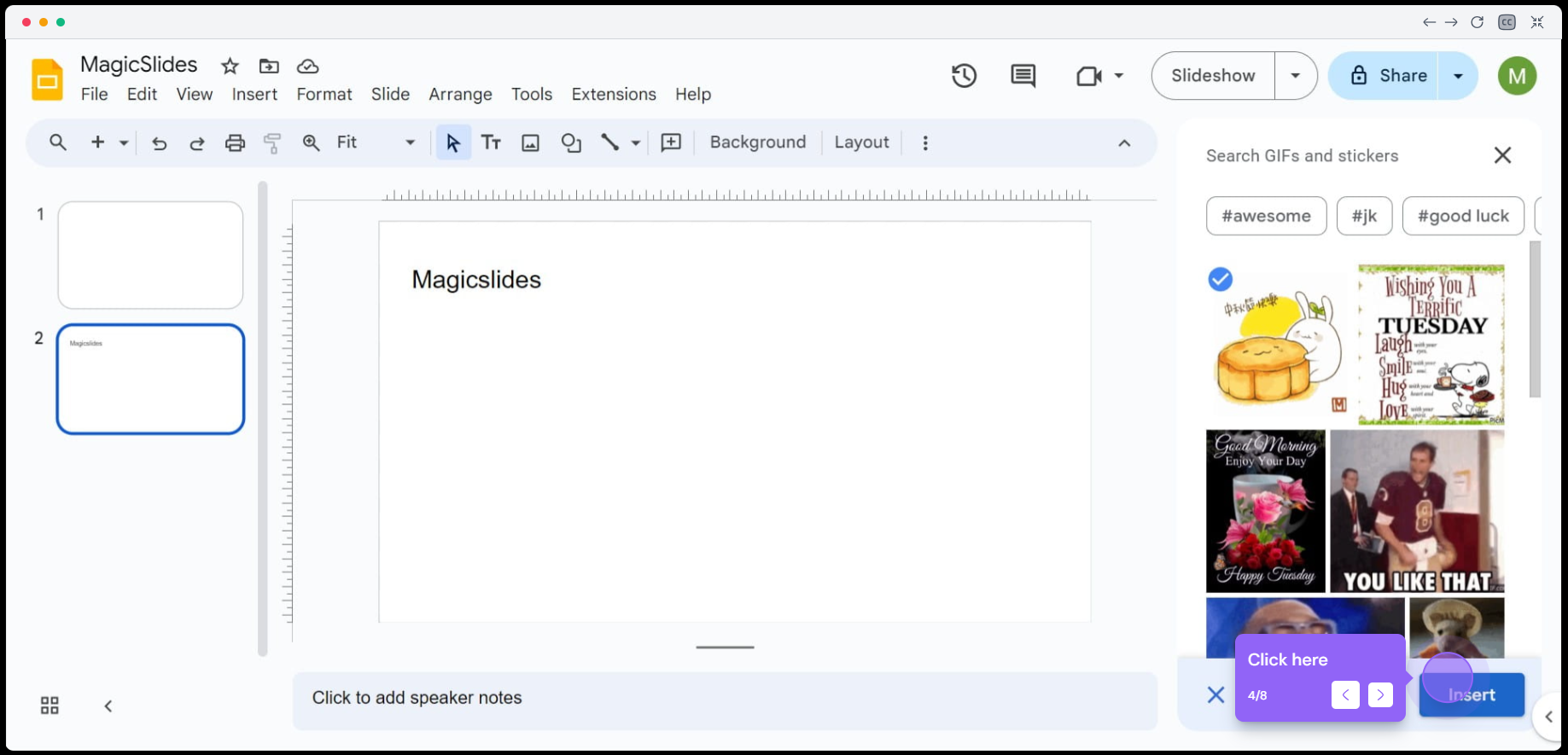
Option 1: Add a GIF from a URL
If you’ve found a GIF online, you can directly link it to your slide.
- Step 4.1: Right-click on the GIF you want to use and select “Copy Image Address” or “Copy Image URL”.
- Step 4.2: Go back to your Google Slides, click on the Insert tab in the top menu, then select Image > By URL.
- Step 4.3: Paste the URL of the GIF in the provided field and click Insert.
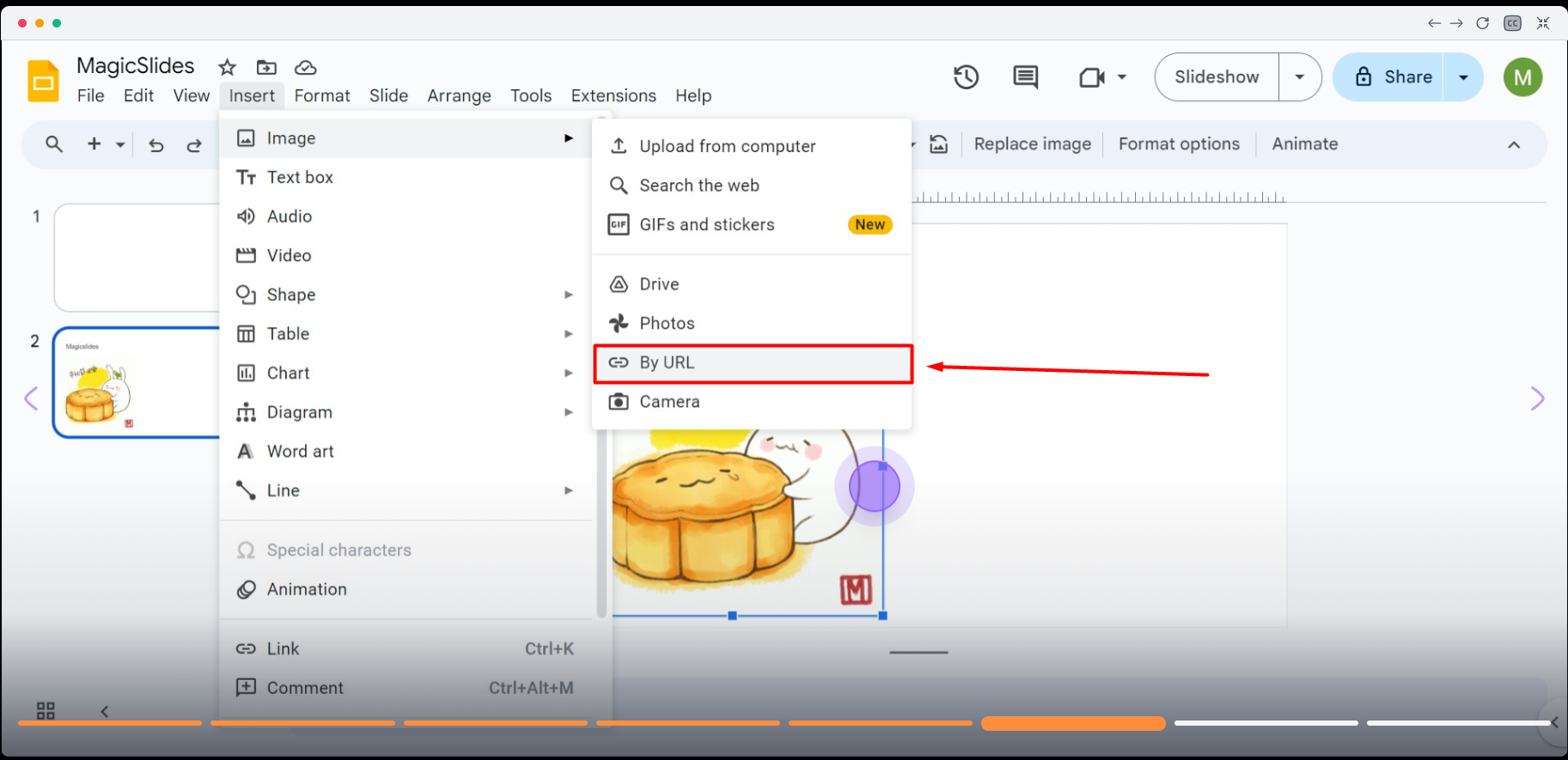
Option 2: Upload a GIF from Your Computer
If you have the GIF saved on your computer:
- Step 4.1: Click on the Insert tab, then select Image > Upload from Computer.
- Step 4.2: Choose the GIF file from your system and click Open.
Tip: If you’re using a GIF from a URL, ensure that the image is publicly available and hosted on a reliable site. Some URLs may break if the image is removed or the hosting service is down.
Adjusting the GIF in Your Slide
Once you have inserted the GIF, you can adjust its size, position, and layout to better fit your slide.
Step 5: Resize the GIF
- Click on the GIF to select it. Small blue squares will appear around the image.
- Click and drag these squares to resize the GIF proportionally.
Tip: Hold down the Shift key while resizing to maintain the original proportions of the GIF. This prevents any distortion.
Step 6: Move and Align the GIF
- To move the GIF, simply click on it and drag it to your desired position.
- You can use the alignment tools under the Arrange menu to center the GIF vertically or horizontally on your slide.
Tip: Consider aligning the GIF with other elements on your slide for a more professional look. You can also use Google Slides’ guides or rulers (found in the “View” menu) for precise placement.
Best Practices for Using GIFs in Google Slides
Adding GIFs to your presentations is exciting, but here are some best practices and tips to ensure your presentation remains polished:
Tip 1: Limit the Number of GIFs
While GIFs can be fun and engaging, overusing them can be distracting. Stick to one or two GIFs per presentation or per section to avoid overwhelming your audience.
Tip 2: Choose Relevant GIFs
Make sure the GIF supports your message. Irrelevant or inappropriate GIFs might confuse your audience or make your presentation seem less professional.
Tip 3: Check for Playback Issues
Test your presentation on different devices to ensure that the GIFs play smoothly. Sometimes, GIFs may not function properly due to compatibility issues with certain browsers or devices.
Tip 4: Optimize GIF File Size
Large GIFs can cause your presentation to load slowly. To avoid this, choose smaller GIFs or compress them using tools like EZGIF, GIF Compressor, or TinyGIF before adding them to your slides.
Tip: Keep your GIF under 5MB for better performance, especially if you’re presenting over the web or sharing the slides with others.
How GIFs Behave in Google Slides
- GIFs automatically start playing when you enter Present mode.
- They continue looping while the slide is displayed.
- In edit mode, GIFs usually appear as static images.
- Unlike videos, GIF playback can’t be paused or manually triggered.
Using GIFs with Other Media in Google Slides
You can get creative by combining GIFs with other elements like text, images, or videos to enhance the overall aesthetic and impact of your slide.
Tip 5: Add Text Over or Beside GIFs
Google Slides allows you to layer text over GIFs. This can be useful for adding labels, captions, or context to the animation.
- Insert a Text Box from the Insert menu, and place it near or on top of your GIF.
Tip 6: Use GIFs with Transparent Backgrounds
Some GIFs come with transparent backgrounds, allowing you to place them over other images or designs without interfering with your slide’s layout. This can add a polished look to your presentation.
Tip: Look for “transparent GIFs” or GIFs with a .png extension for the best results.
Troubleshooting Common GIF Issues in Google Slides
Here are a few potential issues you might encounter and how to resolve them:
Issue 1: GIF Not Playing in Present Mode
If the GIF isn’t playing when you enter present mode:
- Ensure you are using a web-friendly format like .gif.
- Double-check the internet connection if the GIF is linked via URL.
Issue 2: GIF Appears Pixelated
Low-resolution GIFs can appear pixelated when resized.
- Make sure to download high-quality GIFs to avoid pixelation when resizing.
Issue 3: Presentation Becomes Laggy
Large or multiple GIFs can slow down your presentation.
- Use compressed or smaller GIFs to ensure smooth performance.
Create Stunning Presentations Faster with MagicSlides
If you’re starting from scratch, MagicSlides AI can save you hours of work by creating professional presentations in just a few clicks. Simply enter a topic, upload a PDF or Word document, paste a YouTube video or webpage URL, or use AI to generate an entire presentation complete with well-structured slides and visuals.

Once your presentation is ready, you can easily import it into Google Slides and enhance it further by adding GIFs, images, animations, or other design elements to make your slides even more engaging.
Whether you’re creating presentations for school, work, sales, or marketing, MagicSlides helps you build polished decks faster so you can spend more time refining your message instead of designing slides.
Conclusion
Adding a GIF to Google Slides is one of the easiest ways to make your presentations more engaging and visually appealing. Whether you’re explaining a process, highlighting an important point, or adding a touch of humor, animated GIFs can help capture your audience’s attention and make your message more memorable.
By following the steps in this guide, you can quickly insert GIFs from your computer or a URL, resize and position them, and ensure they play smoothly during your presentation. Just remember to use GIFs thoughtfully, choose high-quality animations, and avoid overusing them to keep your slides clean and professional.
If you’re creating presentations from scratch, you can also use MagicSlides to generate professional slides in minutes and then enhance them further by adding GIFs for a more dynamic presentation experience.
Frequently Asked Questions (FAQs)
Q1. Can you add a GIF to Google Slides?
Yes. Google Slides supports animated GIFs. You can insert a GIF by going to Insert → Image, then uploading it from your computer or adding it using an image URL. The GIF will animate automatically in Present mode.
Q2. Why is my GIF not moving in Google Slides?
GIFs usually appear as static images while you’re editing your presentation. To see the animation, switch to Present mode. If it still doesn’t play, verify that the file is a valid animated GIF and wasn’t converted to a static image.
Q3. Can I insert a GIF into Google Slides using a URL?
Yes. Click Insert → Image → By URL, paste the direct image URL of the GIF, and click Insert. Make sure the URL points directly to the GIF file and is publicly accessible.
Q4. Do GIFs play automatically in Google Slides?
Yes. Animated GIFs start playing automatically when the slide is displayed in Present mode. They continue looping while that slide remains on the screen.
Q5. Can I control when a GIF starts or stops?
No. Unlike videos, Google Slides doesn’t provide playback controls for GIFs. They begin playing automatically and continue looping while the slide is active.


