How to Add Google Map Link in PowerPoint? Top 4 Methods


Learn how to add a Google Map link in PowerPoint using hyperlinks, screenshots, add-ins, and QR codes to create more interactive and engaging presentations.
When you’re presenting any crucial information that simply involves locations, geography etc, here words alone often fall short. You need a good dataset to show. That is where understanding how to add a google map link in PowerPoint becomes incredibly useful. The map of each data provides your audience instant context without requiring long explanations.
Google map is not only about visuals in Presentations but it also improves how people engage with your content. Instead of searching or guessing places or locations users can see from slides. They can simply see that it makes the presentations feel more practical and easier to understand and follow. This is majorly beneficial in business meetings, travel plans, logistics updates or educational sessions.
As per my experience, Google map also supports better visual storytelling. It turns static slides into something more meaningful and interactive. When I add location map to PowerPoint my thoughts for my audience become more meaningful and interactive because through this you’re guiding your audience.
Overall it is a simple addition that makes your presentation look more professional while improving clarity and impact.
Method 1- How to Add Google Map Link in PowerPoint Using HyperLink?
This is the easiest and the quickest way to do it. When someone is searching for how to add Google link in PowerPoint they are simply searching for the easiest method available. This method is simple, doesn’t require any tool and works on all the versions.
This idea is simple. Take a Google Maps Link and attach it to any element in your Power Point slide. That element then becomes clickable during your presentation.
- Step 1. Open Google Map in your browser and search for the location you want to show.
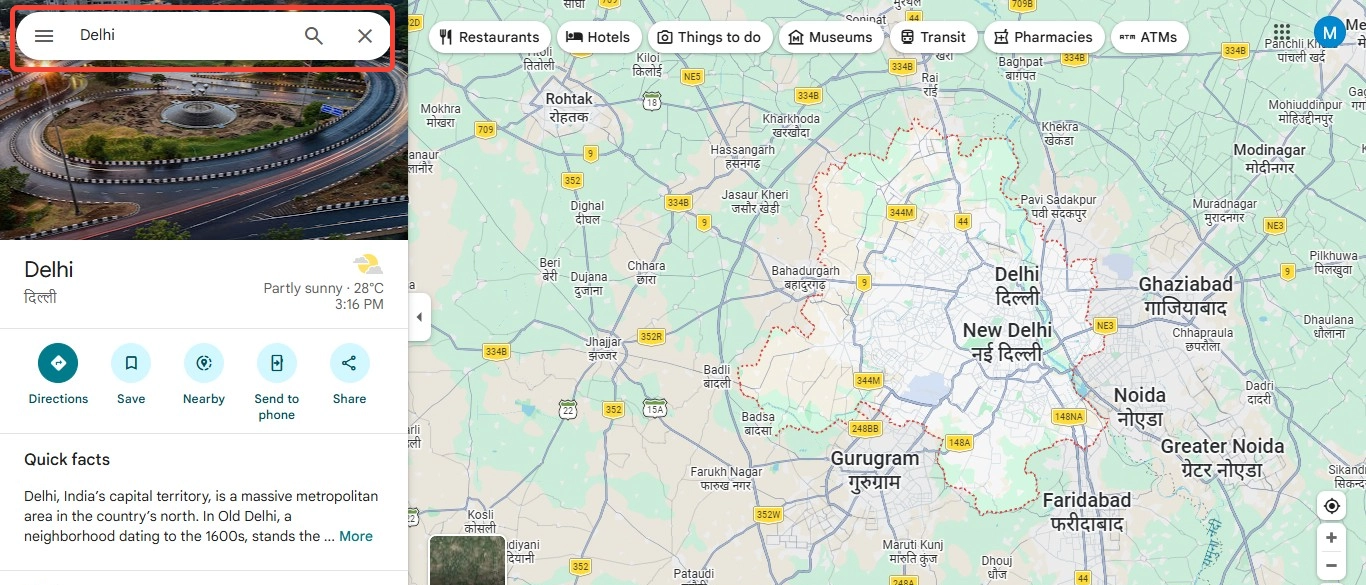
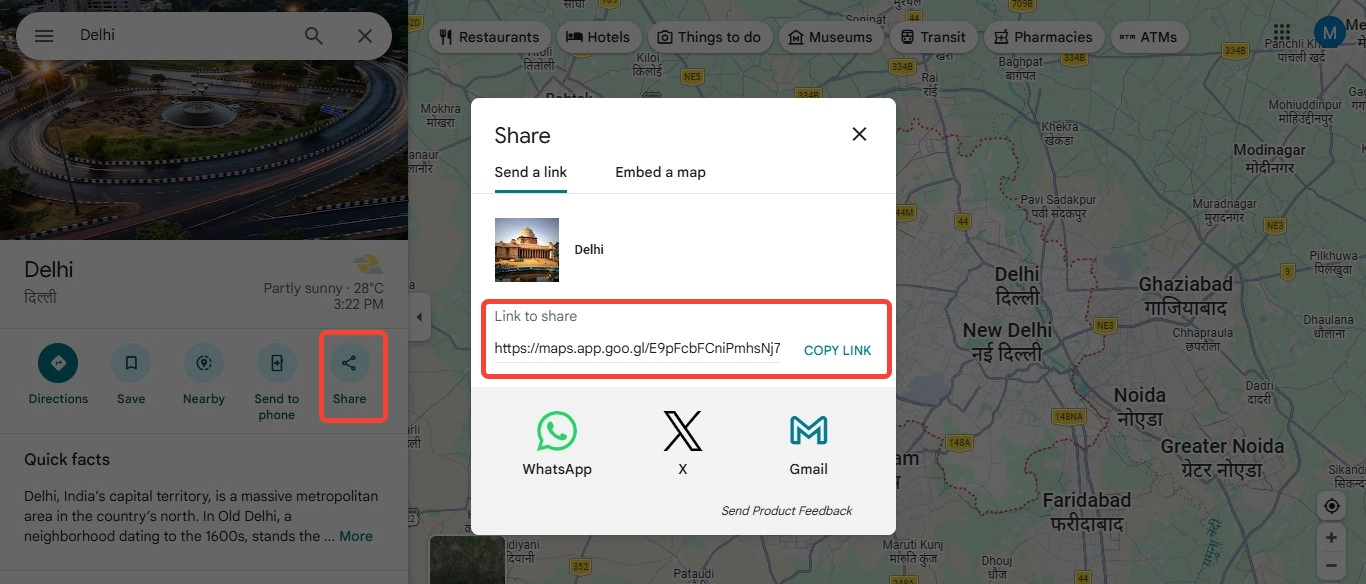
- Step 2. Share the location by clicking on the “Share” option and copy the Google Map URL link.
- Step 3. Now switch to your PowerPoint presentation and decide what you want your audience to click. It could be visible through text, an icon, a shape or even an image.
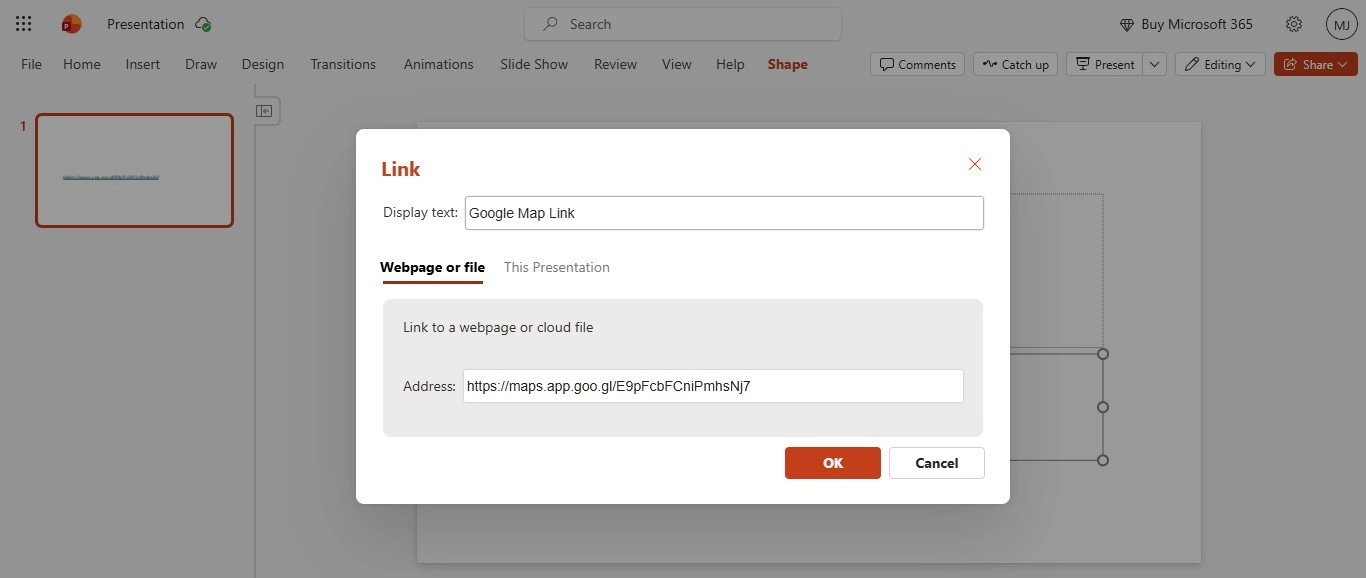
That’s the step to add Google map link in PowerPoint slides. This approach is popular because it keeps your work on slides clear and away from any interruptions. You can create a clickable link to various locations as per your choice.
Note- As per experience try avoiding pasting links directly to the slide inside of adding it through icons etc. It looks more polished and makes it obvious where to click.
Now let’s move to another method where you can add Google map in PowerPoint in another way. This is also a fast method that works.
Method 2- How to Insert Google Map in PowerPoint as an Image(Screenshot Method)?
If you don’t want a clickable or live map, this method is the fastest way possible and a good alternative. Many people exploring how to add Google map link in PowerPoint also want a version that can work without an internet connection. Here the screenshot method works.
Instead of using any link simply add the image of the map and place it directly into the slide. It’s quick, reliable, and perfect for situations where connectivity might be an issue.
- Step 1 . Open Google Map and search for the location. Adjust the zoom level so that only the relevant area is visible.
Once you’re happy with the view, take a screenshot using your device. Save the image, then open your PowerPoint presentation. Go to Insert → Pictures, select your screenshot, and place it on the slide.
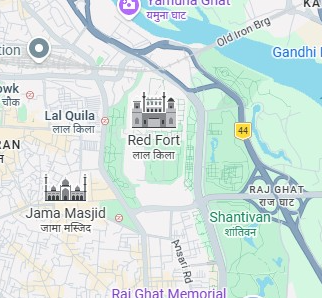
You’ve now successfully added a map screenshot in PowerPoint.
This approach is accessible, especially when you’re presenting in a room with limited internet access or sharing your slides offline. A screenshot displays everything properly. This method may be simple, but it’s one of the most dependable ways to insert Google map in PowerPoint without complications.
Method 3- How to Add a Global Map for PowerPoint within an Add-in?
If you want something more dynamic than a simple link or image, you might be thinking of how to take things a step further. While learning how to add google map link in powerpoint is useful, embedding a map gives your presentation a more interactive feel.
A very popular example we will be using here is “Country Map”. This add-in is great when you need to create presentations that needs a global coverage.
Follow these steps to add Google map in PowerPoint
- Step 1. Open PowerPoint and go to “Insert> Get Add-ins” or you can also get this in Home> Add-ins
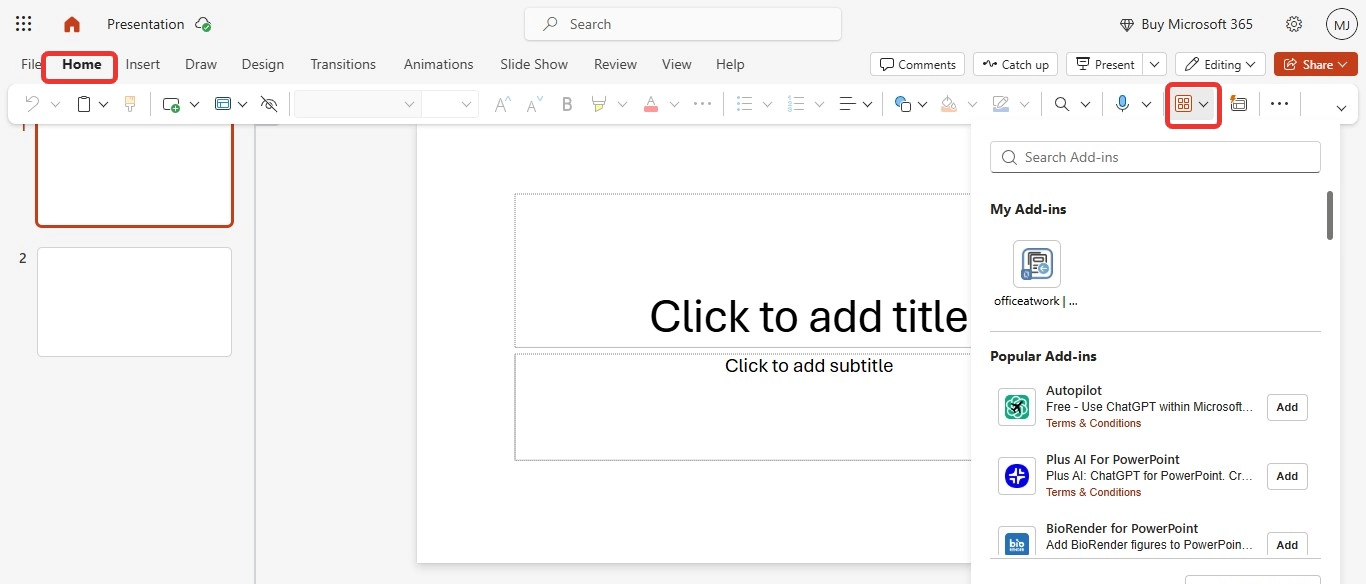
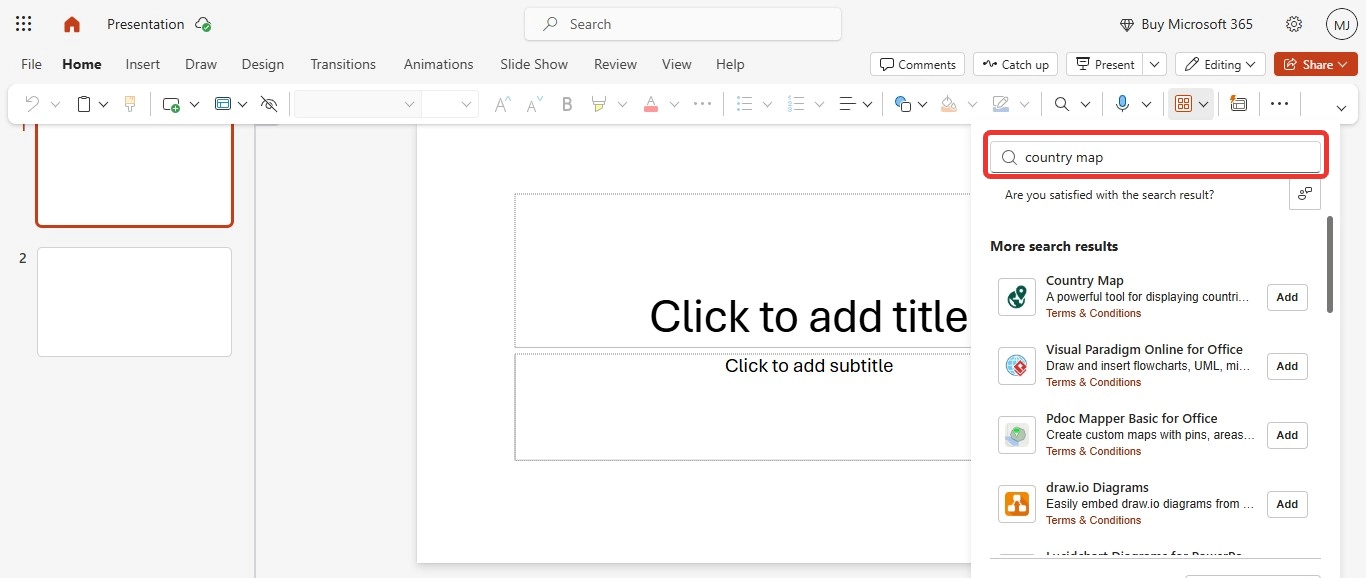
- Step 2. Search for Country Map in the search bar and click on Add to install.
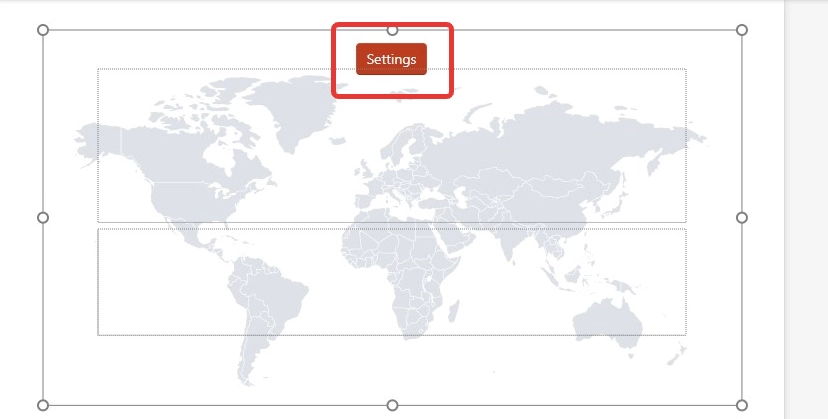
- Step 3. Open Add-ins from Insert> My Add-ins or Home> Add-ins and click on “Settings” from the pop-up
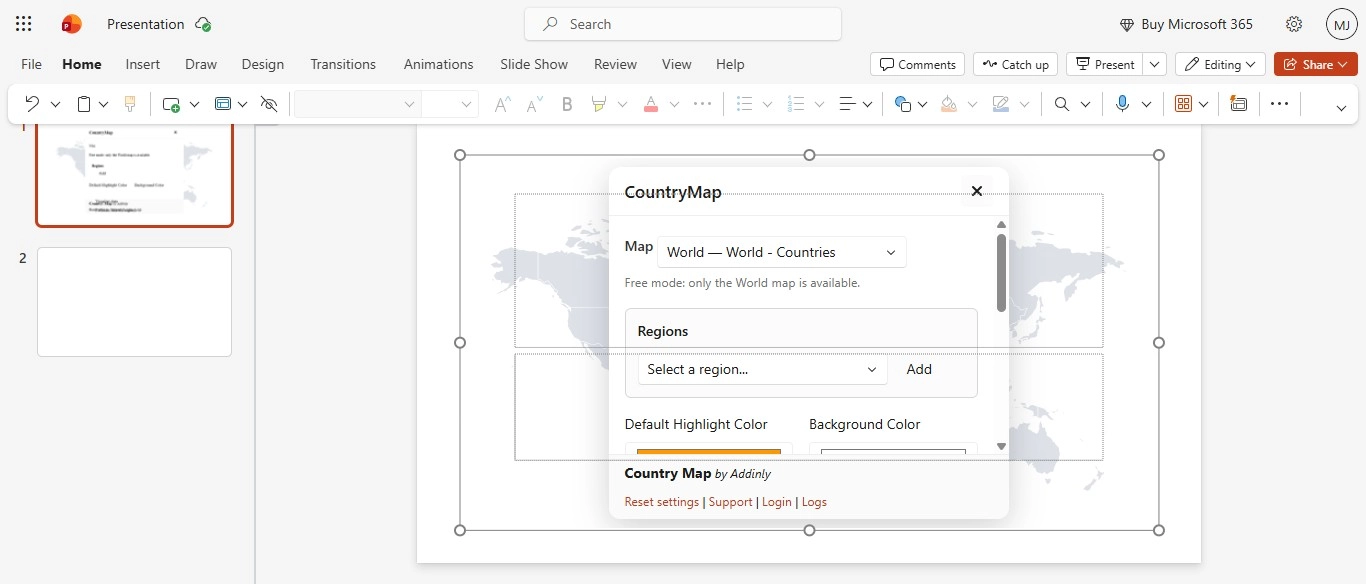
- Step 4. Now choose your preferred map and customize it by adding colours and labels.
Best Practices When Adding Google Map Link in PowerPoint
Once you understand how to add google map link in powerpoint, the next step is using it effectively. A map can either improve your presentation or make it cluttered. That clearly depends on how you use it.
The first thing to focus on is clarity. Avoid adding too many elements on the map. When you add Google Maps to PowerPoint, keep the view simple and zoom into only the relevant area. This helps your audience quickly understand what they’re looking at without distractions.
Another important point is placement. Don’t just drop a map randomly onto the slide. Align it with your content so it supports your message. If you’re explaining a location, place the map next to the text instead of separating them.
It’s also a good idea to combine methods. For example, you can insert a Google map in PowerPoint as an image and then attach a hyperlink to it. This way, you get both visual clarity and interactivity.
From a presentation design perspective, consistency matters. Use similar styles, colors, and icons across slides to maintain a professional look.
Lastly, always test your links. Even a small error in the Google Maps URL link can break the experience during your presentation.
Bonus- Add Google Map Link in PowerPoint Using an AI Tool
I can suggest to you one fastest and super effective method to handle how to add Google map links in PowerPoint through an advanced AI Presentation tool. It completely changes your workflow. Instead of just adding hyperlink, global map etc, you can simply make a presentation interactive with something your audience can actually use, i.e QR code.
MagicSlides generate QR code for Google Map that allows you to convert any Google Maps location into a scannable QR code. When someone scans it, the location instantly opens in Google Maps on their phone. No typing, no confusion, simply just direct navigation.
Here’s how it works in a simple way
- Step 1- Open Google Map and search for desired location. Click on “Share” option and copy link
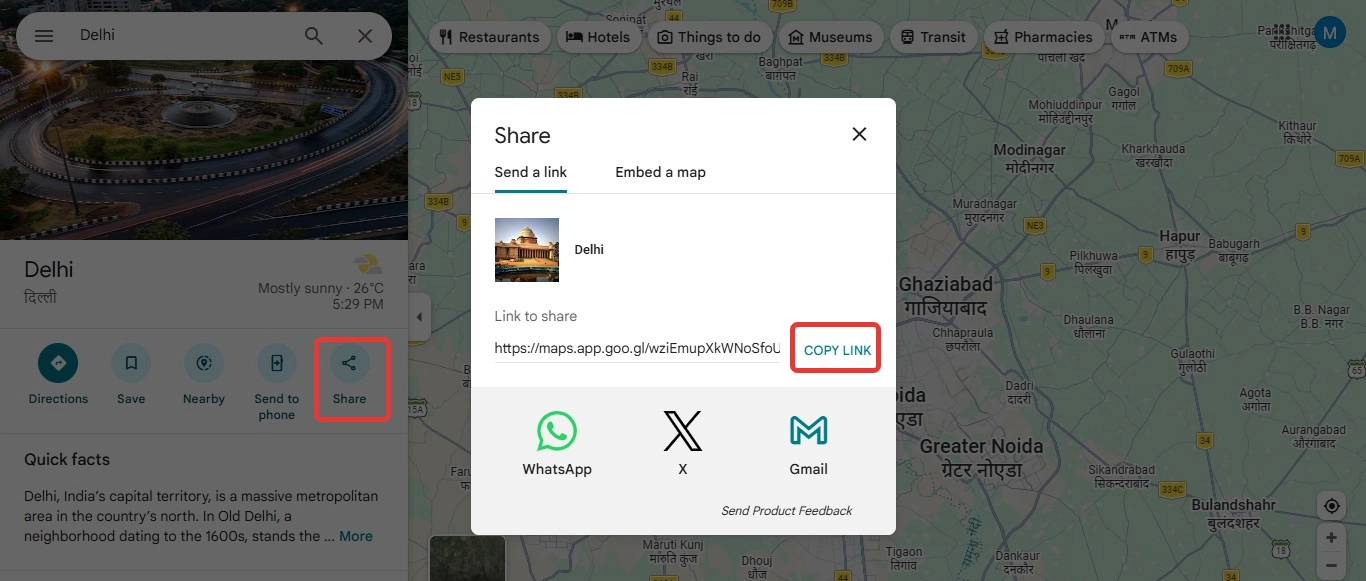
- Step 2- Then paste that link into the tool to generate your QR code.
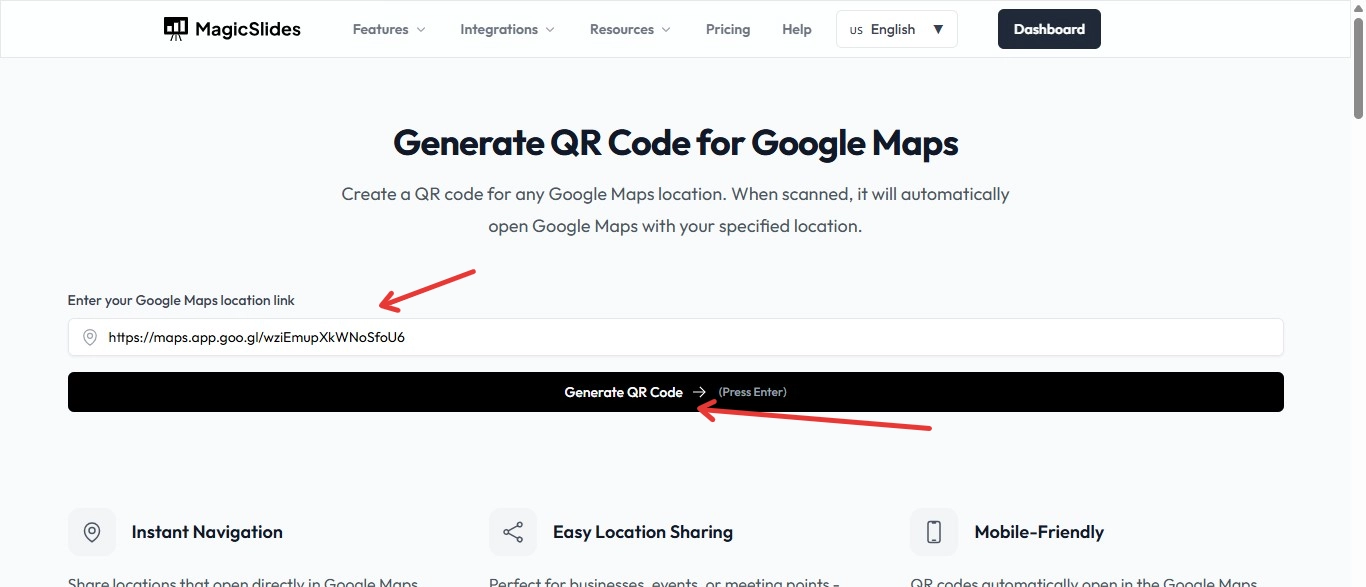
- Step 3- Once it’s ready, download the QR image and insert it into your PowerPoint slide like any other picture.
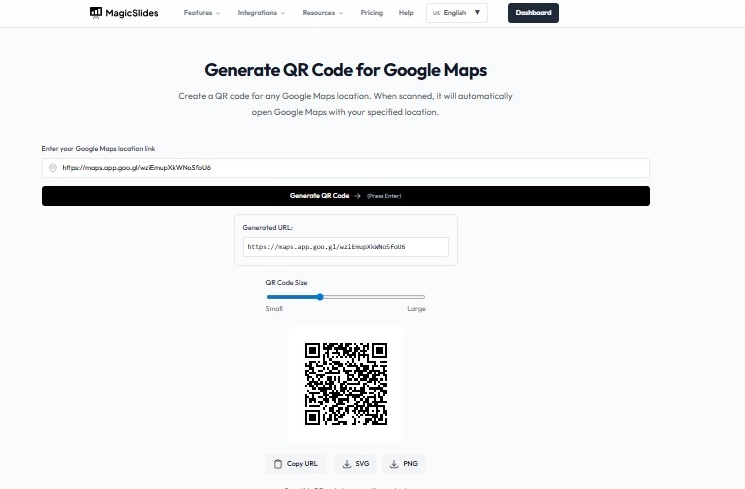
This method is especially useful for events, business meetings, or presentations where you want to guide people to a specific location. It also makes your slides feel more modern and mobile-friendly.
Conclusion
By now, you’ve seen that learning how to add Google map link in PowerPoint isn’t complicated. It’s about choosing the method that fits your presentation style. Whether you use a simple hyperlink, a clean screenshot, or a more interactive approach like QR codes, each option serves a different purpose.
If you want something quick and reliable, hyperlinks work perfectly. For offline use, screenshots are enough. And if you want a modern, user-friendly experience, AI-powered tools can take things a step further.
In the end our goal is simple to make our presentation clearer, more engaging, and easier for your audience to follow.


