How to add hyperlink in PowerPoint


Elevate your PowerPoint presentations by effortlessly adding hyperlinks for enhanced engagement and interactivity
Hyperlinks are a powerful tool in PowerPoint presentations, allowing you to seamlessly navigate between slides, link to external websites, or even jump to specific files or email addresses. Incorporating hyperlinks can enhance the interactivity and engagement of your presentation. In this guide, we'll walk through a simple step-by-step process to help you easily add hyperlinks to your PowerPoint slides, ensuring your audience can access additional resources or information with just a click.
How to add hyperlink in PowerPoint
Step 1: Open Your PowerPoint Presentation
Begin by opening the PowerPoint presentation where you want to add hyperlinks. Ensure that you are in the slide where you want to insert the hyperlink.
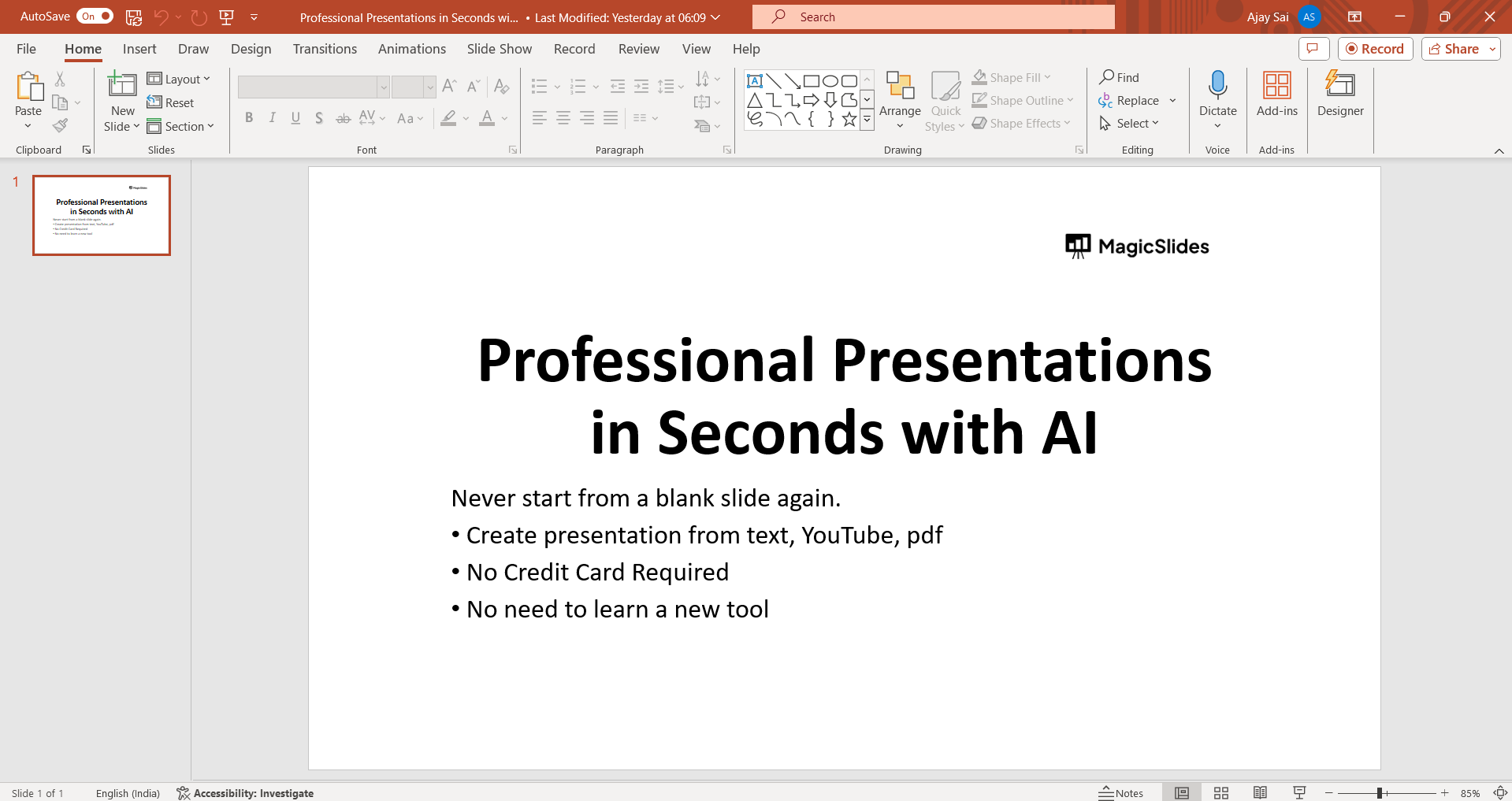
Step 2: Select the Text or Object to Hyperlink
Click on the text or object (such as an image or shape) that you want to turn into a hyperlink. This could be a word, phrase, button, or any other element on your slide.
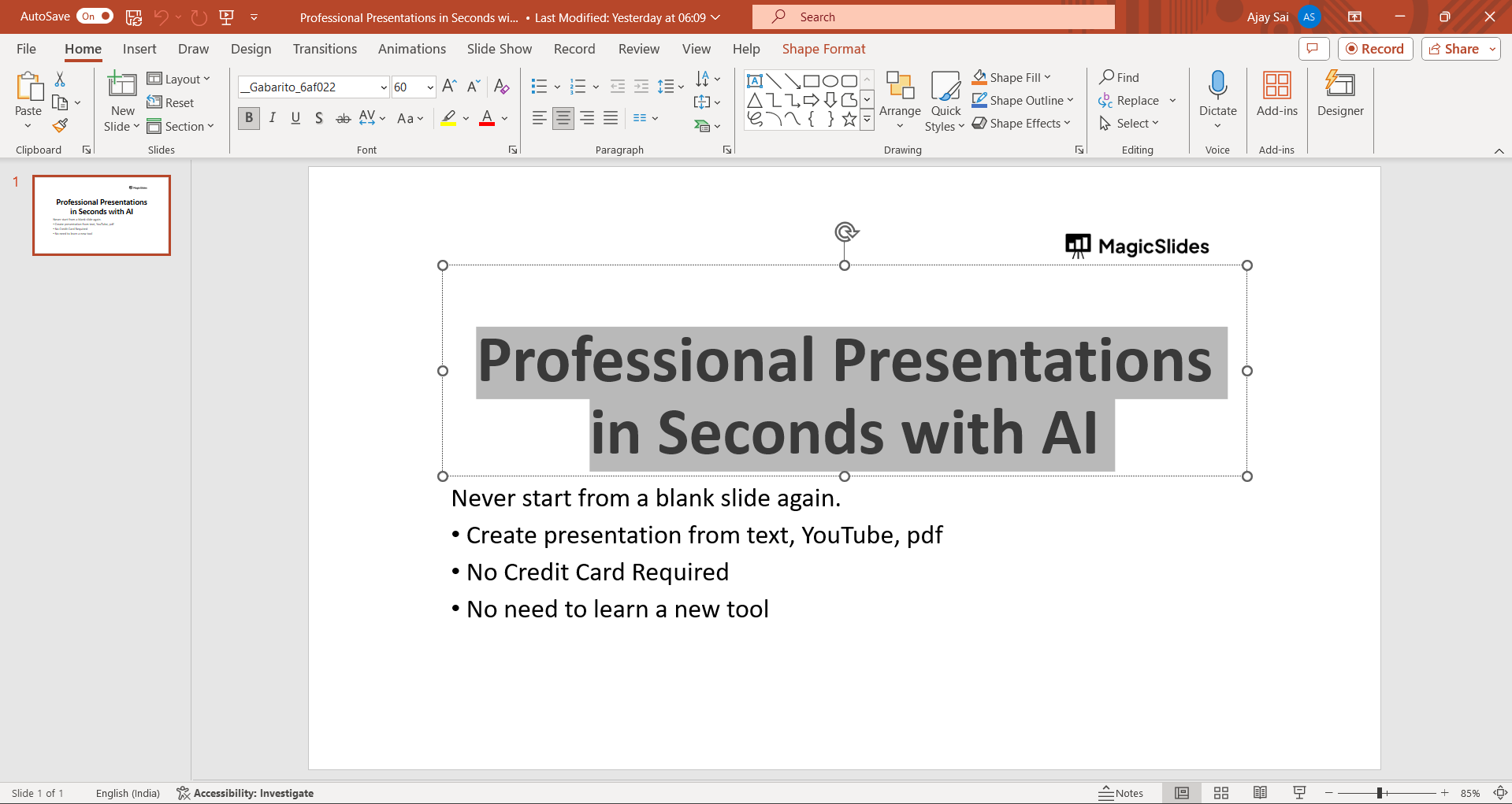
Step 3: Access the Insert Hyperlink Dialog Box
Once the text or object is selected, right-click on it to open a contextual menu. From the menu, choose "Link" or "Hyperlink" to open the Insert Hyperlink dialog box. Alternatively, you can press Ctrl + K on your keyboard to open the dialog box directly.
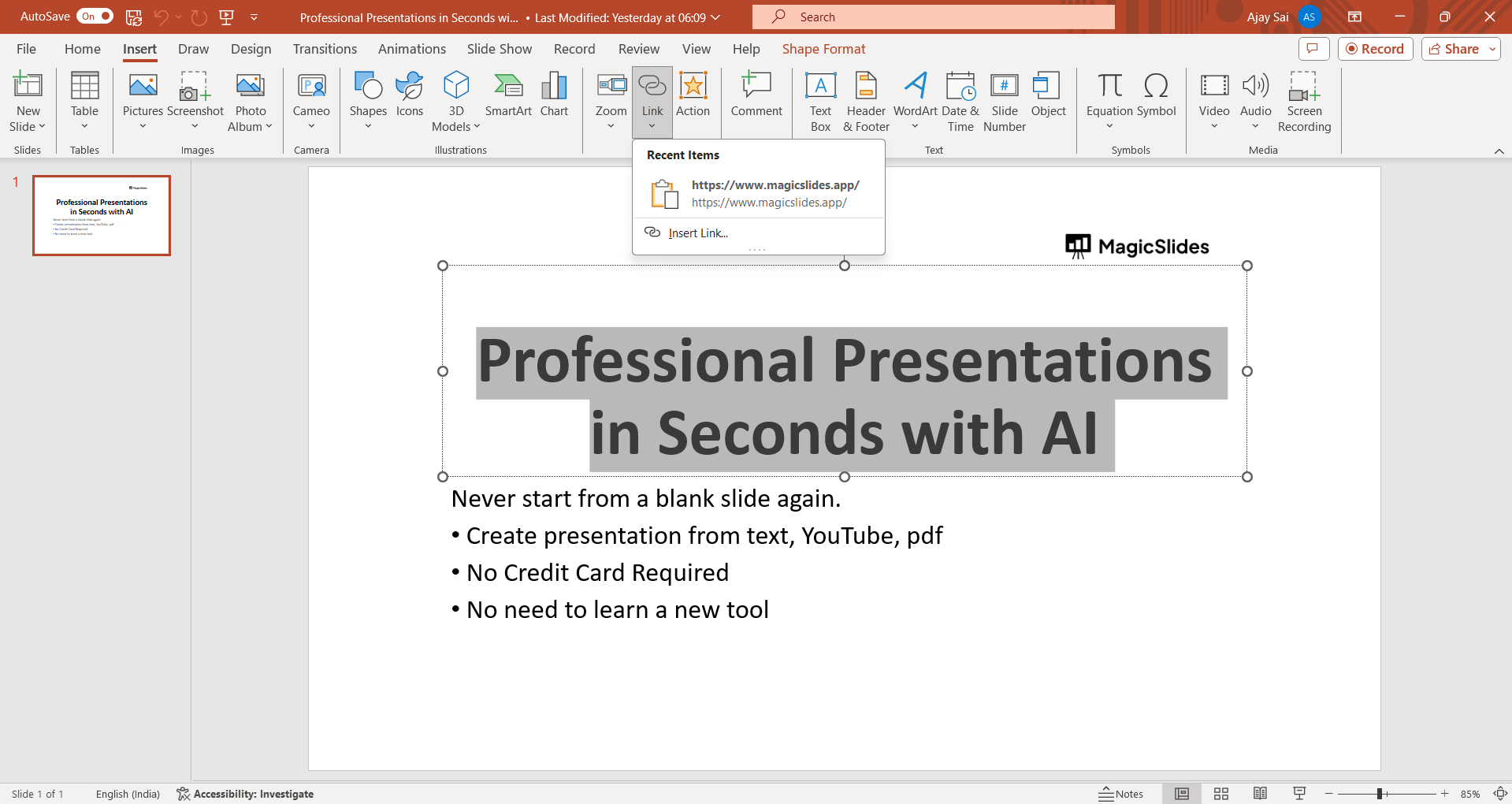
Step 4: Enter the Hyperlink Address
In the Insert Hyperlink dialog box, you'll see different options for linking to various destinations. To link to a webpage, select "Existing File or Web Page" on the left, then enter the URL of the webpage in the "Address" field. If you want to link to another slide in the presentation, select "Place in This Document" and choose the slide you want to link to from the list.
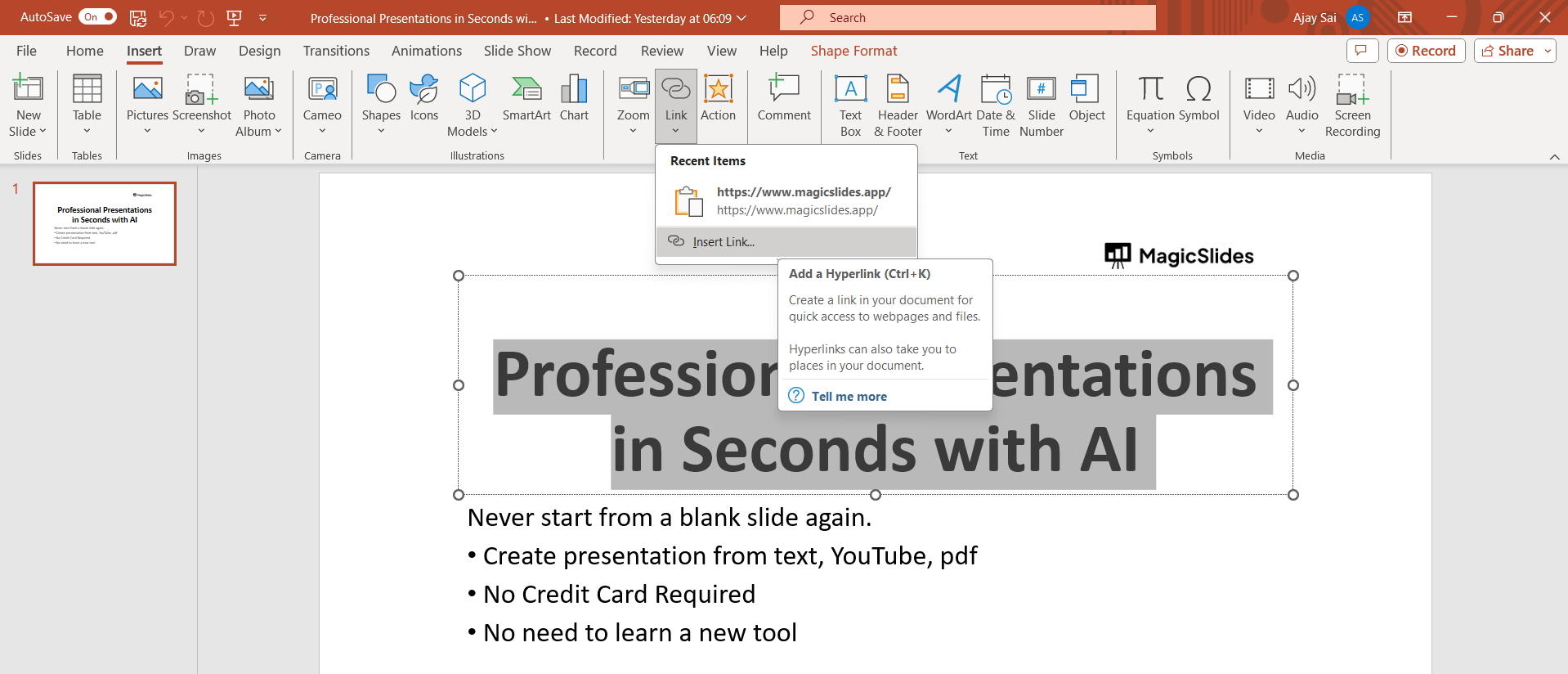
Step 5: Confirm and Close
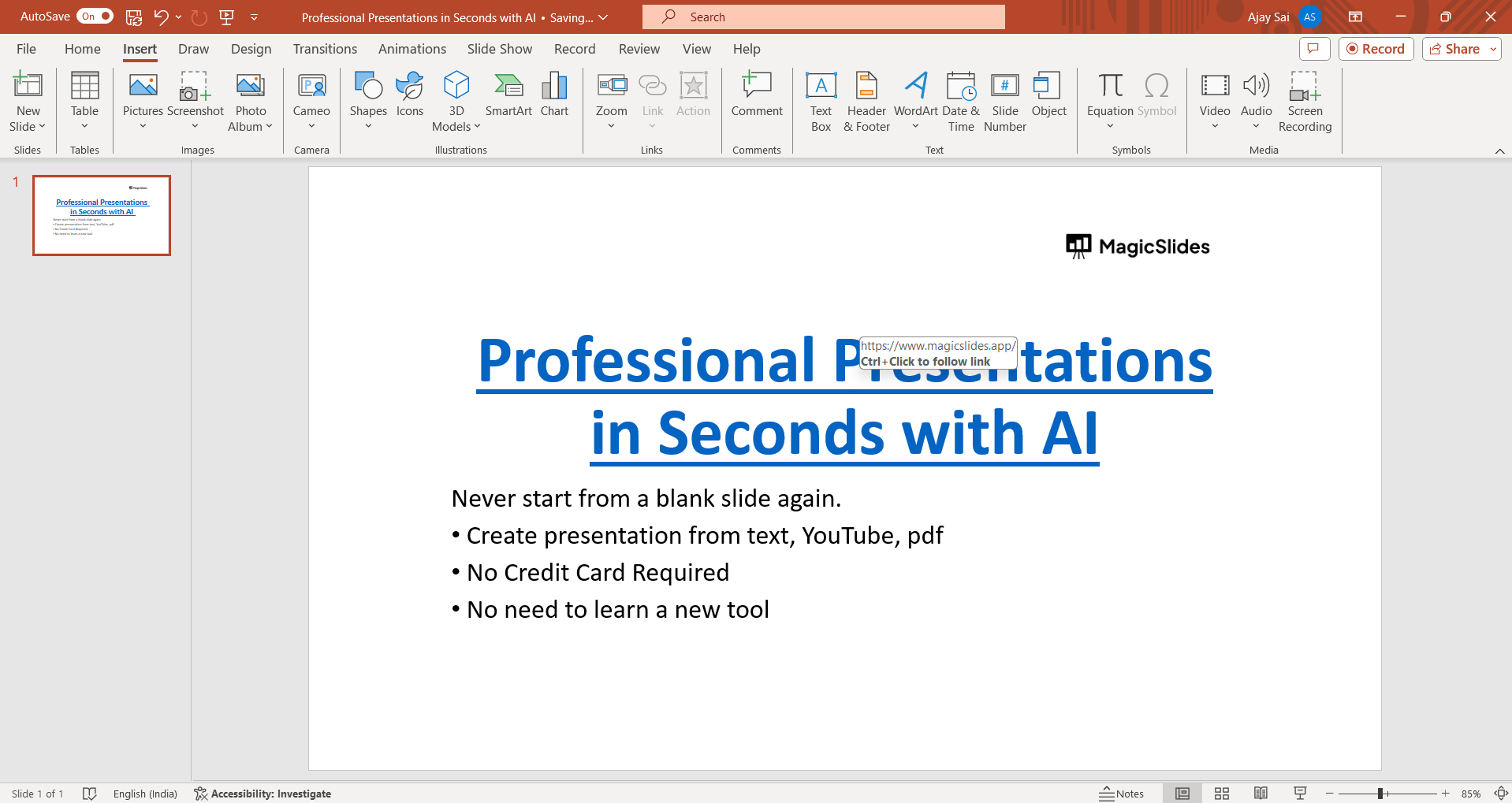
Once you've entered the hyperlink address, click "OK" to apply the hyperlink to the selected text or object. The text or object will now be underlined and formatted in the default hyperlink color.
Conclusion:
Adding hyperlinks to your PowerPoint presentation can greatly enhance its functionality and engagement, allowing your audience to access additional resources or navigate through the content with ease. By following this step-by-step guide, you can seamlessly incorporate hyperlinks into your slides, whether you're linking to external websites, other slides within the presentation, or even email addresses. With just a few simple clicks, you can make your presentation more interactive and dynamic, ensuring your message resonates effectively with your audience.
Frequently Asked Questions:
Can I hyperlink to external websites in PowerPoint?
Yes, you can easily hyperlink to external websites to provide additional resources or information.
Can I hyperlink to other slides within the same presentation?
Absolutely! Hyperlinking to other slides allows for seamless navigation within your PowerPoint presentation.
Is it possible to create hyperlinks to files or email addresses?
Yes, you can hyperlink to files, email addresses, or specific locations on your computer for added convenience.
Can I customize the appearance of hyperlinks in PowerPoint?
Certainly! You can adjust the color, font, and formatting of hyperlinks to match your presentation's style.


