How to Add Icons in Google Slides


Easily enhance your Google Slides presentations with icons. Follow these simple steps to add them seamlessly.
Icons are a great way to enhance your Google Slides presentations by adding visual appeal and clarity to your content.
Whether you're illustrating a concept, emphasizing key points, or making your slides more engaging, icons can be incredibly effective.
In this blog post, we’ll guide you through the simple steps to add icons to your Google Slides presentation.
By the end of this guide, you'll be able to incorporate icons seamlessly into your slides, making your presentations more visually impactful.
How to Add Icons in Google Slides
Step 1: Open Google Slides
Start by opening Google Slides in your web browser. You can do this by going to slides.google.com and logging in with your Google account.

Once you're logged in, either create a new presentation by clicking on the "+" button or open an existing presentation from your Google Drive.
Step 2: Go to the Slide Where You Want to Add an Icon
Navigate to the specific slide where you want to insert an icon.
You can do this by clicking on the slide in the left-hand panel or by using the arrow keys to move through your slides.
Step 3: Insert an Icon Using the 'Insert' Menu
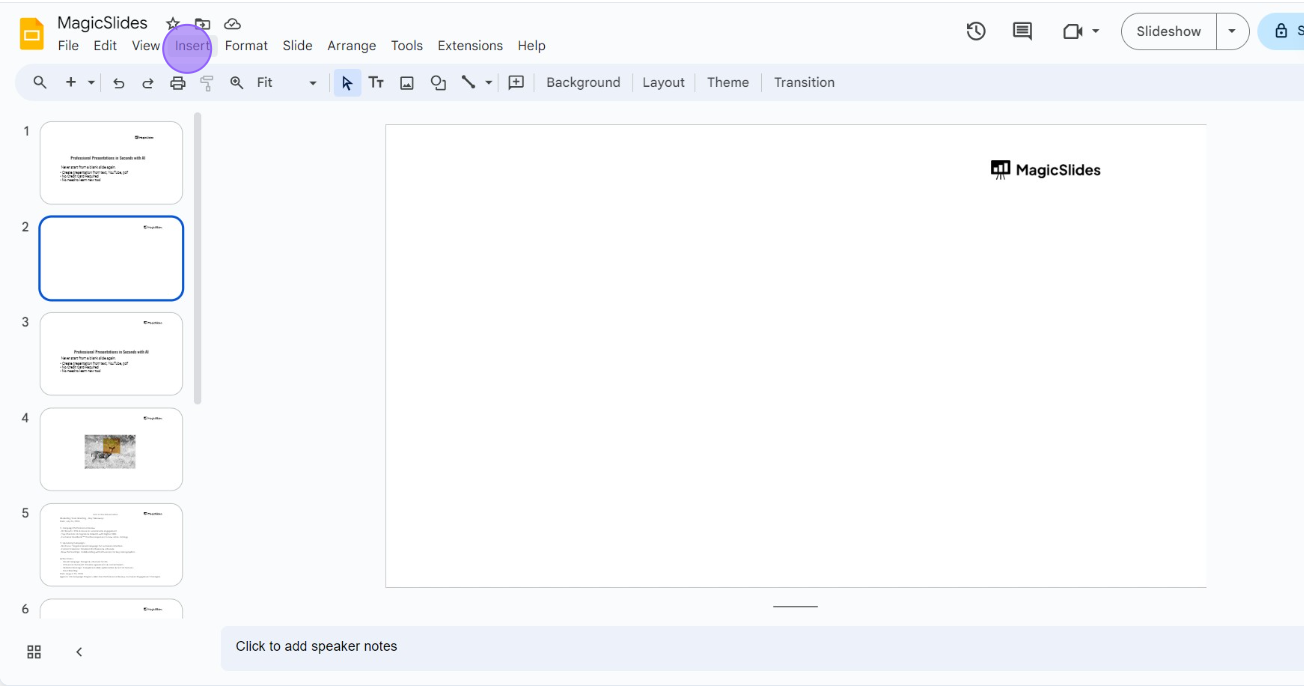
Once you're on the desired slide, click on the "Insert" menu at the top of the screen.
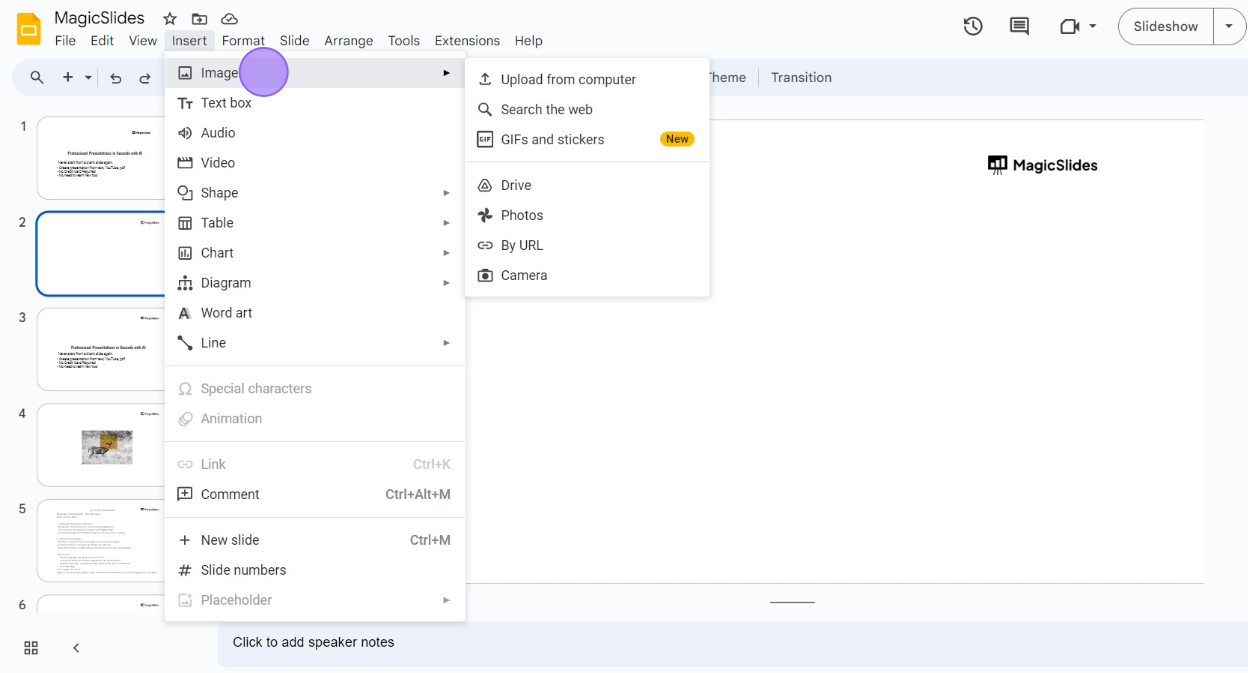
From the dropdown menu, select "Image," and then choose "Search the web." This option allows you to search for icons directly from within Google Slides.
Step 4: Search for an Icon
In the search pane that appears on the right side of your screen, type in the keyword for the icon you need.
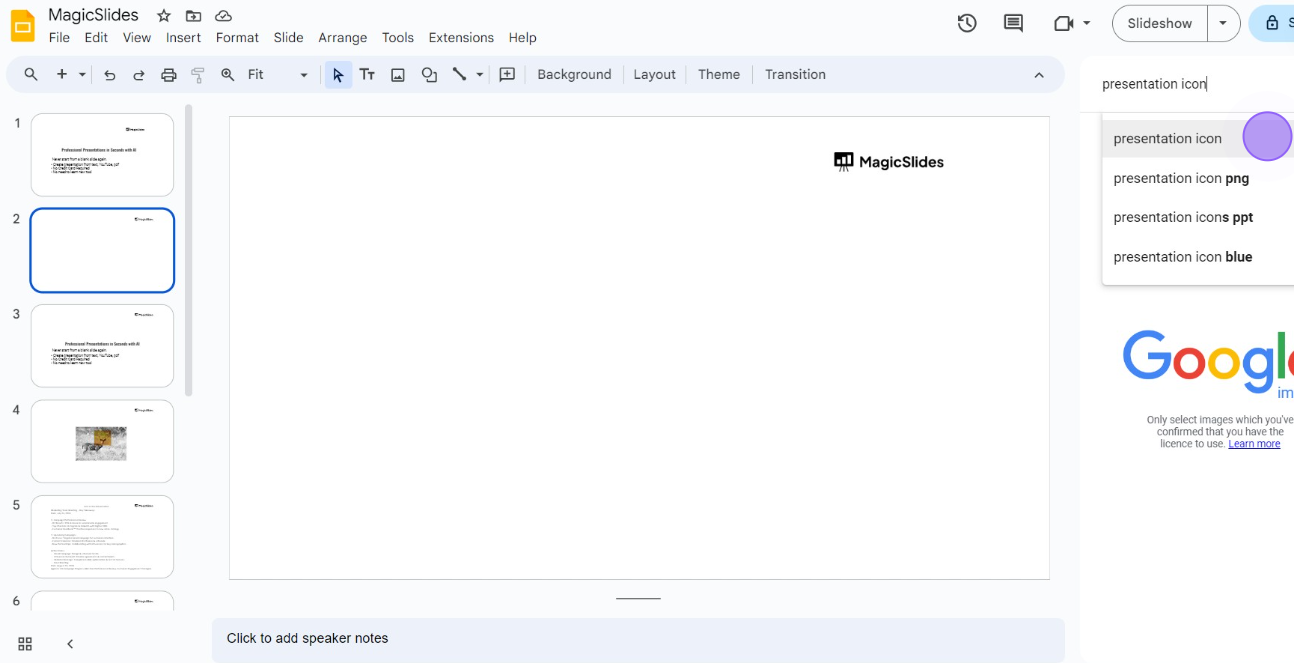
For example, if you're looking for a phone icon, simply type "phone icon" into the search bar. Google will display a range of icons related to your search.
Step 5: Select and Insert the Icon
Browse through the search results to find an icon that suits your needs.
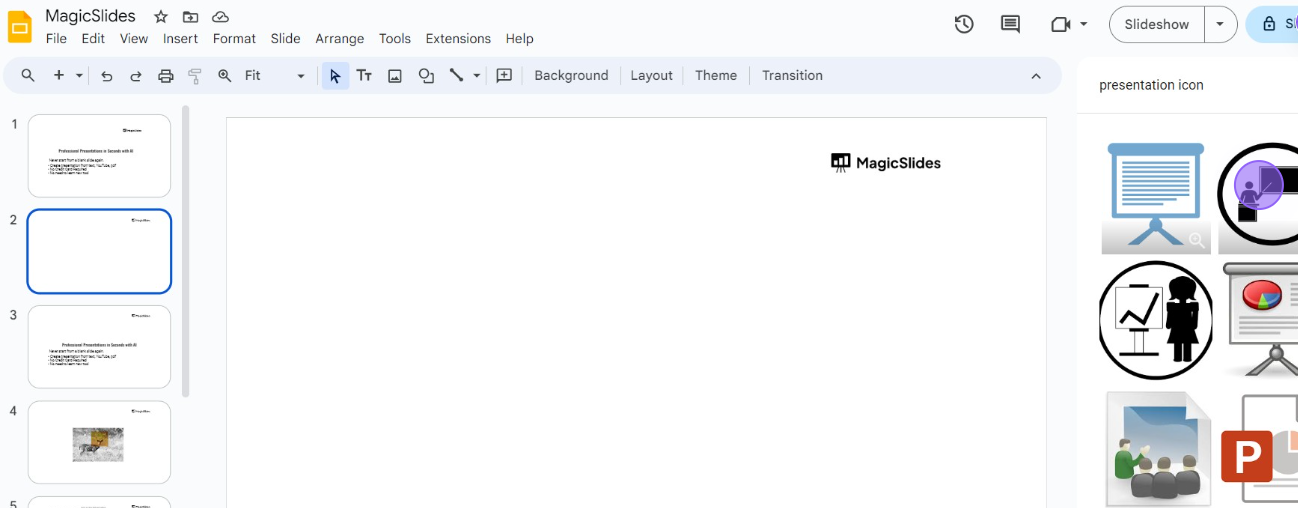
Once you find an icon you like, click on it to select it, and then click the "Insert" button at the bottom of the search pane.
The icon will be inserted onto your slide.
Step 6: Resize and Position the Icon
After inserting the icon, you can resize it by clicking on the icon and dragging the corners to adjust its size.
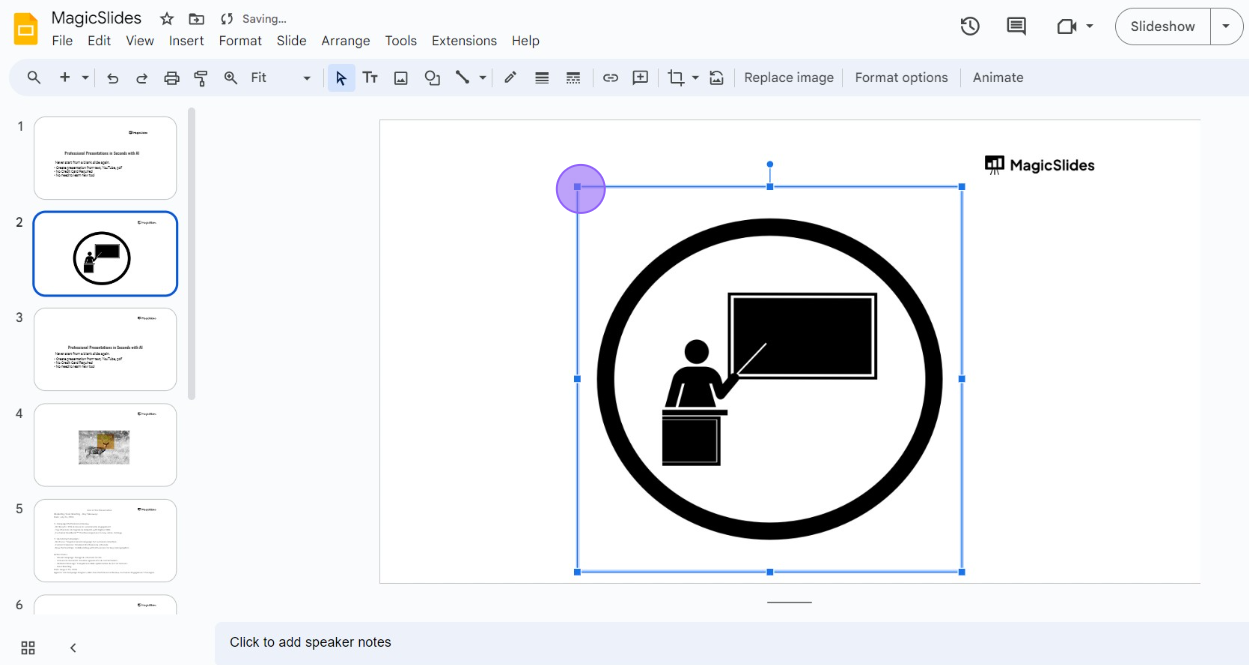
To move the icon, click and drag it to the desired position on your slide.
You can also use the alignment tools in the toolbar to center the icon or align it with other elements on your slide.
Step 7: Customize the Icon
If you want to customize the icon further, such as changing its color or adding effects, you can do so by clicking on the icon and using the formatting options available in the toolbar.
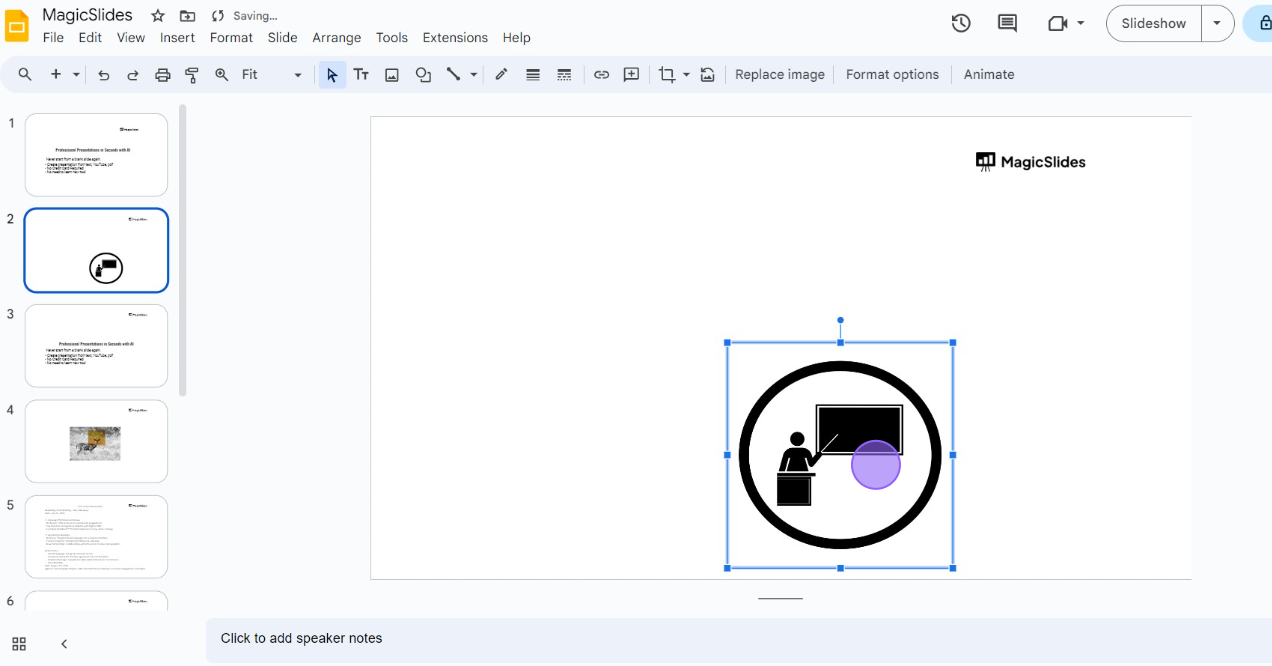
For example, you can change the color of the icon using the "Fill color" tool or add a drop shadow for a more polished look.
Conclusion
Adding icons to your Google Slides presentations is a straightforward process that can significantly enhance the visual impact of your slides.
By following these steps, you can easily search for, insert, and customize icons to suit the theme and content of your presentation. Icons not only make your slides more engaging but also help in conveying information more effectively.
Give it a try in your next presentation and see how icons can elevate your storytelling.
FAQs are here to help!
Can I customize the color of icons in Google Slides?
Yes, you can change the color of icons by selecting the icon and using the "Fill color" tool in the toolbar.
Where can I find icons to use in Google Slides?
You can find icons by using the "Search the web" feature under the "Insert" menu in Google Slides.
Can I resize the icons after inserting them into my slides?
Yes, you can resize icons by clicking and dragging the corners to adjust their size as needed.


