How to Add my own video to Google Slides


Easily add your own video to Google Slides to enhance engagement and make presentations more dynamic
How to Add Your Own Video to Google Slides
Adding your own video to Google Slides can make presentations more engaging and informative.
Whether it's a recorded lecture, a business pitch, or a personal project, inserting a video enhances the visual appeal and understanding of your content.
Follow these steps to easily add a video to your slides.
Step-by-Step Guide
Step 1: Open Google Slides
Visit Google Slides. Open an existing presentation or create a new one by clicking on Blank Presentation.
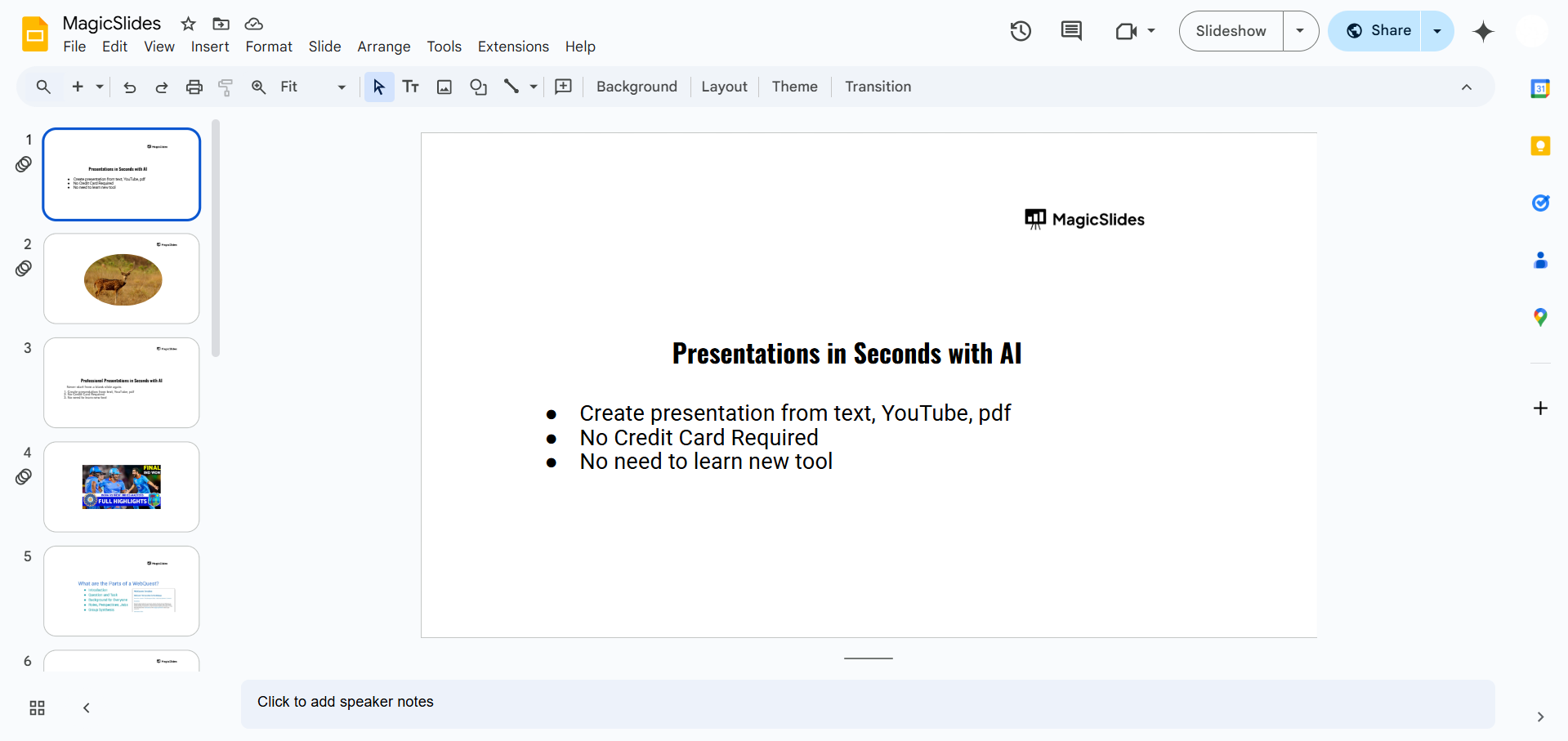
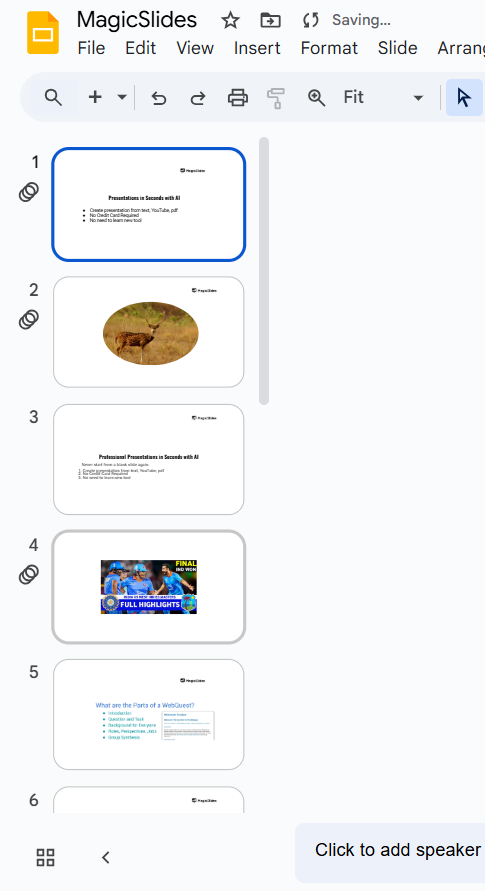
Step 2: Select the Slide
Click on the slide where you want to add the video. Make sure the slide layout has enough space to fit the video.
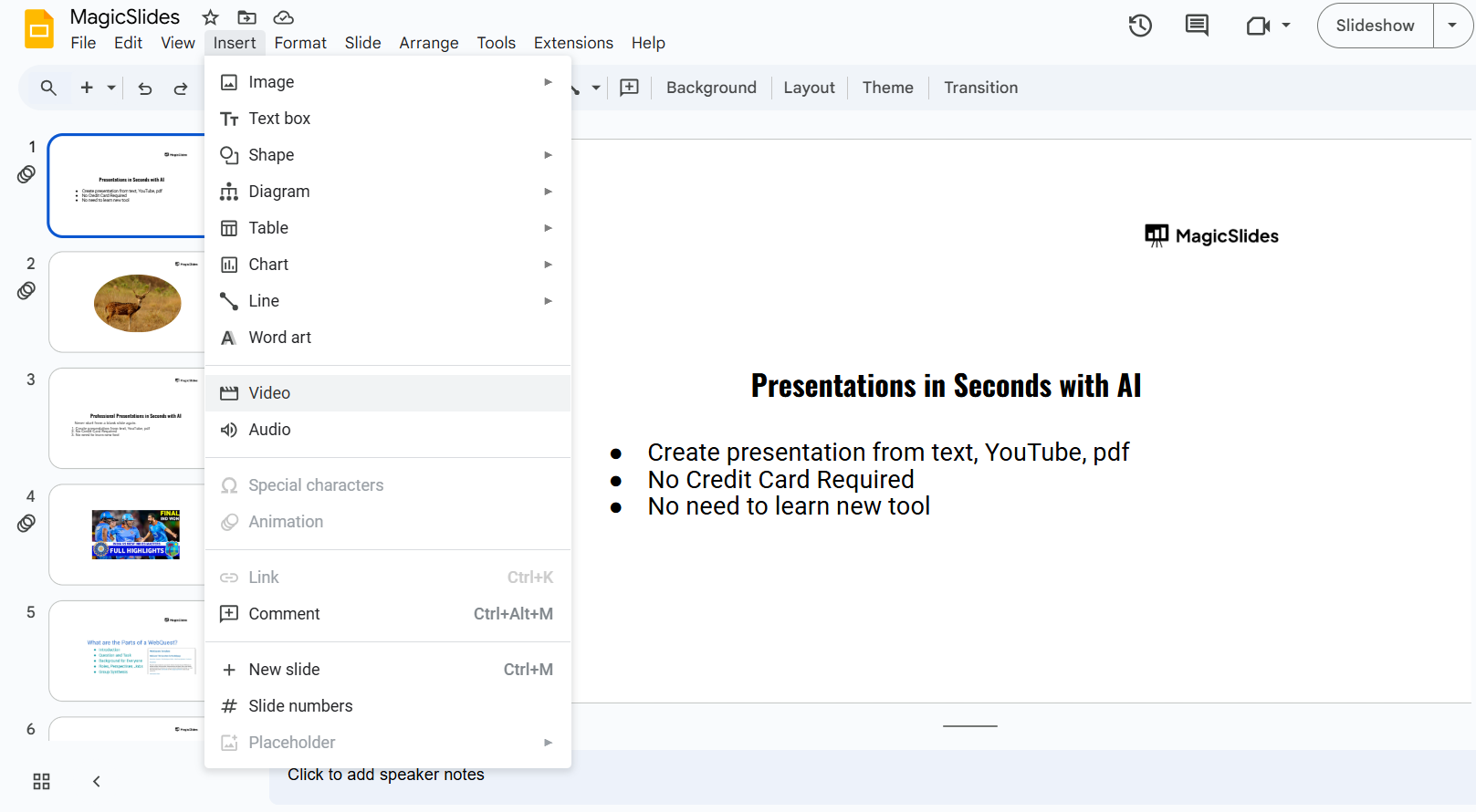
Step 3: Insert the Video
Click on Insert from the top menu. Select Video from the dropdown menu.
Step 4: Choose Your Video Source
Google Slides allows you to insert videos from three different sources:
- Google Drive (For your own videos)
- Click on Google Drive.
- Select the video you have uploaded to your Google Drive.
- Click Insert to add it to your slide.
- YouTube
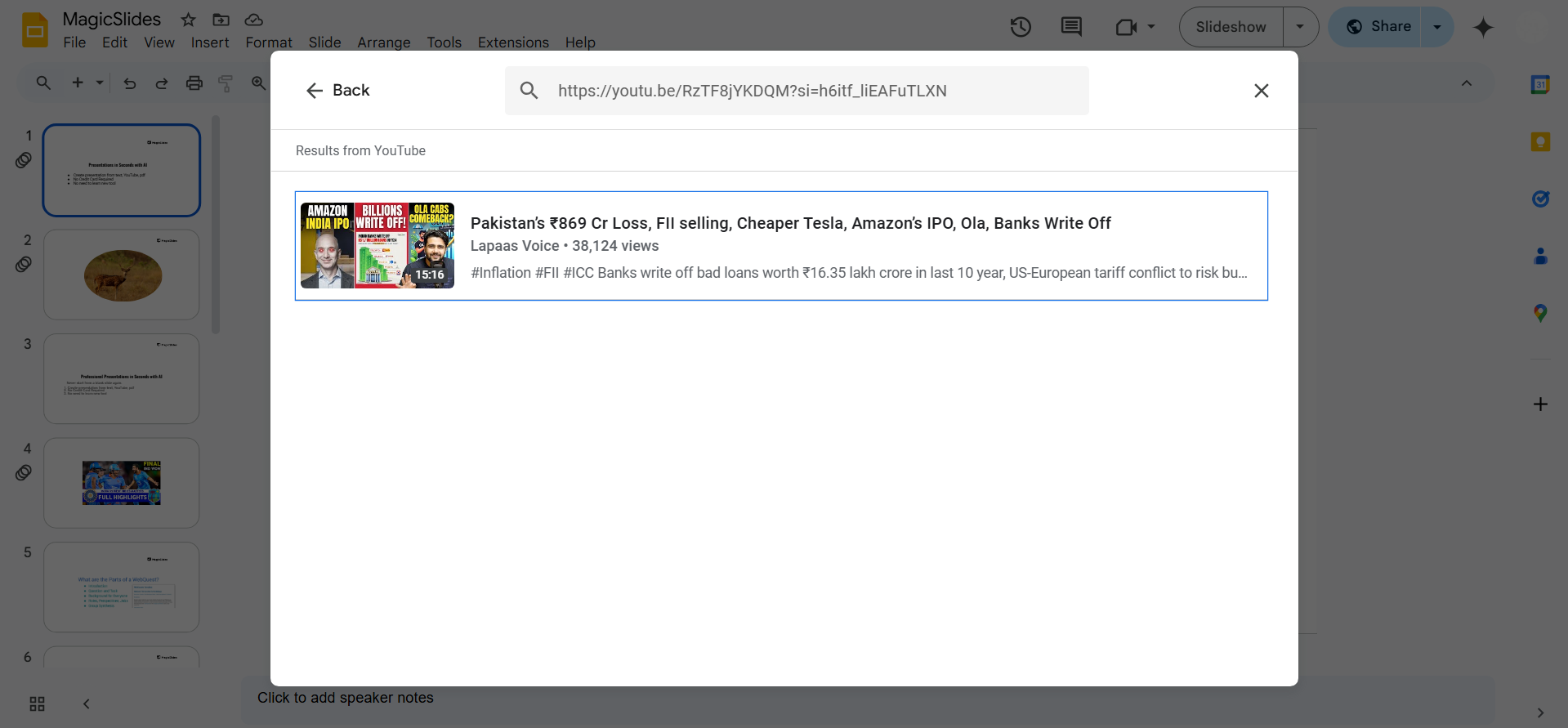
- If your video is uploaded to YouTube, you can insert it using the YouTube URL.
- Search for the video or paste the link in the By URL tab.
- By URL
- If your video is hosted on another platform, you can use a direct link to embed it.
Step 5: Adjust the Video Size and Position
Click on the video once it's inserted. Drag the corners to resize it according to your preference.
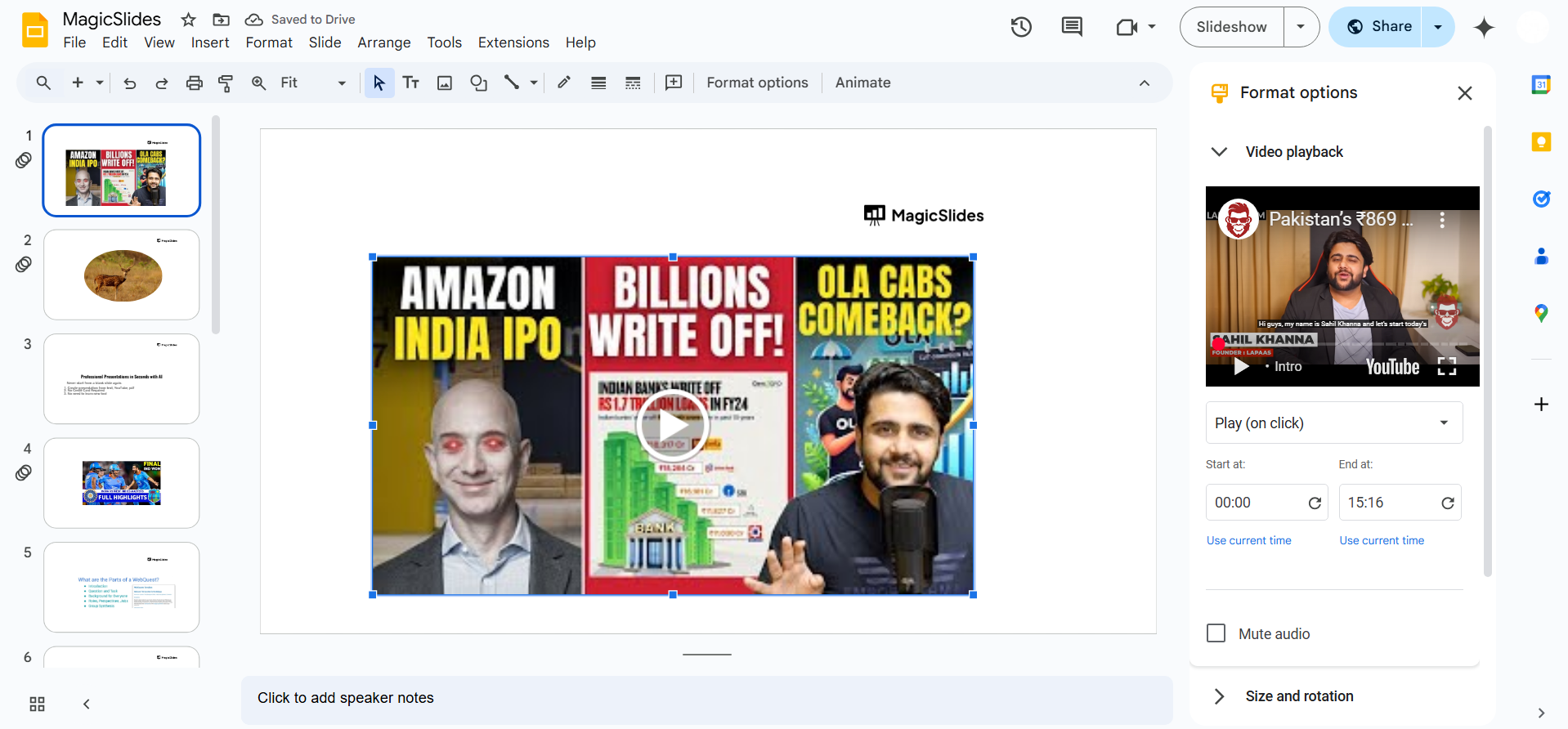
Move the video to the desired position on the slide.
Step 6: Customize Video Playback Settings
Click on the video and select Format options from the toolbar. Under Video Playback, choose when the video starts and ends.
You can set it to play automatically or manually when you present.
Step 7: Save and Present
Click on File > Save to ensure your changes are saved. Click Present (the play button) to preview how the video will look in the slideshow.
Inserting your own videos in Google Slides enhances presentations, but why not let AI handle the slide creation for you? With MagicSlides.app, generate professional presentations instantly from any topic or video URL!
Conclusion
Adding your own video to Google Slides is a great way to make your presentations more interactive and engaging.
By following these simple steps, you can seamlessly integrate videos from Google Drive, YouTube, or external sources into your slides.
FAQs can come handy!
Can I upload a video directly from my computer to Google Slides?
No, you must first upload your video to Google Drive and then insert it into your slides.
How do I make my video play automatically in Google Slides?
Click on the video, go to Format options > Video playback, and select Play automatically.
What video formats are supported in Google Slides?
Google Slides supports most common formats like MP4, AVI, and MOV when uploaded via Google Drive.


