How to Add Note for Edit on Google Slide


Easily add edit notes in Google Slides to enhance collaboration, provide feedback, and streamline revisions
How to Add a Note for Editing on Google Slides
Adding notes for editing in Google Slides helps collaborators understand suggested changes, feedback, or instructions.
Whether you're working on a team project or refining a presentation, leaving notes ensures smooth collaboration.
Follow these steps to add an edit note in Google Slides.
Steps to Add a Note for Editing on Google Slides
Step 1: Open Your Google Slides Presentation
Go to Google Slides and sign in to your Google account. Open the presentation where you want to add notes for editing.
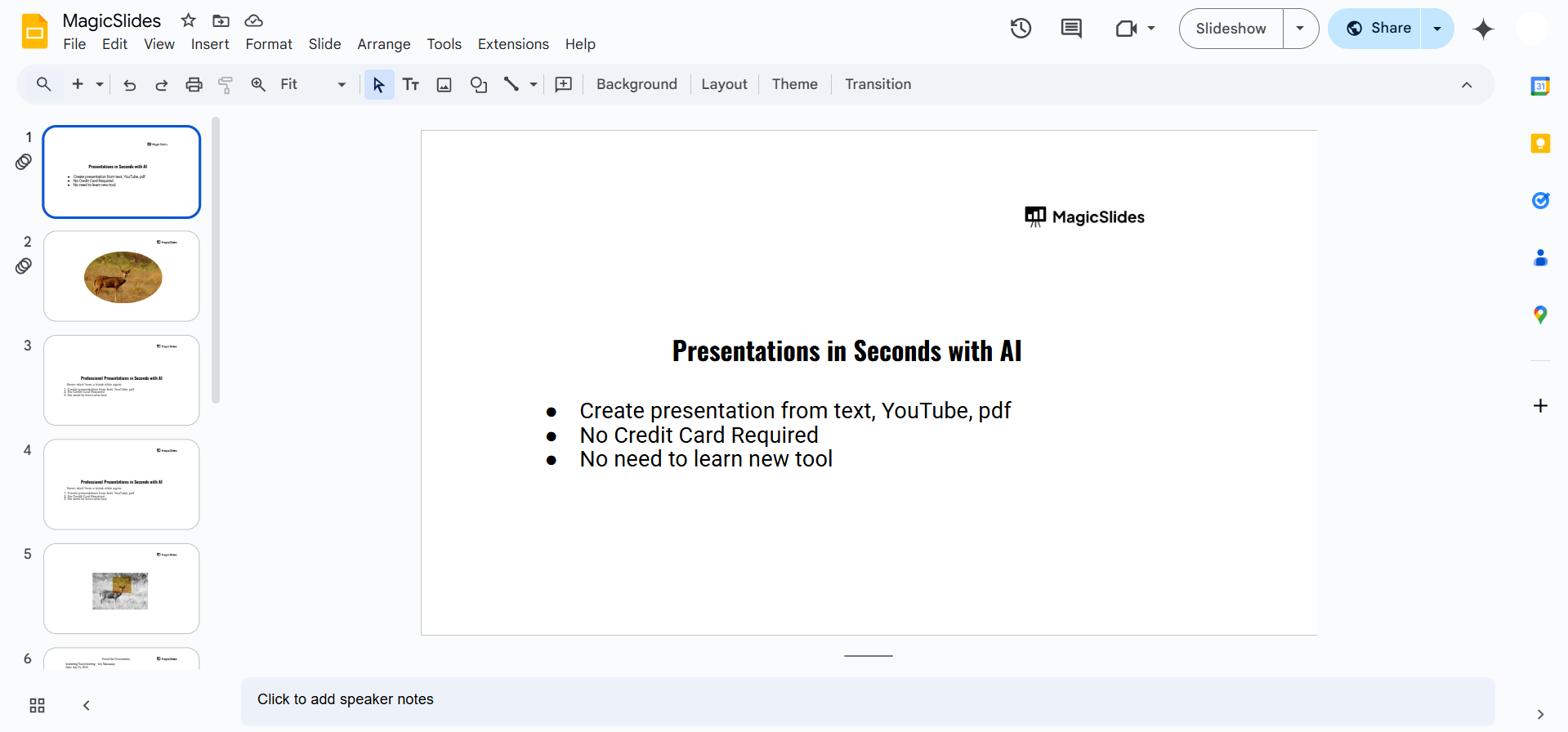
Step 2: Select the Slide or Element for the Note
Click on the specific slide or object (text, image, shape, etc.) where you want to leave an edit note.
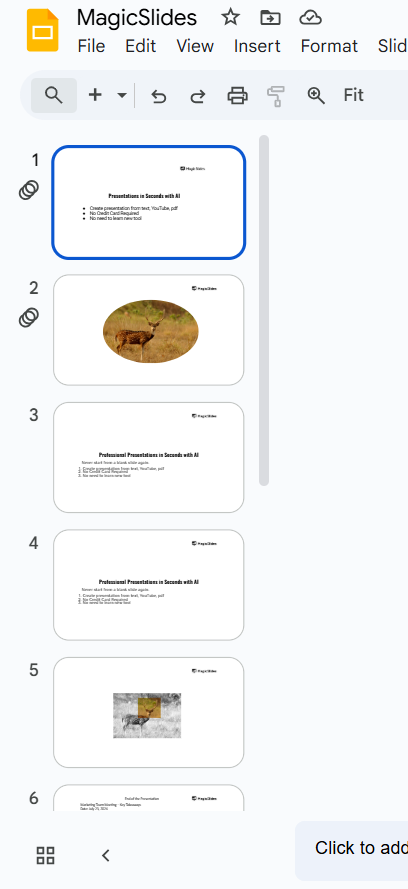
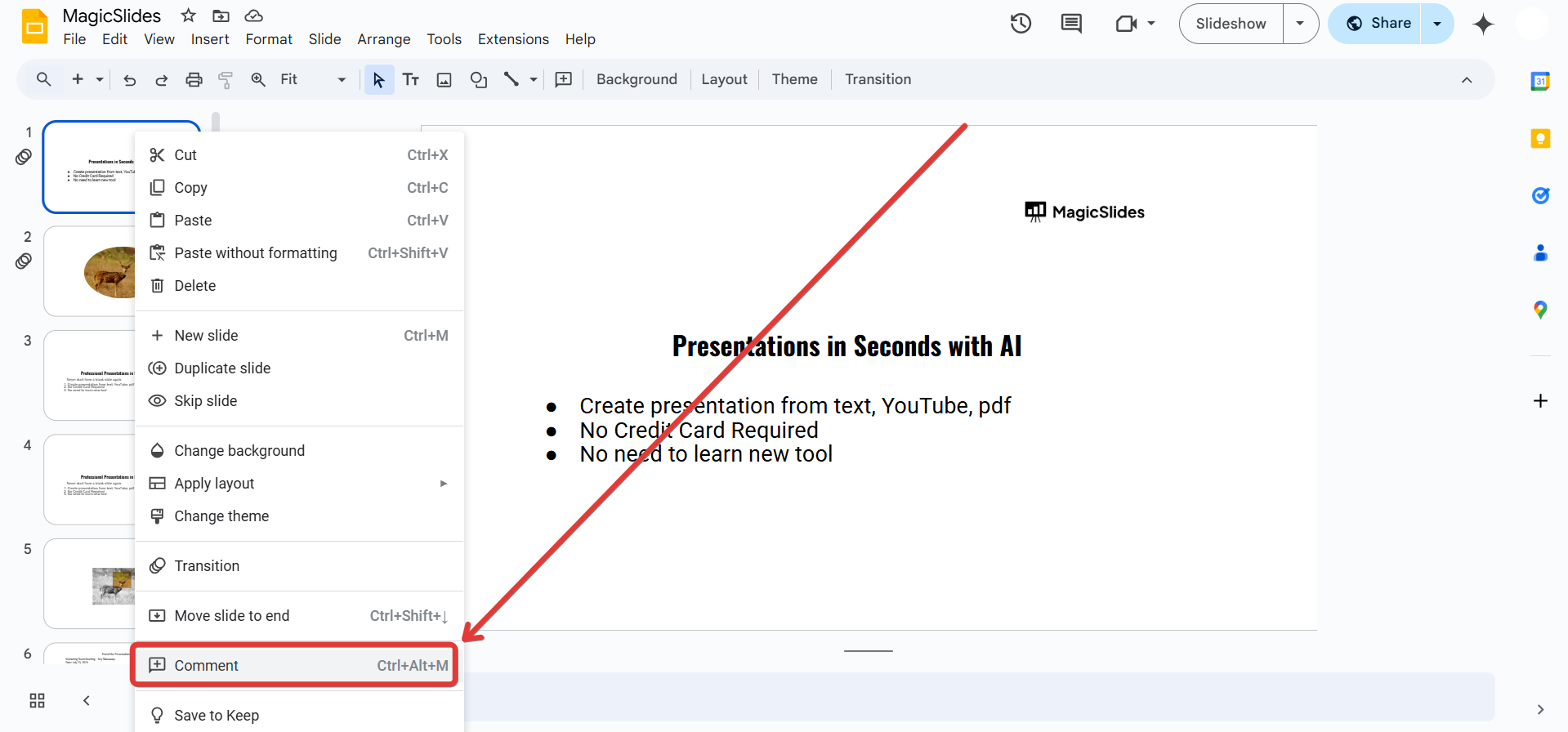
Step 3: Add a Comment as an Edit Note
Right-click on the selected slide or object and choose "Comment" from the menu. Alternatively, click the comment icon (💬) in the top-right corner.
Type your note or feedback in the comment box.
Step 4: Tag a Collaborator (Optional)
If you want to direct the note to a specific person, type "@" followed by their email address.
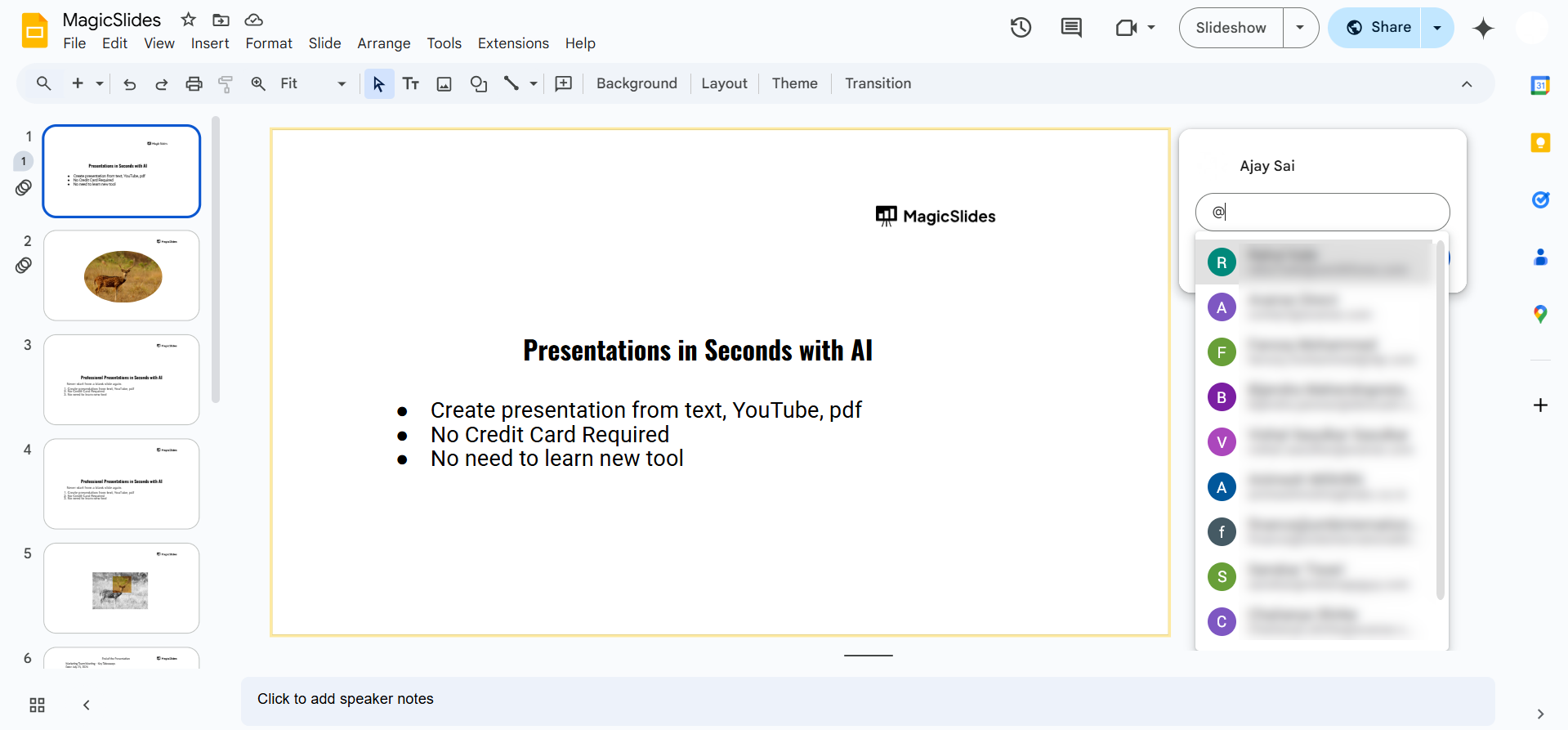
Google Slides will notify them via email.
Step 5: Click "Comment" to Save the Edit Note
Once you've written your note, click "Comment" to save it.
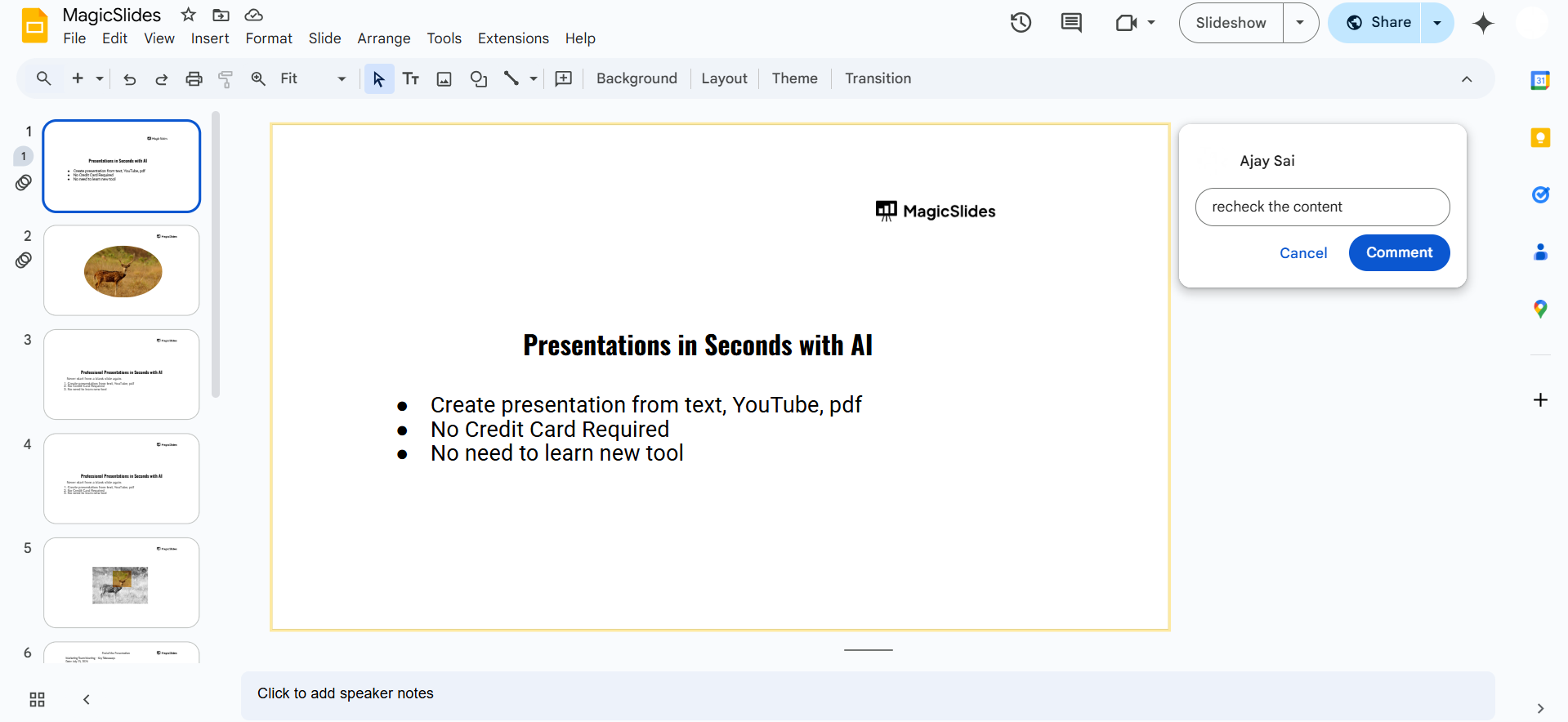
The comment will now be visible to collaborators for review and resolution.
Step 6: Resolve or Edit Notes
Once the suggested edits are made, click "Resolve" to remove the note. If necessary, click on the comment to edit or reply to it.
Adding notes for editing in Google Slides is useful for collaboration, but if you want to streamline your entire presentation process, try MagicSlides.app. It helps you generate structured, professional slides effortlessly!
Conclusion
Adding edit notes in Google Slides streamlines collaboration and ensures clear communication.
Whether you're suggesting revisions or assigning tasks, comments help improve workflow and organization.
FAQs on Adding Notes for Editing in Google Slides
Can I see a history of all comments in Google Slides?
Yes! Click on the comment icon (💬) in the top-right corner to view all past comments.
How do I delete a note after making edits?
Click on the comment and select "Resolve" to remove it from the slide.
Can multiple people reply to the same note?
Yes! Team members can reply within the same comment thread for better collaboration.
Now, you can easily add and manage edit notes in Google Slides for seamless teamwork! 🚀


