How to Add Audio to Google Slides (Step-by-Step Guide)


Learn how to add audio to Google Slides with this step-by-step guide. Insert narration, music, and MP3 files to create engaging presentations.
Presentations don’t have to rely only on text and images. Adding audio to Google Slides is a simple way to make your slides more engaging, whether you’re creating a lesson, business presentation, product demo, or self-paced training course.
With Google Slides, you can insert narration, background music, or sound effects that play during your presentation. The process only takes a few minutes, but there are a few requirements, such as storing your audio file in Google Drive.
In this guide, I’ll show you how to add audio to Google Slides, explain the available playback options, troubleshoot common issues, and share an easier way to create Google Slides presentations using the MagicSlides Google Slides Add-on.
Can You Add Audio to Google Slides?
Yes. Google Slides allows you to insert audio files stored in Google Drive.
Currently, Google Slides supports common audio formats such as:
- MP3
- WAV
After inserting an audio file, you can choose whether it plays automatically when the slide appears or only after someone clicks the audio icon.
How to Add Audio to Google Slides?
Follow these simple steps to add audio to your presentation.
Step 1. Upload Your Audio File to Google Drive
Before inserting audio, upload your file to Google Drive.
- Open Google Drive.
- Click New → File upload.
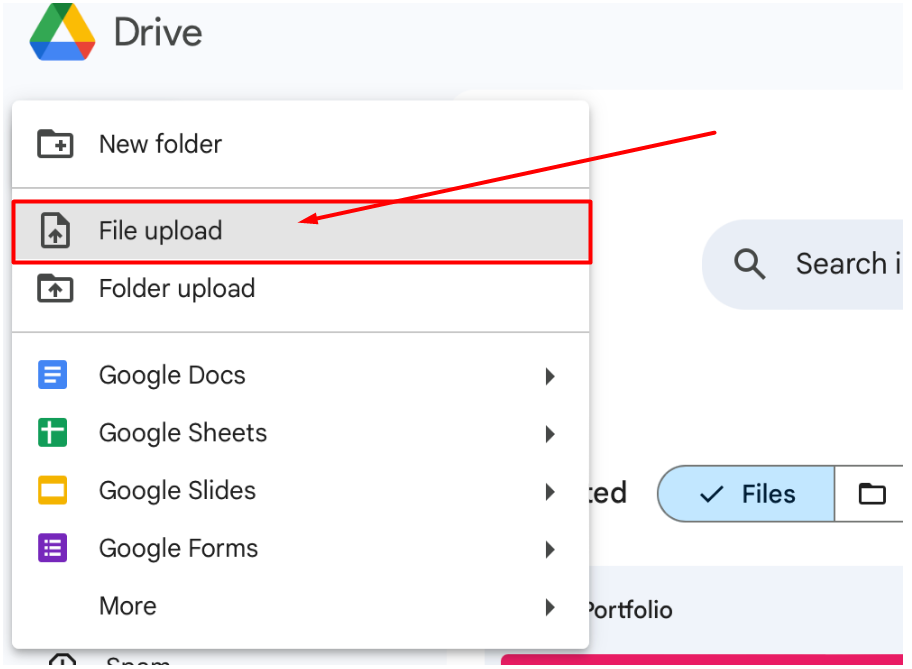
- Select your MP3 or WAV file.
- Wait for the upload to complete.
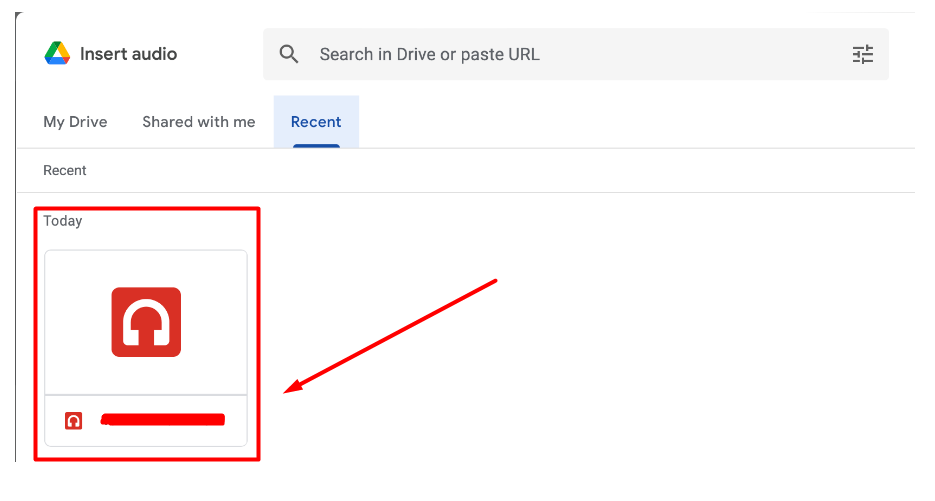
Keeping all presentation assets in one Google Drive folder makes them easier to manage.
Step 2. Open Your Google Slides Presentation
Open the presentation where you want to add audio.
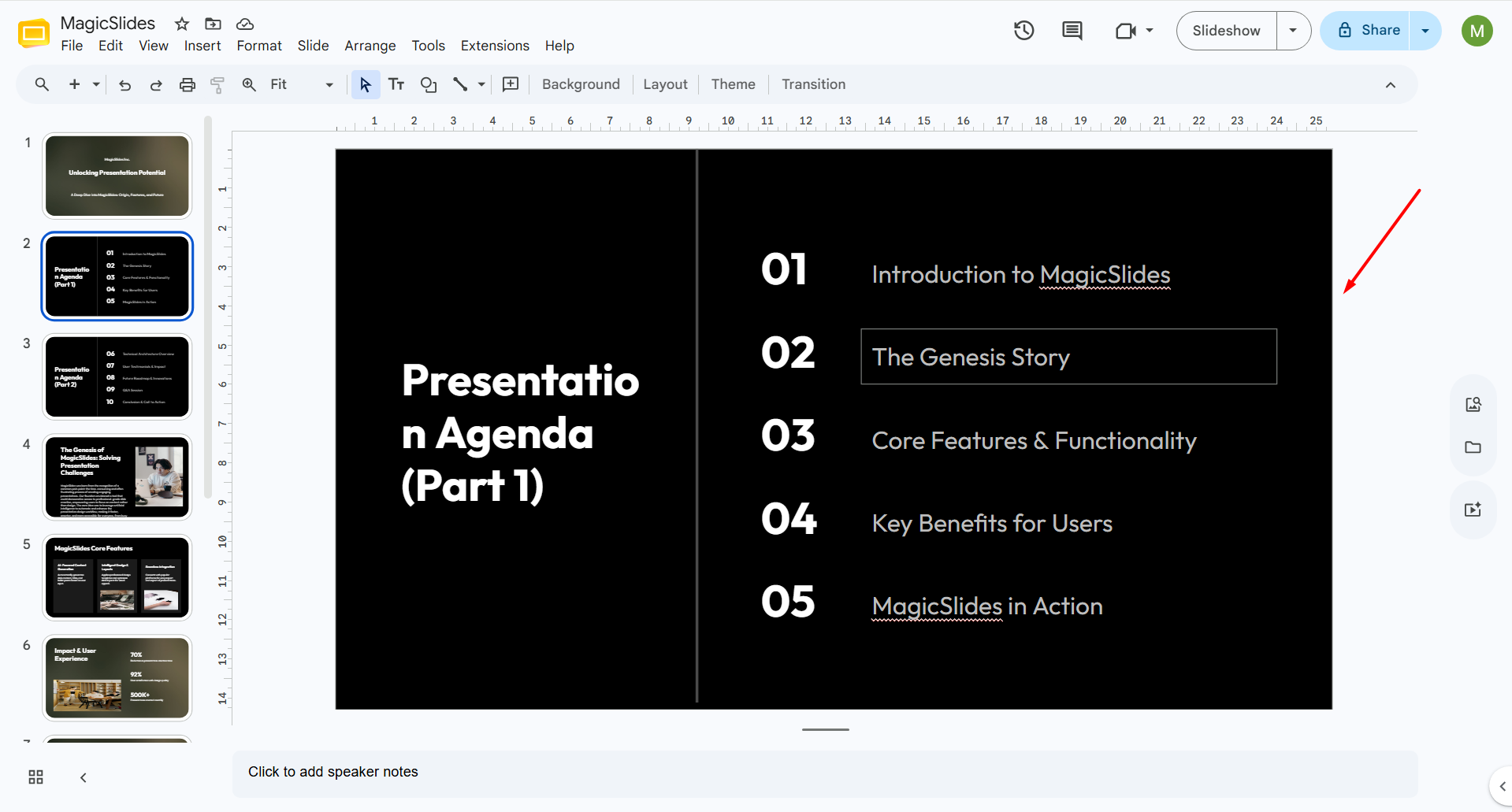
Navigate to the slide that should contain the recording or music.
Step 3. Insert the Audio
From the top menu, click:
Insert → Audio
Google Slides will display audio files stored in your Google Drive.
Choose the file you uploaded and click Insert.
An audio icon will appear on your slide.
Step 4. Position the Audio Icon
Move the icon anywhere on the slide.
Many presenters place it in a corner or behind another object to keep the slide design clean. You can also hide the icon during presentation mode using the playback settings.
Step 5. Configure Audio Playback
Click the audio icon and open Format options.
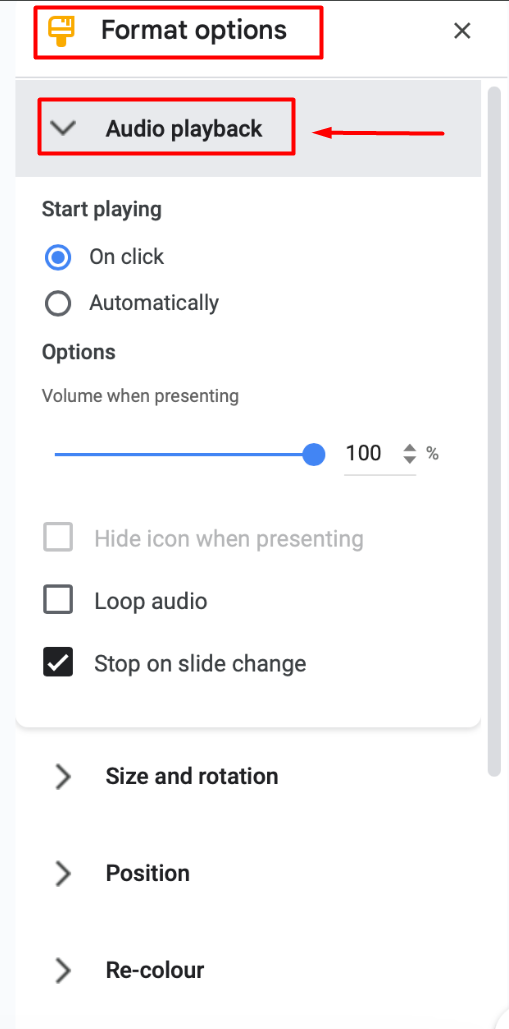
You’ll find several playback settings that let you control how the audio behaves during your presentation.
Audio Playback Options
Google Slides offers a few useful playback settings:
Play on Click
The audience starts the audio manually by clicking the icon.
This works well for live presentations where you control the pacing.
Play Automatically
Audio begins as soon as the slide appears.
This option is ideal for narrated presentations, online lessons, and self-guided training.
Loop Audio
If enabled, the audio repeats until you move to the next slide.
This is useful for background music or looping sound effects.
Hide Icon When Presenting
If you don’t want viewers to see the audio icon, enable this option to keep your slides clean while the audio still plays normally.
Common Problems and How to Fix Them
Adding audio is straightforward, but you may occasionally run into issues.
Audio Isn’t Playing
The most common cause is Google Drive permissions.
If the audio file isn’t shared correctly, viewers won’t be able to hear it. Make sure anyone viewing the presentation has permission to access the file.
Unsupported Audio Format
Google Slides works best with MP3 and WAV files.
If your recording is in another format, convert it to MP3 before uploading it.
Audio Icon Is Missing
Sometimes the icon is hidden behind another object on the slide.
Use Arrange → Order → Bring to Front to locate it, or check whether you’ve enabled “Hide icon when presenting.”
Playback Is Slow
Large audio files may take longer to load.
Compressing recordings into MP3 format helps reduce loading times and improves playback performance.
Create Google Slides Faster with the MagicSlides AI
Adding audio is often the final step in creating a presentation. Before that, you still need to research your topic, organize your ideas, write content, and design your slides.
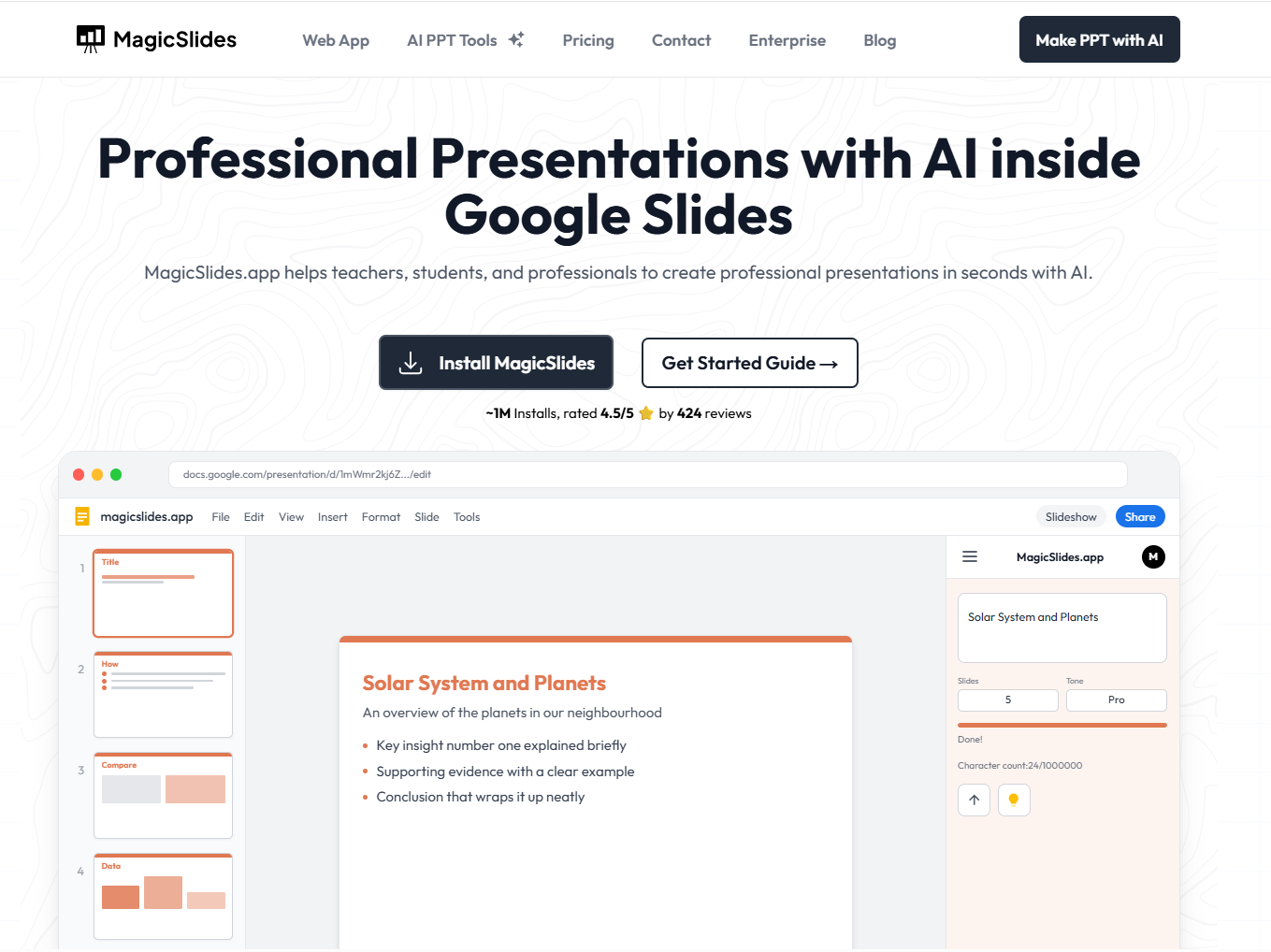
If you use Google Slides regularly, the MagicSlides Google Slides Add-on can help you complete those steps much faster.
Instead of starting with a blank presentation, MagicSlides lets you generate professional, editable slides directly inside Google Slides. You can create presentations from:
- A topic or prompt
- PDF documents
- Microsoft Word files
- YouTube videos
- Website URLs
- Images
- Existing notes or text
Because the add-on works inside Google Slides, you can immediately customize your presentation, add your branding, insert speaker notes, and then follow the steps above to include narration or background music.
Whether you’re a teacher preparing lesson plans, a student working on assignments, a marketer building client presentations, or a business professional creating reports, MagicSlides helps reduce the time spent creating slides so you can focus on delivering your message.
Final Thoughts
Knowing how to add audio to Google Slides is a simple way to create more engaging presentations. Whether you’re adding voice narration, background music, or sound effects, Google Slides makes it easy to enhance your slides with audio in just a few steps.
If you’re looking to save time before adding those finishing touches, the MagicSlides Google Slides Add-on is a great companion. It helps you generate professional presentations directly inside Google Slides from topics, PDFs, Word documents, YouTube videos, URLs, and more, so you can spend less time building slides and more time delivering impactful presentations.
By combining Google Slides’ built-in audio features with MagicSlides, you can create polished presentations faster and make them more engaging for your audience.
Frequently Asked Questions
Q1. Can I add MP3 files to Google Slides?
Yes. MP3 is one of the supported audio formats and is generally the best choice because it offers good quality with smaller file sizes.
Q2. Can audio play automatically in Google Slides?
Yes. Select the audio icon, open Format options, and change the playback setting to Play automatically.
Q3. Can I record audio directly in Google Slides?
No. Google Slides doesn’t include a built-in voice recorder. You’ll need to record your audio using another application, upload it to Google Drive, and then insert it into your presentation.
Q4. Why can’t other people hear my audio?
This usually happens because the audio file isn’t shared correctly in Google Drive. Check the file’s sharing permissions to ensure viewers have access.
Q5. Can I add background music to Google Slides?
Yes. Upload your music file to Google Drive, insert it into your slide, and configure it to play automatically or loop if needed.


