How to Add Superscript in Google Slides (Step-by-Step Guide)


Learn how to add superscript in Google Slides using the Format menu and keyboard shortcuts. Follow this step-by-step guide with examples, shortcuts, FAQs, and tips.
Creating a professional presentation isn’t just about great design it also comes down to the small formatting details. One formatting feature many users need is superscript in Google Slides.
Whether you’re writing mathematical equations like x², scientific notation such as 10⁶, ordinal numbers like 1st or 2nd, or adding footnotes and references, superscript makes your slides more accurate and easier to read.
The good news is that Google Slides supports superscript formatting, although the option isn’t immediately visible on the toolbar. In this guide, I’ll show you exactly how to add superscripts in Google Slides, including keyboard shortcuts, common use cases, and troubleshooting tips.
What Is Superscript?
Superscript is text that appears slightly above the normal line of text and is usually smaller than the surrounding characters.
For example:
- x²
- 10³
- 1st
- 2nd
- E = mc²
Superscripts are commonly used in:
- Mathematical equations
- Scientific notation
- Exponents
- Footnotes
- References
- Ordinal numbers
How to Add a Superscript in Google Slides?
Quick Answer: To add a superscript in Google Slides, select the text you want to format, then click Format → Text → Superscript. You can also use the keyboard shortcut Ctrl + . on Windows/Chromebooks or ⌘ + . on Mac.
Adding a superscript takes only a few clicks.
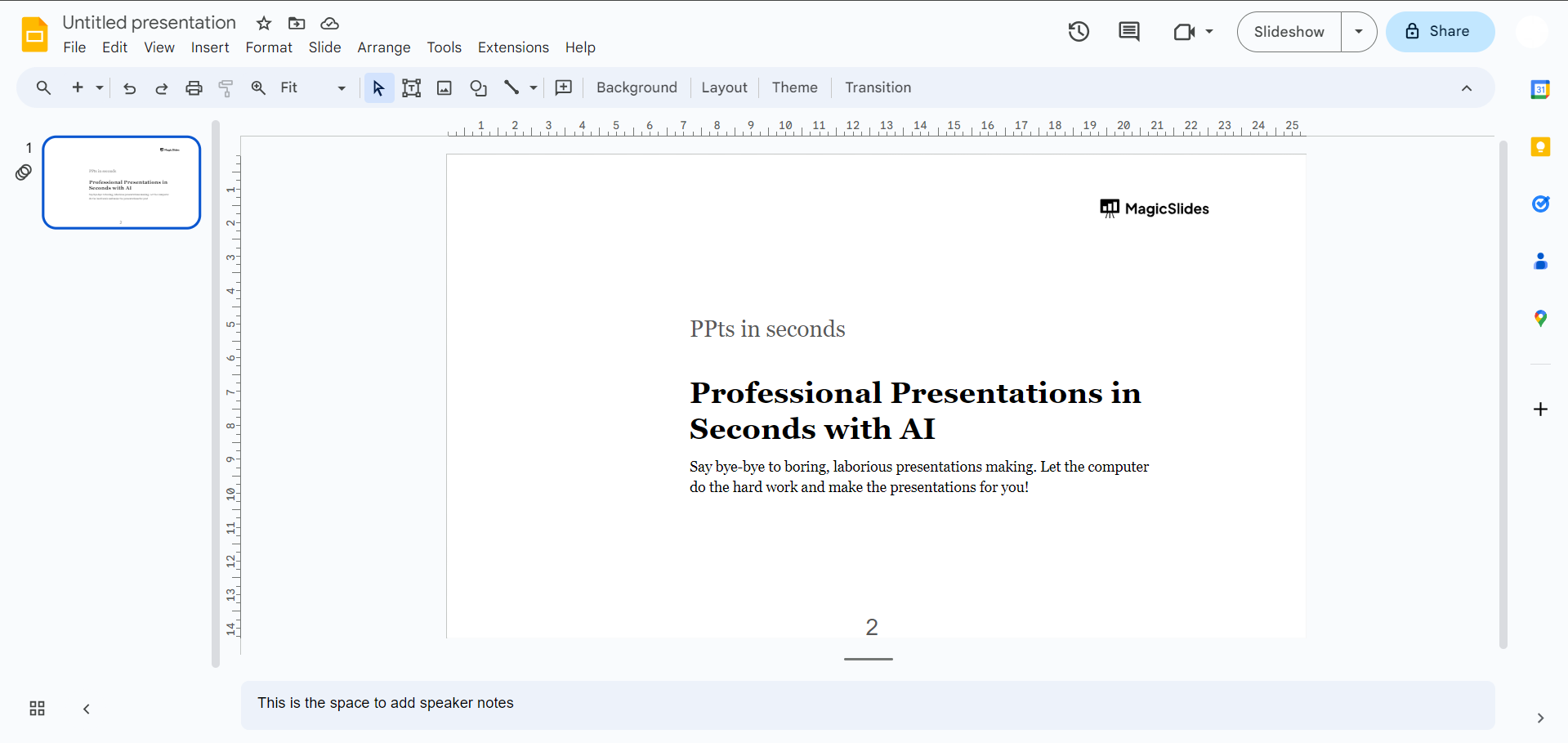
Step 1: Open Google Slides
Open your presentation and navigate to the slide where you want to add superscript text.
Step 2: Select the Text
Highlight the letter, number, or word you want to convert into superscript.
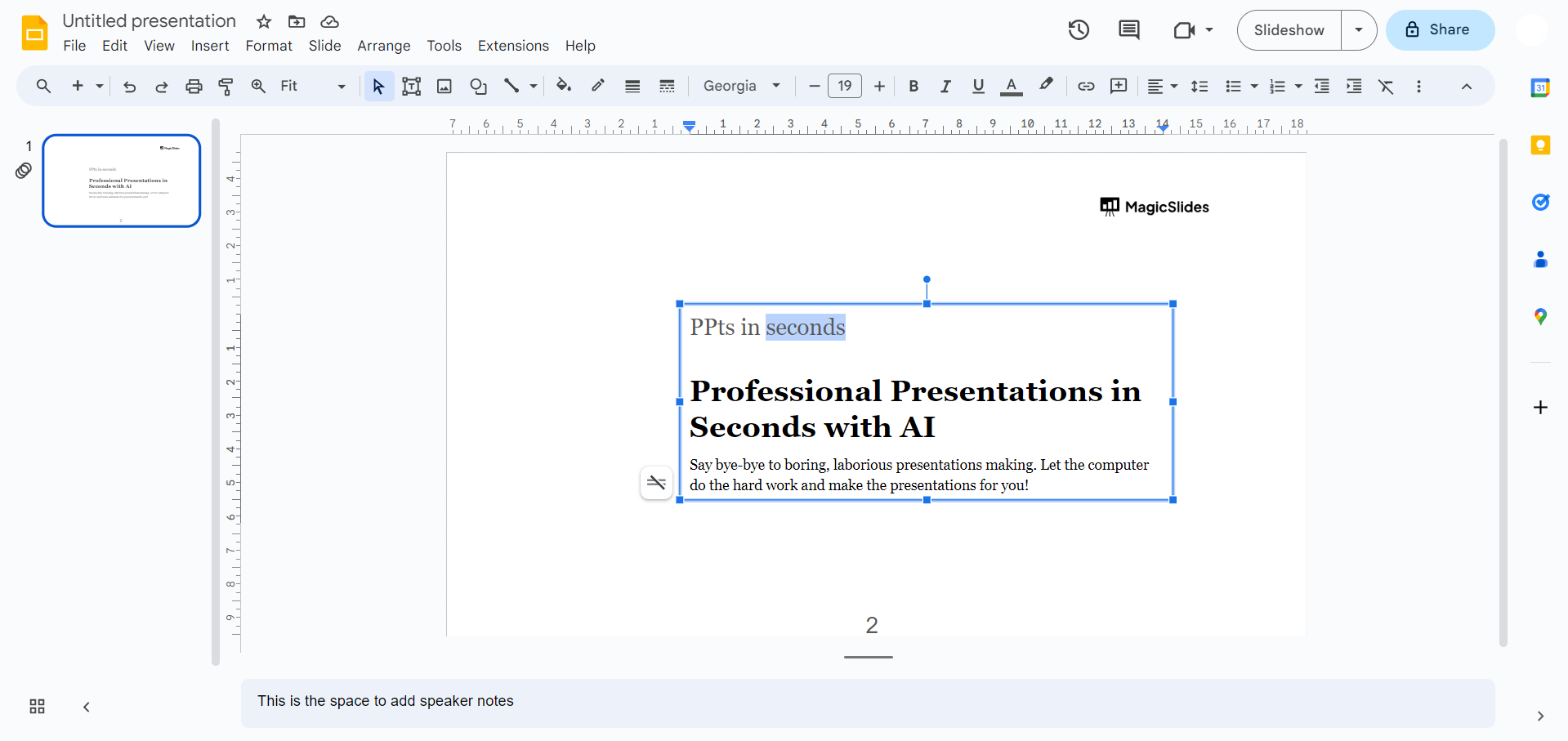
For example:
- Highlight 2 in x2
- Highlight 3 in 10³
- Highlight st in 1st
Step 3: Open the Format Menu
From the top menu, click:
Format → Text → Baseline → Superscript
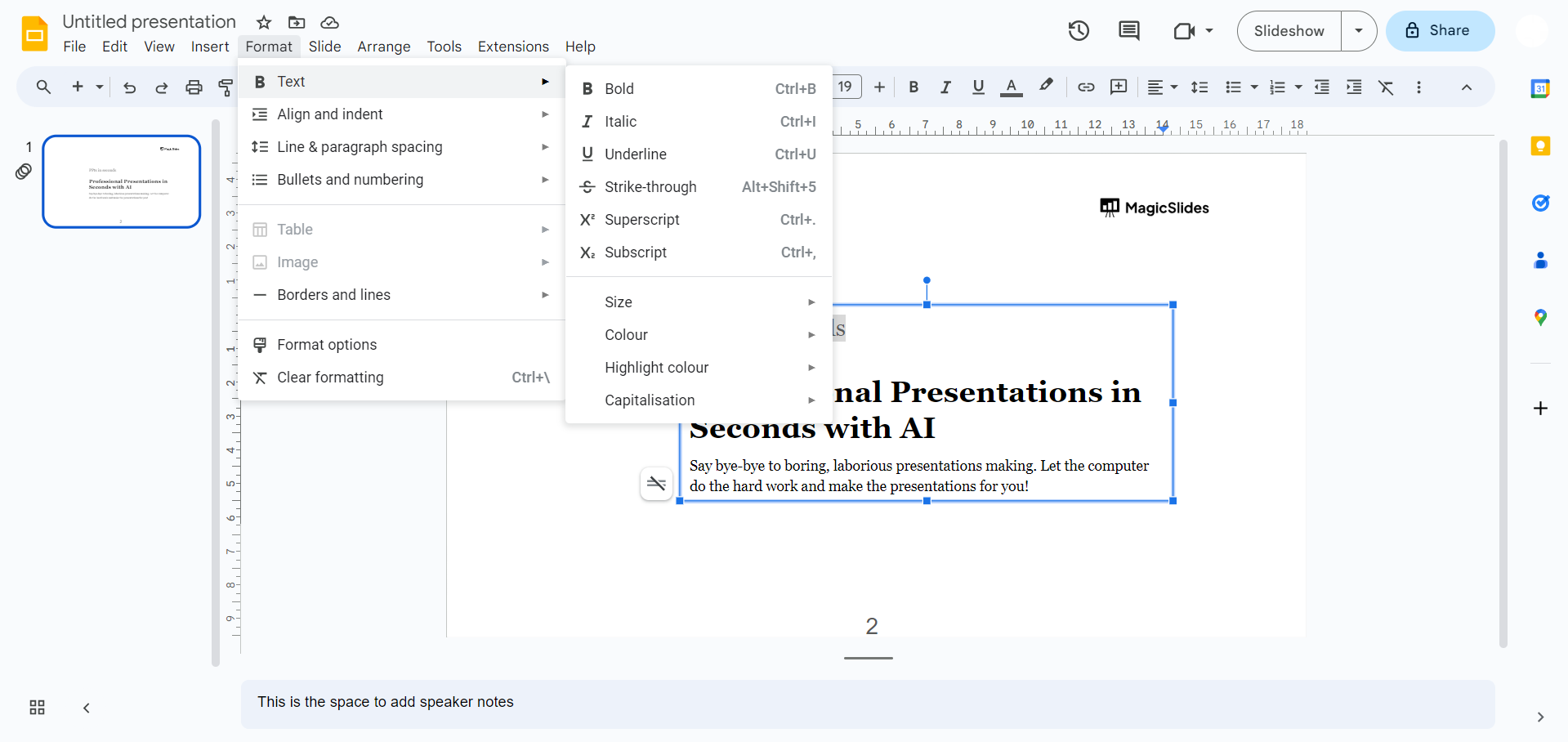
Google Slides will instantly move the selected text above the baseline.
Step 4: Continue Editing
Once the superscript is applied, you can continue typing normally.
If you want to remove the formatting, simply select the superscript text and repeat the same steps to return it to normal formatting.
Keyboard Shortcut for Superscript in Google Slides
If you frequently use superscripts, keyboard shortcuts are much faster.
Device – Shortcut
Windows / Chromebook – Ctrl +.
Mac – Command +.
Select the text and press the shortcut to apply or remove the superscript.
Why Isn’t Superscript Working?
If the superscript option isn’t working, try these fixes.
- Make Sure Text Is Selected: Superscript only works on selected text.
- Use a Text Box: The formatting works inside text boxes. Ensure you’re editing text rather than selecting an object.
- Refresh the Presentation: Occasionally, browser glitches can prevent formatting changes. Refresh the page and try again.
- Try Another Browser: If the issue persists, open your presentation in another browser such as Google Chrome.
When Should You Use Superscript in Google Slides?
Superscript is useful whenever text needs to appear slightly above the normal text line. Common examples include:
- Mathematical exponents (x², y³)
- Scientific notation (10⁶)
- Physics formulas (E = mc²)
- Footnotes and citations
- Ordinal numbers (1st, 2nd, 3rd)
Using superscripts makes presentations easier to read and ensures formulas and references are displayed correctly.
Create Better Presentations Faster with MagicSlides
Knowing formatting tricks like superscripts helps make your slides look polished, but creating an entire presentation from scratch can still take hours.

Instead of manually building every slide, you can use MagicSlides AI PPT Maker to generate professional presentations in seconds.
With MagicSlides, you can:
- Generate complete presentations from a topic
- Convert documents, PDFs, blogs, and URLs into slides
- Create beautifully designed presentations instantly
- Save hours of manual formatting and slide design
Once your presentation is generated, you can easily apply formatting, such as superscripts, wherever needed.
Best Practices for Using Superscripts
To keep your slides professional:
- Use superscript only when necessary.
- Keep formatting consistent throughout the presentation.
- Avoid using superscript for large blocks of text.
- Combine superscript with clear typography for better readability.
- Preview your slides before presenting.
Conclusion
Adding superscript in Google Slides is quick and easy once you know where to find the option. Simply highlight your text, navigate to Format → Text → Baseline → Superscript, or use the keyboard shortcut to format it instantly.
Whether you’re creating academic presentations, scientific reports, mathematical equations, or business documents, superscript helps your slides look cleaner and more professional.
If you’re looking to create presentations even faster, tools like MagicSlides AI can help generate complete presentations in minutes, allowing you to focus on your content instead of slide design.
Frequently Asked Questions
Q1. How do I add superscript in Google Slides?
Highlight the text, then go to Format → Text → Baseline → Superscript. You can also use Ctrl +. (Windows) or Command + . (Mac).
Q2. What is the keyboard shortcut for superscript in Google Slides?
- Windows/Chromebook: Ctrl +.
- Mac: Command +.
Q3. Does Google Slides support superscript?
Yes. Google Slides includes a built-in superscript option under the Format → Text → Baseline menu.
Q4. Can I use superscript and subscript in the same presentation?
Absolutely. Google Slides supports both formatting options, allowing you to format equations, chemical formulas, and references correctly.
Q5. Is superscript preserved when exporting to PDF or PowerPoint?
Yes. Superscript formatting remains intact when you export your Google Slides presentation as a PDF or Microsoft PowerPoint file, ensuring your formatting is preserved across formats.


