How to Add Voice Recording to Google Slides


Easily add voice recordings to Google Slides to enhance presentations with narration, explanations, or background audio
How to Add Voice Recording to Google Slides
Adding a voice recording to Google Slides enhances presentations by making them more engaging and informative.
Whether you're a teacher, student, or professional, including audio can help explain concepts clearly.
Follow these step-by-step instructions to add voice recordings to your Google Slides.
Step-by-Step Guide to Adding Voice Recording to Google Slides
Step 1: Record Your Voice
Before inserting a voice recording, you need to create an audio file. You can use tools like:
- Windows Voice Recorder (Windows)
- QuickTime Player (Mac)
- Online tools like Vocaroo or Audacity
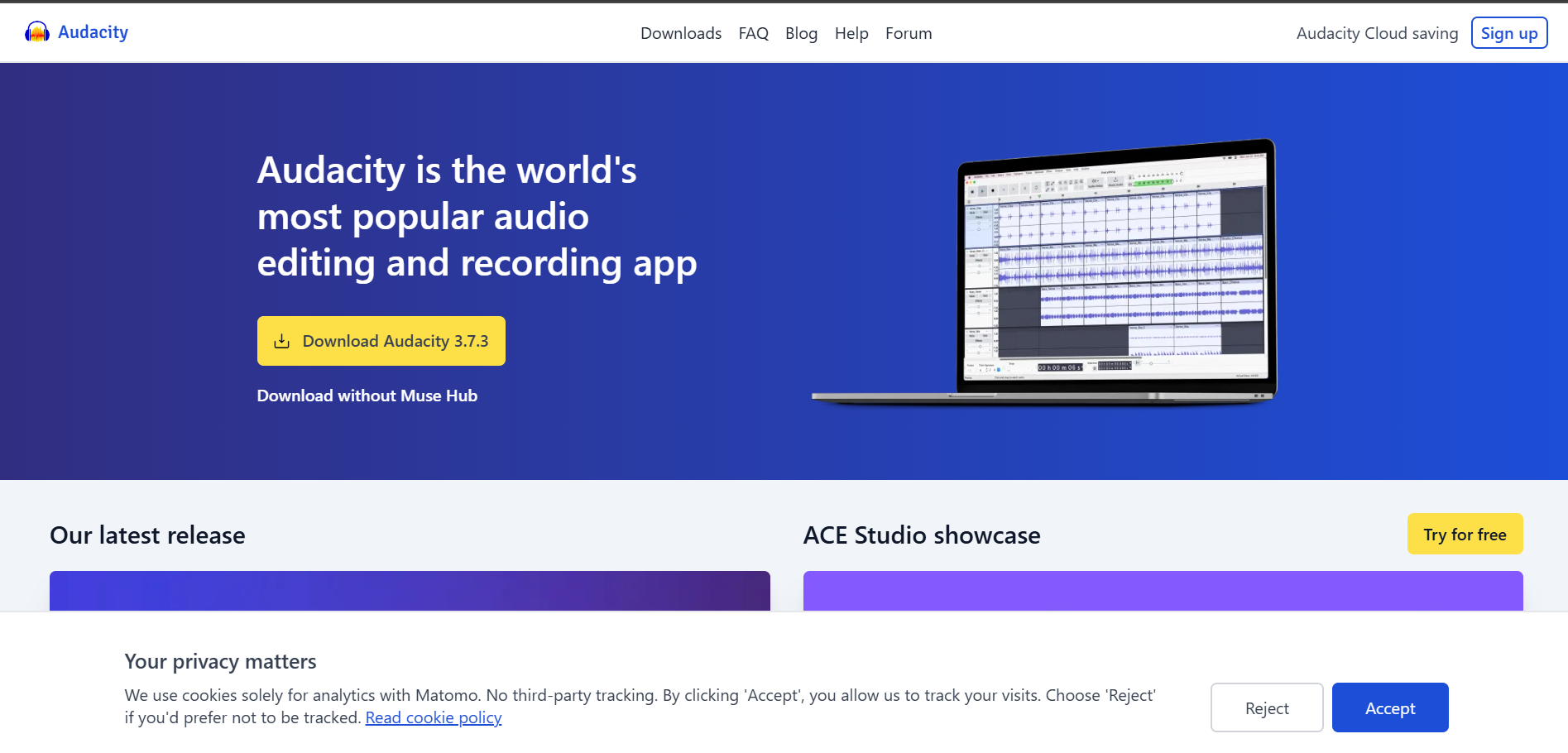
Save the recording in MP3 or WAV format for compatibility.
Step 2: Upload the Recording to Google Drive
Open Google Drive (drive.google.com). Click on the "+ New" button.
Select "File upload" and choose your recorded audio file. Wait for the upload to complete.
Step 3: Insert the Audio into Google Slides
Open your Google Slides presentation. Select the slide where you want to add the voice recording.
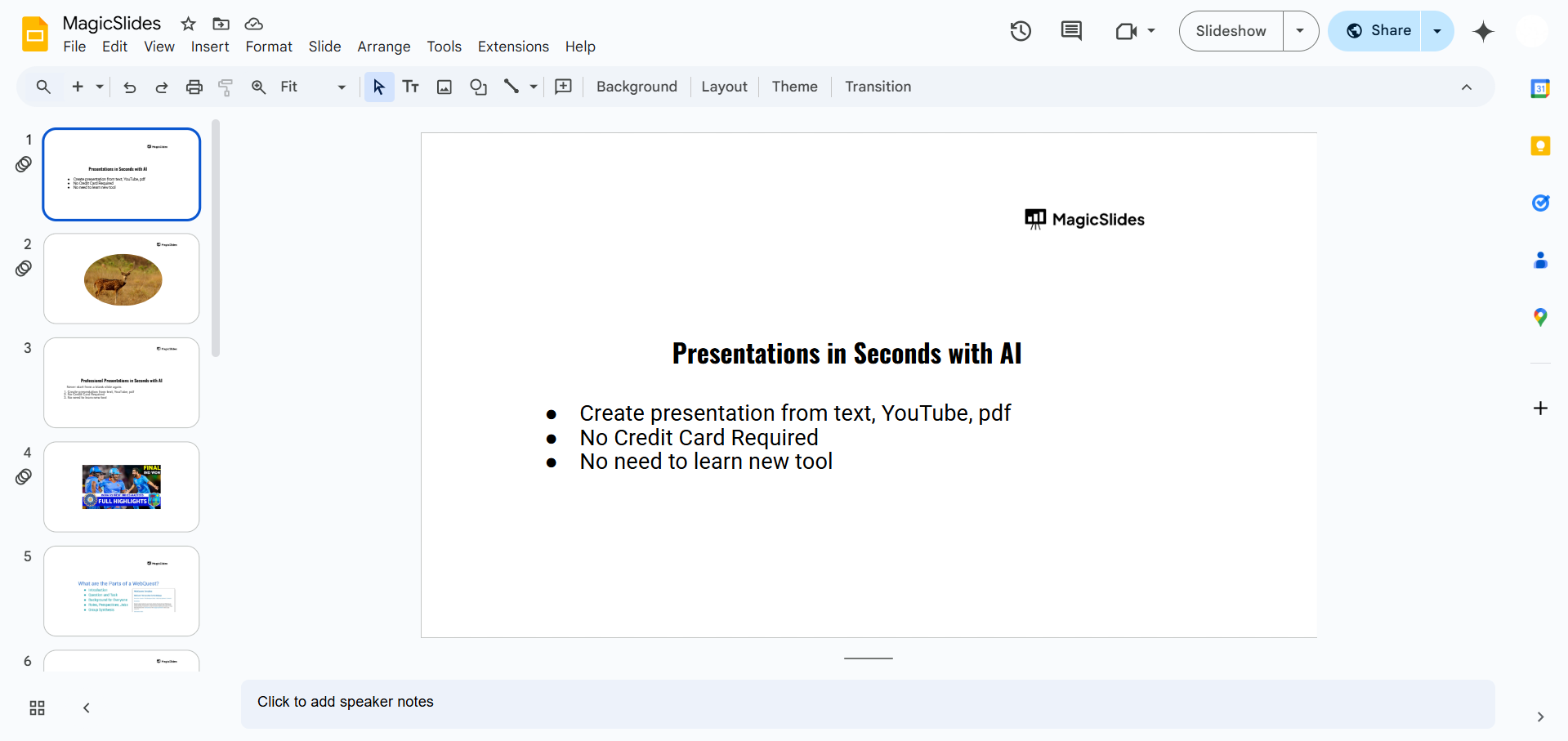
Click on "Insert" in the menu bar. Choose "Audio."
A pop-up will appear select the uploaded audio file from Google Drive Click "Select" to insert it into your slide.
Step 4: Adjust Audio Settings
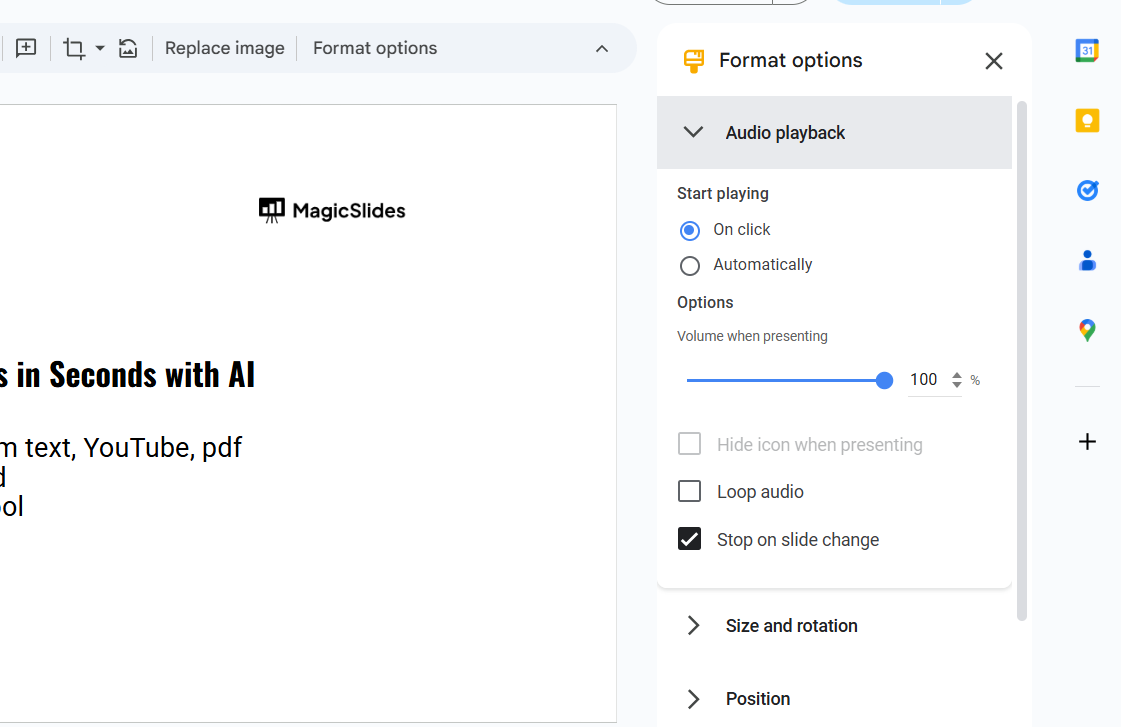
Click on the inserted audio icon. A "Format options" panel will appear on the right.
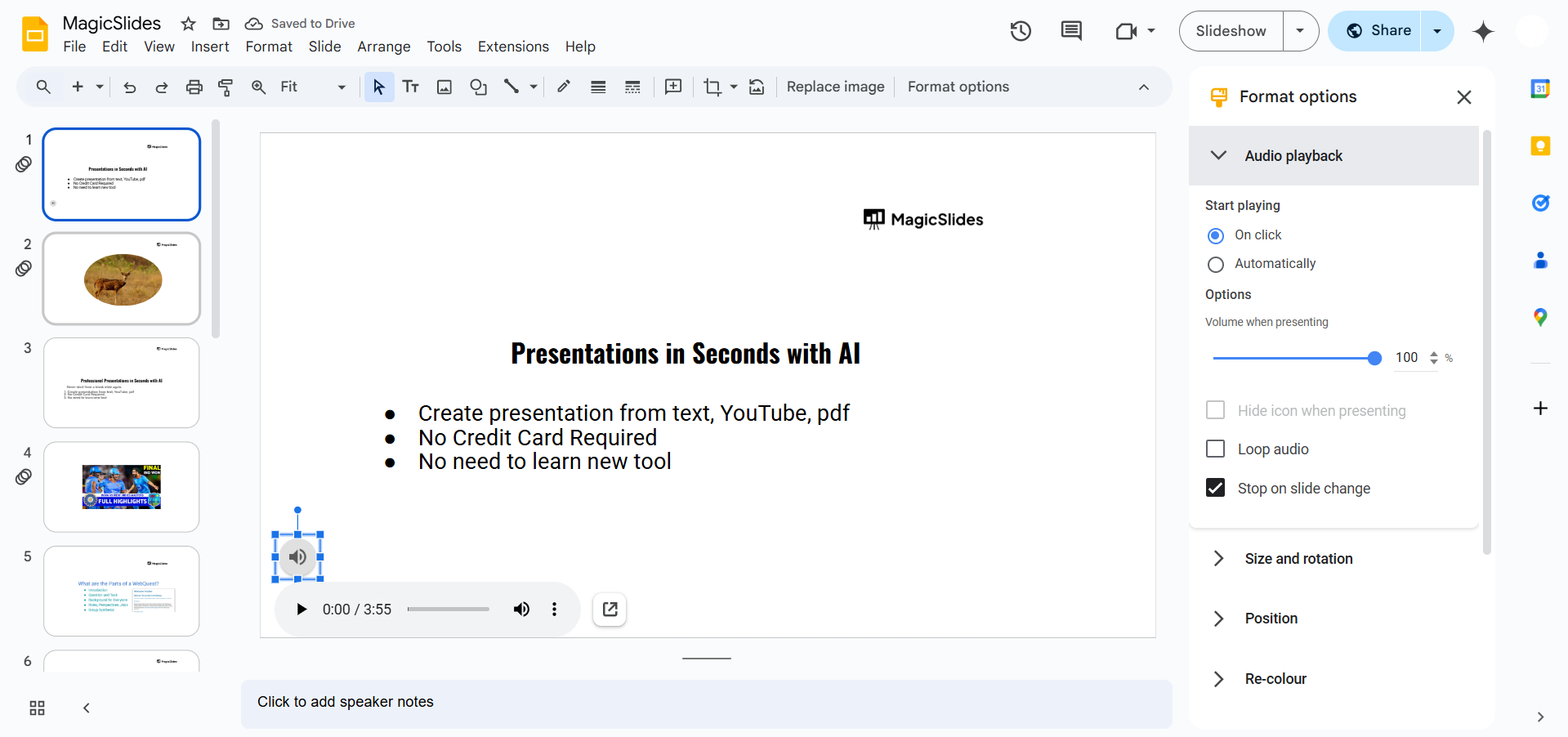
Modify playback settings:
- Choose "Automatically" to play when the slide opens.
- Select "On click" to control playback manually.
Adjust volume, loop, or hide the icon as needed.
Step 5: Test the Audio
Before presenting, play the slide to ensure the voice recording works correctly. If necessary, adjust volume levels or replace the file.
Adding voice recordings can make your Google Slides more engaging, but if you want an AI-powered tool to generate entire presentations effortlessly, try MagicSlides.app create stunning slides in seconds!
Conclusion
Adding voice recordings to Google Slides is an effective way to enhance presentations.
Whether for tutorials, lectures, or business pitches, voice narration improves audience engagement.
Follow these simple steps to make your slides more interactive and informative.
FAQs can take you forward!
Can I record audio directly in Google Slides?
No, Google Slides does not have a built-in recording feature. You must record and upload the file separately.
What file formats are supported for audio in Google Slides?
Google Slides supports MP3 and WAV audio formats.
How can I make the audio play automatically?
Select the audio icon, go to "Format options" > "Playback settings", and choose "Automatically."


