How to apply Fall Over transition in PowerPoint


Elevate your PowerPoint slides with flair learn how to apply the captivating Fall Over transition effortlessly!
Transition effects in PowerPoint can add a touch of professionalism and engagement to your presentations. If you want to bring a dynamic and visually appealing touch to your slides, the Fall Over transition is an excellent choice. In this guide, we'll walk you through the simple steps of applying the built-in Fall Over transition in PowerPoint using the Transitions tab.
How to apply Drape transition in PowerPoint
Step 1: Open Your PowerPoint Presentation
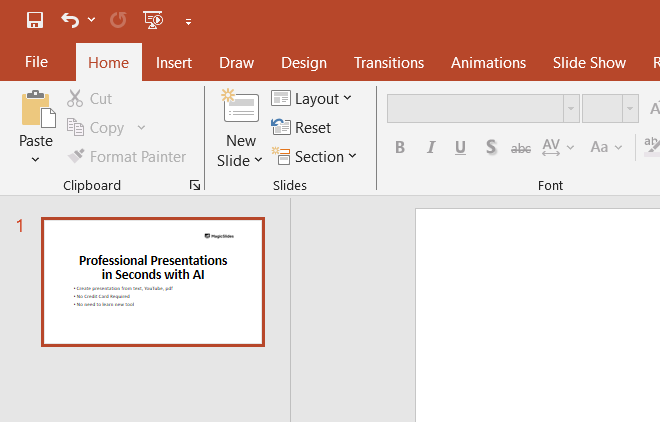
Begin by opening the PowerPoint presentation where you want to apply the Fall Over transition. If you haven't started one yet, create a new presentation.

Step 2: Select the Slide(s) for the Transition
Navigate to the slide or slides where you want to add the Fall Over transition. You can select multiple slides by holding down the Ctrl key while clicking on each slide.
Step 3: Go to the Transitions Tab
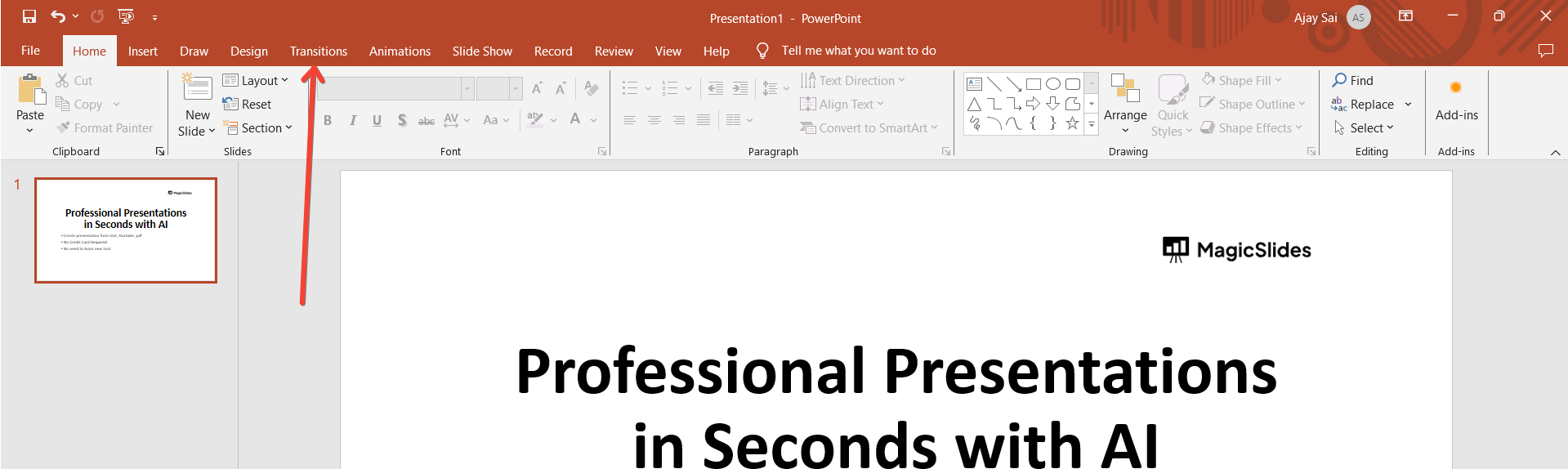
Located at the top of the PowerPoint window, find the "Transitions" tab. Click on it to access the transition options.
Step 4: Choose the Fall Over Transition
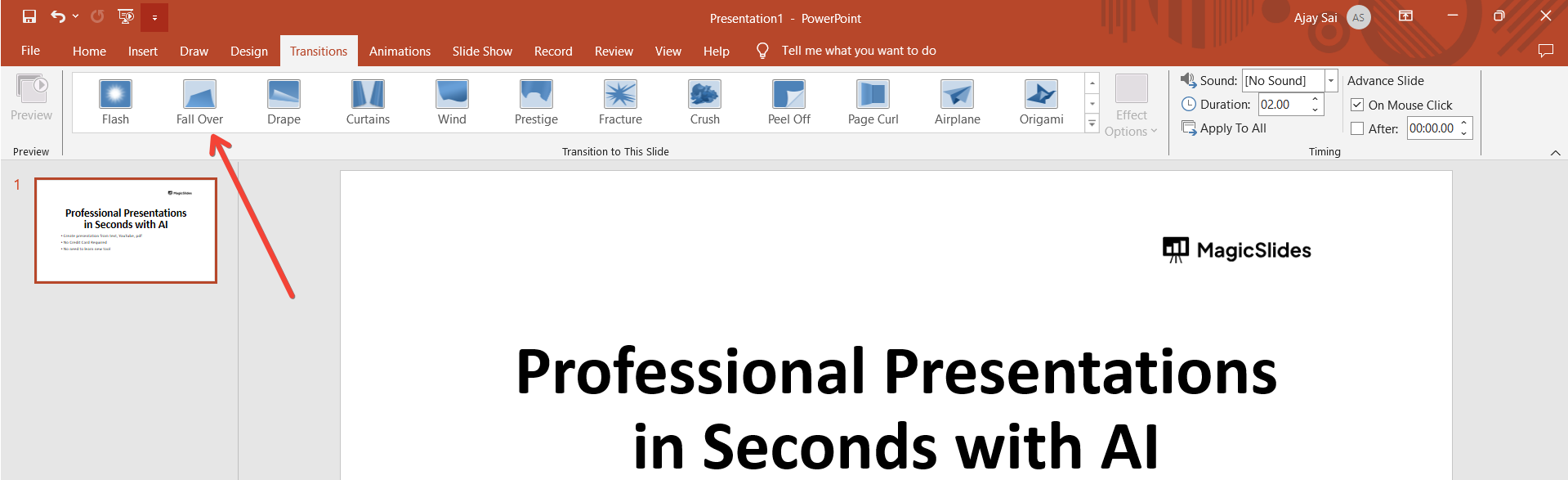
Within the Transitions tab, you'll see a variety of transition options. Scroll down or look for the "Fall Over" transition. Click on it to apply the effect to the selected slide(s).
Step 5: Adjust Transition Options (Optional)
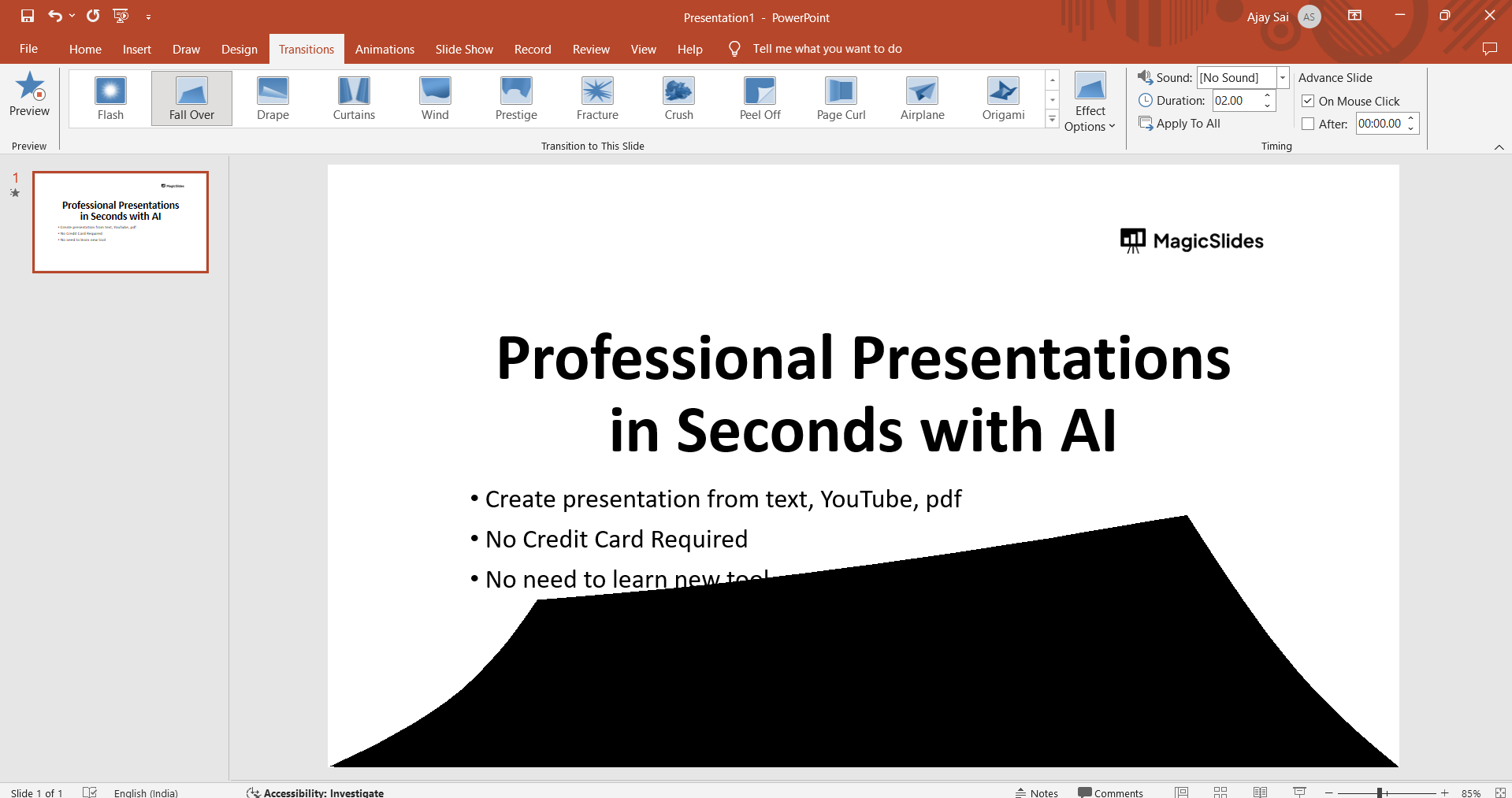
If you want to customize the transition further, you can adjust options such as duration, direction, and sound. Simply use the available settings in the Transitions tab to fine-tune the Fall Over effect according to your preferences.

Step 6: Preview the Transition
Before finalizing your choice, use the "Preview" button in the Transitions tab to see how the Fall Over transition will look on your selected slide(s).
Step 7: Save Your Presentation
Once you are satisfied with the Fall Over transition, save your presentation to preserve the changes.
Conclusion:
Congratulations! You've successfully applied the Fall Over transition to your PowerPoint slides. This subtle yet impactful transition can add a professional flair to your presentations, making them more engaging for your audience. Experiment with different transitions to discover the perfect visual elements that complement your content. Whether you're delivering a business pitch or a creative project, the Fall Over transition is an effective way to enhance the visual appeal of your PowerPoint presentations.
Frequently Asked Questions:
Can I apply the Fall Over transition to specific elements on a slide, or does it affect the entire slide?
The Fall Over transition is applied to the entire slide and not individual elements.
Are there recommended scenarios where the Fall Over transition works best in a presentation?
The Fall Over transition is versatile but is often used for dramatic or impactful slide changes.
Can I adjust the speed of the Fall Over transition to suit my presentation style?
Yes, you can customize the duration of the transition in the Transitions tab for your desired pacing.
Will the Fall Over transition work in older versions of PowerPoint?
The Fall Over transition might not be available in older versions. Check compatibility for a seamless experience.


