How to Attach Video on PowerPoint


Easily attach videos in PowerPoint to enhance engagement, improve storytelling, and make presentations more dynamic
How to Attach a Video on PowerPoint
Adding videos to your PowerPoint presentation can make it more engaging and visually appealing.
Whether you're embedding a tutorial, a product demo, or a short clip to emphasize key points, inserting a video can enhance audience understanding and retention.
This step-by-step guide will help you easily attach a video to your PowerPoint slides.
Step-by-Step Guide to Attaching a Video on PowerPoint
Step 1: Open Your PowerPoint Presentation
Launch Microsoft PowerPoint on your computer. Open an existing presentation or create a new one.
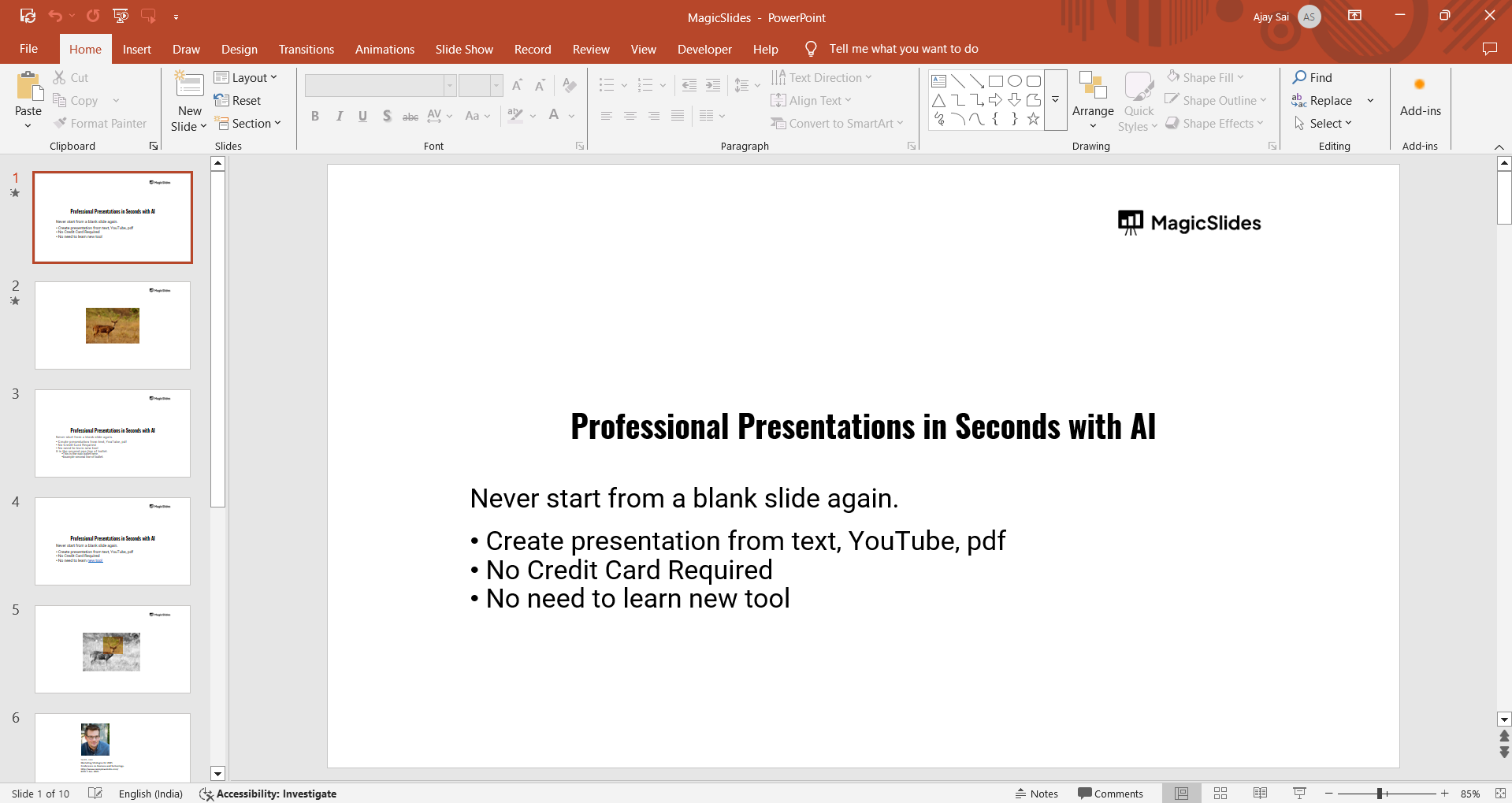
Navigate to the slide where you want to insert the video.
Step 2: Go to the Insert Tab
Click on the Insert tab in the top menu. Locate the Media section on the right side of the ribbon.
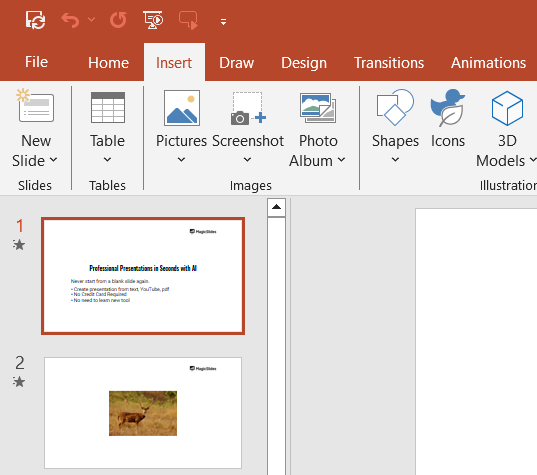
Step 3: Choose the Video Source
PowerPoint allows you to insert videos from two sources:
- From This Device: If you have a video saved on your computer, click Video > Video on My PC and select the file.
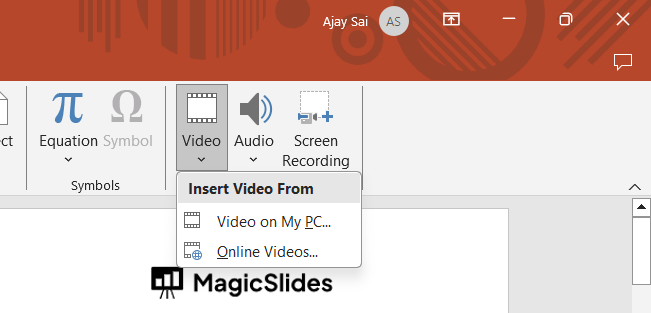
- Online Video: To embed a video from YouTube or other online platforms, click Video > Online Video, paste the video URL, and click Insert.
Step 4: Position and Resize the Video
Once inserted, click and drag the video to place it in the desired location on the slide.
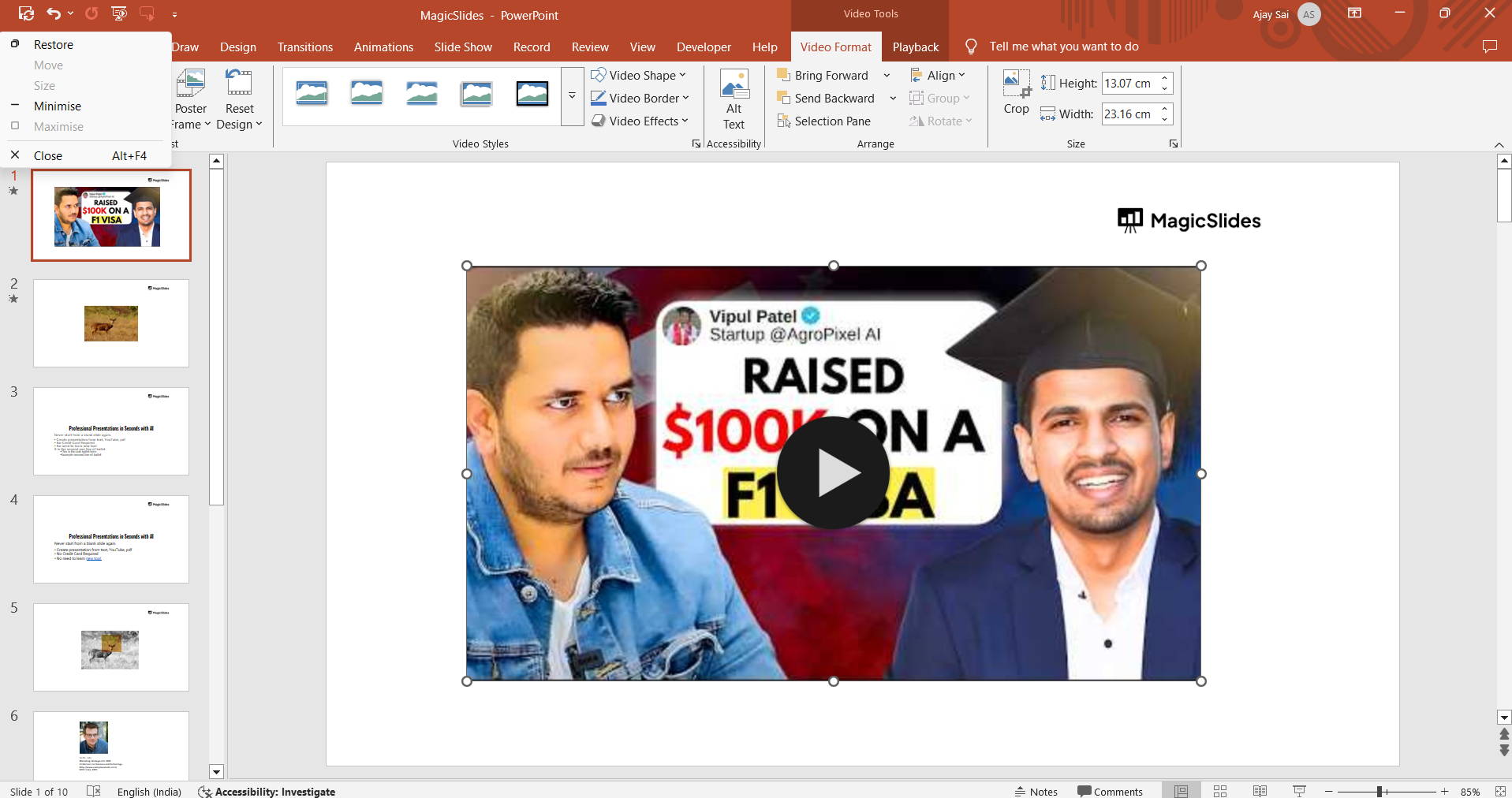
Adjust the size by clicking and dragging the corners of the video box.
Step 5: Adjust Playback Settings (Optional)
Click on the Playback tab (appears when the video is selected).

Choose how the video will play:
- Automatically – The video starts when the slide appears.
- When Clicked – The video plays when clicked during the presentation.
- In Click Sequence – The video starts as part of the slide’s sequence of animations.
Adjust additional settings like trimming the video, adding fade-in/out effects, or looping the video if needed.
Step 6: Save Your Presentation
Click File > Save As and choose your desired format. If you've inserted a local video, ensure the video file remains in the same folder as your PowerPoint to avoid playback issues.
Conclusion
Attaching a video to your PowerPoint presentation is a simple yet effective way to enhance engagement and convey your message more effectively.
Whether using a video from your computer or embedding an online clip, PowerPoint provides easy-to-use tools for seamless integration.
FAQs can come handy!
Can I insert a video in PowerPoint without an internet connection?
Yes, you can insert and play local video files without an internet connection. However, online videos require an internet connection to stream.
What video formats does PowerPoint support?
PowerPoint supports formats like MP4, AVI, WMV, and MOV. MP4 is recommended for better compatibility.
Why is my video not playing in PowerPoint?
Ensure the video file is not moved or deleted if linked from your device. Also, check if the format is compatible and update PowerPoint if needed.


