How to change existing Text to WordArt in PowerPoint


Transform plain text into stunning WordArt in PowerPoint to make your presentations more engaging and creative
Transforming plain text into WordArt in PowerPoint is an excellent way to make your presentation more visually engaging.
WordArt allows you to apply artistic styles to text, adding a creative touch to titles, headings, or important points.
This guide will walk you through the process step by step so you can easily enhance your slides.
Steps to Change Existing Text to WordArt in PowerPoint
Step 1: Open Your PowerPoint Presentation
Launch PowerPoint and open the presentation containing the text you want to convert to WordArt.
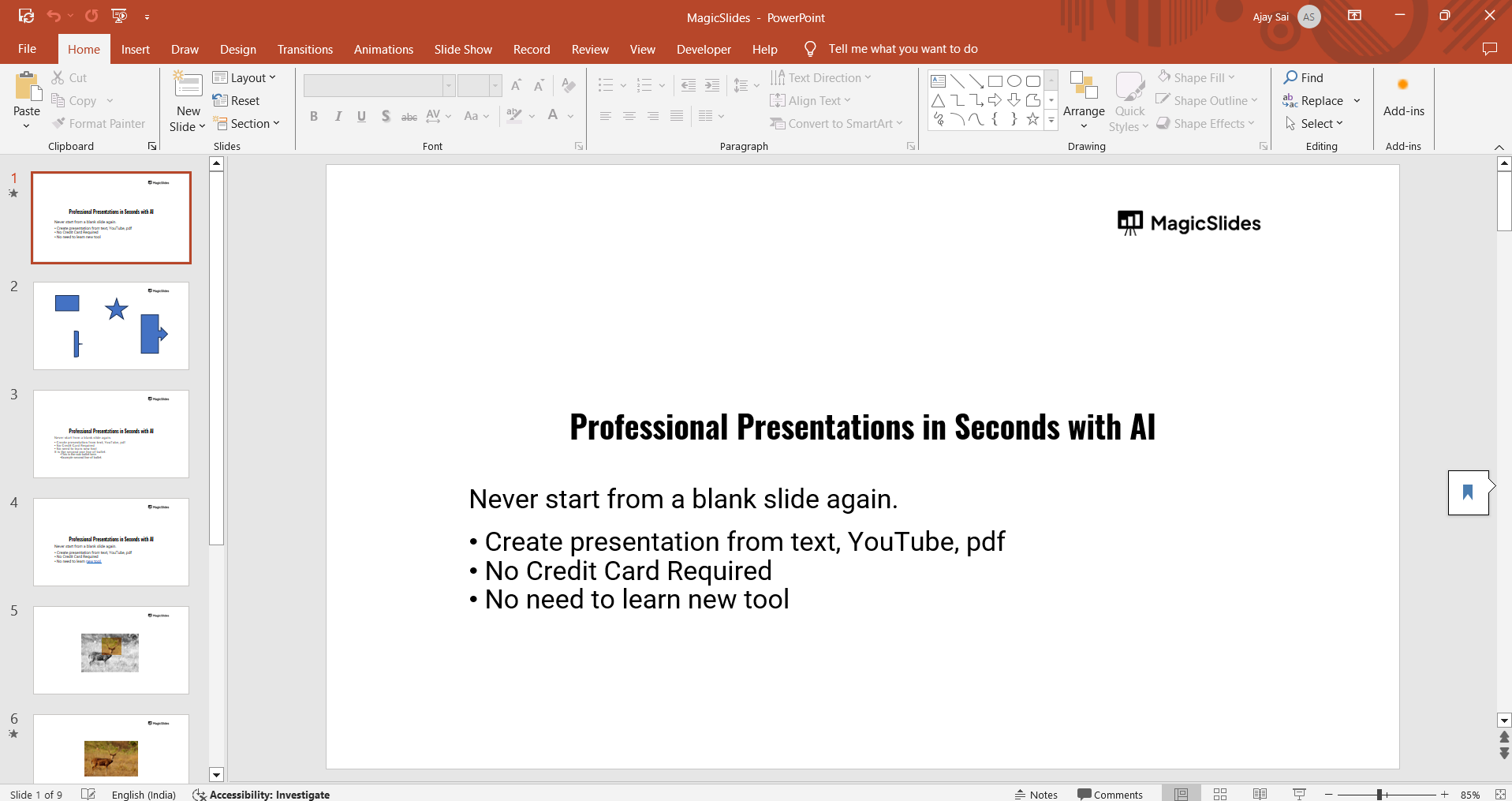
Navigate to the slide where the text is located.
Step 2: Select the Text
Click and highlight the text you want to transform into WordArt.
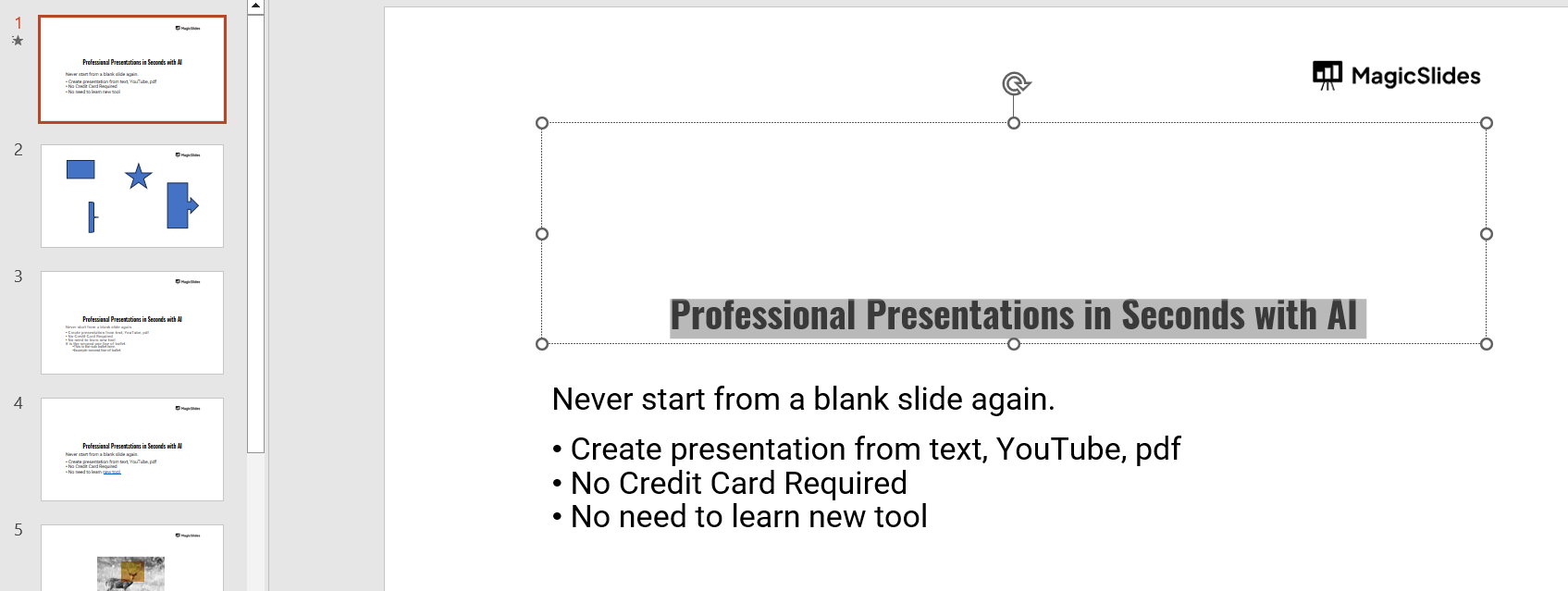
Ensure that only the intended text is selected to avoid applying changes to unnecessary content.
Step 3: Access the WordArt Styles
Go to the Home tab in the PowerPoint ribbon.
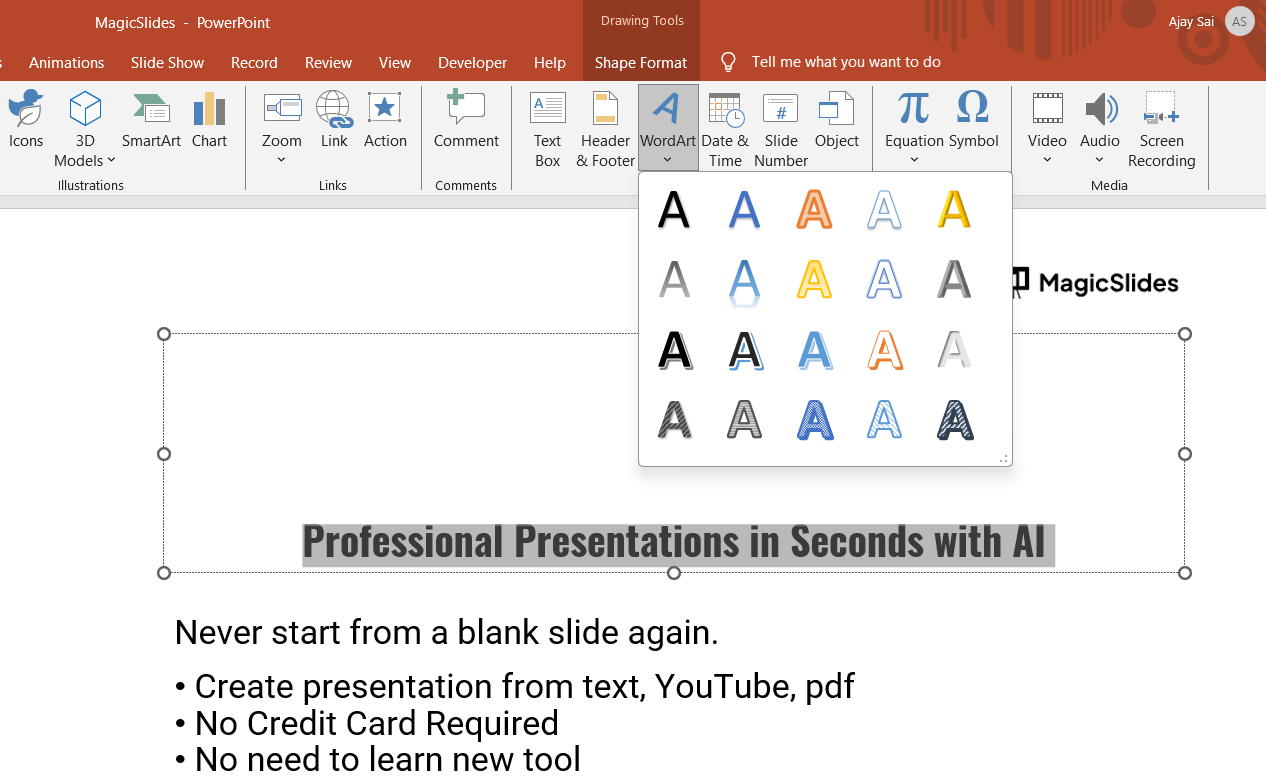
Locate the Drawing group and click on the Text Effects or WordArt Styles button.
Step 4: Choose a WordArt Style
A dropdown menu will appear displaying various WordArt styles. Hover over the styles to preview how they will look on your selected text.
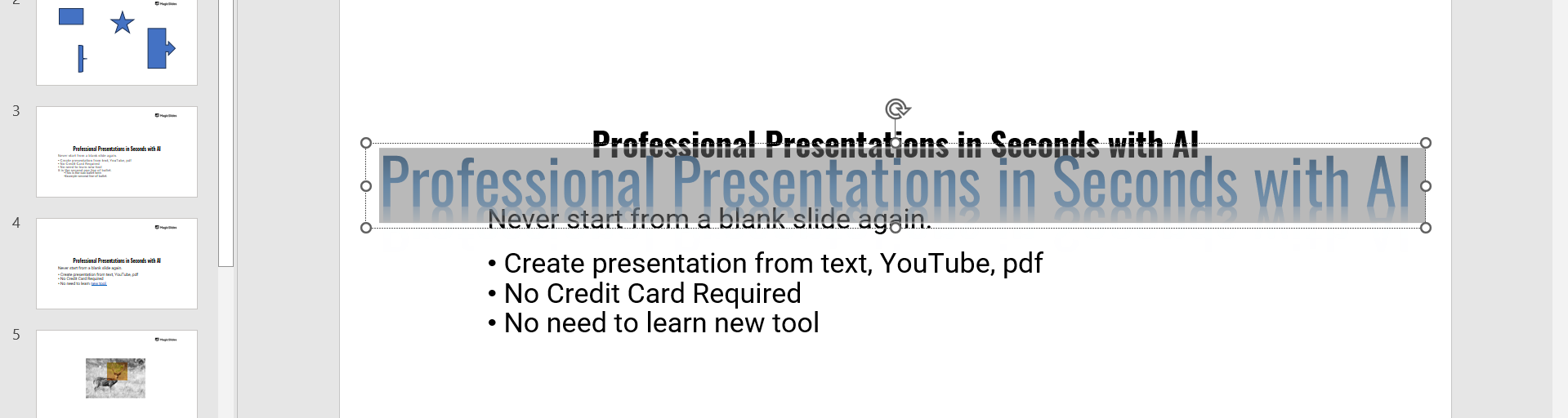
Click on the style that suits your presentation’s theme and design.
Step 5: Customize the WordArt
After applying the WordArt style, you can further customize it by:
- Changing the font color, size, or type from the Home tab.
- Adding shadows, reflections, or other effects from the Format tab under Text Effects.
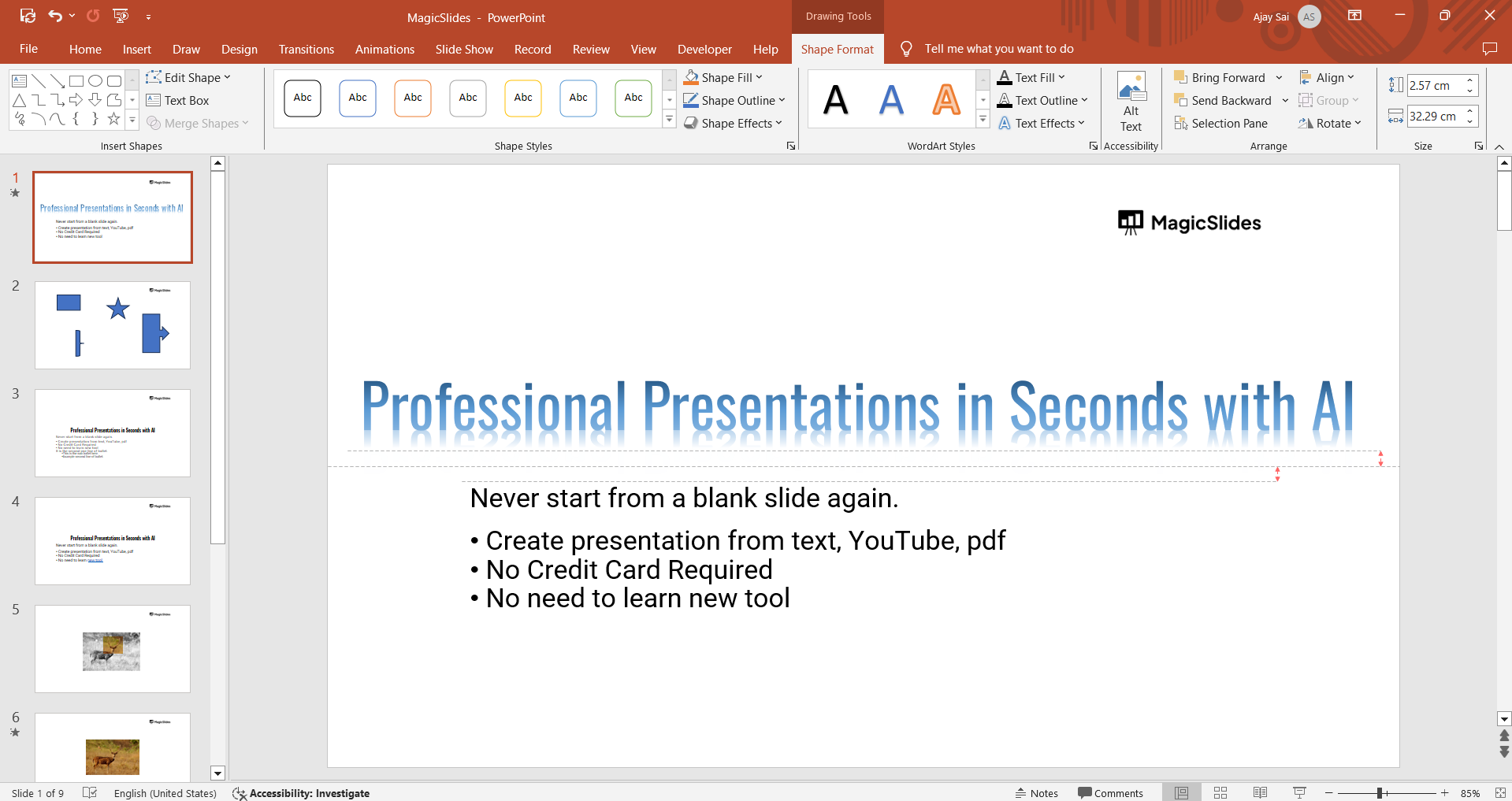
Adjust the positioning and alignment of the WordArt on the slide as needed.
Step 6: Review and Save
Review the slide to ensure the WordArt aligns with the overall design of your presentation.
Save your changes to avoid losing your work.
Conclusion
Converting text to WordArt in PowerPoint is a quick and effective way to enhance your slides.
By following these simple steps, you can add a creative flair to your presentation while maintaining professionalism.
Experiment with different WordArt styles to find the perfect match for your content and theme.
FAQs on Changing Text to WordArt in PowerPoint
Can I apply WordArt to multiple text boxes simultaneously?
No, WordArt can only be applied to one text box at a time.
Will WordArt affect the readability of my text?
It depends on the style you choose. Opt for WordArt styles that complement your presentation and ensure clarity.
Can I revert WordArt text back to regular text?
Yes, you can remove the WordArt style by selecting the text and changing it to a standard font.
By mastering WordArt in PowerPoint, you can elevate your presentation’s design and captivate your audience effortlessly!


