How to Change Language in Canva


Easily switch Canva’s language settings to work in your preferred language for a seamless design experience
Canva provides the flexibility to work in various languages, making it accessible to users worldwide.
Changing the language setting in Canva allows you to use the interface and tools in your preferred language.
This guide will walk you through the process step by step, ensuring you can customize Canva to suit your needs.
How to Change Language in Canva | Steps to Change Language in Canva
Step 1: Log In to Your Canva Account
Open your browser and go to the Canva website or open the Canva app.
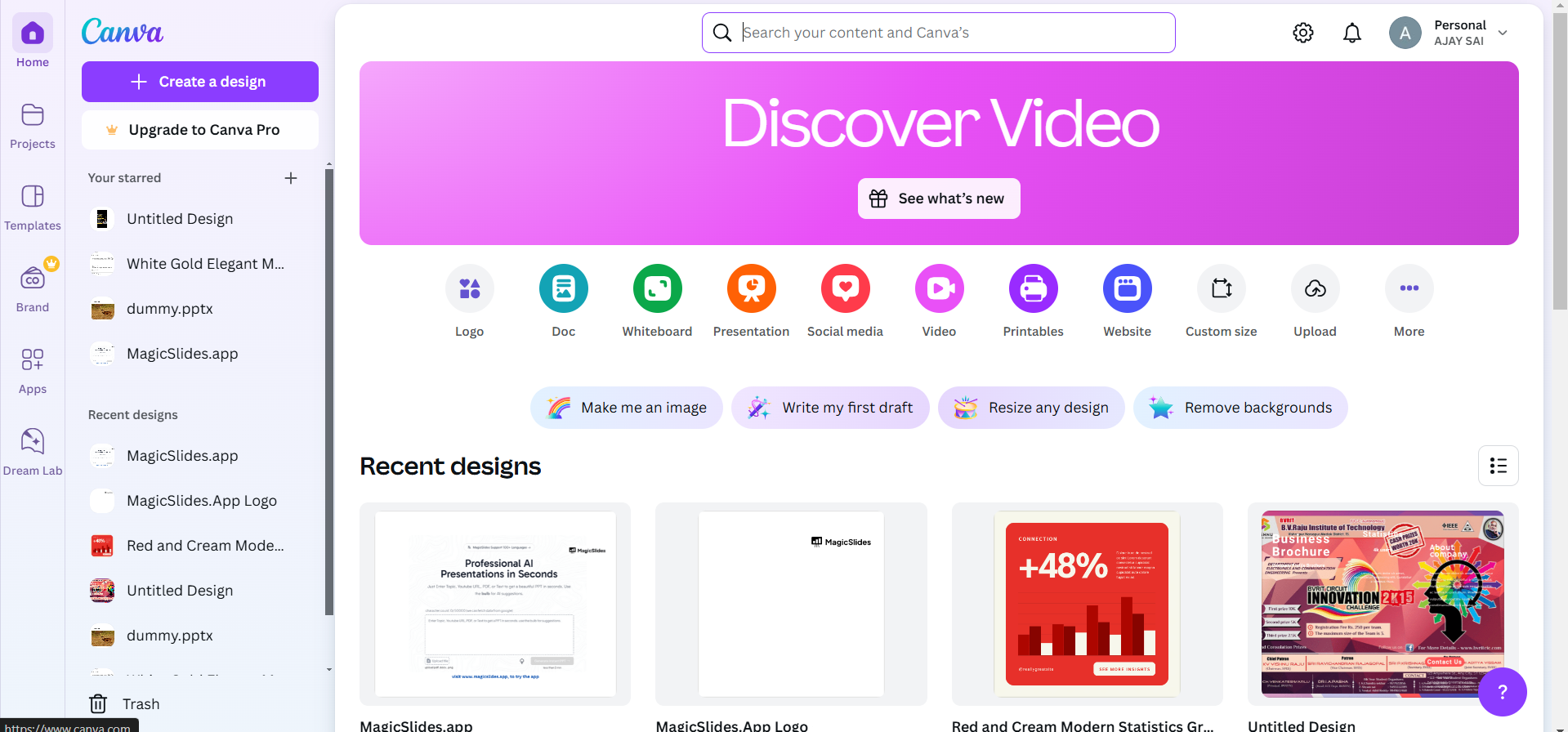
Log in to your account using your credentials to access the dashboard.
Step 2: Access Account Settings
Click on your profile picture or initials in the top-right corner of the Canva dashboard.
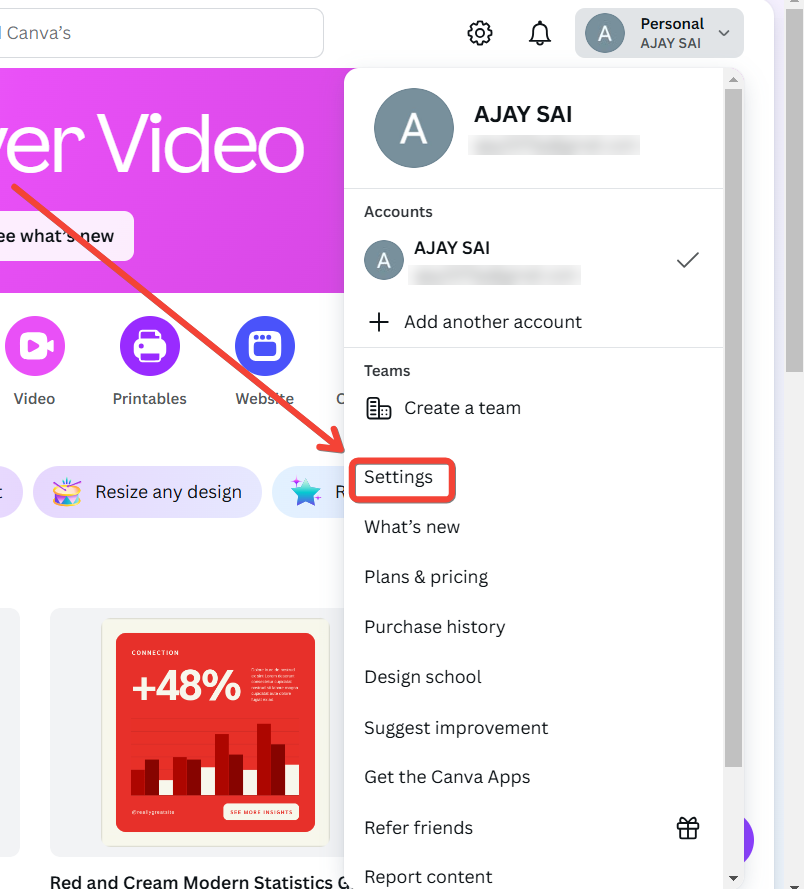
From the dropdown menu, select “Account Settings.”
You will be directed to the settings page, where you can manage your account preferences.
Step 3: Navigate to Language Settings
In the settings menu on the left-hand side, look for the “Language” option.
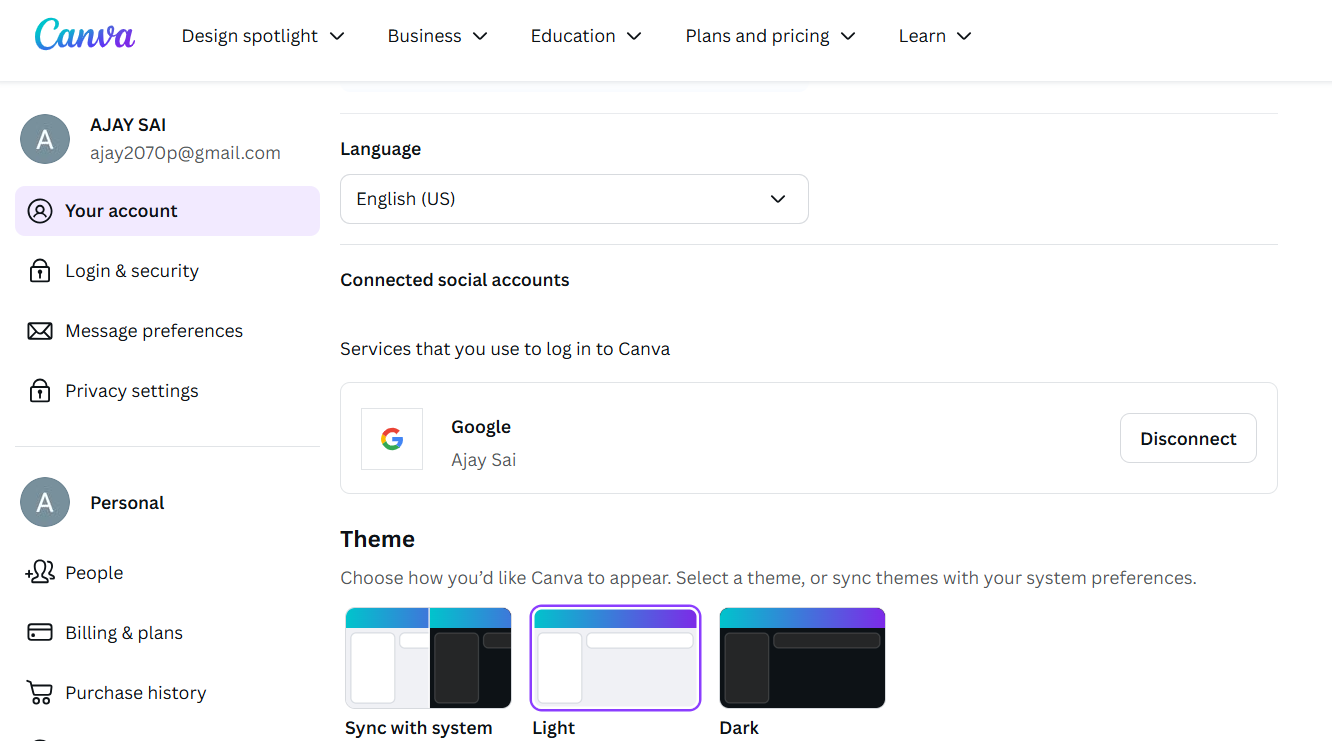
Click on it to open the language preferences section.
Step 4: Select Your Preferred Language
In the Language settings, you’ll see a dropdown menu with a list of supported languages.
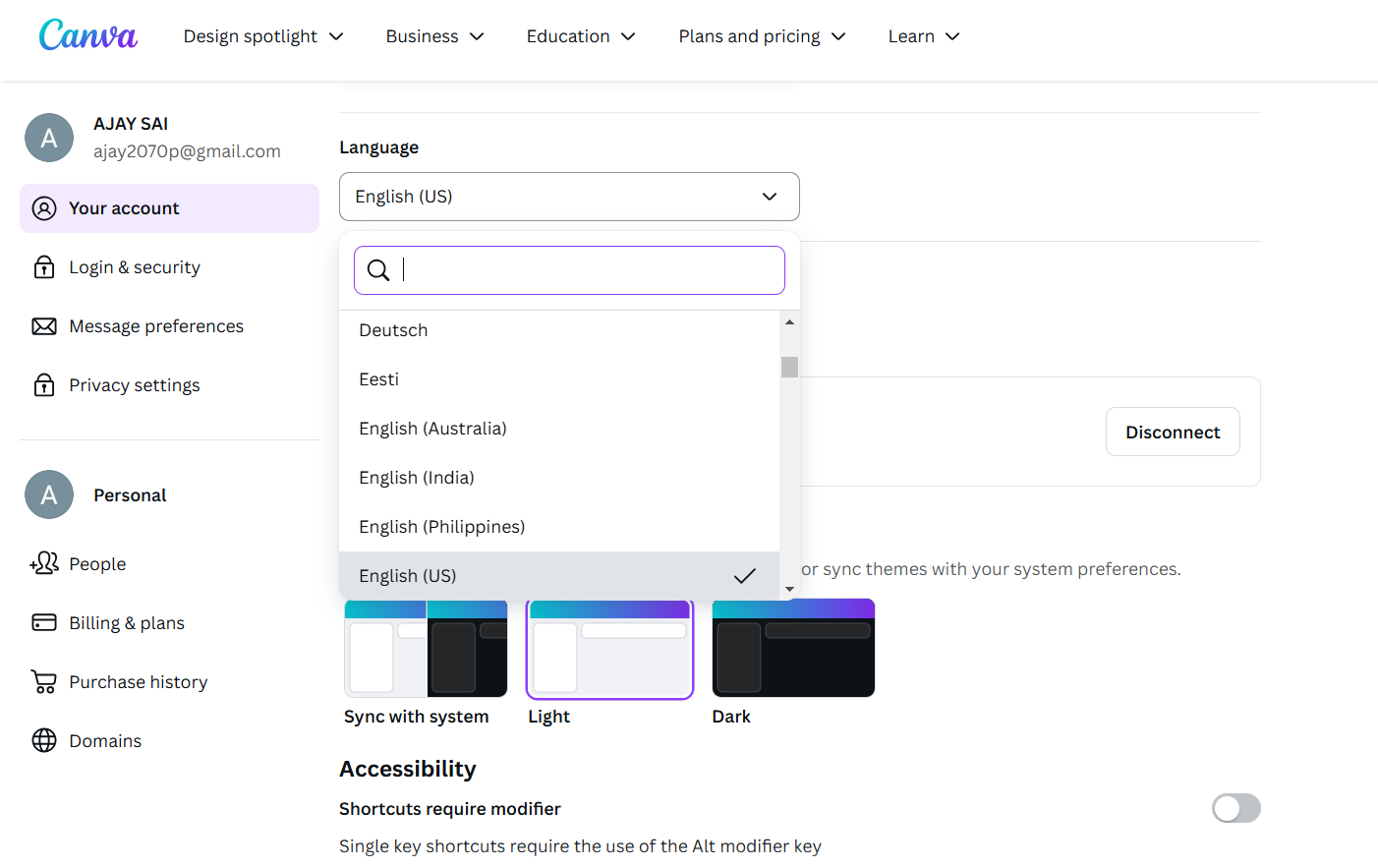
Scroll through the list or use the search bar to find your preferred language.
Click on the desired language to select it.
Step 5: Save Changes
After selecting the language, Canva will automatically update the interface.
There’s no need to click “Save” as the change is applied instantly.
Step 6: Verify the Change
Return to the main Canva dashboard.
Check that the interface elements, menu options, and tools are now displayed in your chosen language.
→ Now that you've changed the language in Canva, explore how to customize animations in Google Slides to create dynamic presentations.
Conclusion
Changing the language in Canva is a straightforward process that enhances accessibility and usability for users around the globe.
By following these simple steps, you can customize Canva to work in the language that best suits your comfort.
Explore and create designs in your preferred language with ease!
FAQs on Changing Language in Canva
Can I change the language in the Canva mobile app?
Yes, the process is similar in the mobile app. Access your account settings to update the language.
What should I do if my language isn’t listed?
If your preferred language isn’t available, consider contacting Canva support to request additional language options.
Will changing the language affect my designs?
No, changing the language only affects the interface. Your designs remain unchanged.
By following this guide, you can effortlessly adapt Canva to your preferred language for a more personalized experience!


