How to change theme Font in PowerPoint


Cropping images in Canva helps refine your designs by focusing on specific details or removing distractions
Changing the theme font in PowerPoint allows you to customize the look and feel of your presentation, ensuring consistency across all slides.
Whether you're creating a business presentation or a creative pitch, altering the theme font helps enhance the overall design and professionalism.
In this guide, we’ll walk through the steps to change the theme font in PowerPoint.
How to Change Theme Font in PowerPoint: A Step-by-Step Guide
Step 1: Open Your PowerPoint Presentation
Start by opening your PowerPoint presentation where you want to change the theme font.
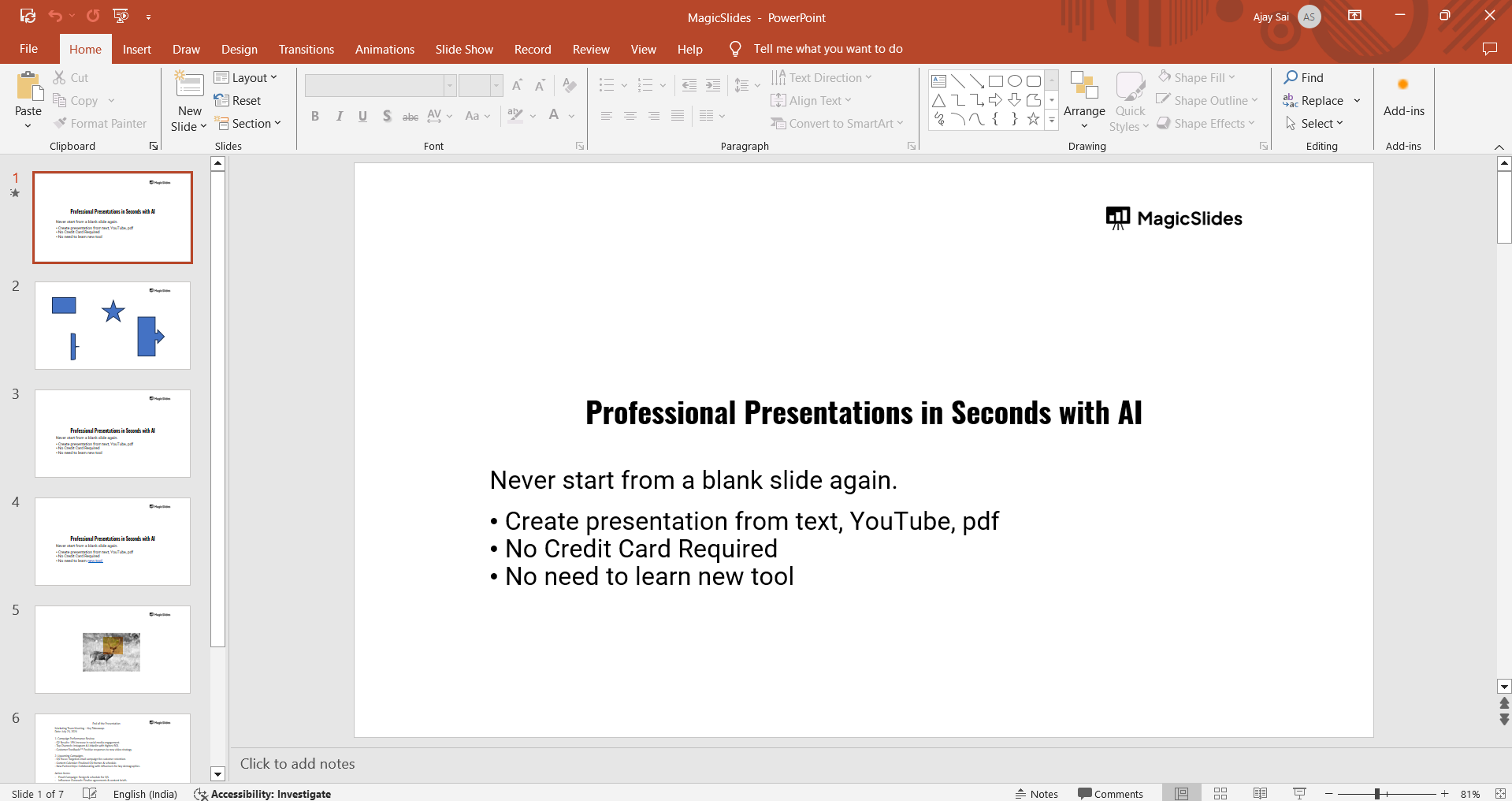
If you don’t have a file ready, you can create a new presentation by selecting "File" and then "New" from the top-left corner.
Step 2: Navigate to the "Design" Tab
Once your presentation is open, go to the "Design" tab in the top toolbar.
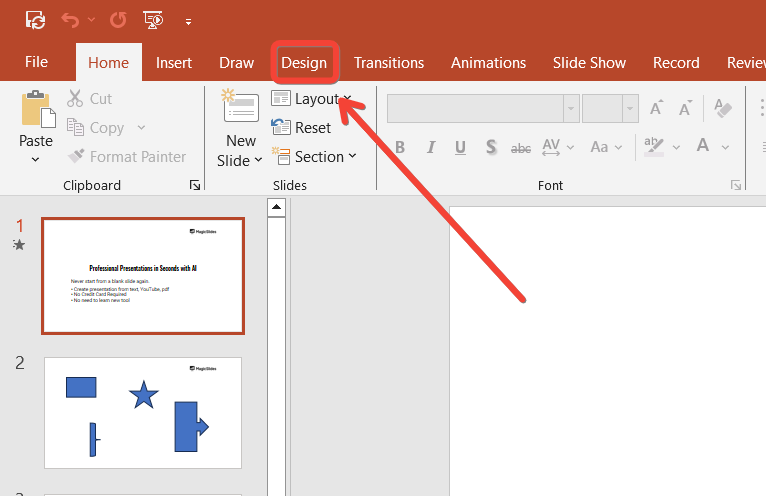
This tab contains several customization options, including themes, colors, and fonts. Click on "Design" to access these features.
Step 3: Open the Fonts Dropdown Menu
In the "Design" tab, locate the "Variants" group on the right-hand side.
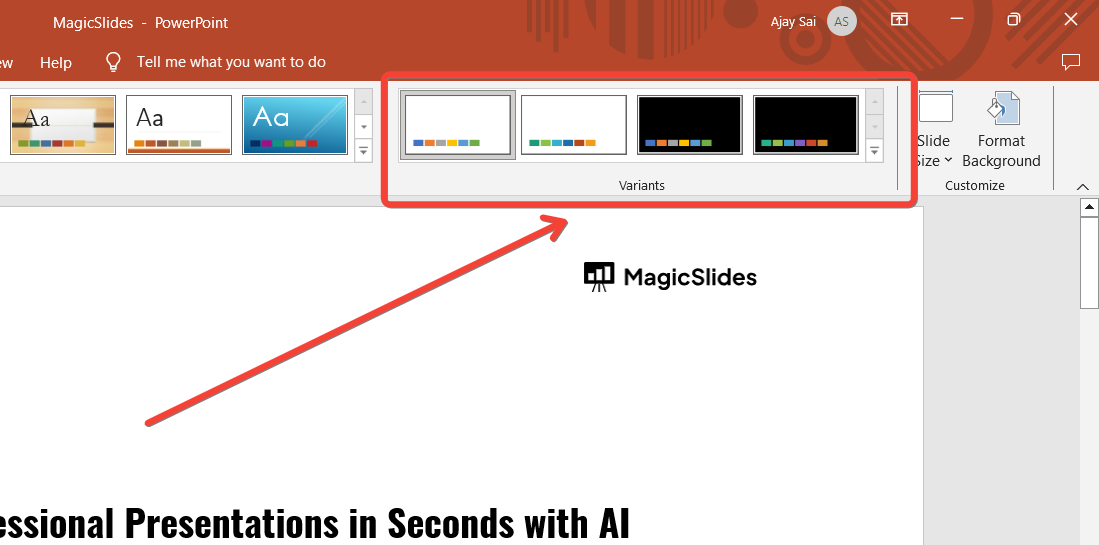
Under this section, click on the dropdown arrow next to "Fonts."
This will show a list of available font combinations tied to the current theme and a variety of pre-made font styles.
Step 4: Choose a Pre-Designed Theme Font
From the Fonts dropdown menu, you’ll see various theme fonts like "Office," "Century Gothic," or "Calibri."
Scroll through the list and select a font combination that fits your presentation.
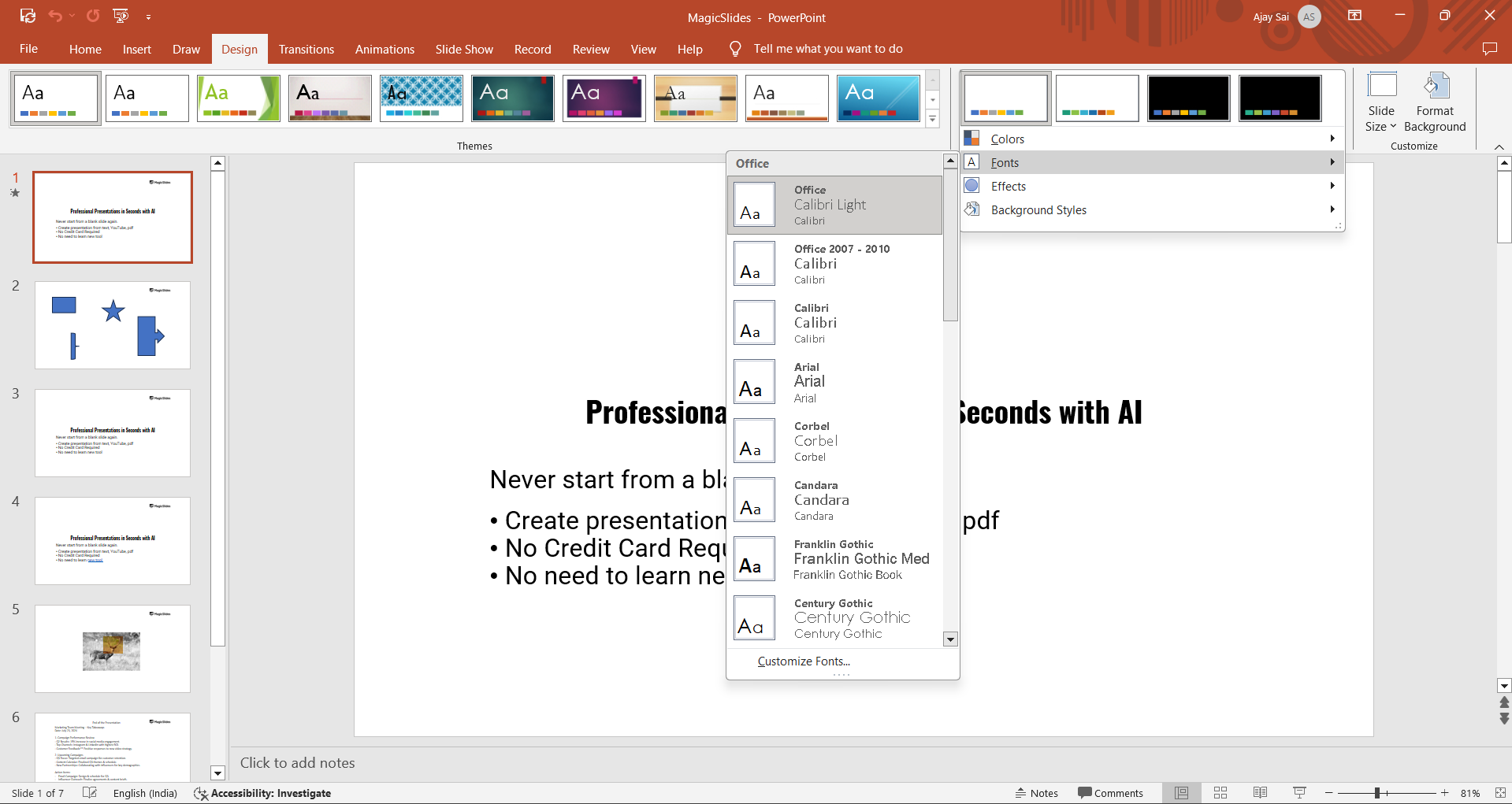
When you select a theme font, it will automatically apply to all the text across your slides, ensuring uniformity.
Step 5: Apply the New Theme Font Across All Slides
After choosing or customizing your font, the change will be applied to all text boxes in your presentation, including headings, bullet points, and body text.
Review your slides to ensure the new theme font aligns with your design vision.
💡
Conclusion
Changing the theme font in PowerPoint is a quick way to enhance the visual consistency and professionalism of your presentation.
By following these easy steps, you can ensure that your font style complements your design and resonates with your audience.
Whether you use a pre-designed font or customize your own, adjusting the theme font ensures a cohesive look throughout your slides.
FAQs are here to guide!
Can I revert to the default theme font after making changes?
Yes, you can select the default theme font from the "Fonts" dropdown menu to restore it.
Will changing the theme font affect existing text formatting?
Yes, the new theme font will be applied to all text elements unless they were individually formatted.
Can I use custom fonts in PowerPoint theme fonts?
Yes, you can use any installed font on your system when customizing theme fonts.


