How to change transparency of text in PowerPoint


Mastering transparency adjustments in PowerPoint enhances visual impact, creating captivating and professional presentations
In PowerPoint presentations, adjusting the transparency of objects can be essential for creating visually appealing slides. Whether you want to overlay images, add watermarks, or highlight specific content, understanding how to change transparency is crucial. In this comprehensive guide, we'll walk you through each step, making it easy for you to manipulate transparency levels and enhance the visual impact of your PowerPoint presentations.
How to change transparency in PowerPoint
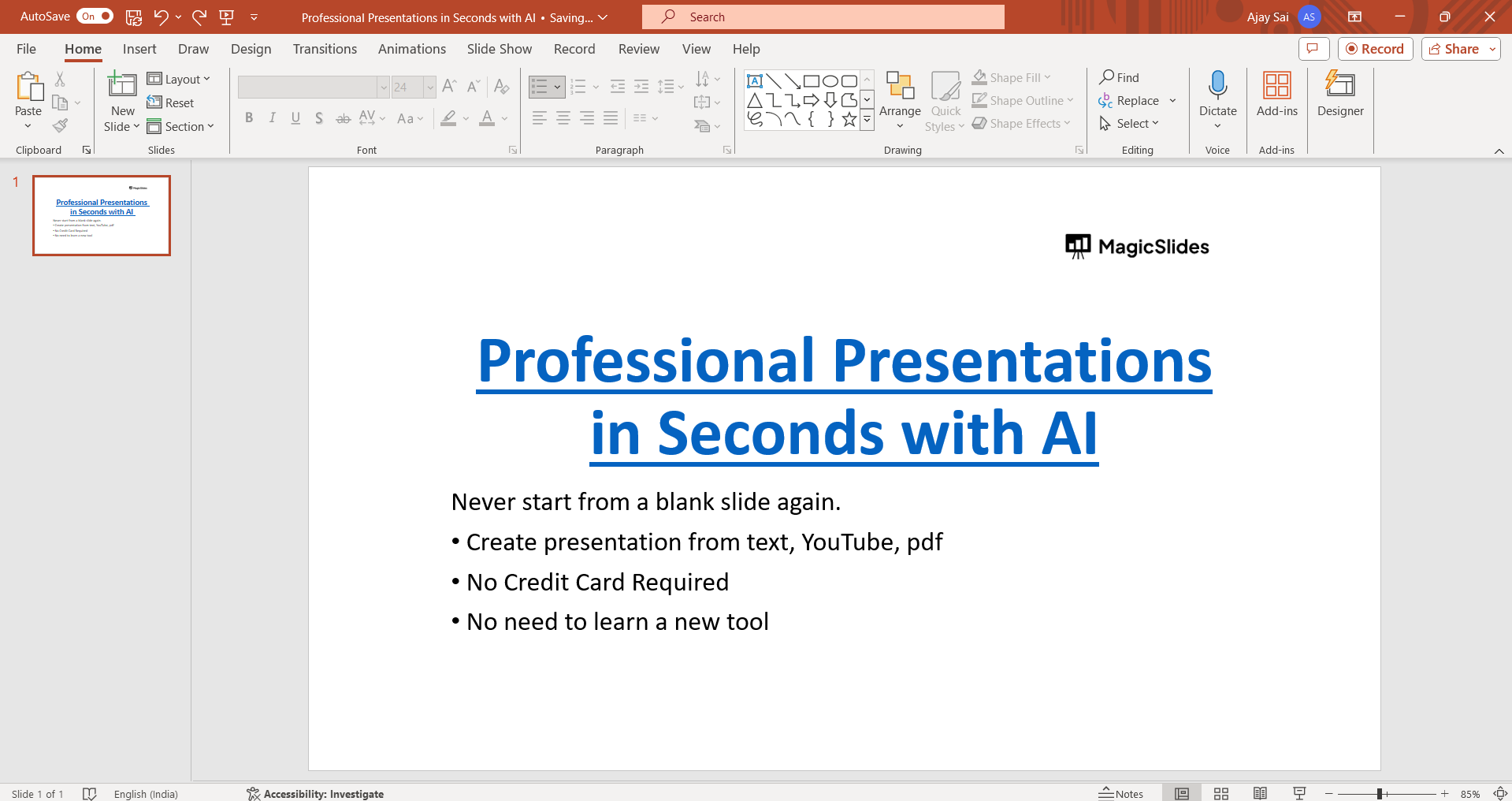
Step 1: Open Your PowerPoint Presentation
Begin by launching PowerPoint and opening the presentation where you want to adjust transparency. Navigate to the slide containing the object you wish to modify.
Step 2: Select the Object
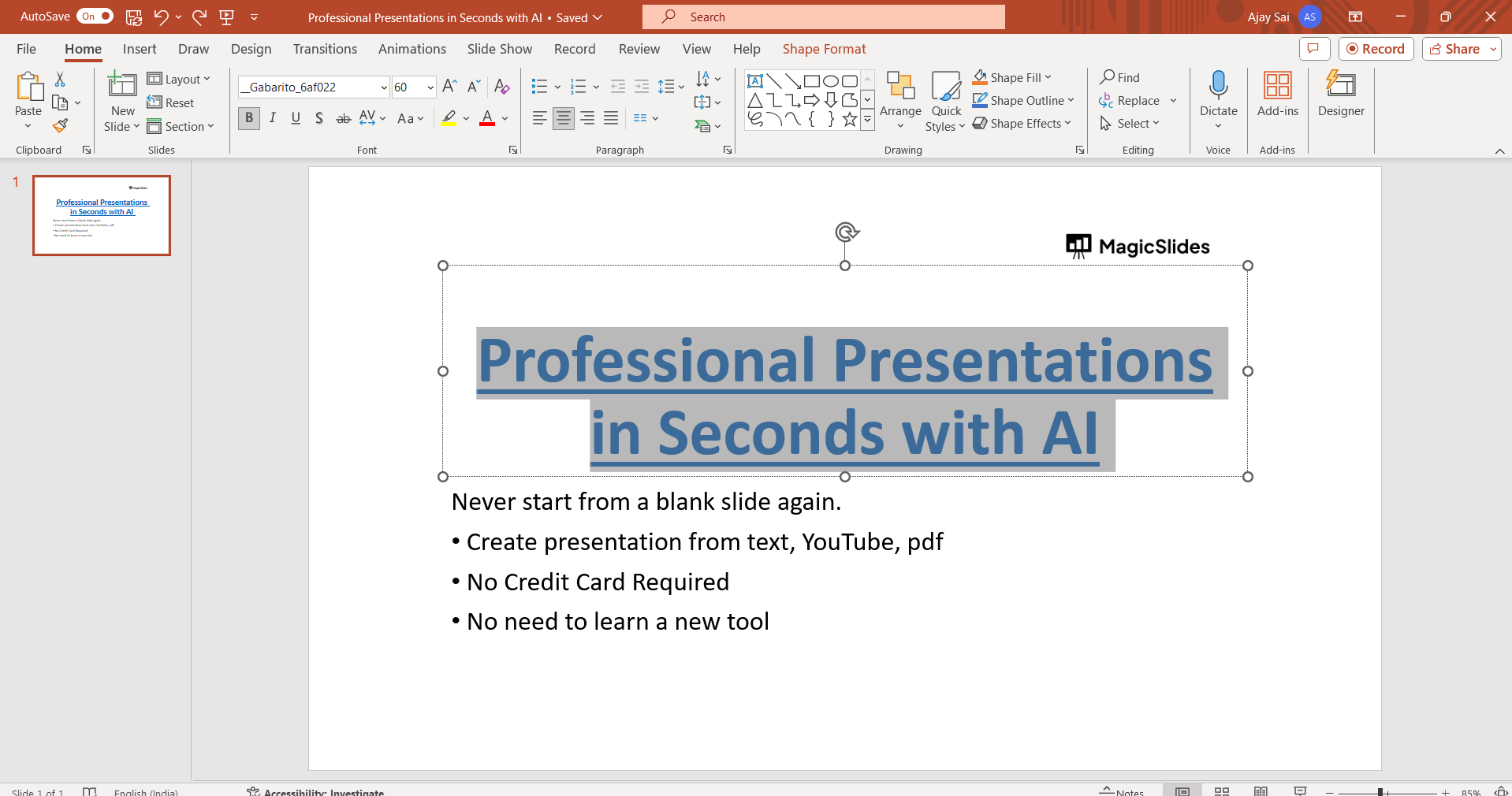
Click on the object (such as a shape, image, or text box) that you want to make transparent. Ensure that the object is selected before proceeding to the next step.
Step 3: Access the Format Options
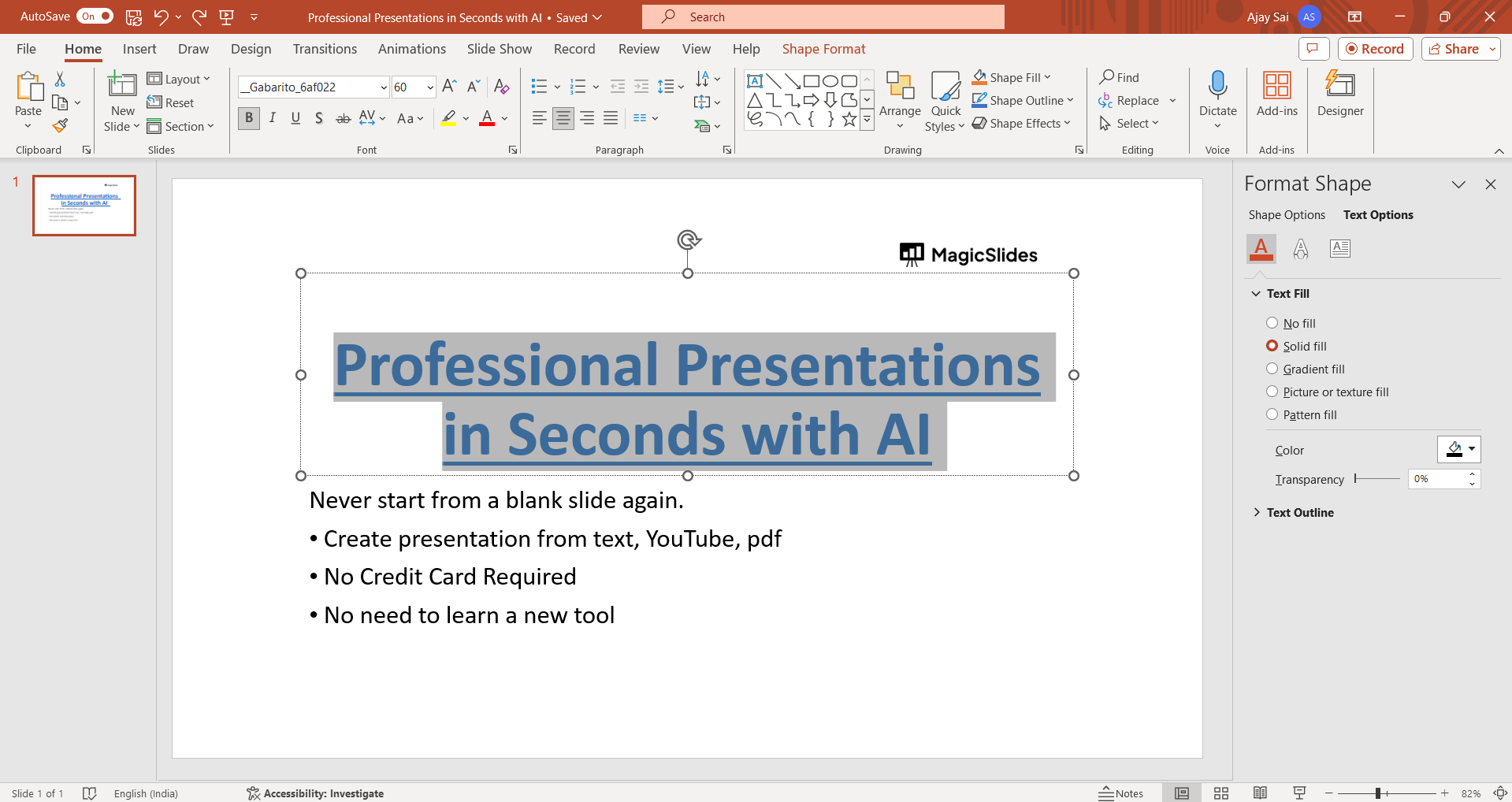
With the object selected, navigate to the "Format" tab in the PowerPoint ribbon. This tab contains various formatting options for objects, including those related to transparency.
Step 4: Adjust Transparency
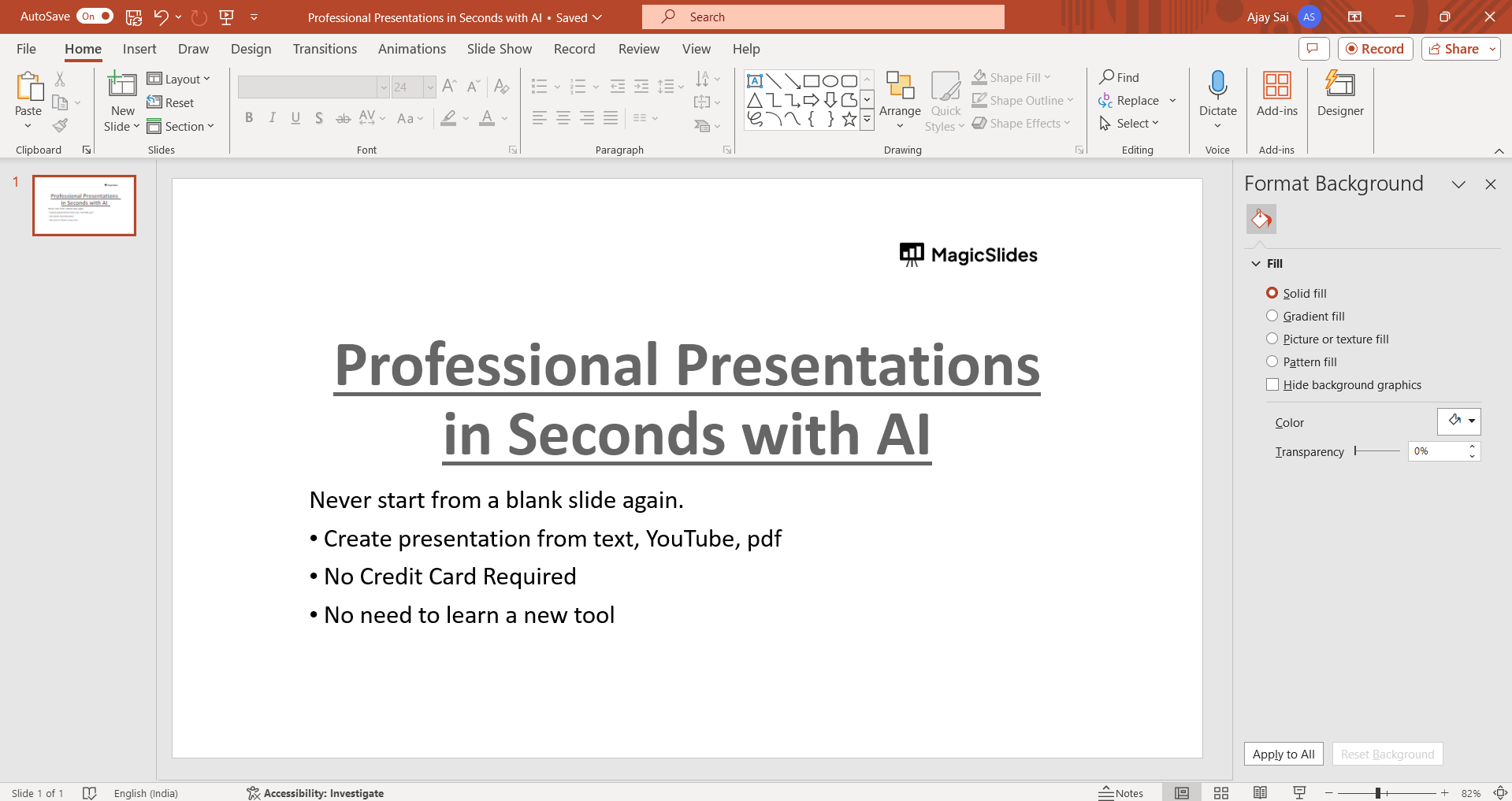
Within the Format tab, locate the "Transparency" option. Depending on your PowerPoint version, this may be labeled as "Opacity" or "Fill Transparency." Click on it to reveal a slider or input box that allows you to adjust the transparency level of the selected object.
Step 5: Preview and Confirm
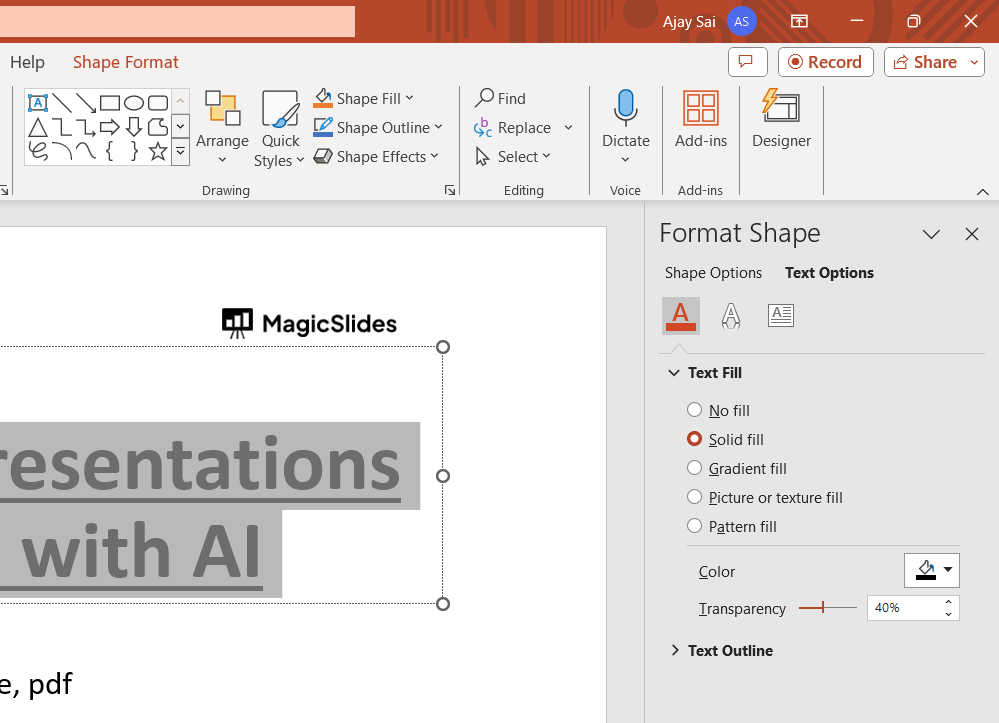
Drag the slider or enter a specific value to adjust the transparency level of the object. As you make changes, you'll see a live preview of how the object's transparency alters. Once satisfied with the transparency level, click outside the object or press Enter to apply the changes.
Conclusion:
Changing transparency to PPT text in PowerPoint presentations can significantly enhance the visual appeal and effectiveness of your slides. Whether you're overlaying images, adding watermarks, or highlighting specific content, mastering this skill is invaluable. By following this step-by-step guide, you can effortlessly manipulate transparency levels, allowing you to create captivating and professional-looking presentations. With these newfound abilities, you'll be well-equipped to engage your audience and convey your message with clarity and impact.
Frequently Asked Questions:
Why is transparency important in PowerPoint presentations?
Transparency helps overlay images, add watermarks, or highlight content, enhancing visual appeal and clarity.
Can I adjust transparency for all objects in PowerPoint?
Yes, you can adjust transparency for shapes, images, text boxes, and other objects individually.
Does changing transparency affect the entire object?
Changing transparency alters the opacity of the object, not its size or shape.
Is there a quick way to revert transparency changes in PowerPoint?
Yes, you can easily reset transparency settings by selecting the object and setting transparency to 0%.


