How to Choose Google Slides Themes Free of Cost


Discover how to choose Google Slides themes free of cost and enhance presentations with professional templates. Explore MagicSlides.app for effortless designs!
If you're creating a presentation, the design can make a big difference in how your message is received. Google Slides offers a variety of themes, but finding the perfect one for free can sometimes feel overwhelming. In this post, we'll guide you on how to choose Google Slides themes free of cost, ensuring that your presentations always stand out.
We’ll also introduce you to an amazing tool, MagicSlides.app, which simplifies the process of designing professional-looking slides.
Why Choose Google Slides for Presentations?
Google Slides is a user-friendly platform that is accessible from any device with an internet connection. It’s perfect for collaboration and ensures that your work is automatically saved in the cloud.
One of the best features of Google Slides is the ability to customize themes, allowing you to tailor your presentation to match your message and audience.
What Makes a Good Google Slides Theme?
Before diving into where to find free Google Slides themes, it’s important to understand what makes a theme effective. Consider the following:
- Relevance
Choose a theme that matches the tone of your presentation. For example, a business pitch may require a clean and professional design, while a school project can be more colorful and playful.
- Simplicity
Overly complicated designs can distract from your content. Stick to themes with clean lines and enough white space to keep your audience focused.
- Customizability
A good theme should allow you to change colors, fonts, and layouts easily.
- Readability
Avoid themes with fonts that are too small, overly fancy, or difficult to read. Your audience should be able to grasp your content at a glance.
Where to Find Google Slides Themes Free of Cost?
1. Google Slides Library
Google Slides comes with built-in themes that are simple yet versatile. You can find these by opening a new Google Slides document and clicking on the "Themes" panel.
2. Free Template Websites
Several websites offer free templates for Google Slides. Look for platforms that specialize in providing visually appealing designs, often categorized by industry or presentation type.
3. MagicSlides.app – A Smarter Choice for Themes
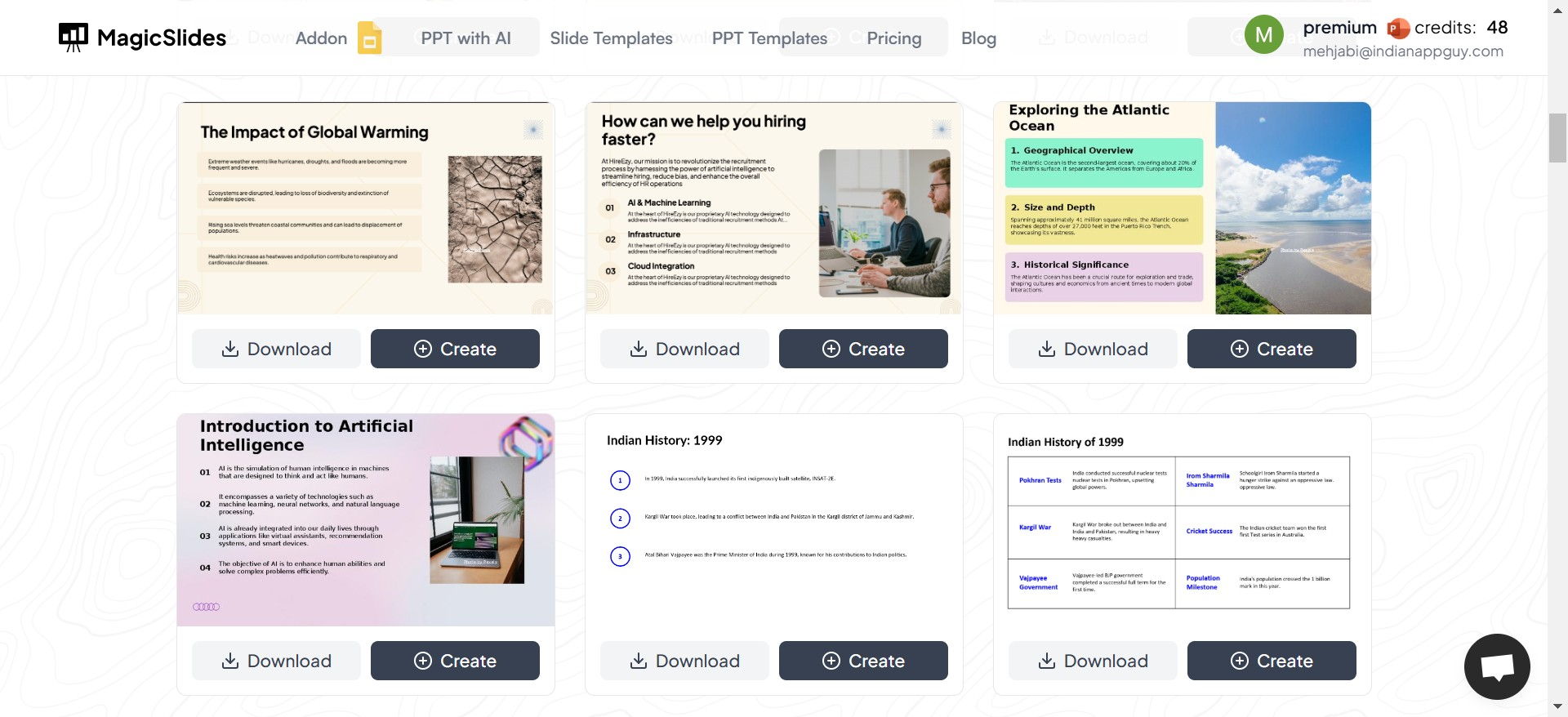
While browsing for themes can be time-consuming, tools like MagicSlides.app take the guesswork out of designing your slides. MagicSlides offers a collection of Google Slides themes free of cost and helps you generate fully designed slides quickly and efficiently.
How to Choose the Perfect Theme for Your Presentation?
- Define Your Goal
What is the purpose of your presentation? Knowing your goal will help you select a theme that supports your message.
- Know Your Audience
Presentations for corporate executives might require formal themes, while students or casual audiences might appreciate creative or vibrant designs.
- Try Before You Commit
Preview how your content will look within a theme. Most tools, including MagicSlides.app, allow you to see how your slides will appear before you finalize your choice.
- Leverage Tools for Inspiration
Platforms like MagicSlides.app not only provide free themes but also offer AI-assisted slide generation, saving you time and effort.
What Makes MagicSlides.app Unique?
MagicSlides.app is more than just a source for Google Slides themes free of cost. It leverages AI to generate slide decks based on your input. This means you can focus on your content while the tool handles the design.
Some standout features include:
- Access to a variety of professional slide themes.
- AI-assisted customization for quick and polished results.
- User-friendly interface, ideal for beginners and professionals alike.
Conclusion
Finding the right theme for your Google Slides presentation doesn't have to be difficult or expensive. By understanding your needs and exploring free options, you can create visually appealing and impactful presentations.
For a hassle-free experience, consider using MagicSlides.app. It’s a powerful tool that not only offers free themes but also simplifies the entire slide creation process.
Take the stress out of designing presentations—start exploring your options today!


