How to Cite in a PowerPoint


Citing sources in PowerPoint builds credibility, ensuring your presentation is accurate, professional, and well-researched
Citing sources in a PowerPoint presentation is essential for giving credit to original authors and adding credibility to your content.
By properly citing your references, you show your audience that your work is well-researched and trustworthy.
This guide will walk you through the steps to cite effectively in PowerPoint.
How to Cite in a PowerPoint: A Step-by-Step Guide
Step 1: Determine the Citation Style
Before adding citations, decide which citation style you need to follow, such as APA, MLA, or Chicago.
Each style has specific formatting requirements, so it’s essential to know your style to format your citations correctly.
Consult your instructor or guidelines to confirm which style to use.
Step 2: Insert a Text Box for the Citation
Go to the slide where you want to add your citation. Click on the "Insert" tab, then select "Text Box."
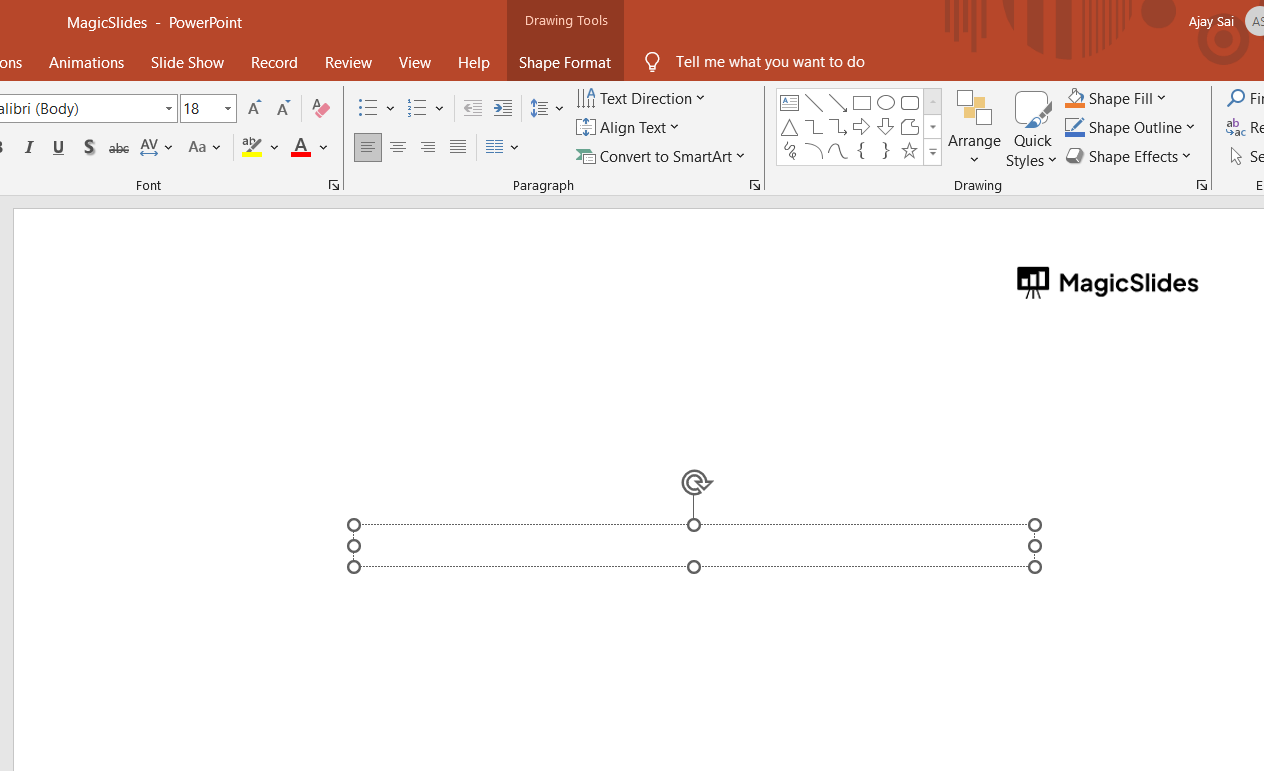
Click anywhere on the slide to create the text box, which you’ll use to enter your citation details.
Position it either at the bottom of the slide (for on-slide citations) or at the end of the presentation (for a reference slide).
Step 3: Format Your Citation
In the text box, enter the citation details, including the author’s name, publication date, title, and source, according to your chosen citation style.
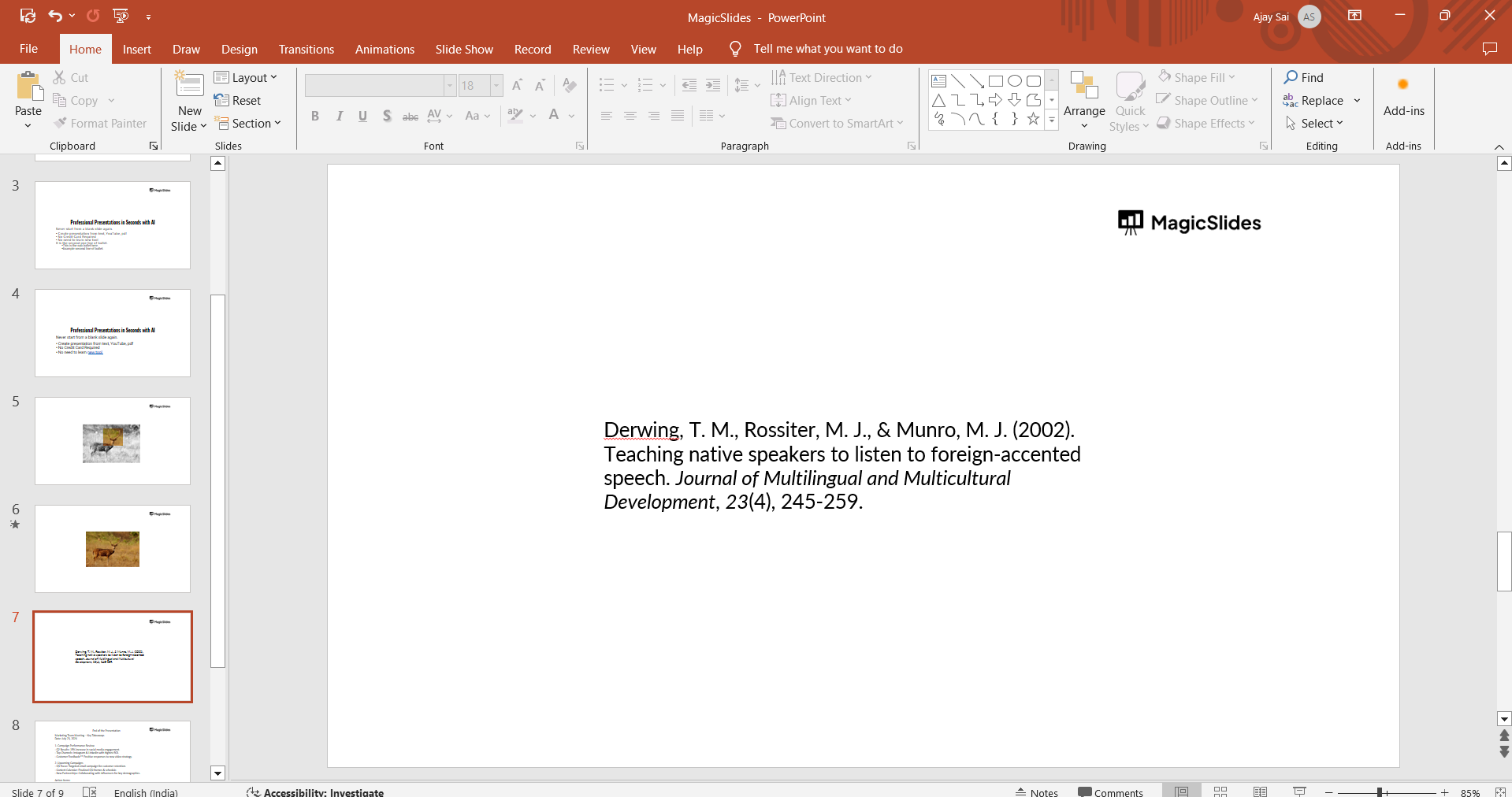
Ensure that the font size and style match the rest of your slide content, making it easy to read but not overly distracting.
Step 4: Create a References Slide (Optional)
If you have multiple sources, it’s a good idea to create a dedicated “References” slide at the end of your presentation.
Go to the "Home" tab, click on "New Slide," and add a title such as "References" or "Works Cited."
List all your sources in the chosen citation style, formatting each entry consistently.
Step 5: Add In-Text Citations (Optional)
For slides that include specific quotes, data, or visuals, you may need to add in-text citations.
Place a small citation in a corner of the slide with the author’s last name and the year, such as (Smith, 2020).
This brief reference signals to the audience where the information comes from.
Step 6: Review for Accuracy and Consistency
Double-check your citations to make sure they follow the correct format and include all necessary details.
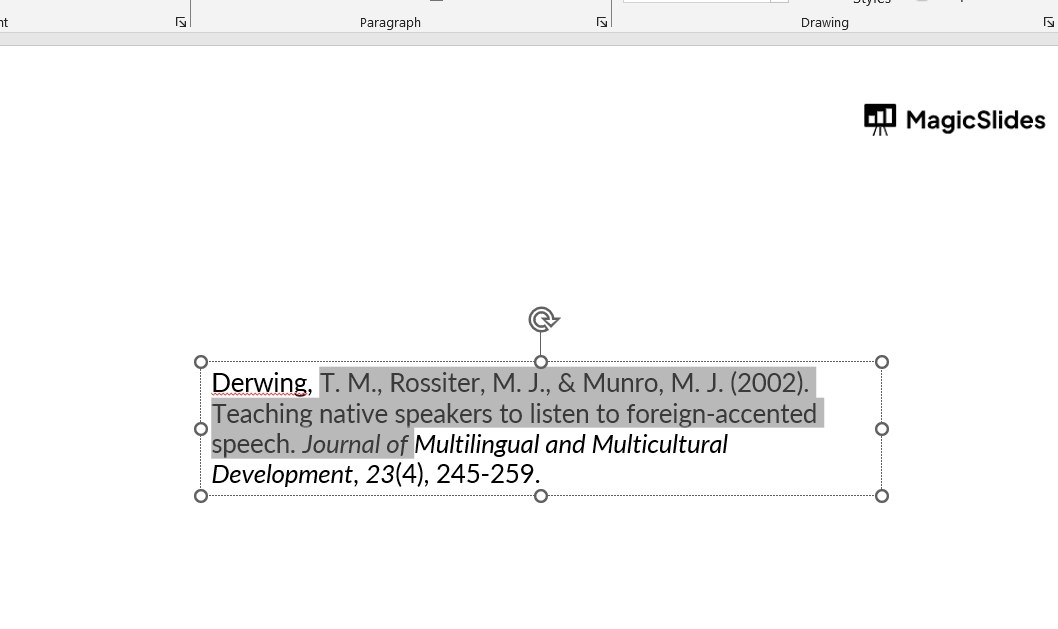
Consistency is key, so ensure each citation uses the same style and formatting. This step will help make your presentation look professional and credible.
Now that you know how to cite in PowerPoint, explore how to insert PowerPoint slides into Word for creating comprehensive reports and documents that integrate presentation visuals.
Conclusion
Citing in PowerPoint is a simple but crucial step to acknowledge your sources and strengthen your presentation’s credibility.
By following these steps, you can ensure your citations are correctly formatted and easy for your audience to understand.
Whether you're giving an academic or professional presentation, citing sources responsibly reflects your commitment to quality and accuracy.
FAQs are here to guide!
Do I need to cite images used in PowerPoint?
Yes, if the images are not your own, you should provide citations to give credit to the original creators.
Can I use citation tools to generate my citations?
Yes, there are many online citation generators like EasyBib and Citation Machine that can help format your citations according to different styles.
Where should I place my citations on the slide?
Citations can be placed in a bottom corner of the slide or at the end of the presentation on a dedicated "References" slide.


