How to Cite Photos in PowerPoint


Properly citing photos in PowerPoint ensures credibility, avoids copyright issues, and gives credit to creators
How to Cite Photos in PowerPoint
Adding photos to your PowerPoint presentation enhances visual appeal and supports your message.
However, it's essential to cite images properly to avoid copyright issues and give credit to the original creators.
In this guide, we'll walk you through the steps to cite photos in PowerPoint using different citation styles.
Step-by-Step Guide to Citing Photos in PowerPoint
Step 1: Determine the Image Source
Before citing an image, identify where it comes from. Common sources include:
- Online image libraries (Unsplash, Pexels, Wikimedia Commons)
- Stock photo websites (Shutterstock, Adobe Stock)
- Academic or government sources
- Personal photographs
If the image is copyrighted, ensure you have permission to use it.
Step 2: Choose a Citation Style
Different citation styles have specific formats. The most commonly used styles include:
- APA (American Psychological Association)
- MLA (Modern Language Association)
- Chicago Style
Your choice depends on your audience and presentation context (academic, corporate, or general).
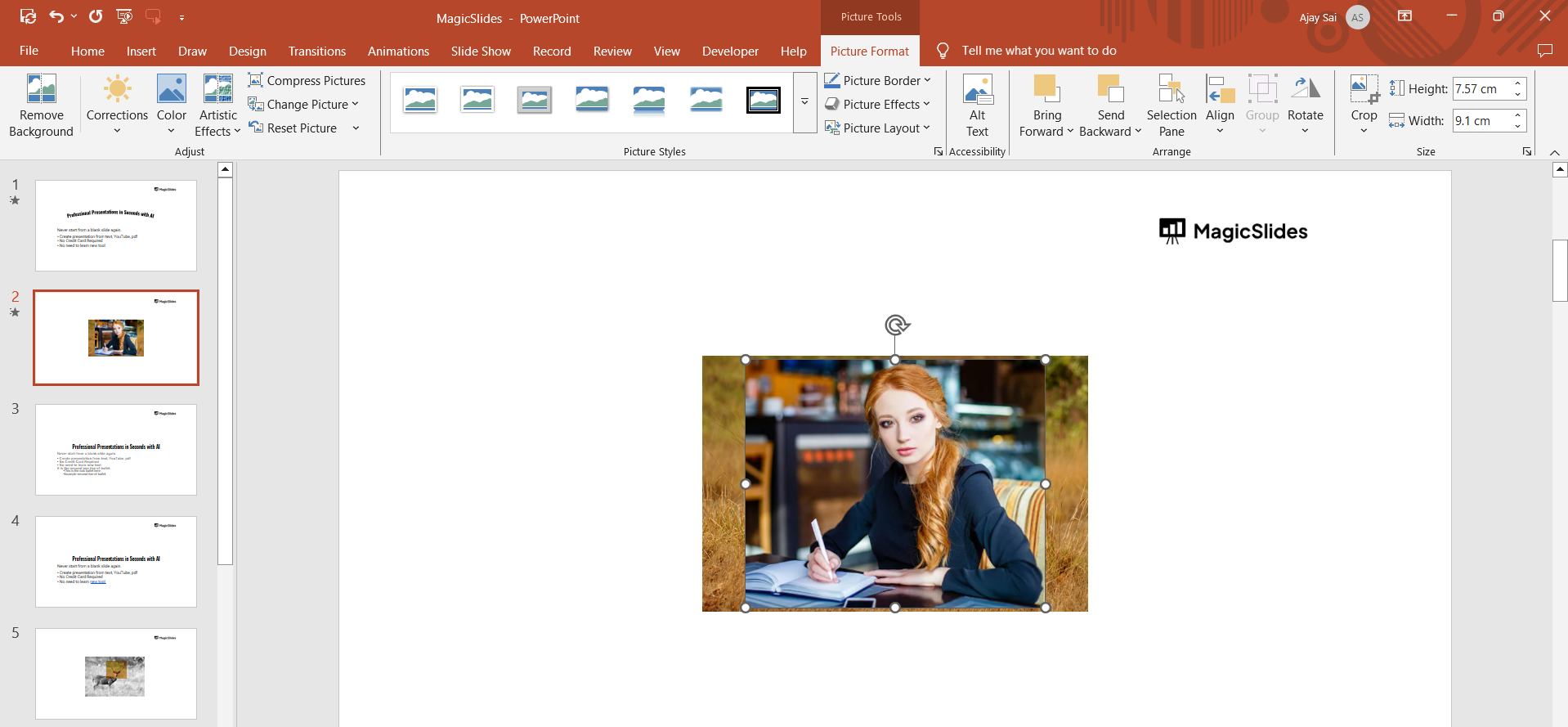
Step 3: Insert a Text Box for the Citation
Go to Insert > Text Box in PowerPoint.

Click anywhere on the slide and type your citation.
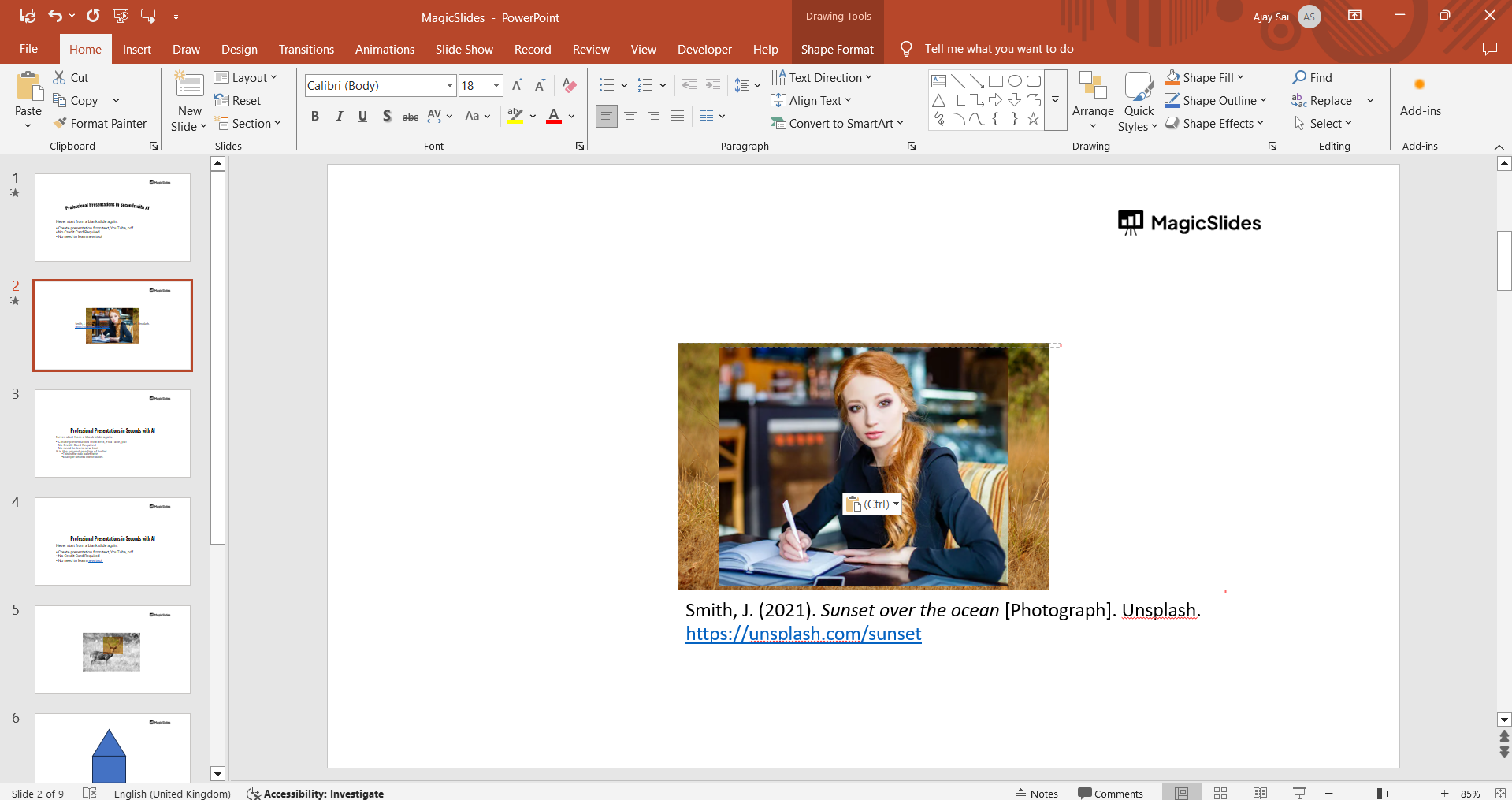
Place the text box near the image or in a references slide at the end.
Step 4: Format the Citation Based on Style
Here are examples of how to cite an image in different styles:
- APA Style:
Author/Creator. (Year). Title of the image [Format]. Website Name. URL
Example:
Smith, J. (2021). Sunset over the ocean [Photograph]. Unsplash. https://unsplash.com/sunset
- MLA Style:
Author’s Last Name, First Name. "Title of Image." Website Name, Publisher, Date, URL.
Example:
Smith, John. "Sunset over the Ocean." Unsplash, 2021, https://unsplash.com/sunset.
- Chicago Style:
Author Last Name, First Name. "Image Title." Website Name. Date of Publication. URL.
Example:
Smith, John. "Sunset over the Ocean." Unsplash. March 15, 2021. https://unsplash.com/sunset.
Step 5: Adjust Citation Placement
If you cite multiple images, you can create a References Slide at the end.
Ensure the text box is readable by adjusting the font size and color.
If space is limited, include a short citation and provide full details on a final slide.
Citing photos properly in PowerPoint is essential, and if you want to elevate your presentation design effortlessly, MagicSlides.app is the way to go. It generates professional slides from text, images, and even PDFs in seconds saving you time and boosting your productivity.
Conclusion
Properly citing photos in PowerPoint shows respect for copyright laws and acknowledges the original creators.
Whether using APA, MLA, or Chicago style, ensuring correct citations improves the credibility of your presentation.
FAQs About Citing Photos in PowerPoint
Do I need to cite every image in my PowerPoint?
Yes, unless the image is royalty-free, in the public domain, or one you created yourself.
Can I cite images in the footer instead of the slide?
Yes, you can add citations in the footer, but ensure they remain clear and accessible.
Where should I place citations if I use multiple images?
You can create a separate References Slide at the end of your presentation to list all sources.
Now you can confidently cite photos in PowerPoint and maintain ethical presentation practices! 🚀


