How to Convert a Lecture or Workshop Outline into a PowerPoint Presentation?


Transforming outlines to engaging presentations! Learn how to convert a lecture or workshop outline into a dynamic PowerPoint with ease.
Creating an engaging PowerPoint presentation from a lecture or workshop outline can significantly enhance your ability to convey information effectively. In this guide, we'll walk through the process step by step, using the power of Google Slides and the MagicSlides GPT extension.
How to Convert a Lecture or Workshop Outline into a PowerPoint Presentation?
Visit Google Slides
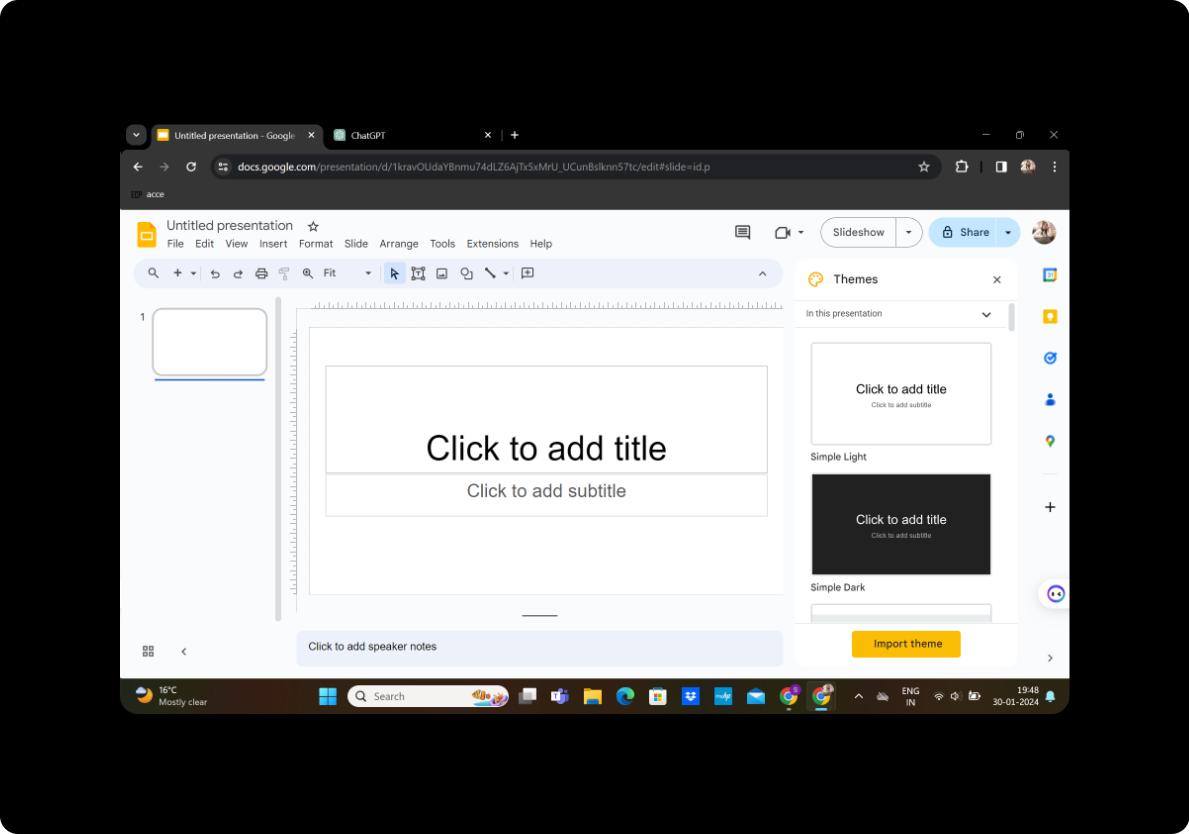
Begin by navigating to Google Slides. If you don't have a Google account, sign up to get started. Google Slides is a user-friendly, cloud-based tool for crafting visually appealing presentations.
Sign in with Google to Google Slides
Once on the Google Slides homepage, sign in with your Google account. This ensures that your presentation is securely saved in the cloud and can be accessed from anywhere.
Steps: Converting an Outline
In Extensions, Click on MagicSlides GPT (If Downloaded)
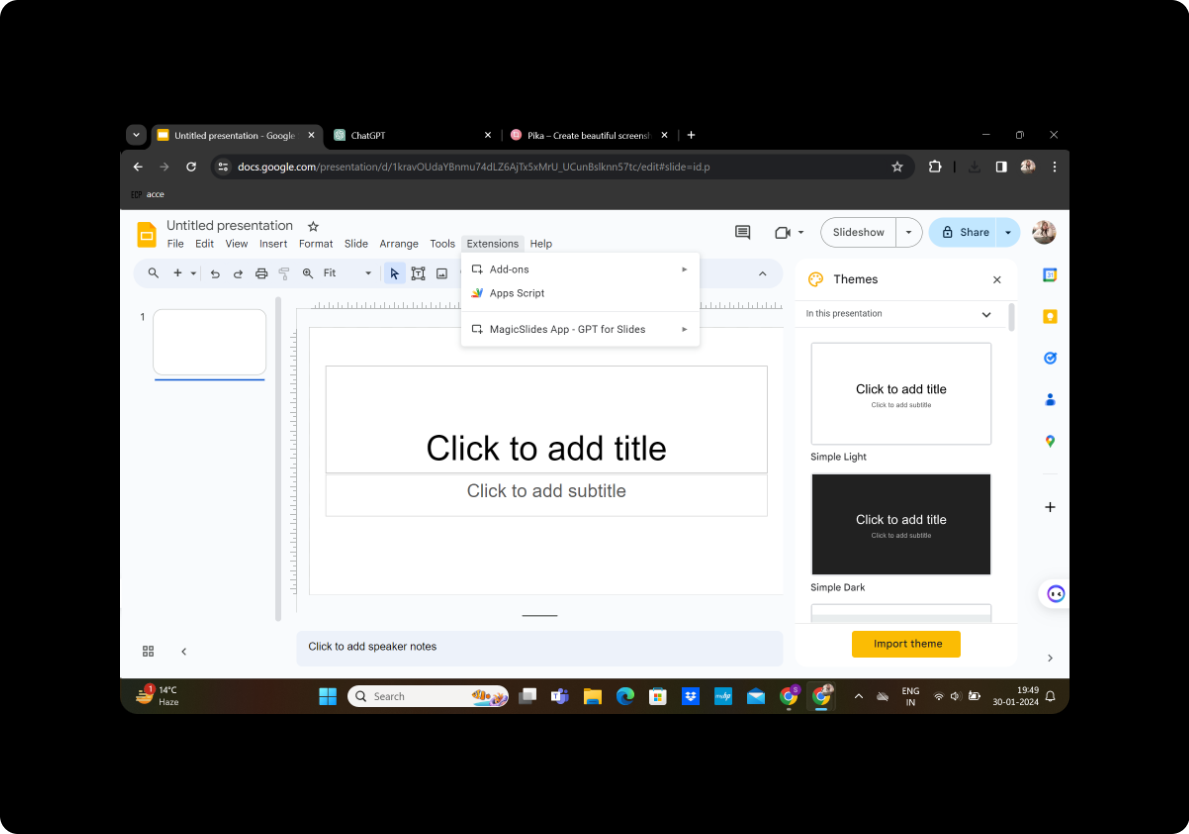
If you've already downloaded the MagicSlides GPT extension, head to the Extensions menu in Google Slides. Locate and click on MagicSlides GPT to activate the tool.
If Not Downloaded, First Download as an Extension, Then Open
If you haven't downloaded the MagicSlides GPT extension, visit the Chrome Web Store, search for MagicSlides GPT, and download it as an extension. Once installed, open the extension to integrate it with Google Slides.
Click on Generate PPT in MagicSlides GPT
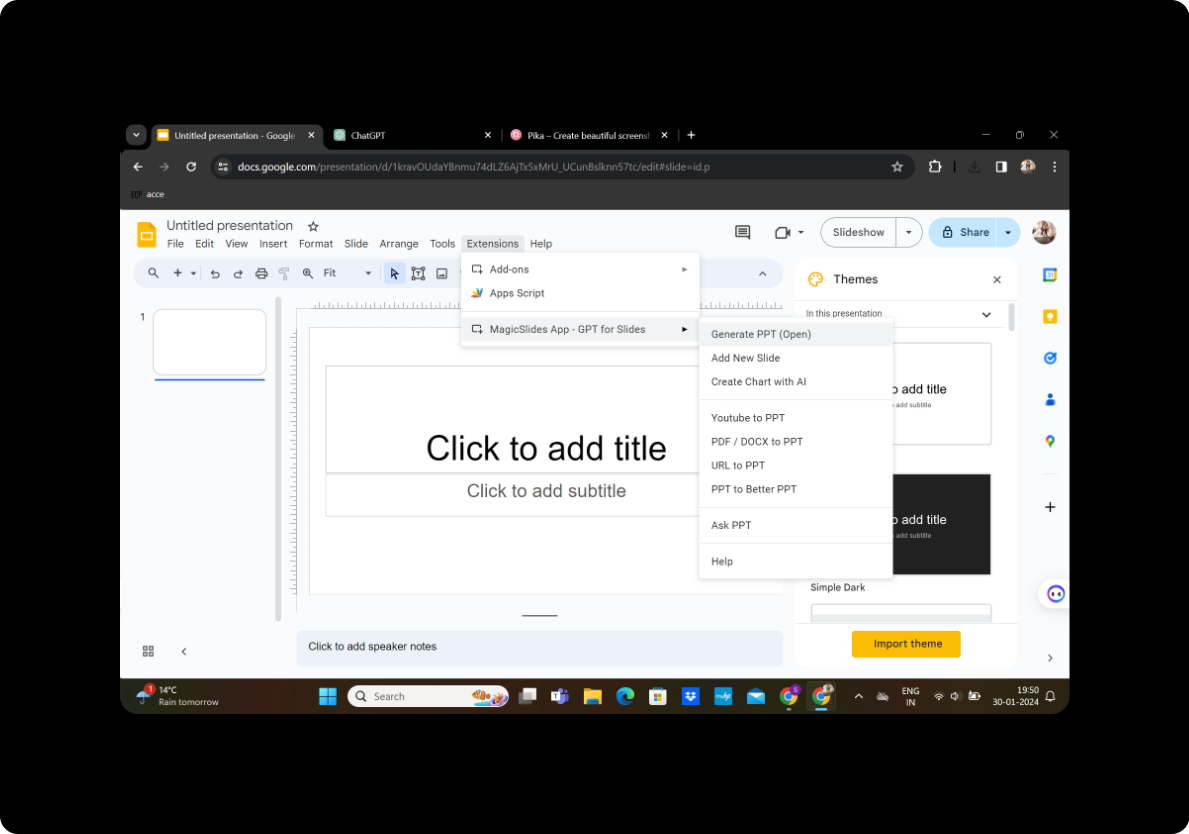
With MagicSlides GPT active, click on the "Generate PPT" option within the extension. This will launch the MagicSlides tool, allowing you to seamlessly convert your outline into a PowerPoint presentation.
In the Box for Title Option, Add Your Title
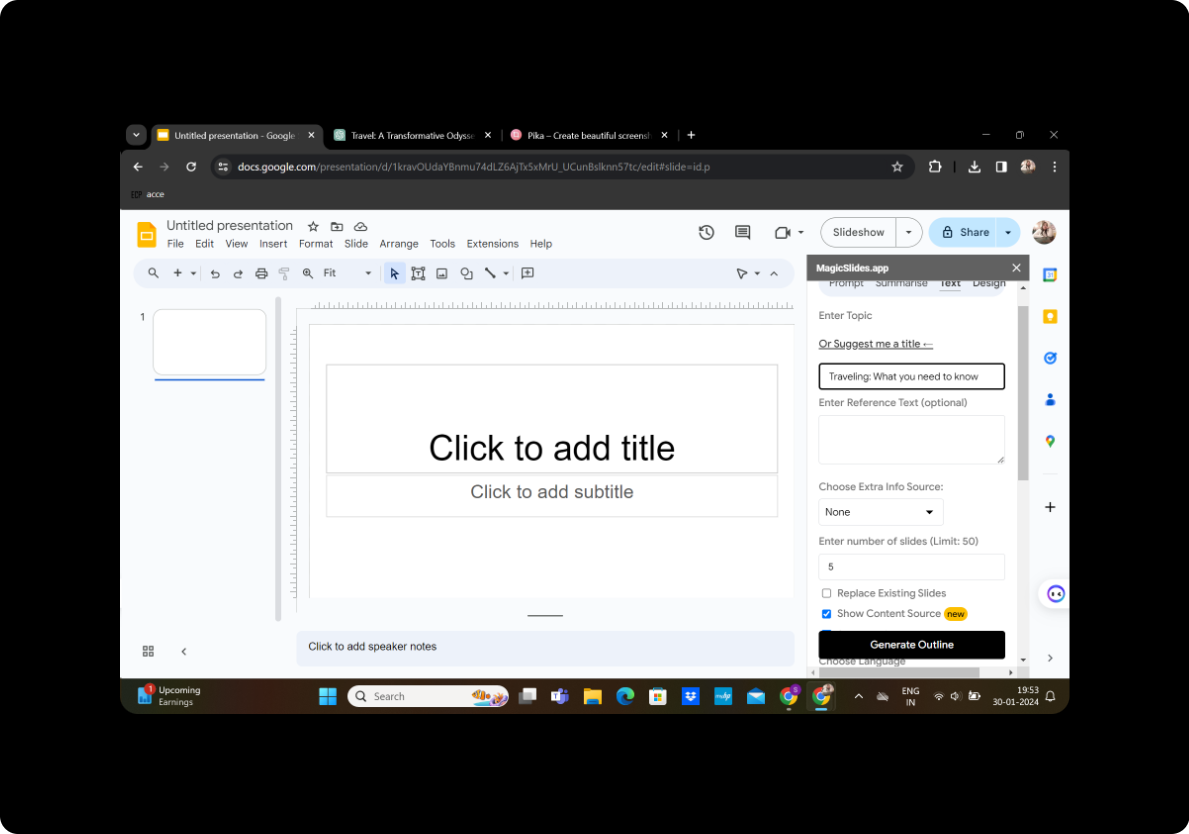
Provide a clear and concise title for your presentation. This will serve as the focal point for your audience and set the tone for your content.
Copy and Paste Text Content in the Box for Text
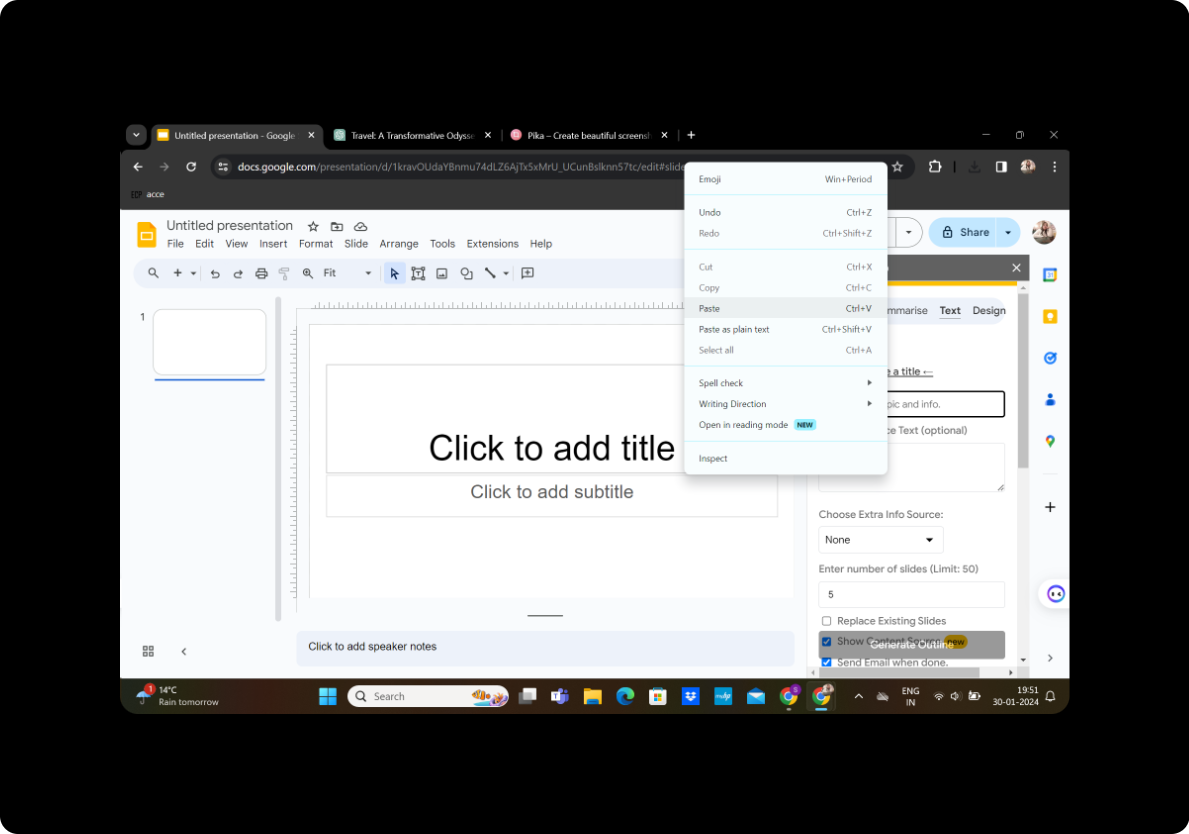
Transfer your lecture or workshop outline into the designated text box. MagicSlides GPT will use this text to generate slides, capturing key points and structuring your presentation.
Select the Number of Slides
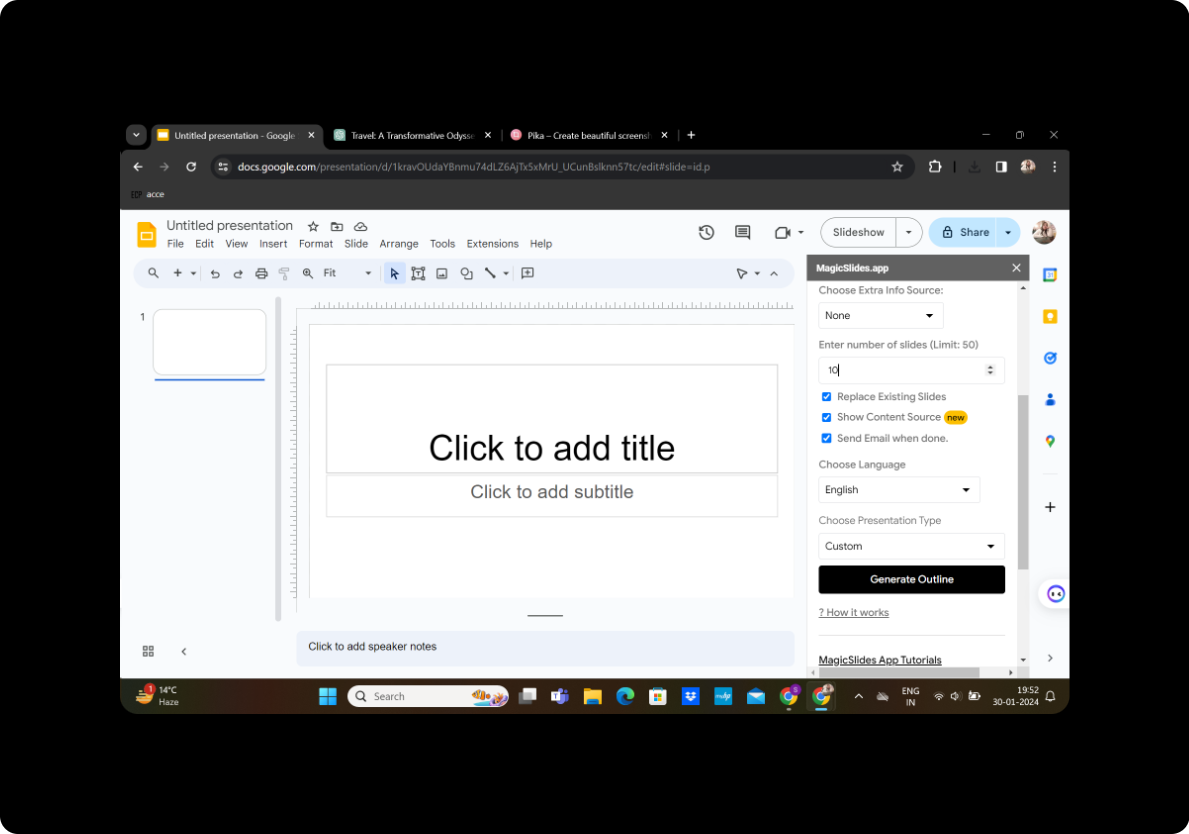
Specify the number of slides you want in your presentation. This step allows you to control the pacing and depth of information on each slide.
Click on Generate Outline
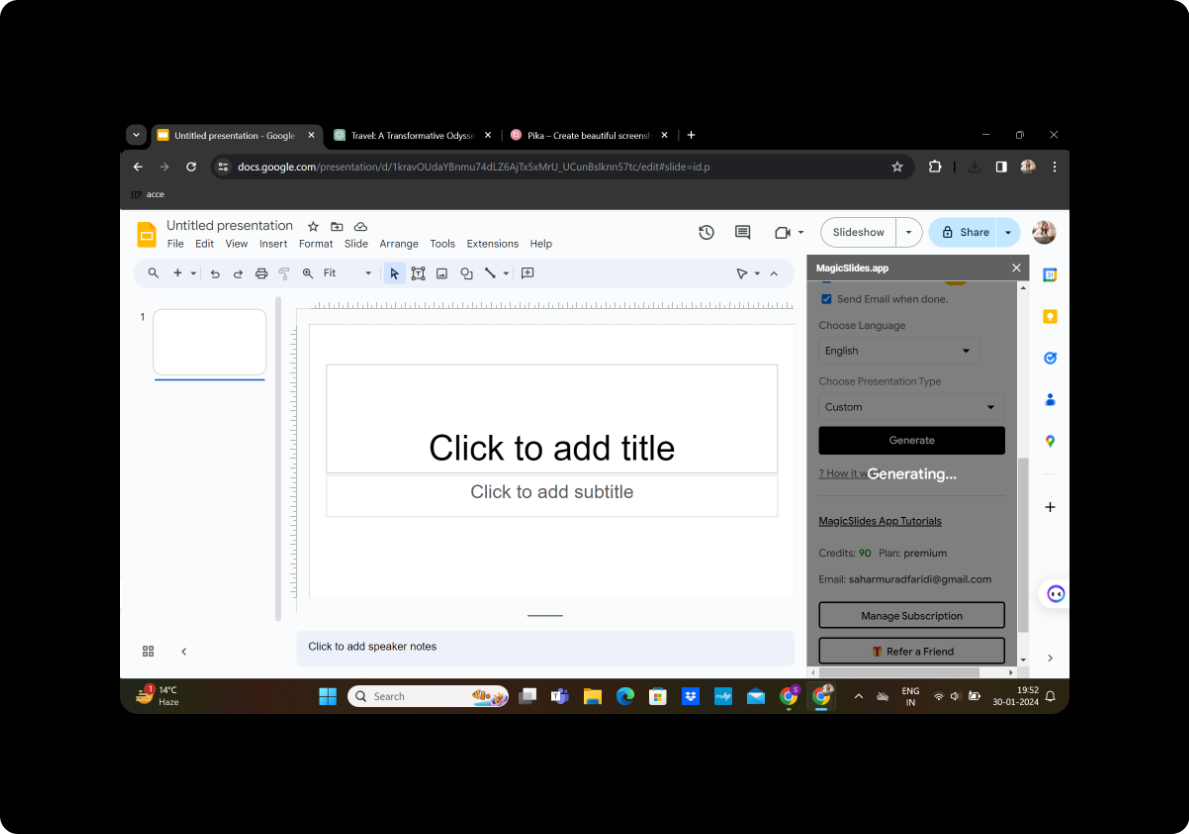
Initiate the generation process by clicking on the "Generate Outline" button. MagicSlides GPT will swiftly analyze your content and provide an initial structure for your presentation.
Magicslides Will Give You an Outline for Your Presentation
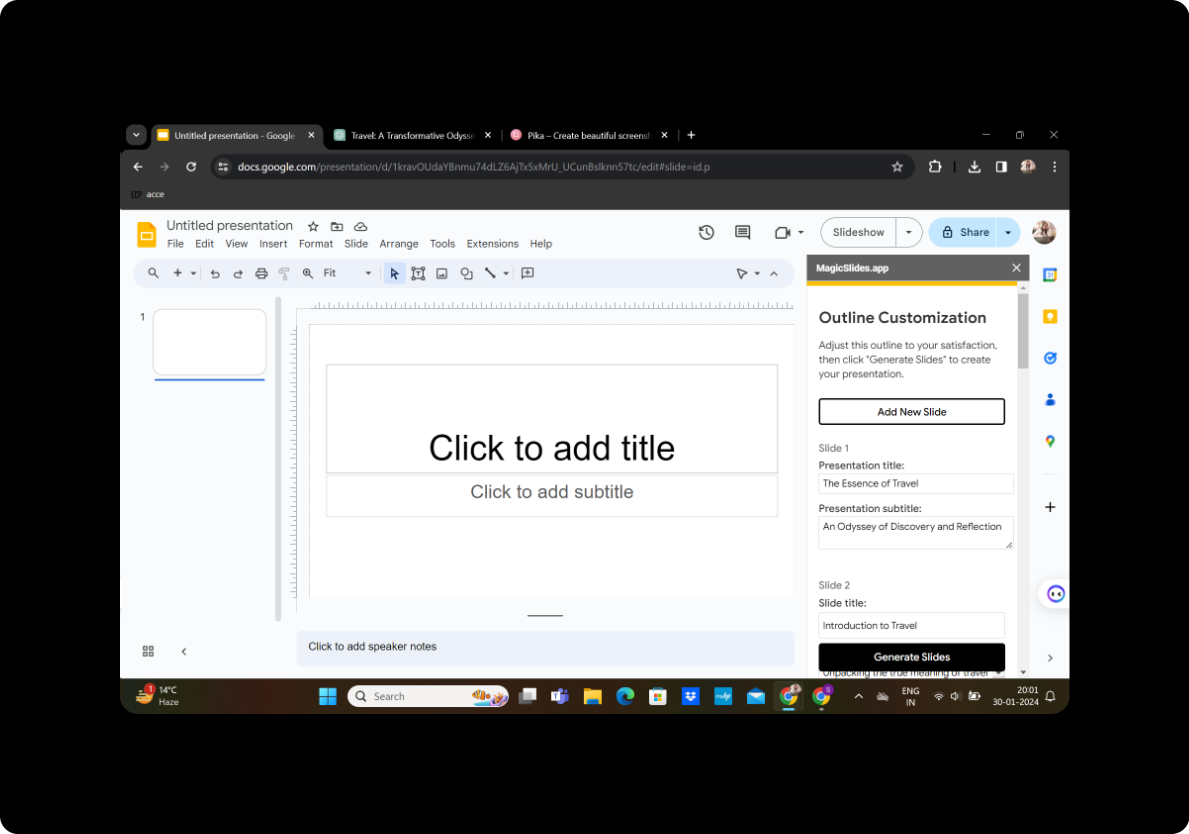
Review the outline generated by MagicSlides GPT. You can modify and adjust elements as per your preferences, ensuring the presentation aligns with your unique style and message.
After Satisfied, Click on Generate Presentation
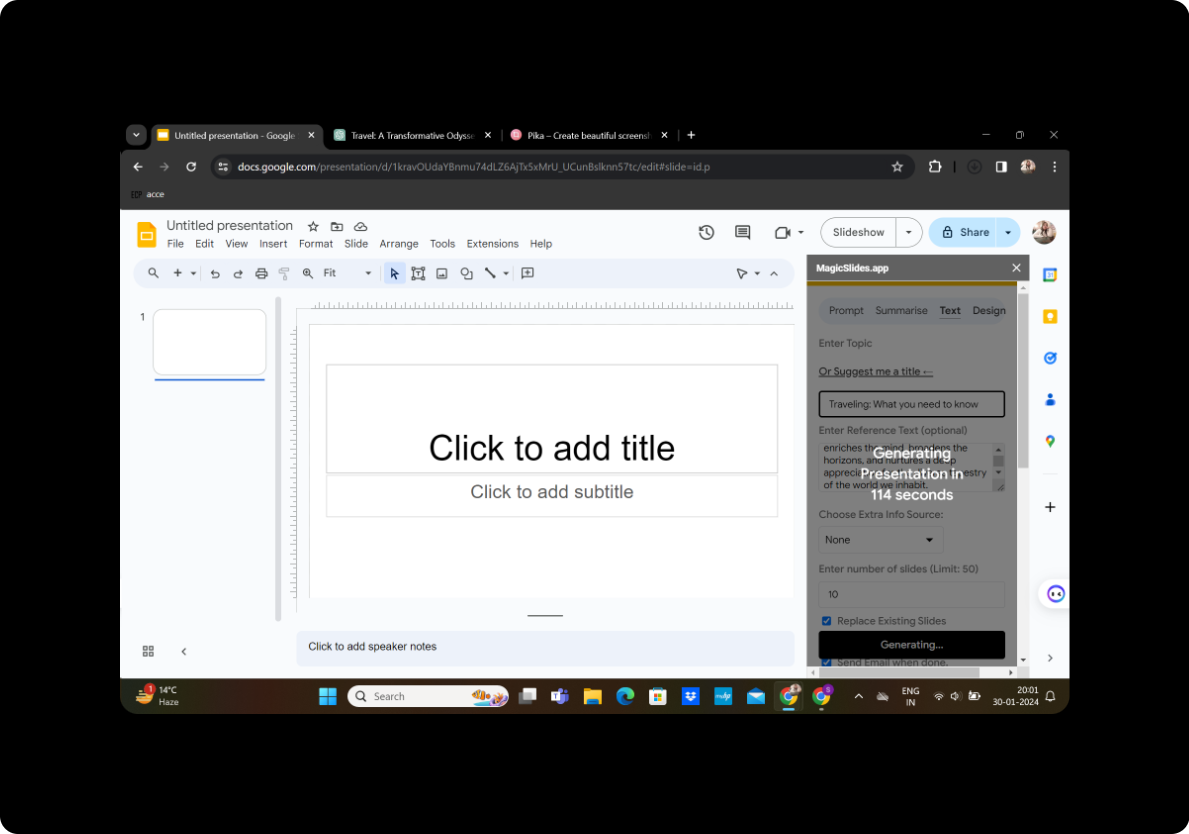
Once you're content with the outline, proceed to click on "Generate Presentation." MagicSlides GPT will transform your outline into a polished PowerPoint presentation.
Your Presentation is Ready
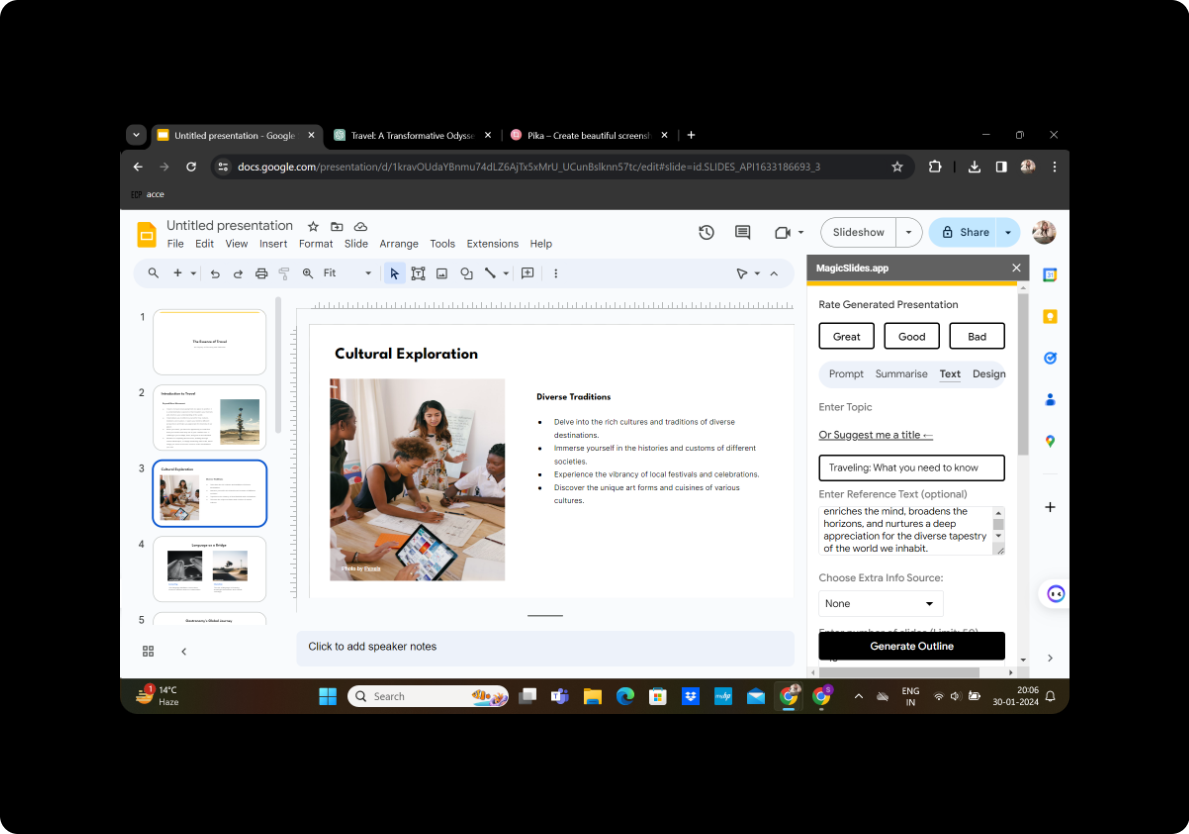
Congratulations! Your presentation is now ready for delivery. The process, streamlined by MagicSlides GPT, allows you to focus more on your content and less on the technicalities of presentation design.
Conclusion
Converting a lecture or workshop outline into a PowerPoint presentation has never been more accessible. By leveraging the synergy of Google Slides and MagicSlides GPT, you can effortlessly create visually stunning and impactful presentations. Whether you're an educator, a business professional, or anyone looking to share information seamlessly, this approach ensures a smooth and efficient process.
Frequently Asked Questions
How can I customize the design of my slides?
MagicSlides GPT provides editing features within Google Slides, allowing you to customize the design, layout, and overall aesthetics of your slides to suit your preferences.
Can I add multimedia elements to my presentation?
Certainly! You can enhance your presentation by incorporating images, videos, and other multimedia elements directly within Google Slides.
Is my presentation accessible from different devices?
Yes, since Google Slides is cloud-based, your presentation is accessible from any device with internet connectivity.
Can I collaborate with others on the same presentation?
Absolutely! Google Slides allows real-time collaboration, enabling multiple users to work on the same presentation simultaneously.
Is MagicSlides GPT free to use?
MagicSlides GPT may offer both free and premium features. Check the Chrome Web Store for detailed information on its pricing and features.


