how to convert a pdf to power point


Transform static PDFs into captivating PowerPoint presentations with our step-by-step guide. Create dynamic visuals effortlessly!
PDFs are a common format for sharing documents, but when it comes to dynamic presentations, nothing beats PowerPoint. So, what do you do when you have an important PDF document that you'd like to transform into a compelling PowerPoint presentation?
In this blog post, we'll guide you through the process of converting a PDF to PowerPoint, unleashing the potential to breathe new life into your static content. Whether you're a student looking to create an engaging class presentation or a professional aiming to impress your audience, mastering this conversion is an essential skill.
Let's embark on this journey of transformation and learn how to make your ideas shine in a dynamic and captivating way.
Converting a PDF to PowerPoint:
Converting a PDF to PowerPoint is a straightforward process. Follow these steps to get started:
→ Choose a Conversion Tool: Begin by selecting a reliable PDF to PowerPoint conversion tool. Several online and offline options are available, such as Adobe Acrobat, Smallpdf, or online converters like ILovePDF/smallpdf.
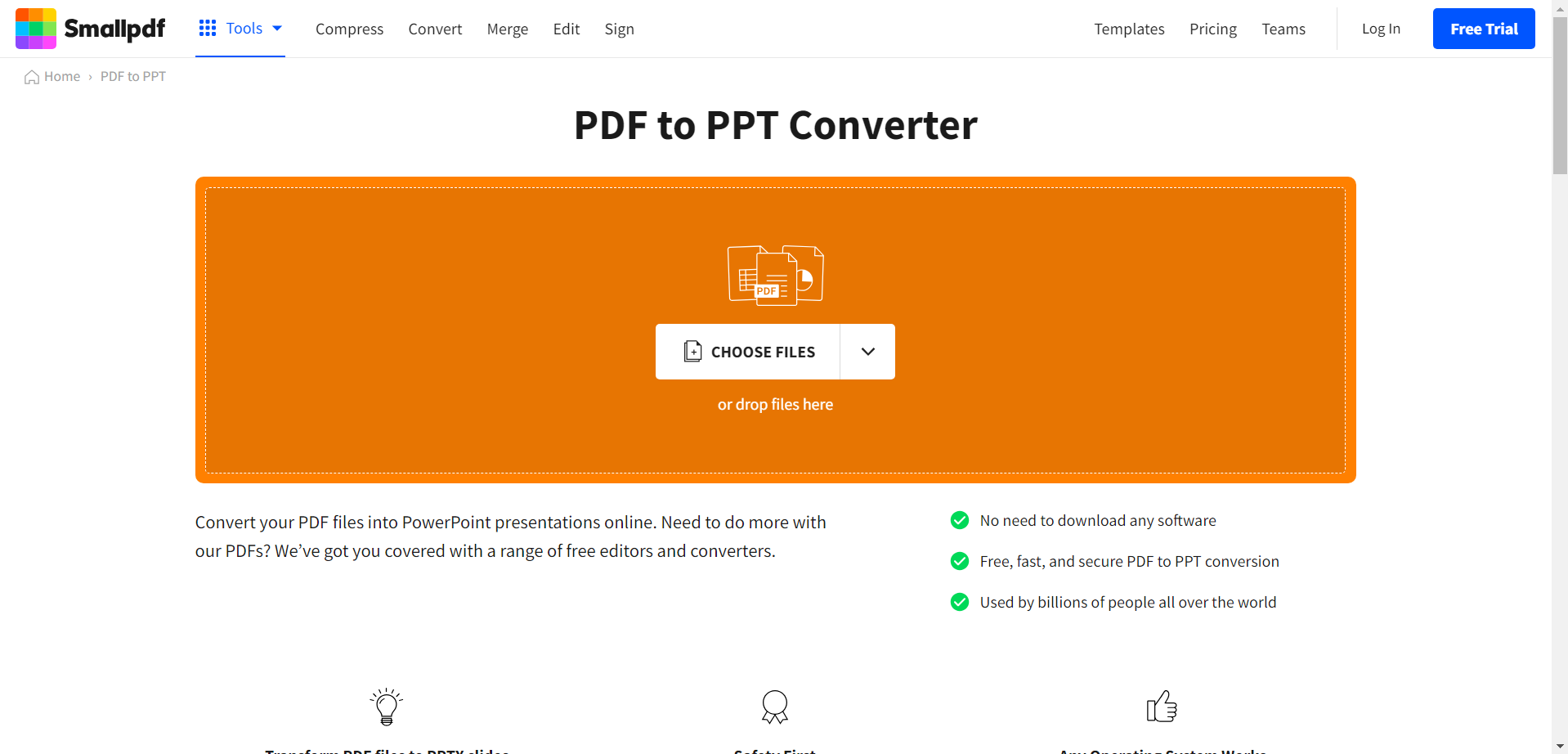
→ Upload Your PDF: Using your chosen tool, upload the PDF file you want to convert. Most tools provide a simple drag-and-drop interface for this purpose.
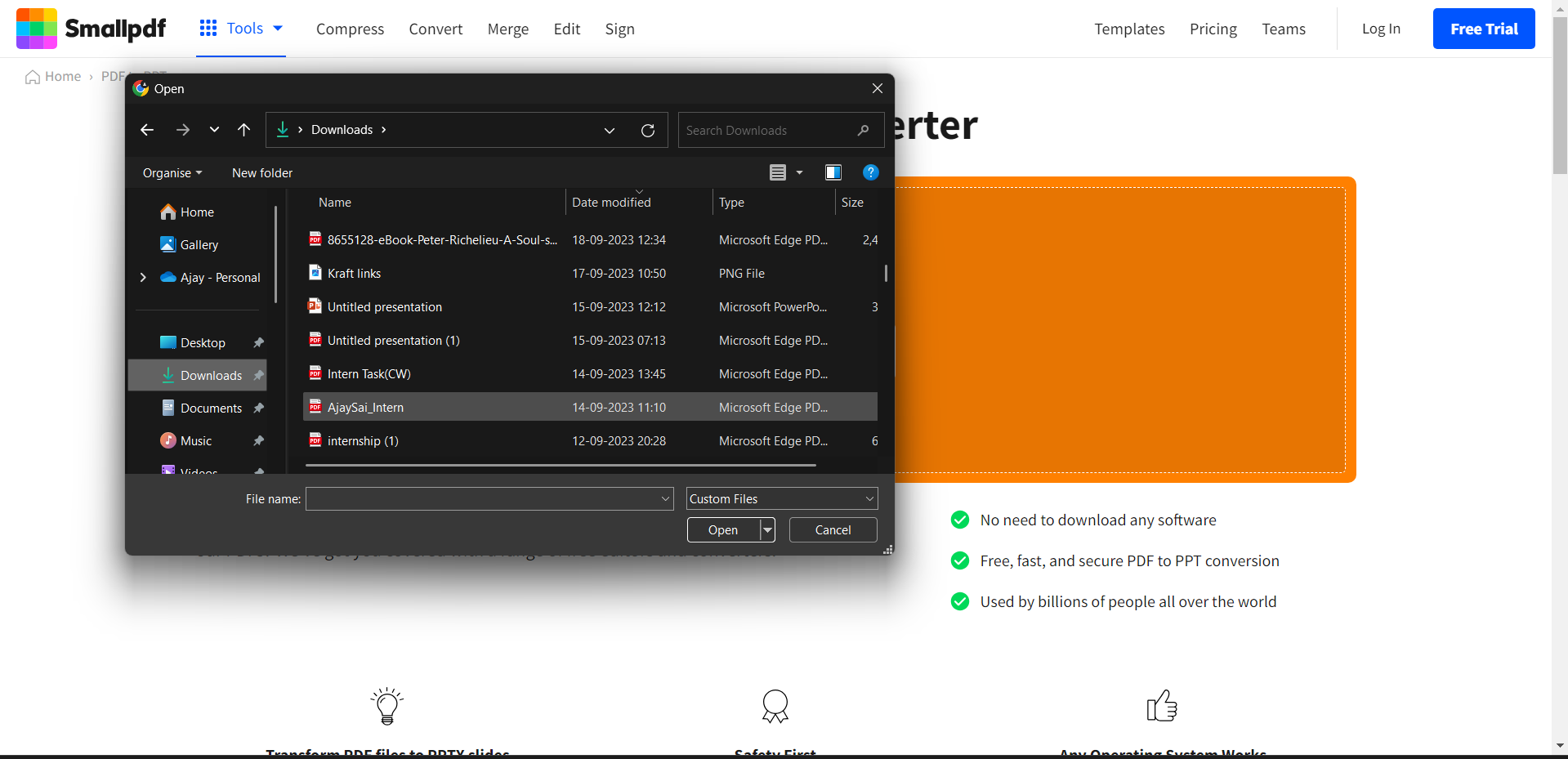
→ Select Conversion Format: Choose the format you want to convert to, which is PowerPoint or PPTX in this case.
→ Start the Conversion: Initiate the conversion process. This may take a few moments, depending on the size and complexity of the PDF.
→ Download the PowerPoint File: Once the conversion is complete, download the PowerPoint file to your computer.
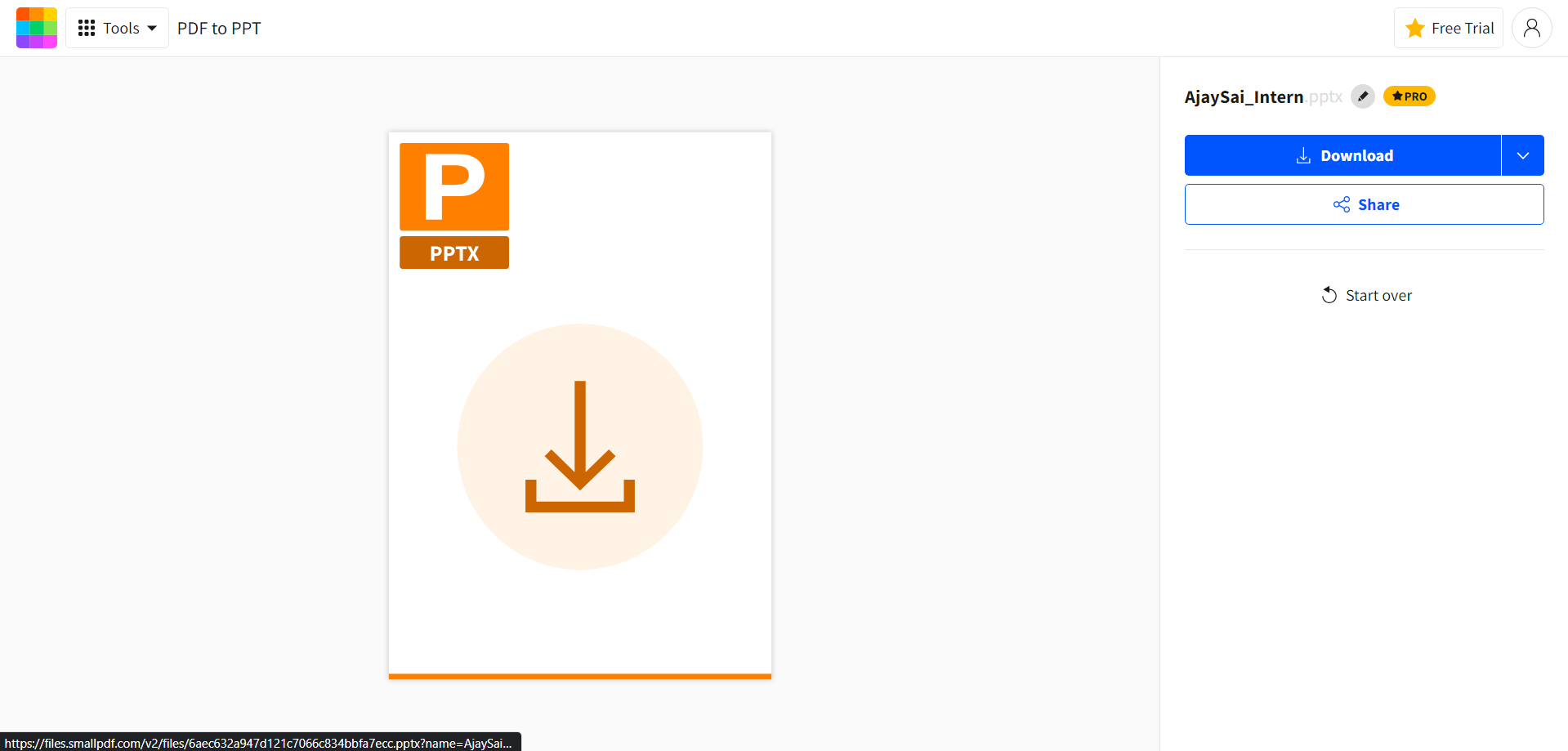
→ Review and Edit: Open the converted PowerPoint file and review it. You may need to make adjustments to formatting, layouts, and fonts to ensure the presentation looks as intended.
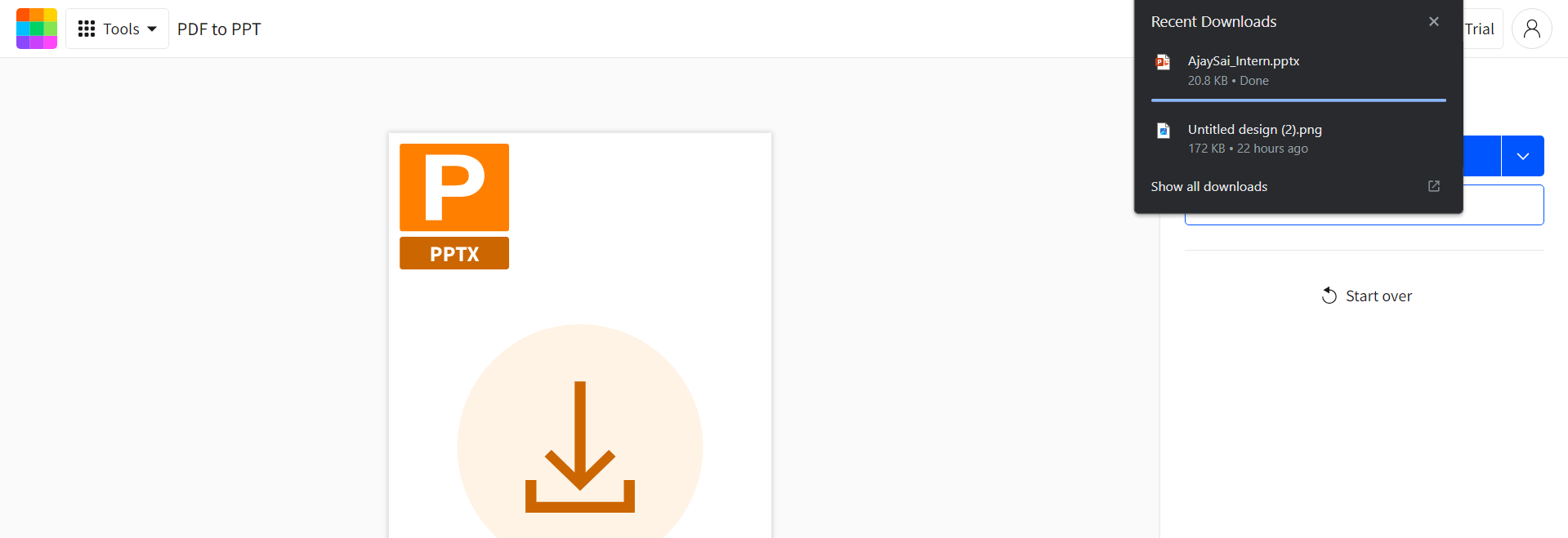
→ Add Animations and Transitions (Optional): To enhance the visual appeal of your presentation, consider adding animations and slide transitions to make your content flow smoothly.
→ Customize as Needed: If the PDF contains elements like images, charts, or tables, you can further customize these in PowerPoint to suit your presentation style.
→ Rehearse and Refine: Practice your presentation to ensure it flows well and conveys your message effectively.
→ Save and Share: Once you're satisfied, save your PowerPoint presentation, and you're ready to share it with your audience.
Conclusion:
Converting a PDF to PowerPoint is a skill that can transform your content from static to dynamic, making it more engaging and interactive. Whether you're reusing old documents or incorporating external resources into your presentation, the process is relatively simple.
By choosing the right conversion tool and investing a bit of time in fine-tuning the presentation, you can captivate your audience with visual aids, animations, and an engaging storyline.
This conversion process is a valuable tool for students, educators, business professionals, and anyone who wants to present information effectively. It allows you to make your content more dynamic, memorable, and interactive.
So, the next time you have a PDF that needs to come to life, follow these steps, and convert it into a PowerPoint presentation that will leave a lasting impression on your audience.


